Notă
Accesul la această pagină necesită autorizare. Puteți încerca să vă conectați sau să modificați directoarele.
Accesul la această pagină necesită autorizare. Puteți încerca să modificați directoarele.
The Prompt API is an experimental web API that allows you to prompt a small language model (SLM) that is built into Microsoft Edge, from your website's or browser extension's JavaScript code. Use the Prompt API to generate and analyze text or create application logic based on user input, and discover innovative ways to integrate SLM capabilities into your web application.
Detailed contents:
- Availability of the Prompt API
- Alternatives to and benefits of the Prompt API
- The Aion Instruct model
- Enable the Prompt API
- See a working example
- Use the Prompt API
- Send feedback
- See also
Availability of the Prompt API
The Prompt API is available as a developer preview in Microsoft Edge. You can test the Prompt API in either of the following ways:
- Locally in Microsoft Edge, on your device only.
- On your production website, by registering for an origin trial.
See Enable the Prompt API, below.
The Prompt API is intended to help discover use cases and understand challenges for built-in SLMs. The Prompt API provides general-purpose prompting capabilities, while related experimental APIs are designed for specific AI-powered tasks, such as summarization, writing assistance, decision-making, and translation. To learn more about these APIs, see:
- Summarize, write, and rewrite text with the writing assistance APIs
- Classify text with the Decisions API
- Correct grammar, spelling, and punctuation errors in text with the Proofreader API
- Detect languages with the Language Detector API
- Translate text with the Translator API
Alternatives to and benefits of the Prompt API
To leverage AI capabilities in websites and browser extensions, you can also use the following methods:
Send network requests to cloud-based AI services, such as Azure AI solutions.
Run local AI models using the Web Neural Network (WebNN) API or ONNX Runtime for Web.
The Prompt API uses an SLM that runs on the same device where the inputs to and outputs of the model are used (that is, locally). This has the following benefits compared to cloud-based solutions:
Reduced cost: There's no cost associated with using a cloud AI service.
Network independence: Beyond the initial model download, there's no network latency when prompting the model, and may also be used when the device is offline.
Improved privacy: The data input to the model never leaves the device, and isn't collected to train AI models.
The Prompt API uses a language model that's provided by Microsoft Edge and built into the browser, which comes with the additional benefits over custom local solutions such as those based on WebGPU, WebNN, or WebAssembly:
Shared one-time cost: The browser-provided model is downloaded the very first time the API is called and shared across all websites that run in the browser, reducing network costs for developers and users.
Simplified usage for web developers: The built-in model can be run by using straightforward web APIs and doesn't require AI/ML expertise or using third-party frameworks.
The Aion Instruct model
In Microsoft Edge, the Prompt API uses the Aion Instruct model, which is built into the browser. Aion Instruct is a capable 2.3B parameter small language model which excels at text-based tasks. To learn more about the model, see the model card at microsoft/Aion-1.0-Instruct, at Hugging Face.
Disclaimer
Like other language models of this size, Aion Instruct can potentially behave in ways that are unreliable, inaccurate, unfair, or offensive. You should consider the risks of passing untrusted content to the model, and validate the source and integrity of content before using the content as model input. To learn more about the model's Responsible AI considerations, see Responsible AI Considerations, in microsoft/Aion-1.0-Instruct, at Hugging Face.
Hardware requirements
The Prompt API developer preview is intended to work on devices with hardware capabilities that produce SLM outputs with predictable quality and latency. The Prompt API is currently limited to:
Operating systems:
- Windows 10 or 11.
- macOS 13.3 or later.
- 64-bit (x64) Linux with Vulkan GPU drivers and Microsoft Edge 159 or later.
Storage: At least 20 GB available on the volume that contains your Edge profile. If the available storage drops below 5 GB, the model will be deleted to ensure that other browser features have sufficient space to function.
GPU: 3 GB of VRAM or more.
Network: Unlimited data plan or unmetered connection. The model isn't downloaded if using a metered connection.
To check if your device supports the Prompt API developer preview, see Enable the Prompt API below and check your device performance class.
Due to the experimental nature of the Prompt API, you might observe issues on specific hardware configurations. If you see issues on specific hardware configurations, please provide feedback by opening a new issue at the MSEdgeExplainers repository.
Availability of the Aion Instruct model
An initial download of the Aion Instruct model is required the first time that a website calls an API that requires an on-device model. To monitor the downloading of the model, use the monitor option when creating a new Prompt API session. To learn more, see Monitor the progress of the model download, below.
The model is unavailable in the following conditions:
- If the On-device AI option is disabled under Settings > Copilot and AI.
- If the GenAILocalFoundationalModelSettings or ComponentUpdatesEnabled enterprise policies are configured to block the model download.
- If the device doesn't meet hardware, disk space, or network requirements.
Consideration for Edge Canary, Dev, and Beta
In Microsoft Edge Canary, Dev, and Beta, the On-device AI option is disabled by default under Settings > Copilot and AI, to avoid downloading the model separately for each channel.
If you enable the Prompt API flag in edge://flags, the On-device AI option is automatically enabled in Canary, Dev, and Beta. See Test the Prompt API locally, below.
If you're testing by using an origin trial token in Canary, Dev, or Beta, without the flag enabled, manually enable the On-device AI option under Settings > Copilot and AI to download the model. See Enable the Prompt API for your users by registering for an origin trial, below.
Enable the Prompt API
To use the Prompt API in Microsoft Edge, you can either test it locally or register for an origin trial to enable it on your production website. The sections below provide instructions for both approaches.
Test the Prompt API locally
To test the Prompt API on your device only:
Make sure you're using Microsoft Edge version 158 or later.
In Microsoft Edge, open a new tab or window, and then go to
edge://flags.In the search box, at the top of the page, enter Prompt API.
The page is filtered to show the matching flag.
Under Prompt API, select Enabled:
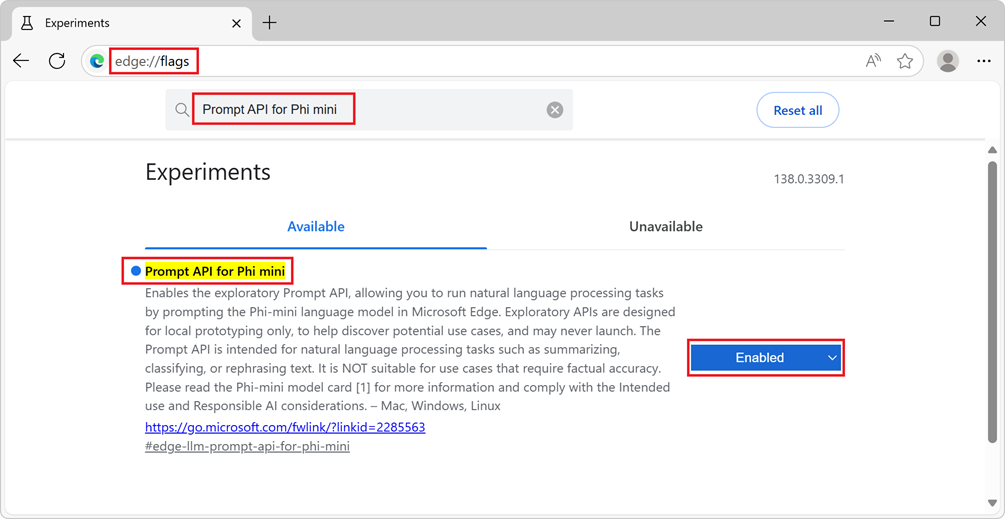
Optionally, to log information locally that may be useful for debugging issues, also enable the Enable on device AI model debug logs flag.
Restart Edge.
To check if your device meets the hardware requirements for the Prompt API developer preview, open a new tab, go to
edge://on-device-internals, and check the Device performance class value.If your device performance class is Medium or greater, the Prompt API should be supported on your device.
If you notice issues with these models, please Create a new issue in the MSEdgeExplainers repo.
Enable the Prompt API for your users by registering for an origin trial
You can try the Prompt API on your own live site for a limited period of time by using an origin trial. When using the Prompt API origin trial, users of Microsoft Edge that visit your site can run code that uses the Prompt API.
To learn more about origin trials in Microsoft Edge, see Test experimental APIs and features by using origin trials.
To register for the Prompt API origin trial, follow the steps at Registering for an origin trial and select the Prompt API origin trial.
See a working example
To see the Prompt API in action, and review existing code that uses the API:
Enable the Prompt API, as described above.
In Edge, open a tab or window and go to the Prompt API playground.
In the Built-in AI playgrounds navigation on the left, Prompt is selected.
In the information banner at the top, check the status: it initially reads Model downloading, please wait:
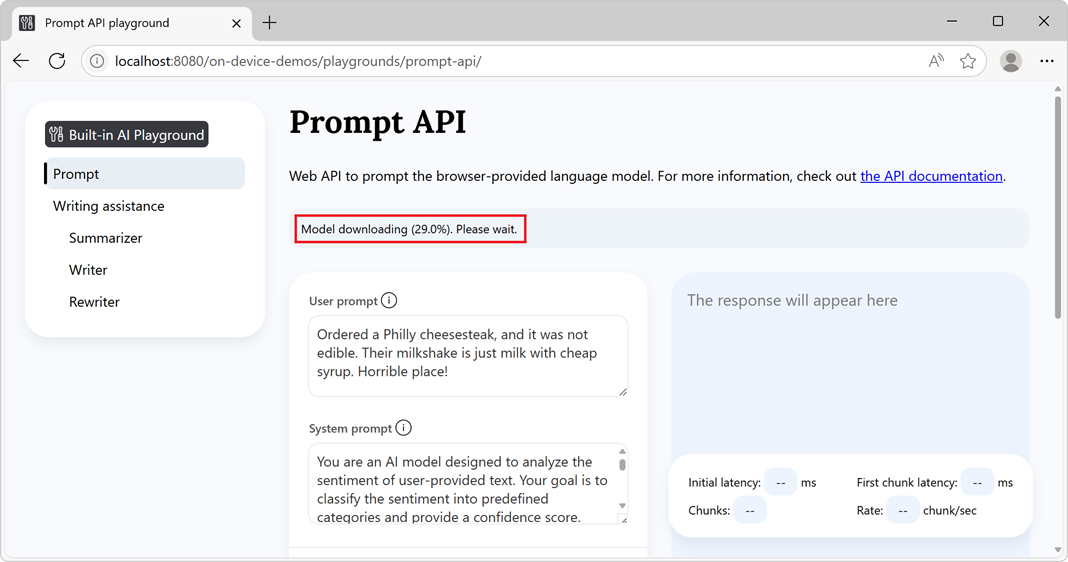
After the model has downloaded, the information banner reads API and model ready, indicating that the API and model can be used:
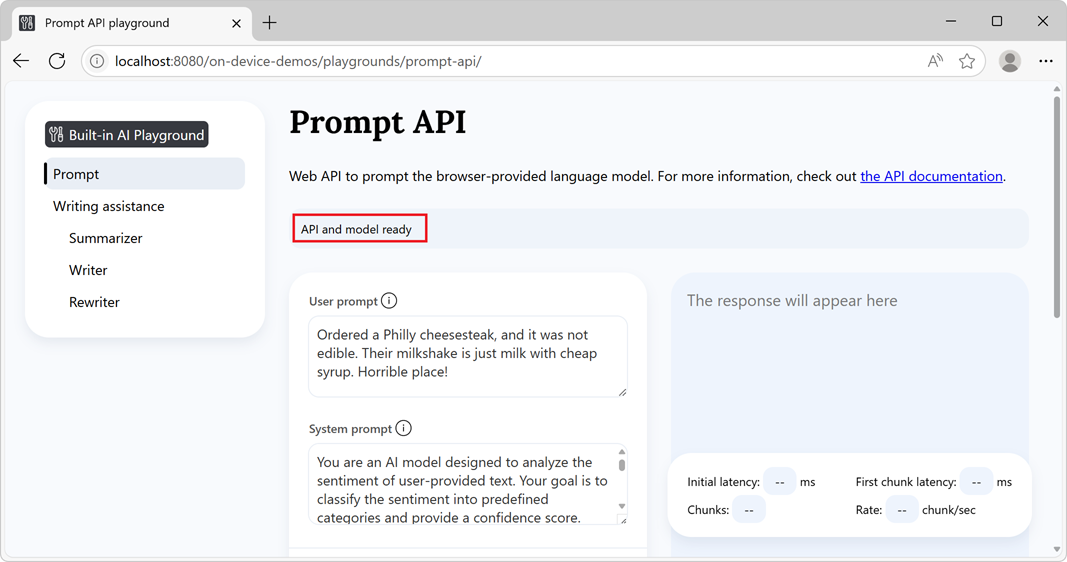
If the model download doesn't start, restart Microsoft Edge and try again.
The Prompt API is only supported on devices that meet certain hardware requirements. For more information, see Hardware requirements, above.
Optionally change the prompt settings values, such as:
- User prompt
- System prompt
- Response constraint schema
- More settings > N-shot prompt instructions
Click the Prompt button, at the bottom of the page.
The response is generated in the response section of the page:
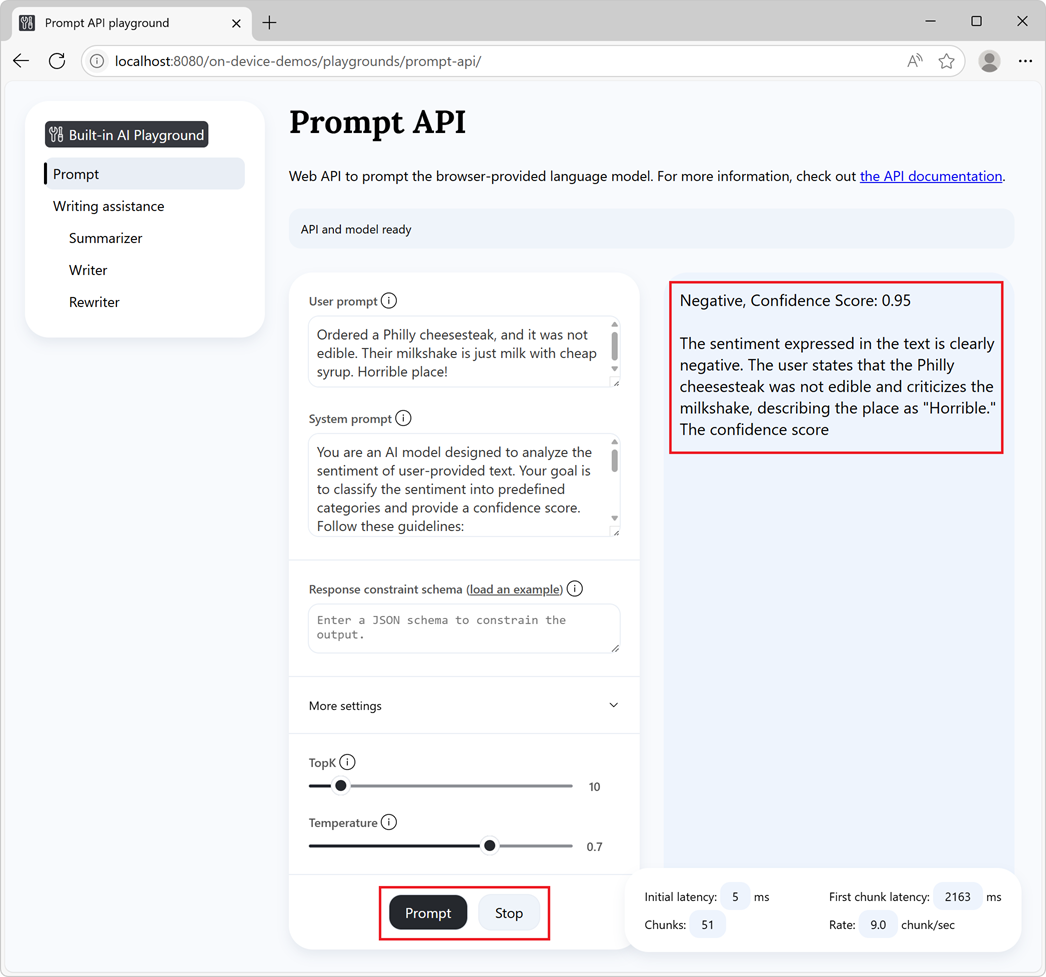
To stop generating the response, at any time, click the Stop button.
See also:
- /built-in-ai/ - Source code and Readme for Built-in AI playgrounds, including the Prompt API playground.
Use the Prompt API
Check if the API is enabled
Before using the API in your website or extension's code, check that the API is enabled by testing the presence of the LanguageModel object:
if (!LanguageModel) {
  // The Prompt API is not available.
} else {
  // The Prompt API is available.
}
Check if the model can be used
The Prompt API can only be used if the device supports running the model, and once the language model and model runtime have been downloaded by Microsoft Edge.
To check if the API can be used, use the LanguageModel.availability() method:
const availability = await LanguageModel.availability();

if (availability == "unavailable") {
  // The model is not available.
}

if (availability == "downloadable" || availability == "downloading") {
  // The model can be used, but it needs to be downloaded first.
}

if (availability == "available") {
  // The model is available and can be used.
}
Create a new session
Creating a session instructs the browser to load the language model in memory, so that it can be used. Before you can prompt the language model, create a new session by using the create() method:
// Create a LanguageModel session.
const session = await LanguageModel.create();
To customize the model session, you can pass options to the create() method:
// Create a LanguageModel session with options.
const session = await LanguageModel.create(options);
The available options are:
monitor, to follow the progress of the model download.initialPrompts, to give the model context about the prompts which will be sent to the model, and to establish a pattern of user/assistant interactions that the model should follow for future prompts.
These options are documented below.
Monitor the progress of the model download
To follow the progress of the downloading of the model, use the monitor option. This is useful when the model has not yet been fully downloaded onto the device on which the model will be used, to inform users of your website that they need to wait.
// Create a LanguageModel session with the monitor option to monitor the model
// download.
const session = await LanguageModel.create({
  monitor: m => {
    // Use the monitor object argument to add an listener for the
    // downloadprogress event.
    m.addEventListener("downloadprogress", event => {
      // The event is an object with the loaded and total properties.
      if (event.loaded == event.total) {
        // The model is fully downloaded.
      } else {
        // The model is still downloading.
        const percentageComplete = (event.loaded / event.total) * 100;
      }
    });
  }
});
Provide the model with a system prompt
To define a system prompt, which is a way to give the model instructions to use when generating text in response to a prompt, use the initialPrompts option.
The system prompt you provide when creating a new session is preserved for the entire existence of the session, even if the context window overflows due to too many prompts.
// Create a LanguageModel session with a system prompt.
const session = await LanguageModel.create({
  initialPrompts: [{
    role: "system",
    content: "You are a helpful assistant."
  }]
});
Placing the { role: "system", content: "You are a helpful assistant." } prompt anywhere besides at the 0th position in initialPrompts will reject with a TypeError.
N-shot prompting with initialPrompts
The initialPrompts option also allows you to provide examples of user/assistant interactions which you want the model to continue using when prompted.
This technique is also known as N-shot prompting and is useful to make the responses that are generated by the model more deterministic.
// Create a LanguageModel session with multiple initial prompts, for N-shot
// prompting.
const session = await LanguageModel.create({
  initialPrompts: [
    { role: "system", content: "Classify the following product reviews as either OK or Not OK." },
    { role: "user", content: "Great shoes! I was surprised at how comfortable these boots are for the price. They fit well and are very lightweight." },
    { role: "assistant", content: "OK" },
    { role: "user", content: "Terrible product. The manufacturer must be completely incompetent." },
    { role: "assistant", content: "Not OK" },
    { role: "user", content: "Could be better. Nice quality overall, but for the price I was expecting something more waterproof" },
    { role: "assistant", content: "OK" }
  ]
});
Clone a session to start the conversation again with the same options
Clone an existing session to prompt the model without the knowledge from the previous interactions, but with the same session options.
Cloning a session is useful when you want to use the options from a previous session but without influencing the model with previous responses.
// Create a first LanguageModel session.
const firstSession = await LanguageModel.create({
  initialPrompts: [{
    role: "system",
    content: "You are a helpful assistant."
  }]
});

// Later, create a new session by cloning the first session to start a new
// conversation with the model, but preserve the first session's settings.
const secondSession = await firstSession.clone();
Prompt the model
To prompt the model, after you have created a model session, use the session.prompt() or session.promptStreaming() methods.
Wait for the final response
The prompt method returns a promise that resolves once the model has finished generating text in response to your prompt:
// Create a LanguageModel session.
const session = await LanguageModel.create();

// Prompt the model and wait for the response to be generated.
const result = await session.prompt(promptString);

// Use the generated text.
console.log(result);
Display tokens as they are generated
The promptStreaming method returns a stream object right away. Use the stream to display the response tokens as they are being generated:
// Create a LanguageModel session.
 const session = await LanguageModel.create();

// Prompt the model.
 const stream = session.promptStreaming(myPromptString);

// Use the stream object to display tokens that are generated by the model, as
// they are being generated.
for await (const chunk of stream) {
  console.log(chunk);
}
You can call the prompt and promptStreaming methods multiple times within the same session object to continue generating text that's based on previous interactions with the model within that session.
Constrain the model output by using a JSON schema or regular expression
To make the format of the model responses more deterministic and easier to use in a programmatic manner, use the responseConstraint option when prompting the model.
The responseConstraint option accepts a JSON schema or a regular expression:
To make the model respond with a stringified JSON object which follows a given schema, set
responseConstraintto the JSON schema you want to use.To make the model respond with a string that matches a regular expression, set
responseConstraintto that regular expression.
The following example shows how to make the model respond to a prompt with a JSON object that follows a given schema:
// Create a LanguageModel session, with a system prompt.
const session = await LanguageModel.create({
  initialPrompts: [
    {
      role: "system",
      content: "You are an AI model designed to analyze the sentiment of user-provided text. Your goal is to classify the sentiment into predefined categories and provide a confidence score. Follow these guidelines:\n\n- Identify whether the sentiment is positive, negative, or neutral.\n- Provide a confidence score (0-1) reflecting the certainty of the classification.\n- Ensure the sentiment classification is contextually accurate.\n- If the sentiment is unclear or highly ambiguous, default to neutral.\n\nYour responses should be structured and concise, adhering to the defined output schema."
    }
  ]
});

// Define a JSON schema for the Prompt API to constrain the generated response.
const schema = {
  "type": "object",
  "required": ["sentiment", "confidence"],
  "additionalProperties": false,
  "properties": {
    "sentiment": {
      "type": "string",
      "enum": ["positive", "negative", "neutral"],
      "description": "The sentiment classification of the input text."
    },
    "confidence": {
      "type": "number",
      "minimum": 0,
      "maximum": 1,
      "description": "A confidence score indicating certainty of the sentiment classification."
    }
  }
}
;

// Prompt the model, by providing the JSON schema in the responseConstraint
// option.
const response = await session.prompt(
  "Ordered a Philly cheesesteak, and it was not edible. Their milkshake is just milk with cheap syrup. Horrible place!",
  { responseConstraint: schema }
);
Running the above code returns a response which contains a stringified JSON object such as:
{"sentiment": "negative", "confidence": 0.95}
You can then use the response in your code logic by parsing it using the JSON.parse() function:
// Parse the JSON string generated by the model and extract the sentiment and
// confidence values.
const { sentiment, confidence } = JSON.parse(response);

// Use the values.
console.log(`Sentiment: ${sentiment}`);
console.log(`Confidence: ${confidence}`);
Send multiple messages per prompt
In addition to strings, the prompt and promptStreaming methods also accept an array of objects that's used to send multiple messages with custom roles. The objects you send should be in the form { role, content }, where role is either user or assistant, and content is the message.
For example, to provide multiple user messages and an assistant message in the same prompt:
// Create a LanguageModel session.
const session = await LanguageModel.create();

// Prompt the model by sending multiple messages at once.
const result = await session.prompt([
  { role: "user", content: "First user message" },
  { role: "user", content: "Second user message" },
  { role: "assistant", content: "The assistant message" }
]);
Stop generating text
To abort a prompt before the promise returned by session.prompt() has been resolved, or before the stream returned by session.promptStreaming() has ended, use an AbortController signal:
// Create a LanguageModel session.
const session = await LanguageModel.create();

// Create an AbortController object.
const abortController = new AbortController();

// Prompt the model by passing the AbortController object by using the signal
// option.
const stream = session.promptStreaming(myPromptString , {
  signal: abortController.signal
});

// Later, perhaps when the user presses a "Stop" button, call the abort()
// method on the AbortController object to stop generating text.
abortController.abort();
Destroy a session
Destroy the session to let the browser know that you don't need the language model anymore, so that the model can be unloaded from memory.
You can destroy a session in two different ways:
- By using the
destroy()method. - By using an
AbortController.
Destroy a session by using the destroy() method
// Create a LanguageModel session.
const session = await LanguageModel.create();

// Later, destroy the session by using the destroy method.
session.destroy();
Destroy a session by using an AbortController
// Create an AbortController object.
const controller = new AbortController();

// Create a LanguageModel session and pass the AbortController object by using
// the signal option.
const session = await LanguageModel.create({ signal: controller.signal });

// Later, perhaps when the user interacts with the UI, destroy the session by
// calling the abort() function of the AbortController object.
controller.abort();
Account for the AI-generated content watermark
Starting with Microsoft Edge version 158, text generated by the Prompt API includes an invisible watermark, which indicates that the text is AI-generated. If your website or extension processes the generated text, make sure that your code accounts for the watermark when you render, parse, or convert the response.
To learn more about the watermarking scheme, see Watermarking scheme in Watermarking in Windows AI text APIs.
The watermark isn't applied to responses that are generated by using the responseConstraint option. See Constrain the model output by using a JSON schema or regular expression, above.
Before you remove the automatically inserted watermark, consider these requirements: you are responsible for making sure that your website or extension meets all applicable requirements for marking AI-generated content.
Send feedback
The Prompt API developer preview and origin trial are intended to help discover use-cases for browser-provided language models.
We're interested in learning about:
- The range of scenarios for which you intend to use the Prompt API.
- Any issues with the Prompt API.
- Any issues with the Aion Instruct model.
- Any challenges with interoperability for the Prompt API across different browsers and models.
- Whether new task-specific APIs would be useful.
To send feedback about your scenarios and the tasks you want to achieve, please add a comment to the Prompt API feedback issue.
If you notice any issues when using the API instead, please report it on the repo.
You can also contribute to the discussion about the design of the Prompt API at the W3C Web Machine Learning Working Group repository.
See also
- Prompt API draft specification
- webmachinelearning/prompt-api GitHub repo
- /built-in-ai/ - Source code and Readme for Built-in AI playgrounds, including the Prompt API playground.
- Summarize, write, and rewrite text with the Writing Assistance APIs
- Classify text with the Decisions API
- Correct grammar, spelling, and punctuation errors in text with the Proofreader API
- Detect languages with the Language Detector API
- Translate text with the Translator API