Notă
Accesul la această pagină necesită autorizare. Puteți încerca să vă conectați sau să modificați directoarele.
Accesul la această pagină necesită autorizare. Puteți încerca să modificați directoarele.
Upload a local file to use its contents in Power Query Online. The uploaded file is stored in your OneDrive for work or school account, and Power Query creates a query that reads it.
To start from the Upload module in Get data, go to Upload module. This article covers supported formats, the connector's upload and sign-in steps, and drag and drop from the query editor.
The following connectors currently support the upload a file feature.
Note
Only files with the following extensions are supported for upload: .csv, .json, .pdf, .prn, .tsv, .txt, .xl, .xls, .xlsb, .xlsm, .xlsw, .xlsx, .xml.
Upload a file experience
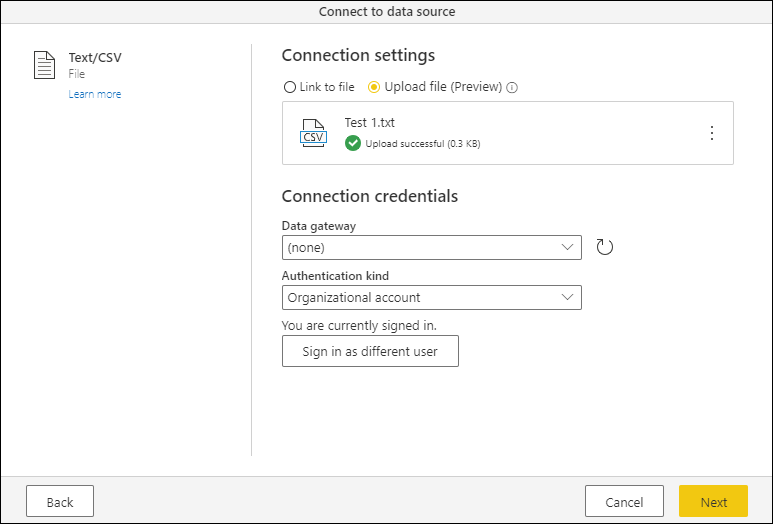
When you select a connector that offers the Upload file experience, a radio button appears on the top of the Connection settings that enables this feature.
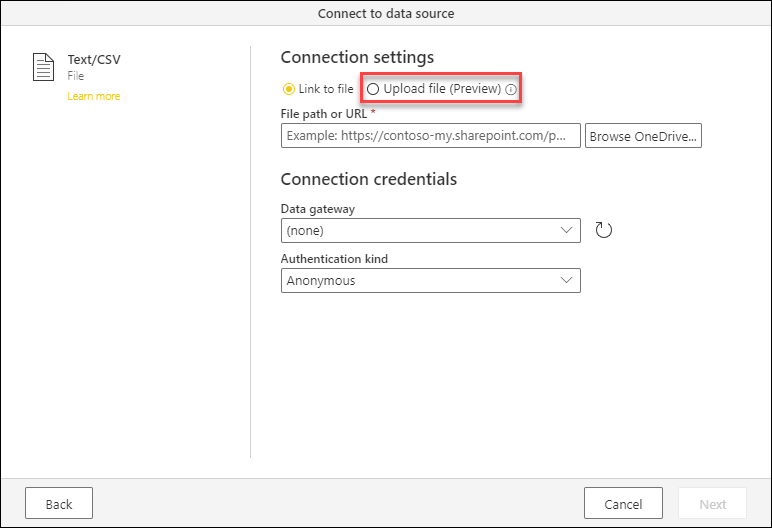
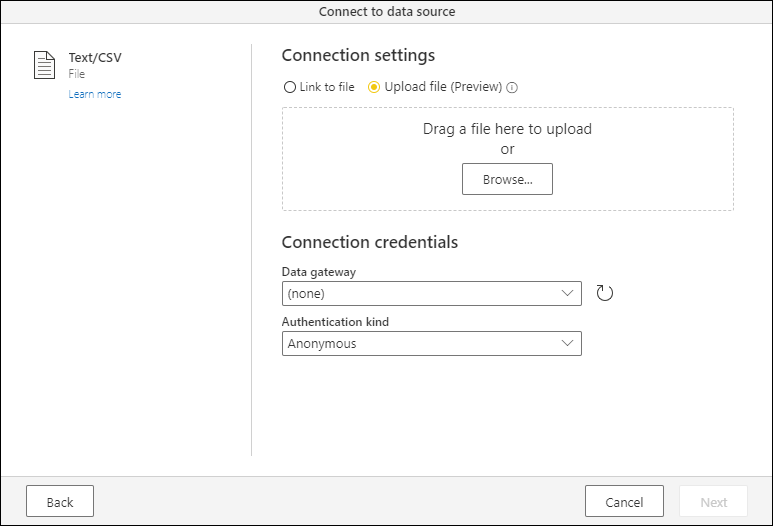
When you select Upload file, the option underneath opens a simple dialog to let you either drag a file or browse in your local file system to upload a file.
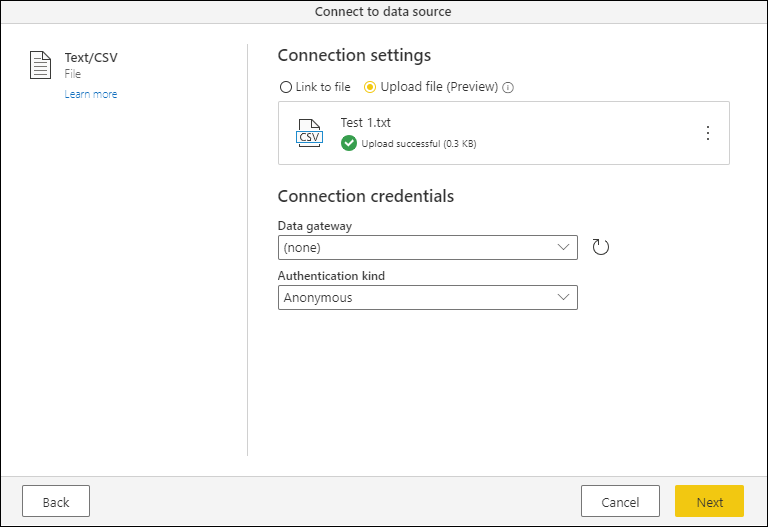
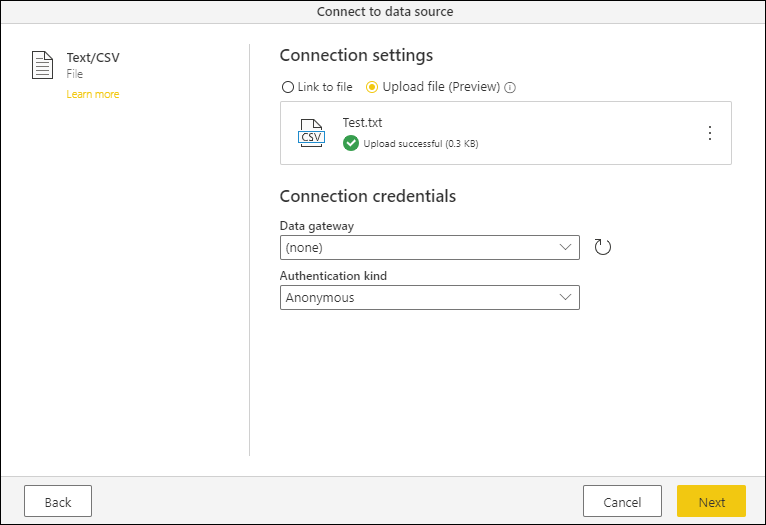
After you select a file, a progress bar shows the upload's progress. When the upload finishes, a green check mark, Upload successful, and the file size appear underneath the file name.
Note
The files you upload through this feature are stored in your OneDrive for work or school account, not at the original local path. Don't assume that changing the original file on your computer changes the uploaded copy.
In the illustrated connector experience, change the authentication kind from Anonymous to Organizational account before selecting Next. Select Sign in to authenticate to the account used for the uploaded file.
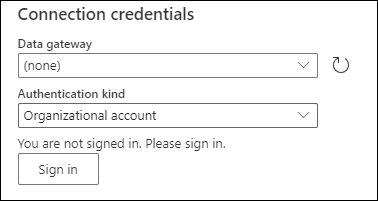
After authentication, You are currently signed in appears underneath Authentication Kind. Select Next to create a query from the uploaded file stored in your OneDrive for work or school account.
Drag-and-drop experience in the query editor
In the Power Query editor, drop a file onto the diagram view or queries pane to upload it.
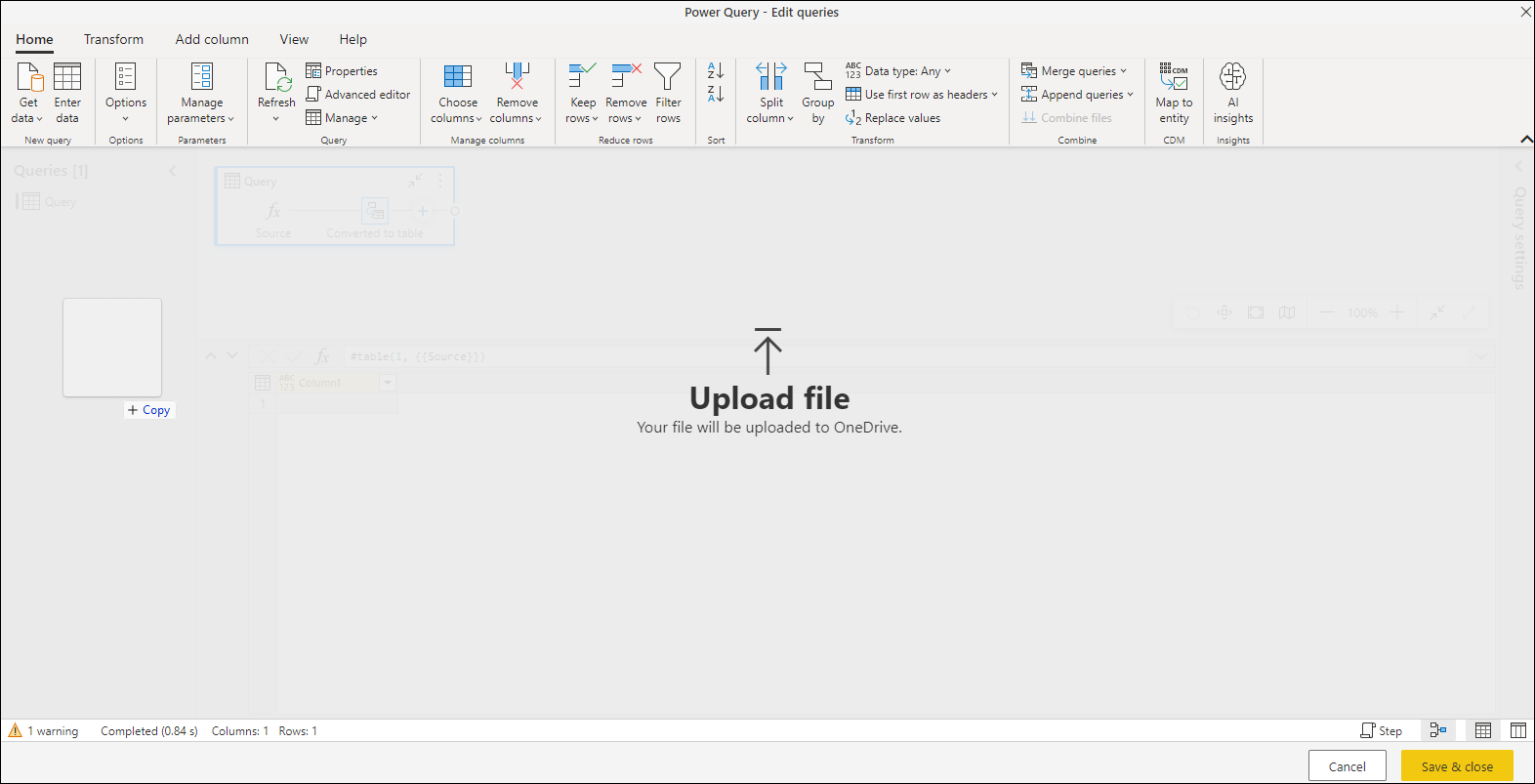
The editor opens the connector settings for the file's extension. For example, dropping a text file opens the Text/CSV connection settings.
Check the file before using the query
Confirm that the extension is supported, the upload completed successfully, and you signed in with the required organizational account. In the data preview, check the file's interpretation, such as the delimiter for a CSV file or the selected sheet in an Excel workbook.
If the file already exists online, use its existing source connection rather than creating another copy unless you need a separate uploaded file.