Notă
Accesul la această pagină necesită autorizare. Puteți încerca să vă conectați sau să modificați directoarele.
Accesul la această pagină necesită autorizare. Puteți încerca să modificați directoarele.
Visual Studio provides several refactorings for working with properties and fields. You can access these refactorings through the Quick Actions and Refactorings menu (Ctrl+.).
Encapsulate field
Applies to: C#, Visual Basic
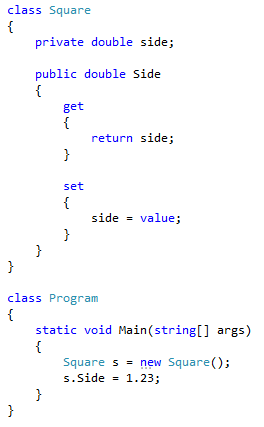
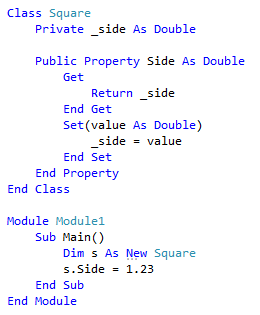
This refactoring turns a field into a property, and updates all usages of that field to use the newly created property. This enables you to control access by writing validation code in the property.
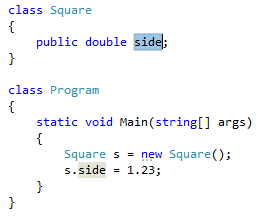
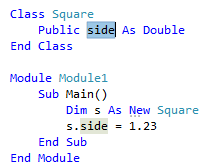
Highlight or place the text cursor inside the name of the field to encapsulate:
C#:
Visual Basic:
Next, do one of the following:
- Keyboard
- Press Ctrl+R, then Ctrl+E. (Your keyboard shortcut may be different based on which profile you've selected.)
- Press Ctrl+. to trigger the Quick Actions and Refactorings menu and select either Encapsulate field entry from the Preview window popup.
- Mouse
- Select Edit > Refactor > Encapsulate Field.
- Right-click the code, select the Quick Actions and Refactorings menu and select either Encapsulate field entry from the Preview window popup.
Selection Description Encapsulate field (and use property) Encapsulates the field with a property, and updates all usages of the field to use the generated property Encapsulate field (but still use field) Encapsulates the field with a property, but leaves all usages of the field untouched The property is created and references to the field are updated, if selected.
Tip
Use the Preview changes link in the popup window to see what the result will be before committing to it.
C#:
Visual Basic:
- Keyboard
Convert between auto property and full property
Applies to: C#
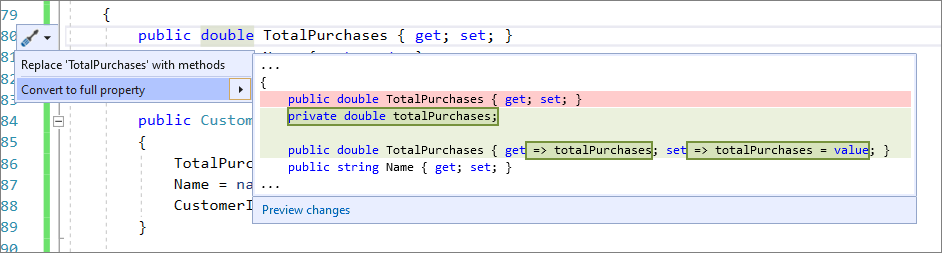
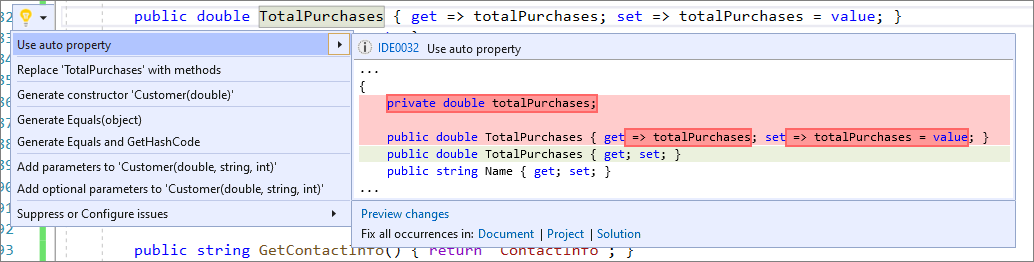
This refactoring converts between an auto-implemented property and a full property, useful when the logic of the property has changed and you need a backing field.
Place your cursor on the property name.
Press Ctrl+. to trigger the Quick Actions and Refactorings menu.
Select from the following two options:
Select Convert to full property.
Select Use auto property.
Convert between Get method and property
Applies to: C#, Visual Basic
This section covers bidirectional conversion between Get methods and properties.
Convert Get method to property
This refactoring converts a Get method into a property (and optionally the Set method), useful when a Get method doesn't contain any logic.
Place your cursor in your Get method name.
Next, do one of the following:
- Keyboard
- Press Ctrl+. to trigger the Quick Actions and Refactorings menu, and select Replace method with property from the Preview window popup.
- Mouse
- Right-click the code, select the Quick Actions and Refactorings menu, and select Replace method with property from the Preview window popup.
- Keyboard
(Optional) If you have a Set method, you can also convert your Set method at this time by selecting Replace Get method and Set method with property.
If you are happy with the change in the code preview, press Enter or click the fix from the menu and the changes will be committed.
Example:
private int MyValue;

// Before
public int GetMyValue()
{
    return MyValue;
}

// Replace 'GetMyValue' with property

// After
public int MyValue
{
    get { return MyValue; }
}
Convert property to Get method
This refactoring converts a property to a Get method, useful when a property involves more than immediately setting and getting a value.
Place your cursor in your Get method name.
Next, do one of the following:
- Keyboard
- Press Ctrl+. to trigger the Quick Actions and Refactorings menu and select Replace property with methods from the Preview window popup.
- Mouse
- Right-click the code, select the Quick Actions and Refactorings menu and select Replace property with methods from the Preview window popup.
- Keyboard
If you are happy with the change in the code preview, press Enter or click the fix from the menu and the changes will be committed.