Примечание.
Для доступа к этой странице требуется авторизация. Вы можете попробовать войти или изменить каталоги.
Для доступа к этой странице требуется авторизация. Вы можете попробовать изменить каталоги.
If you want to host more HPC Caches than your subscription currently allows, use the support request form in the Azure portal to request a quota increase.
You also can use the quotas page in the Azure portal to check your current quotas and request increases.
Сведения о квотах
The default quota for Azure HPC Cache is four caches per subscription. If you want to create more than six caches in the same subscription, support approval is needed.
Each HPC Cache uses multiple virtual machines, network resources, storage containers, and other Azure services, so it's unlikely that the number of caches per subscription will be the limiting factor in how many you can have. Quotas for those other services are handled separately from HPC Cache quotas, so you must open different tickets to increase those quotas.
Запрос на увеличение квоты
Перейдите к экземпляру кэша, а затем щелкните ссылку "Создать запрос на поддержку ", которая отображается в нижней части боковой панели.
Чтобы открыть билет, если у вас нет активного кэша, используйте главную страницу справки и поддержки на портале Azure. Откройте меню портала в левом верхнем углу экрана, а затем прокрутите страницу вниз и нажмите кнопку "Справка и поддержка".
Choose Create a support request.
Выберите подписку из списка.
Если вы не можете найти службу Azure HPC Cache, нажмите кнопку "Все службы " и найдите HPC.
For Issue type, select Service and subscription limits (quotas).
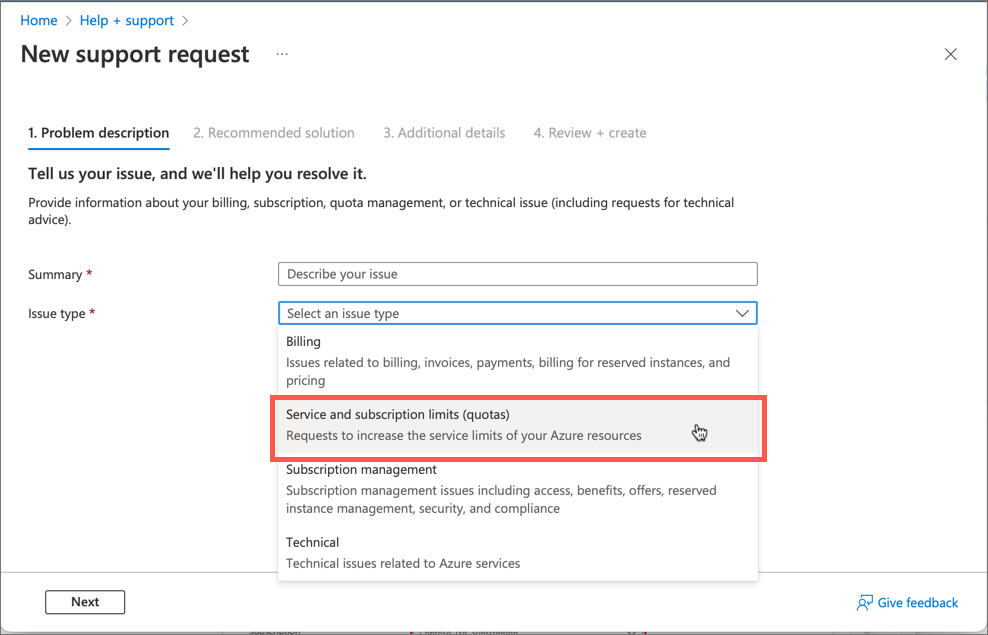
Select the Subscription for the quota increase.
Select the Quota type "HPC Cache".
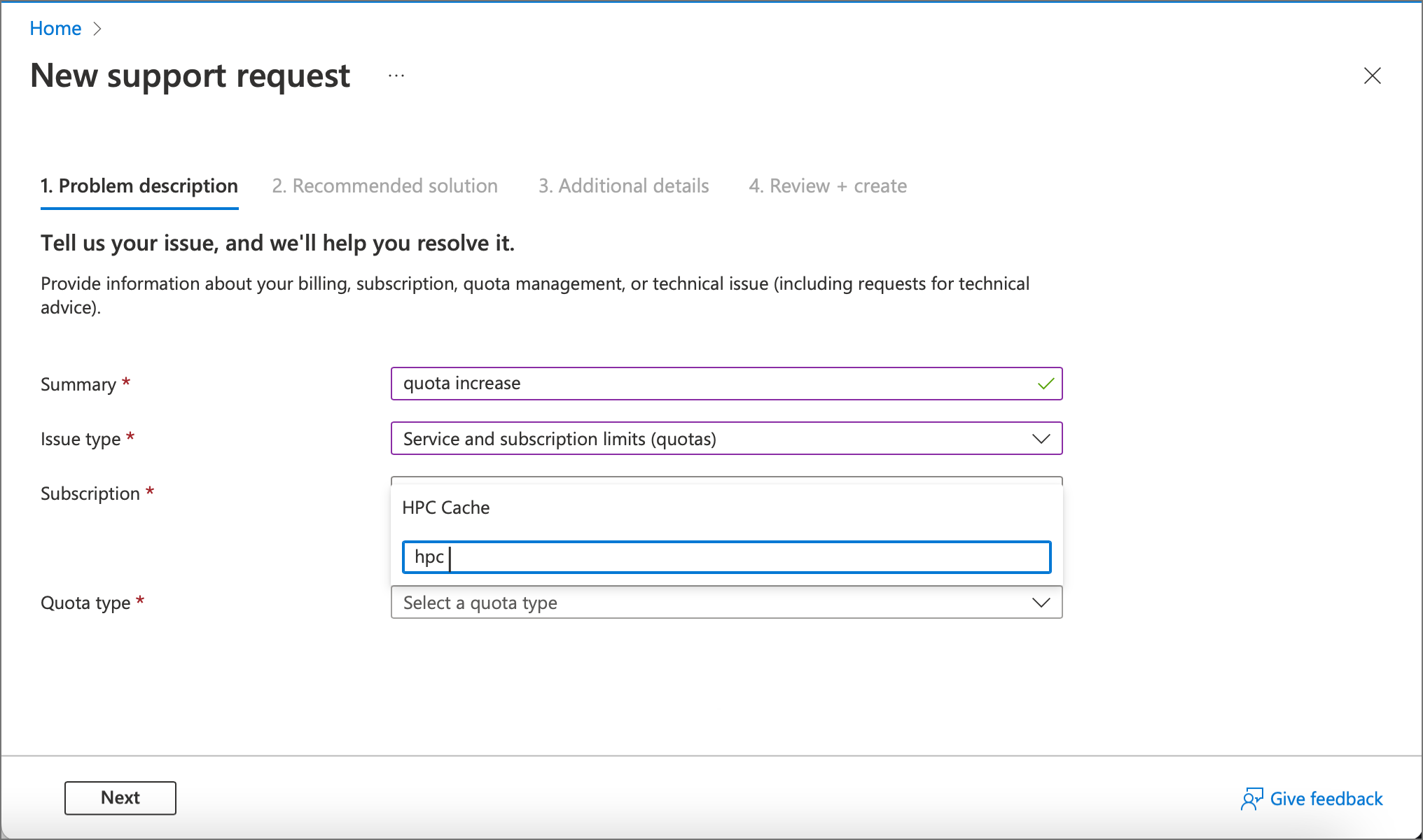
Click Next to go to the Additional details page.
In Request details, click the link that says Enter details. An additional form opens to the right.
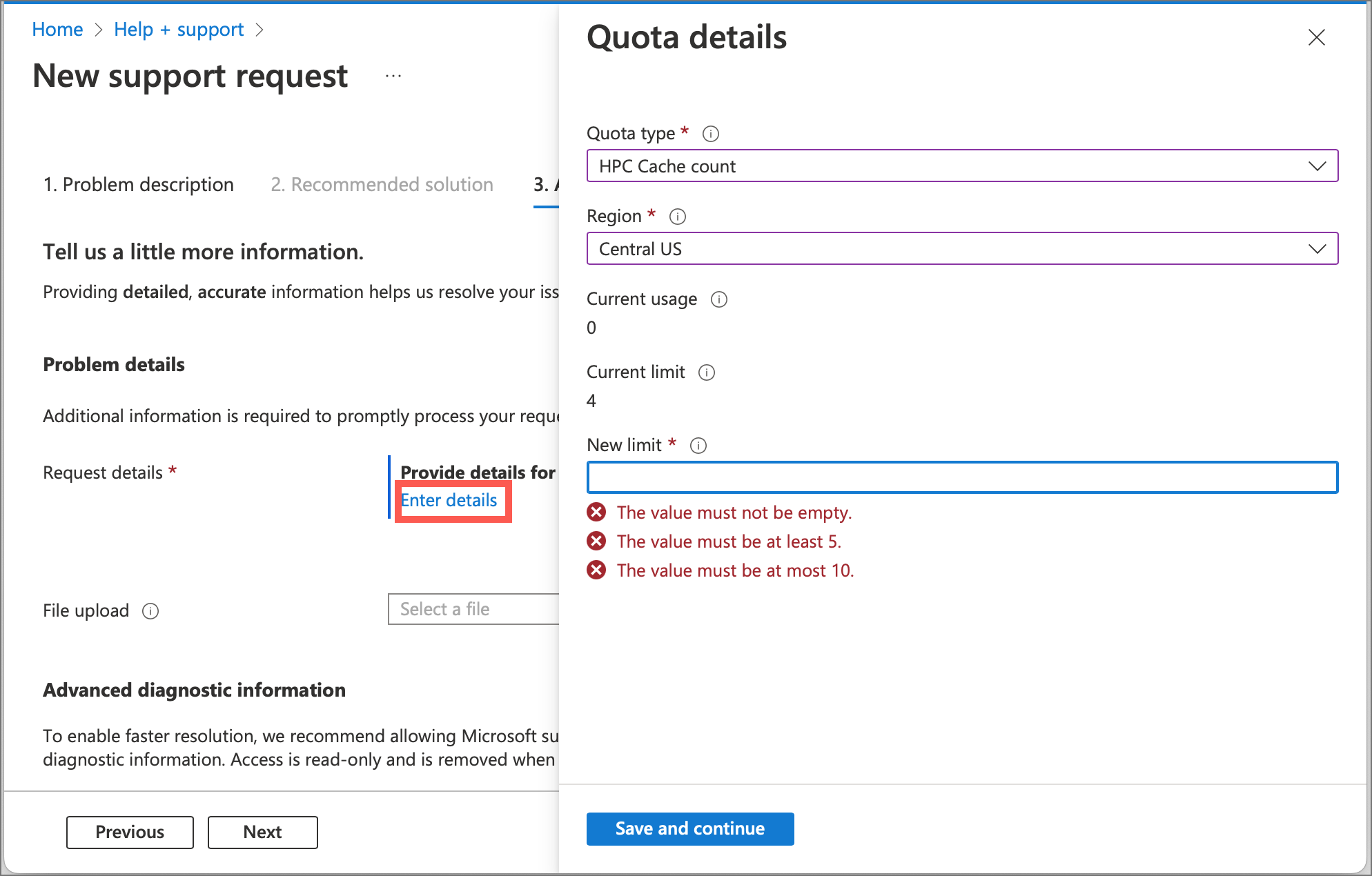
For Quota type select HPC Cache count.
Select the Region where your cache is located.
The form shows your HPC Cache limit and current usage in this region.
Type the limit you're requesting in the New limit field. Щелкните Сохранить и продолжить.
Fill in the additional details required and create the request.
После отправки запроса вы получите по электронной почте письмо с подтверждением и номером заявки. Сотрудник службы поддержки свяжется с вами по запросу.
Support requests are also used to request technical support.