Примечание.
Для доступа к этой странице требуется авторизация. Вы можете попробовать войти или изменить каталоги.
Для доступа к этой странице требуется авторизация. Вы можете попробовать изменить каталоги.
Prerequisites
- For Data Connections, you need an Azure or Amazon subscription and a storage account.
- For PlayFab to ingest data in your storage account, you need container details along with authorization using a SAS token.
- To create a SAS token using Microsoft Azure portal, follow the steps in the next section.
Create a Data Connection
Create a connection to integrate your storage resource with PlayFab and retrieve the PlayStream and telemetry data. You can configure up to three data connections in the enabled (active) state.
Azure Blob Storage
From the Game Manager:
- Go to your Title
- Select Data from the menu on the left
- Select Data Connections from the Data tabs
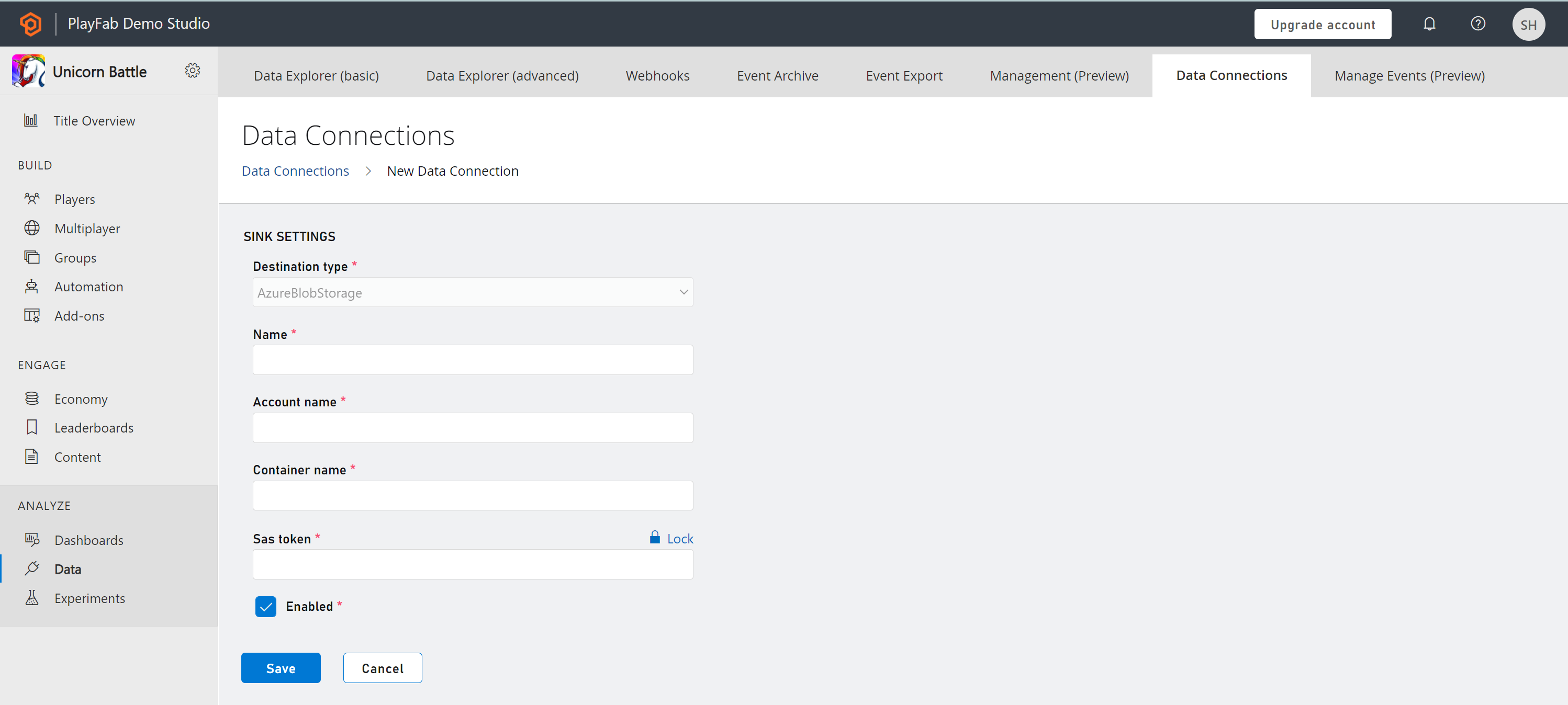
- Select New Connection, new data connections configuration page is opened
- Define Sink Setting of Azure Blob Storage type
- Enter Name
- Enter Account Name
- Enter Container Name
- Enter SAS Token as generated in the Azure portal
- Select Save
- By using the default check on Enabled, the connection between PlayFab and your resource is established once saved.
- By using uncheck on Enabled, the connection between PlayFab and your resource is validated but not established until saved.
Microsoft Fabric KQL database
From PlayFab Game Manager:
- Go to your Title
- Select Data from the menu on the left
- Select Data Connections from the Data tabs
- Select New Connection, new data connections configuration page is opened
- On the Destination type dropdown, select the Fabric KQL Database option
- Enter a name for your Data Connection in the Name field
- Make sure the Enabled box is checked
- Go to Microsoft Fabric
- Select Workspaces on the left panel and select Your Workspace
- Select the Database you want to store the data on
- Copy the Query URI by selecting the Copy icon next to Query URI label
- Go back to Data Connections on PlayFab's Game Manager
- Paste the Query URI you got from Fabric into the Ingestion URI field
- In the Database field, enter the name of the KQL Database you created in Fabric
- Fill the Table field with a significant name (for example, Events)
Note
To optimize your use of a Fabric KQL Data Connection and gain valuable insights into your game data, follow the tutorial on PlayFab and Microsoft Fabric Real-Time Analytics (RTA) for game creators: PlayFab and Microsoft Fabric Real-Time Analytics (RTA) for game creators
Amazon Web Services S3 (PREVIEW)
From PlayFab Game Manager:
- Navigate to your title
- Select Data from the menu on the left
- Select Data Connections from the Data tabs
- Select New Connection; the new data connections configuration page opens
- On the Destination type dropdown, select the AWS S3 option
- Give your Data Connection a name on the Name field
- Make sure the Enabled box is checked
- In the AWS console:
- Navigate to IAM
- Navigate to Identity Providers
- Select Add Provider
- Select OpenID Connect
- In the form:
- For the provider URL, input
https://login.microsoftonline.com/72f988bf-86f1-41af-91ab-2d7cd011db47/v2.0 - For the Audience, input
e12f8069-1801-4f61-9b5f-446d8bd57e8b
- For the provider URL, input
- Select Add Provider
- Navigate back to IAM
- Navigate to policies
- Select Create policy
- In the form:
- Select JSON to switch to the JSON view.
- Input the following policy: { "Version": "2012-10-17", "Statement": [ { "Effect": "Allow", "Action": [ "s3:" ], "Resource": [ "arn:aws:s3:::test/", "arn:aws:s3:::test" ] } ] }
- Select Next
- Enter a name for your policy – take note of it for later
- Select Create policy
- Navigate back to IAM
- Navigate to Roles
- In the form:
- Select Web Identity
- From the Identity provider dropdown, select the previously registered
https://login.microsoftonline.com/72f988bf-86f1-41af-91ab-2d7cd011db47/v2.0provider - From the Audience dropdown, select the previously registered e12f8069-1801-4f61-9b5f-446d8bd57e8b audience
- Select Next
- In the search field, enter the name of the previously registered policy
- Check the box to the left of the policy
- Select Next
- Enter a name for the role – noting the name
- Select Create role
- Navigate to the general purpose S3 Bucket you want to use for your Connection
- Select Properties
- Scroll to the Tags section
- Select Add new Tag
- In the form:
- For the key field, input playfab:titleids
- For the value field, input your playfab TitleID
- Select Save changes
- Ensure you have your S3 Bucket name, Role ARN, and S3 Bucket Region used in the prior steps
- Enter those into the appropriate fields in the Game Manager
Manage connections
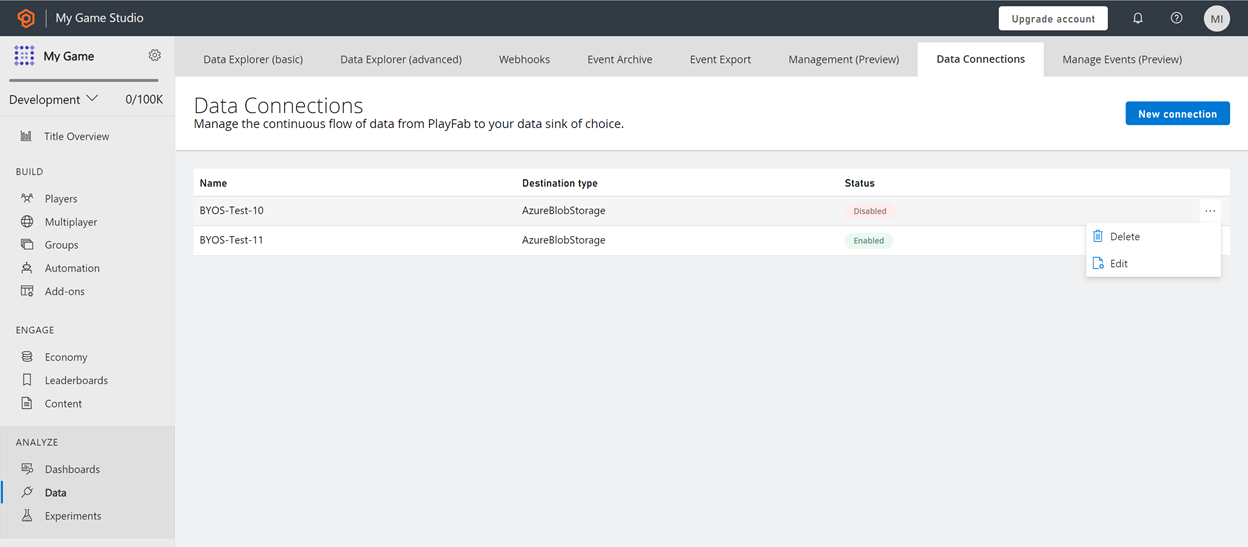
The Data Connections overview (landing) page displays the available connections categorized as enabled or disabled as a status. You can have up to three enabled connections to the blob storage account at any time. You can also use the Data Connections overview page to manage connections. Select the ellipsis (...) next to any connection. You can take two actions: Edit and Delete.