Примечание.
Для доступа к этой странице требуется авторизация. Вы можете попробовать войти или изменить каталоги.
Для доступа к этой странице требуется авторизация. Вы можете попробовать изменить каталоги.
This article shows you how to install the Power Apps CLI, create a blank app from a Vite template, run the app locally, and publish it to Power Apps.
For a complete list of commands, see Power Apps CLI command reference.
Prerequisites
Step 1: Create the project
Open a terminal and run the following commands:
npx degit github:microsoft/PowerAppsCodeApps/templates/vite my-app
cd my-app
For more information, see the degit npm package.
Step 2: Install dependencies and initialize the code app
Install the Power Apps CLI and the project dependencies:
npm install --global @microsoft/power-apps-cli
npm install --global @microsoft/power-apps
npm install
Use pa app init to initialize the code app. You can use interactive prompts or provide the required options in the command.
Use interactive prompts:
pa app init
Provide options in the command:
pa app init --display-name "App From Scratch" --environment-id <environment-id>
When you run pa app init, the CLI prompts you to sign in if you're not already authenticated. Sign in by using your Power Platform account.
Step 3: Run the app locally
Use pa app run to run the code app:
pa app run
Open the URL labeled Local Play.
Important
Open the URL in the same browser profile that you use for your Power Platform tenant.
Note
Local network access restrictions
Chrome and Microsoft Edge block requests from public origins to local endpoints by default.
- Because your code app connects to localhost during development, you might need to grant browser permission or configure enterprise policies.
- For embedded scenarios, include
allow="local-network-access"in iframe tags. - For more information, see Control a website's access to the local network in Microsoft Edge and New permission prompt for Local Network Access in Chrome.
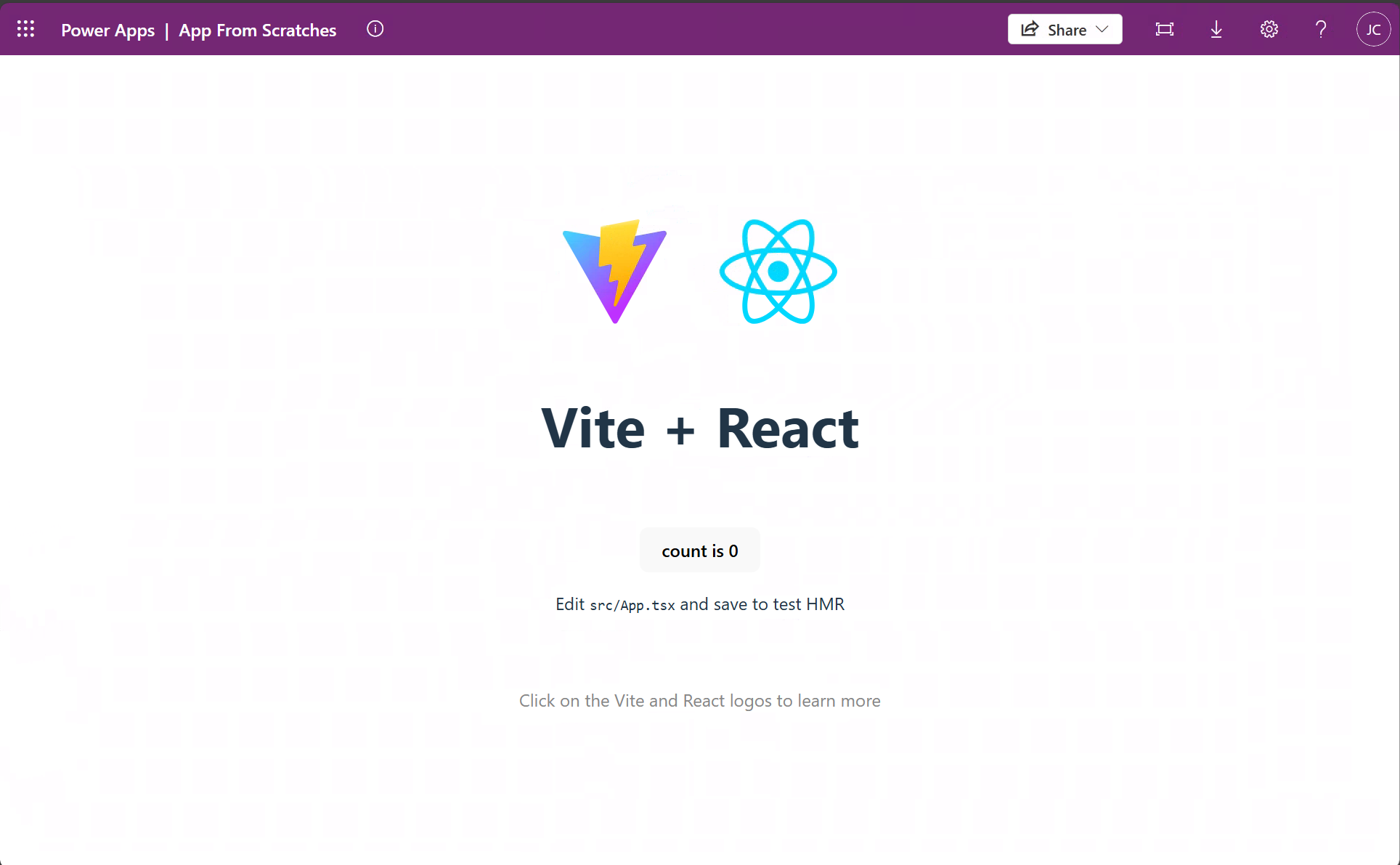
The app opens in your browser.
Step 4: Build and publish the app
Build the app:
npm run build
Use pa app push to publish the compiled app to Power Apps:
pa app push
When the command finishes successfully, it returns a Power Apps URL where you can run the app.
You can also go to Power Apps to play, share, or view details for the app.