Note
Access to this page requires authorization. You can try signing in or changing directories.
Access to this page requires authorization. You can try changing directories.
Copilot in SharePoint helps you create custom views of your document libraries. By showing and hiding columns, sorting, and filtering, these capabilities can configure your library to highlight what’s most important to you.
Launch the quick action
In the lower-right corner of your document library, select the Copilot in SharePoint icon.
From the quick actions menu, select Create new view.
The chat panel opens and displays a list of suggested actions related to custom views.
Note
If this is the first time using Copilot in SharePoint in the library, it automatically generates up to three suggested columns based on the available files. These columns are auto-populated with metadata about your files and can be useful when creating views.
Use a suggested prompt
From the chat panel, select an action. For this example, use Show recently updated files first.
In the chat box, review the instruction provided. If needed, modify the text to better suit your intent. When ready, select Send (
 ) to submit your action.
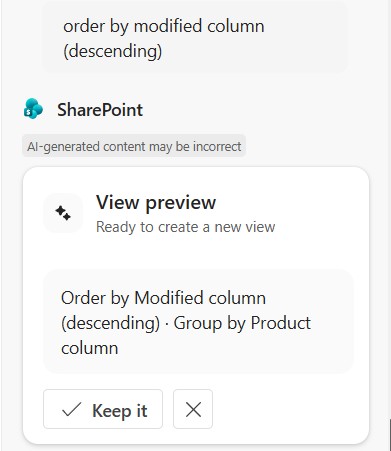
Based on your prompt, a view is generated. The view parameters are summarized in the chat panel.
Enter a custom prompt
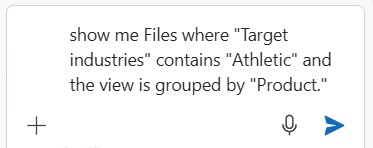
In the chat panel’s text box, enter your own custom view instruction. When describing a view, consider what you want to see (filters) and how you want it grouped or sorted. This consideration helps ensure the view meets your needs.
Tip
You can use Copilot in SharePoint to show and hide columns, sort, filter, and group. Here are some sample prompts that you can use on libraries containing different document types:
- Invoices: Show me past due invoices, grouped by vendor and sorted by amount due.
- Product specs: Show me products with a release date in 2020 and sort by market positioning.
- HR policy documents: Display HR policies by category showing only those that are already in effect.
- Project plans: I want to see project plans grouped by phase and sorted by start date. Show the owner column and hide the location column.
Select Send (
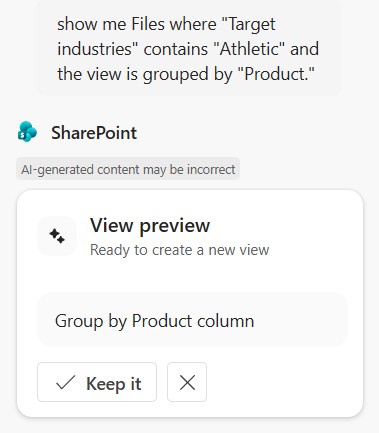
) to submit your action.Based on your prompt, a view is created and summarized in the chat panel.
Tip
In the chat panel, you can see a full description of the view created. The view is also reflected in the document library.

The generated view might also apply visual cues to help highlight important information in the library. For example, filtered results or grouped items might appear together, making it easier to quickly identify relevant files. These visual changes are part of the view configuration and reflect filters, grouping, and sorting defined by the prompt.
Tip
Copilot in SharePoint can generate views from library metadata. In this example, it groups files by product line, sorts by document type, and filters to display only graphene mesh content.


Save your changes
When you're ready to save the view you created and any other changes you made, select Save changes.
On the Save changes to library? confirmation screen, verify that you want to update the current library view or save as a new view, and then select Apply changes.
Tip
If you create a new view, the name of the library is appended with a numerical value. Future updates will improve the naming experience, but for now you can rename the view from the library command bar.
You're returned to the updated library and the view you created. Views created by using Copilot in SharePoint are public views and are visible to everyone who uses the document library.
Requirements and limitations
Supported view actions: Show column, Hide column, Sort, Filter, and Group-By.
Supported column types for filtering: Choice, Number, Text, DateTime, Boolean, Currency, and MMD.
Supported column types for column creation: Choice, Number, Text, DateTime, Boolean, Note, Currency, URL, and MMD.
Supported languages: All languages supported through Microsoft Copilot for text-based prompts and responses, but it can only process files in English.
Limitations:
Encrypted files can't be analyzed to generate metadata for views.
Copilot in SharePoint doesn't yet support column ordering, column width changes, or conditional formatting of views.
Personal views aren't currently supported. Views created by using Copilot in SharePoint are public views that are visible to everyone who uses the document library.