Note
Access to this page requires authorization. You can try signing in or changing directories.
Access to this page requires authorization. You can try changing directories.
Skills extend Copilot in SharePoint by turning a repeatable, multistep workflow into a reusable asset. Skills can support an individual's way of working or a shared process on a SharePoint site.
You can ask Copilot to create a skill by using natural language. Copilot uses the built-in Create skill capability to help you define the workflow and choose between a personal skill and a site skill. You can review the draft before saving it and then reuse the skill in future prompts.
What you'll learn
- Understand the difference between personal and site skills.
- Choose the appropriate skill type for a workflow.
- Create and run personal and site skills from natural-language requests.
- Locate and manage both types of skills.
Choose a skill type
Choose the skill type based on who needs to use the workflow.
| Consideration | Personal skill | Site skill |
|---|---|---|
| Best fit | A workflow based on your individual preferences or way of working | A workflow that people on the same site should use consistently |
| Owner | The user | The site admin |
| Storage | The user's OneDrive | The site's Agent Assets library |
| Availability | Available to its owner across SharePoint sites | Available only on the associated site |
| Examples | Review documents with your own checklist; format content in your preferred style | Apply team review requirements; enforce shared document standards; update a shared list |
Important
Portability doesn't grant access. A personal skill can act only on sites and content that the user already has permission to access.
What skills can do
Personal and site skills use the same built-in capabilities of Copilot in SharePoint and can chain those building blocks into a sequence of steps. Depending on what Copilot in SharePoint supports on a site, both skill types can understand and summarize content, organize files and folders, and interact with SharePoint content such as lists. Their main differences are ownership, storage, and availability.
Note
Skills can't connect to external systems or execute custom code. A skill can only perform actions the user already has permission to do and doesn't expand access or introduce new capabilities beyond what Copilot in SharePoint provides.
Where skills are stored
Personal skill storage
Personal skills are stored in the skill owner's OneDrive and are available to the owner across supported Copilot in SharePoint experiences.
Site skill storage
Site skills are stored as Markdown (.md) files in the site's Agent Assets library, under /Agent Assets/Skills/<skill-name>/SKILL.md. The site admin owns and manages them, while authorized site members can create or use them according to their SharePoint permissions.
You can create and manage site skills through chat. You can also review the underlying .md file directly if needed. If you edit the .md file directly, keep the format intact so Copilot in SharePoint can continue to interpret the skill correctly.
Governance and permissions
Skills are a native capability within Copilot in SharePoint. There are no separate admin controls to turn skills on or off. By default, skills are available only within the first-party Copilot in SharePoint experience.
Neither personal nor site skills expand user permissions. A skill can act only on sites and content that the person running it already has permission to access.
Personal skill governance
Personal skills are owned by the user and stored in the user's OneDrive. They are subject to applicable OneDrive retention, sensitivity, auditing, and lifecycle policies.
Site skill governance
The site admin owns and manages site skills. The Agent Assets library is created and managed by the product and can't be deleted. You can, however, apply standard SharePoint file governance to site skill files (for example, permissions, retention, sensitivity labels, and auditing) the same way you would for other content stored in SharePoint.
By default, any user with Edit permissions on the site can create a site skill, and any user with View permissions can use it. If you need a different model, you can break permission inheritance on the Agent Assets library and apply more restrictive permissions.
Prerequisites
Access to a SharePoint site where Copilot in SharePoint is available.
Permissions to the site: Edit to create skills, View to run skills.
Note
You don't need to activate or configure Agent Assets before creating a site skill. Copilot automatically activates Agent Assets and creates the Agent Assets library when you create the first site skill.
Create a personal or site skill
Open the Copilot in SharePoint chat panel from a site page or a document library. Make sure the page isn't in edit mode.
Ask Copilot to create a skill. Copilot uses the built-in Create skill capability to guide you through the process.
Describe the reusable workflow, including the steps, inputs, and expected outputs.
Specify whether the skill should be personal or site-specific. If you don't specify a type, Copilot can help you choose based on the workflow and where you want to use it.
Tip
Personal skill example: "Create a personal skill that reviews documents using my preferred structure, checks headings and terminology, and recommends consistent formatting."
Site skill example: "Create a site skill to review legal contracts to verify whether contract documents mention a lawyer ID in the xxx-xxx format (where x is an alphanumeric character). If a contract is not valid, add the document name to the Invalid Contracts list. Create the list with relevant columns if it doesn't exist."
Review the draft skill definition that Copilot returns. If needed, ask Copilot to refine the steps, inputs, or outputs.
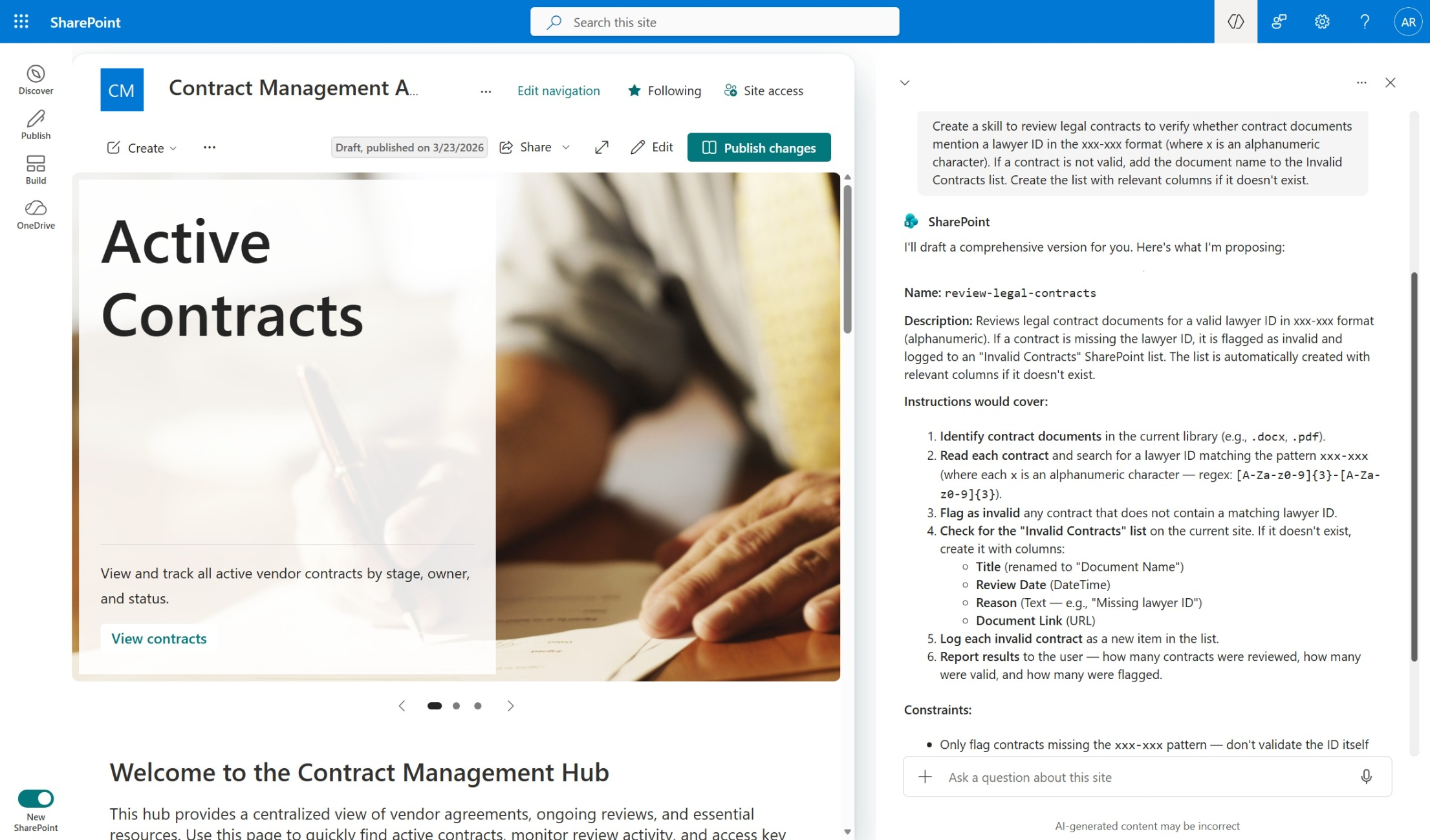
Confirm that you want to save the skill.
Run a skill
In the document library, select one or more files that you want the skill to work on. This step is optional but recommended for testing.
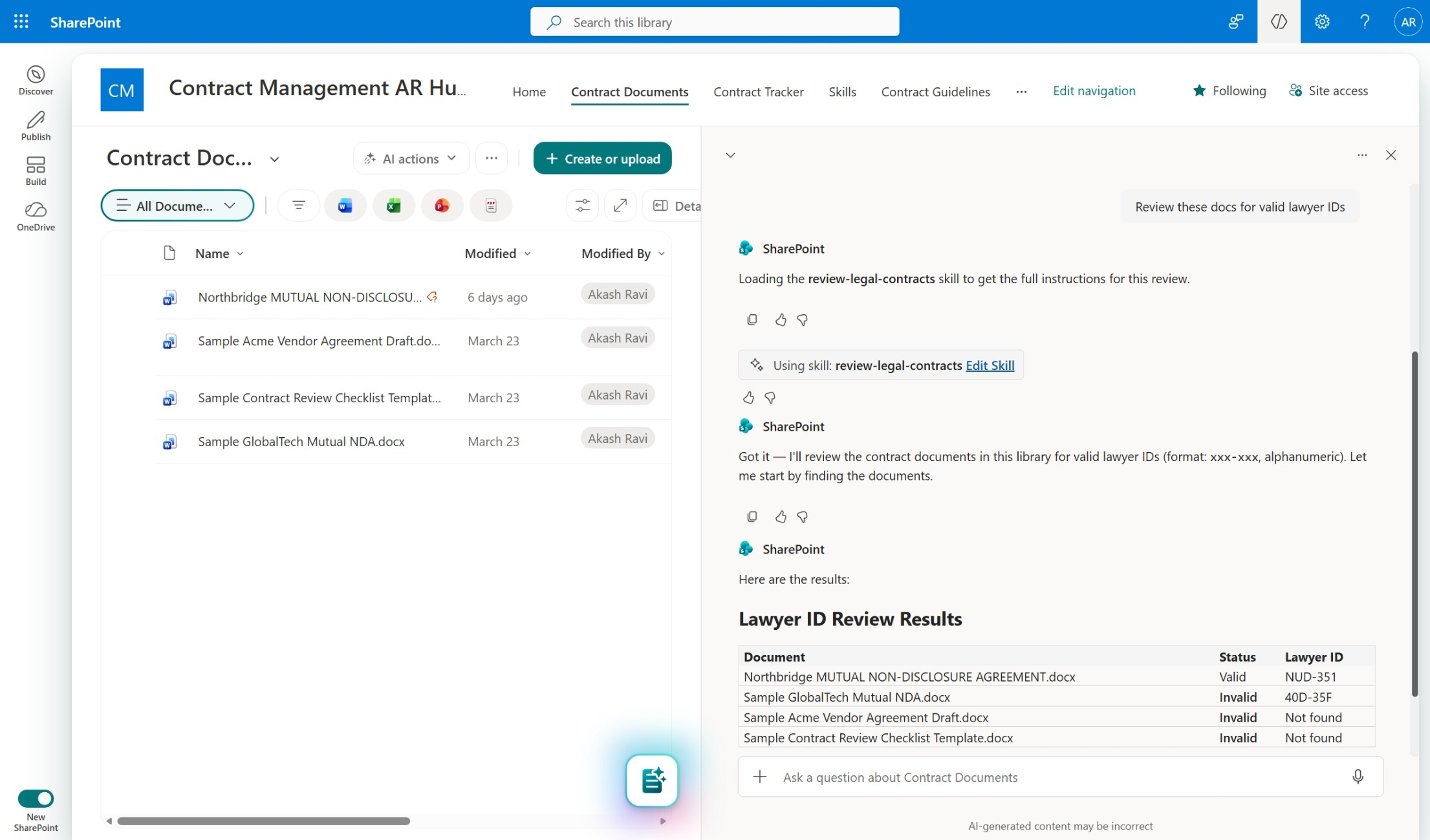
In chat, ask a question or give an instruction that matches the skill's purpose. Copilot in SharePoint automatically loads the right skills needed to execute the prompt.
A personal skill can load for its owner across SharePoint sites. A site skill can load only on its associated site.
If needed, invoke the skill explicitly by name. For example, "Run skill name on the selected documents."
When Copilot runs your request, look for the skill indicator card in the chat UI to confirm that a skill was loaded. Provide any additional details Copilot asks for.
Built-in skills
Copilot in SharePoint includes built-in skills that are available by default. These skills help you manage the skill lifecycle, including creating, checking, and improving skills. Microsoft creates and maintains built-in skills as part of Copilot in SharePoint.
Built-in skills aren't personal or site skills, and they aren't stored in OneDrive or the Agent Assets library. Users can't edit them directly, but they can extend their functionality by creating their own skills. The built-in Create skill capability guides users through creating personal and site skills.
To view the built-in skills currently available, enter /skills in the Copilot in SharePoint chat and review the skills listed under Built-in skills.
Related articles
Get started with Copilot in SharePoint