Note
Access to this page requires authorization. You can try signing in or changing directories.
Access to this page requires authorization. You can try changing directories.
Copilot in SharePoint makes it faster and easier to create SharePoint sites and solutions using natural-language description. Copilot in SharePoint streamlines the process of building sites and solutions with natural language. Describe what you need, and AI will recommend a structure—including pages, lists, libraries, and more. You can review and adjust the AI-generated plan through chat before anything is created. Once you approve the plan, your site is set up in minutes, complete with sample data.
Important
Create sites with AI is still under preview.
Note
The site creation can take up to 15 minutes. Please don't close the browser while creation is progressing.
Prerequisites
Before you start, confirm the following:
Enable Copilot in SharePoint (preview): A SharePoint Administrator or Global Administrator must enable the preview for your tenant. Your tenant must have opted into the preview using the All Sites or Exclude Selected Sites config. If you have opted in with the Selected Sites or No Sites config, users in your organization won't be able to use this feature. For enablement steps and prerequisites, see Get started with Copilot in SharePoint.
Microsoft Copilot license. Users need an active Copilot license to use Create site with AI.
Users must be allowed to create SharePoint sites in your organization. To enable users create new sites, admins must enable self-service site creation.
Note
If users aren't enabled for self-service site creation, SharePoint administrators can create sites with AI on behalf of users.
Key benefits
Plan with AI: Describe what you need and get a proposed build plan (no SharePoint expertise required).
Review before you build: Edit the outline (pages, lists, libraries) before anything is created.
Fast execution: After approval, Copilot in SharePoint creates the site and configures content based on the build plan.
Ongoing refinement: After the site is created, continue to use Copilot in SharePoint to improve pages, organize content, and get answers.
How to create sites with AI
The easiest way is to send prompts that include create new site keywords to Copilot in SharePoint. Copilot uses the prompts to build the site.
If your users have the new SharePoint experience (preview), follow these steps:
Select Build in the left navigation.
Then describe what you would like to build in the prompt box or select one of the suggested prompts.
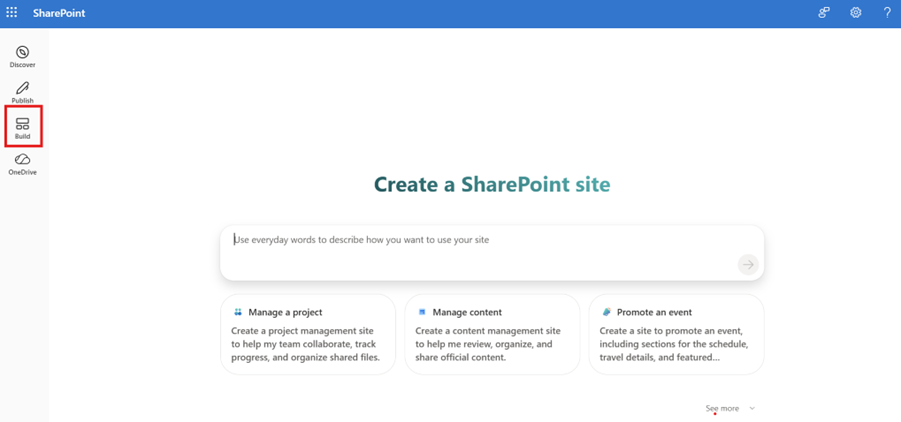
You can also start from the SharePoint start page.
Navigate to the SharePoint start page to launch the experience.
From the SharePoint start page, follow these steps:
Select Create site.

In the Create a site dialog, select Create a site with AI.
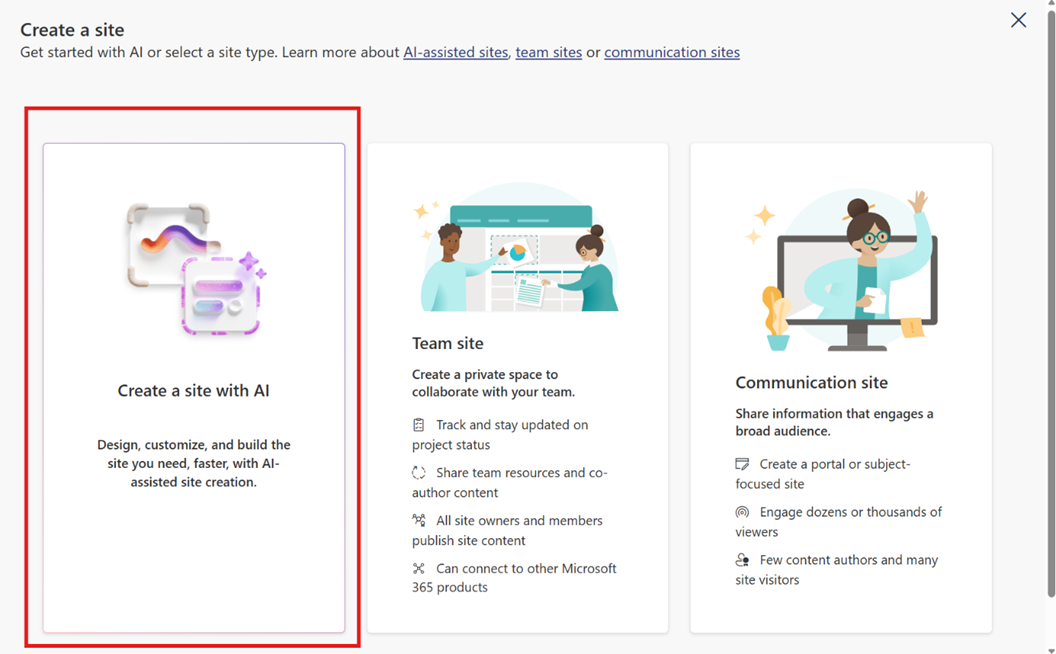
Then describe what you would like to build in the prompt box or select one of the suggested prompts.
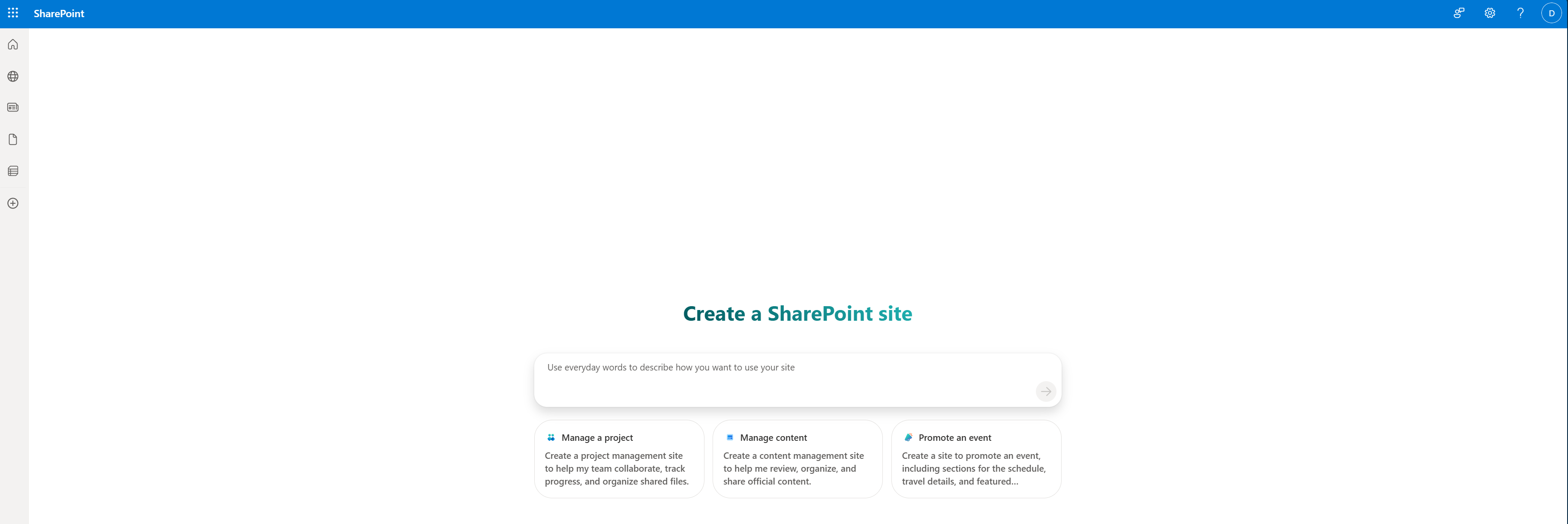
How it works
Create site with AI uses a planning mode that you can use to review the proposed build plan and the visual outline of pages, lists, and libraries before execution begins. The process doesn't create any assets until you formally approve the plan. The AI site-building process includes the following steps:
Step 1: Provide a natural language description
In the prompt box, enter a comprehensive description of the site you want to create. AI may ask follow-up questions to confirm details.
Example: “Create a site to help my team collaborate and track project progress.”
You may be asked a few clarifying questions if more information is needed. In our example, the AI might ask follow-up questions, such as
“What kind of projects does your team work on? (e.g., marketing campaigns, software development, event planning, etc.)?”
“Do you need to track tasks with deadlines and assignments, or is it more about tracking overall project status?”
Based on your description and answers to the clarifying questions, Copilot in SharePoint proposes an outline as well as a plan that can include pages, lists, libraries, columns, and views. These clarifying questions are necessary because they help the AI understand the purpose of your site and your specific requirements.
Step 2: Review the proposed plan and outline
Review the proposed plan and outline presented in the previous step to make sure it meets your needs. The visual outline shows the structure and description of each of proposed site component. The screenshot below shows an example of the visual outline.
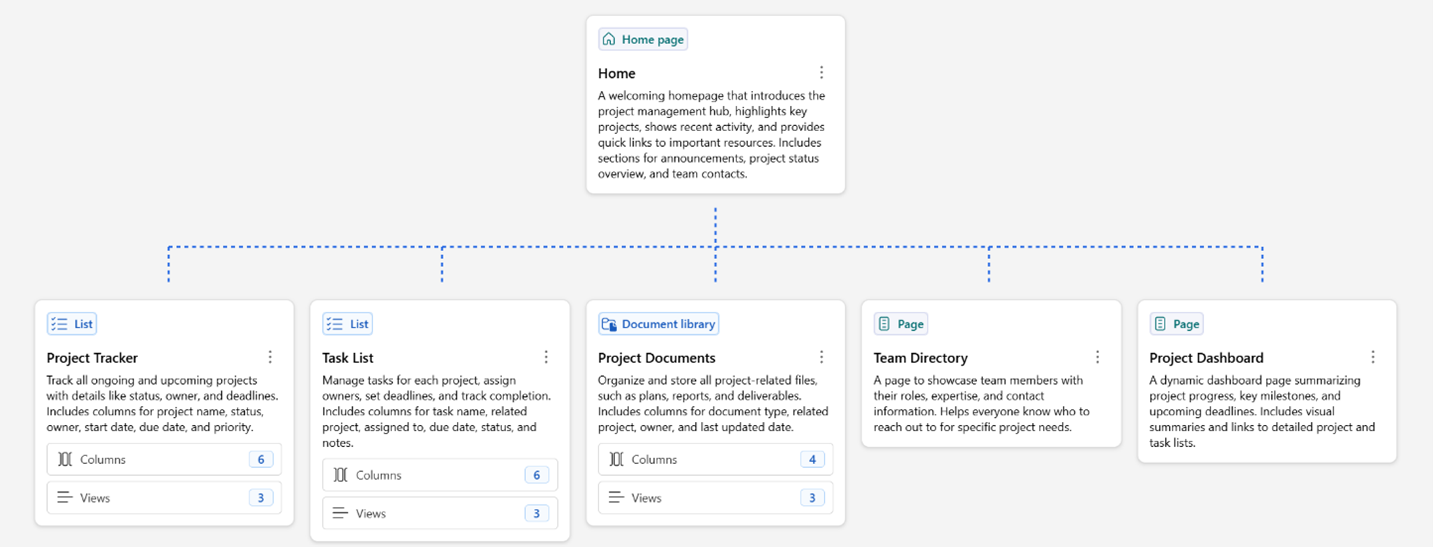
You can reopen the preview by directly asking Copilot to reopen the preview in natural language.
Step 3: Refine the build plan through chat
Use chat to answer clarifying questions and refine the plan. Refine the plan by adding or removing components, renaming pages, or updating list and library columns etc. Some examples of how to refine your plans include:
“Add a column for time estimate on the Tasks list.”
“Remove the Team overview page.”
The plan, including the visual outline, updates as you make changes. However, the process doesn't create anything until you send a create request and select the Confirm button in confirmation card. Copilot in SharePoint also surfaces recommendations to strengthen and enhance your solution, drawing on its understanding of common scenarios and what’s typically needed to support them. If the plan is missing a component, rephrase your request or add it by using natural language.
Step 4: Create the site
When you’re ready, send a create request in chat and select Confirm.

During execution, Copilot in SharePoint will follow the plan to:
Create the site.
Configure navigation and settings.
Create lists and libraries (columns, views, metadata).
Create pages with sample content.
Add sample documents and list items.
Execution can take up to 15 minutes to complete, depending on how many components are in your site. When execution completes, you’ll see a confirmation and a link to navigate to your new site.
Step 5: Explore the new site and provided content
The new site includes sample content and structure, such as:
Pages with sample content based on your scenario.
Libraries with relevant names and columns and sample files.
Lists with sample items so teams can understand the structure quickly.
Step 6: Post-creation refinement
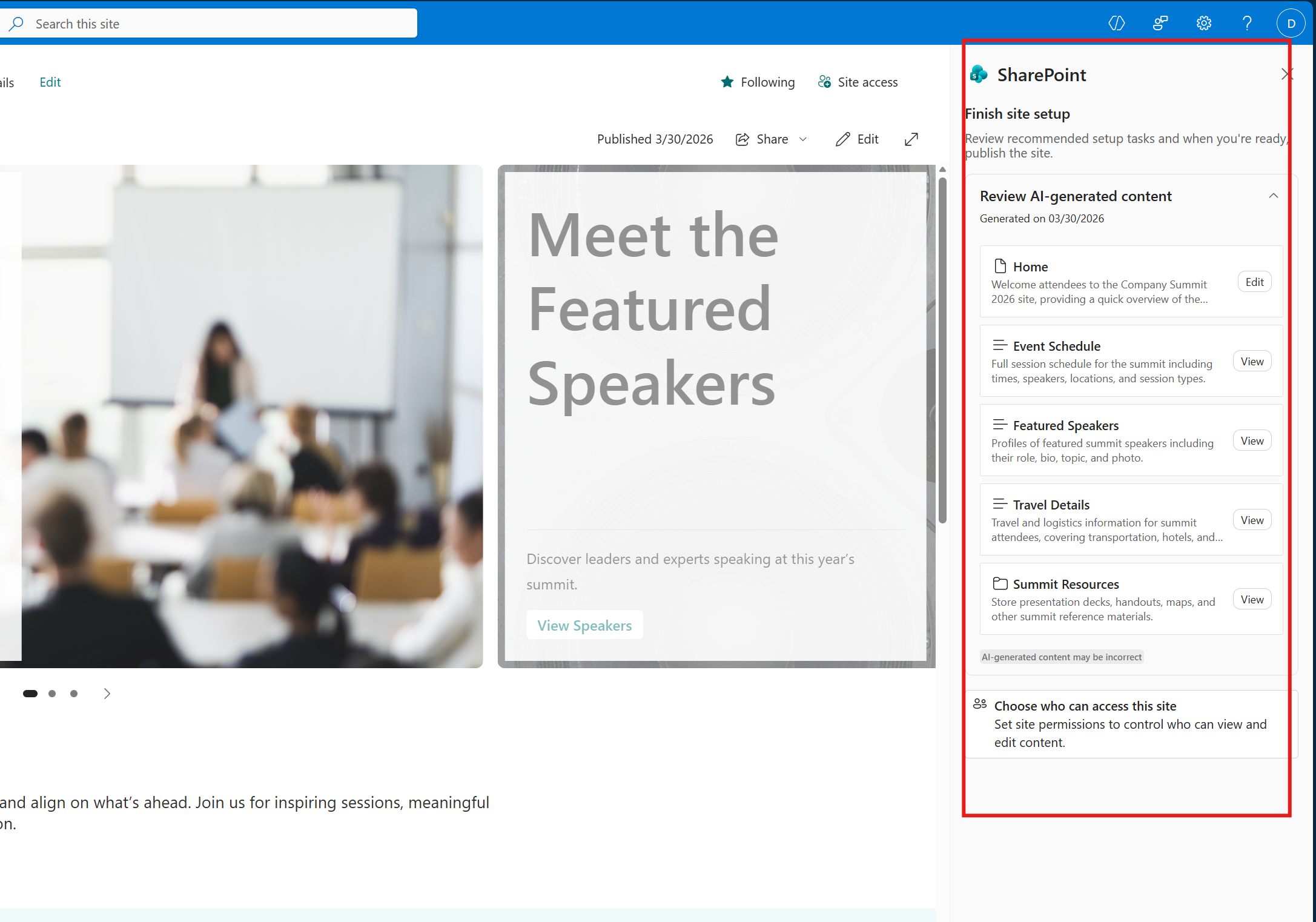
After your site is created, Copilot in SharePoint remains available to help you continue refining, iterating, and configuring the site. When you land on the site homepage, a Finish site setup panel will appear. The panel:
Provides a summary of what was created (pages, lists, libraries).
Offers quick links to key site components.
Recommends next steps such as sharing your site with others.
Learn more:
Unsupported Scenarios
During the preview, some SharePoint features and integrations aren’t available. If you ask Copilot in SharePoint for something that isn’t supported, you’ll likely get a response during the planning phase that it can't automatically complete the task and may suggest to complete it manually after the site is created. A few unsupported features include complex Power Automate flows, permission and sharing set up, column and row formatting, advanced web parts, and third-party integrations.