Not
Bu sayfaya erişim yetkilendirme gerektiriyor. Oturum açmayı veya dizinleri değiştirmeyi deneyebilirsiniz.
Bu sayfaya erişim yetkilendirme gerektiriyor. Dizinleri değiştirmeyi deneyebilirsiniz.
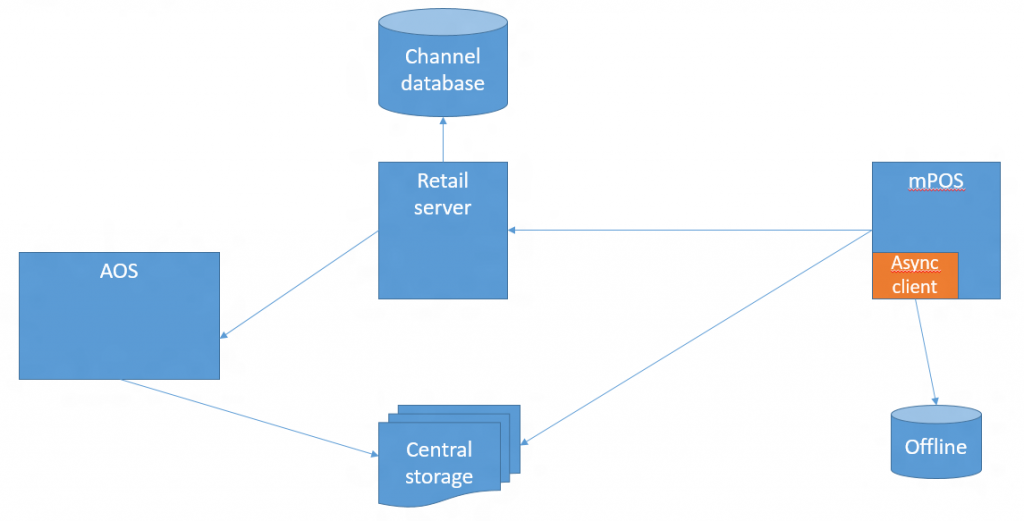
This article provides information about offline mode for the Store Commerce app for Windows. In offline mode, POS devices automatically switch from the channel database to the offline database if the Commerce Scale Unit is unavailable. This article also includes general setup information for offline mode and explains the data synchronization that occurs between the offline database and the channel database.
Note
This article describes offline mode for the Store Commerce app for Windows. Offline mode is also available for iOS, Android, and macOS through custom apps built with the Store Commerce SDK. For more information, see Store Commerce app for mobile platforms and Store Commerce Hardware station extensibility for Android, iOS, and macOS devices.
In the Store Commerce app, a point of sale (POS) device goes into offline mode whenever the Commerce Scale Unit is unavailable. Therefore, if the connection is lost, the POS automatically switches to the offline database.
During a sales transaction, if a data request doesn't succeed within the timeout interval that you configure in the offline profile, the POS automatically switches to the offline database and continues the sales transaction. While the POS device is in offline mode, the Store Commerce app tries to reconnect to the Commerce Scale Unit after the reconnection attempt interval that you configure in the offline profile. This reconnection attempt occurs only at the beginning of a transaction.
Determine the connection mode of the Store Commerce app
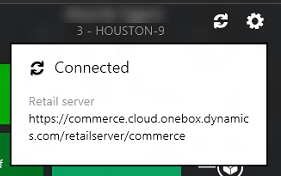
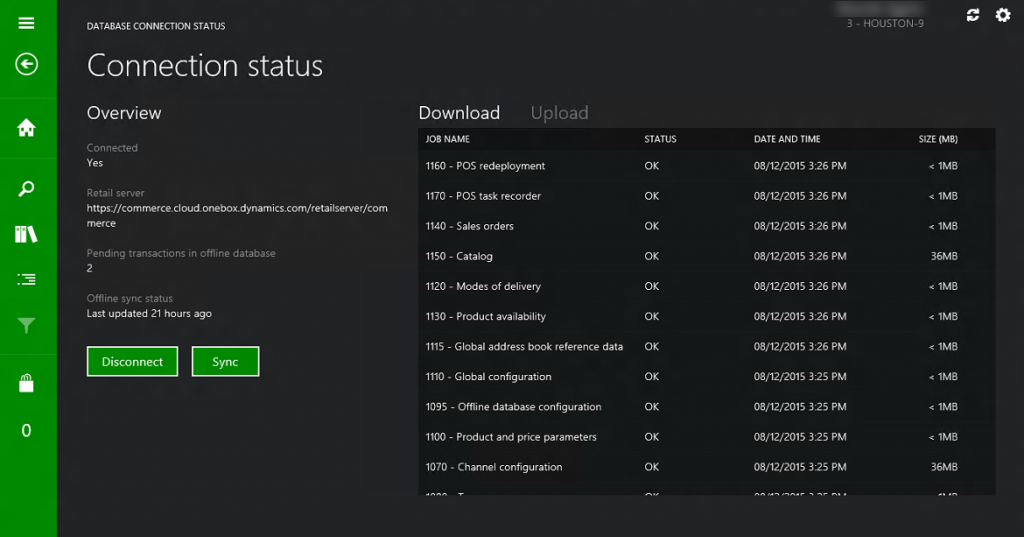
The status header in the Store Commerce app indicates the current connection status. The Connection status window shows the status of the last attempt to sync with the offline database.
Create a button to manually switch between online and offline modes
You can add a button to the Store Commerce app to manually switch between online and offline modes. Create a button for POS operation 917 – Database connection status. The name of this button is Disconnect when the POS is connected to the Commerce Scale Unit and Connect when it's disconnected. Use this button to view the connection, and to disconnect from the Commerce Scale Unit or connect to it.
Setup
To enable offline support for a POS device (register), set the Support offline option to Yes on the Register page. This action creates a new channel database entity and adds it to the store's channel data group. Then run all the required distribution schedules to generate the data packages for the offline database. Next, install the offline version of the Store Commerce app. The installation process creates the offline database. Additionally, install a currently supported version of Microsoft SQL Server Express if it's required. (Currently, SQL 2019 is the most up-to-date version available). Offline data synchronization starts after the first sign-in to the Store Commerce app.
Data synchronization
Use the Commerce scheduler to send primary data to the offline database. By default, when you run a distribution schedule, you send data changes to both the channel database and the offline database. The Store Commerce app includes the async sync library, which downloads any available data packages and inserts them into the offline database. If you create any transactions offline, the POS uploads them to the Commerce Scale Unit, so that they can be inserted into the channel database. Offline data synchronization can occur only if the Store Commerce app is running.