Not
Bu sayfaya erişim yetkilendirme gerektiriyor. Oturum açmayı veya dizinleri değiştirmeyi deneyebilirsiniz.
Bu sayfaya erişim yetkilendirme gerektiriyor. Dizinleri değiştirmeyi deneyebilirsiniz.
Use the Translator API to translate text between different languages from JavaScript code in your website or browser extension. The Translator API is powered by a task-specific model that's built into Microsoft Edge.
Detailed contents:
- Introduction
- Use the Language Detector API with the Translator API
- Benefits of the Translator API
- Alternatives to the Translator API
- Disclaimer
- Model availability
- See a working example
- Use the Translator API
- Check if the Translator API is enabled
- Check if the model can be used (availability())
- Create a new session (create())
- Monitor the progress of the model download (monitor)
- Run the Translator API
- Stop translating text (abortController.signal)
- Destroy a session (destroy())
- Send feedback
- See also
Introduction
For introductory information about the Translator API, see:
Use the Language Detector API with the Translator API
To facilitate translating user-provided text to another language, use the Translator API in conjunction with the Language Detector API.
To learn about the Language Detector API, see Detect languages with the Language Detector API.
Benefits of the Translator API
The Translator API uses a task-specific model for machine translation that runs on the same device where the inputs to and outputs of the model are used (that is, locally). This approach has the following benefits compared to cloud-based solutions:
Reduced cost: There's no cost associated with using a cloud translation service.
Network independence: Beyond the initial model download, there's no network latency when using this API to translate text, and the API can also be used when the device is offline.
Improved privacy: The data input into the model never leaves the device, and isn't collected to train AI models.
The translation models for specified language pairs are downloaded the first time the API is used in Microsoft Edge, and are subsequently shared across all websites in the browser. The models are accessed via a straightforward web API that doesn't require knowledge of third-party frameworks, and doesn't require Artificial Intelligence (AI) or Machine Learning (ML) expertise.
Alternatives to the Translator API
You can send network requests to cloud-based translation services with more sophisticated capabilities, including neural translation; see Azure AI Translator documentation.
As an on-device alternative, the Prompt API can also serve more custom, multi-lingual prompting scenarios, with a small language model that's built into Microsoft Edge; see Prompt a built-in language model with the Prompt API.
Disclaimer
Like other machine translation models, the task-specific models in Microsoft Edge can potentially produce translations that are unfair, unreliable, or offensive. To learn more about the limitations of these machine translation models, see Limitations in Azure AI Translator Transparency Note.
Model availability
An initial download of the on-device translation model is required the first time a website calls the Translator API. You can monitor the model download by using the monitor option when creating a new Translator API session; see Monitor the progress of the model download (monitor), below.
See a working example
To see the Translator API in action, and review existing code that uses the API:
Go to Translator API playground in a new window or tab.
In the information banner at the top, check the status: it initially reads: On-device API and model downloadable. The model for a specified language pair will be downloaded the first time the API is used.
In the Text to translate text box, enter text to translate, and optionally change the Source language and Target language values.
Click the Translate button.
If the model for the specified language pair hasn't been downloaded before, the download starts.
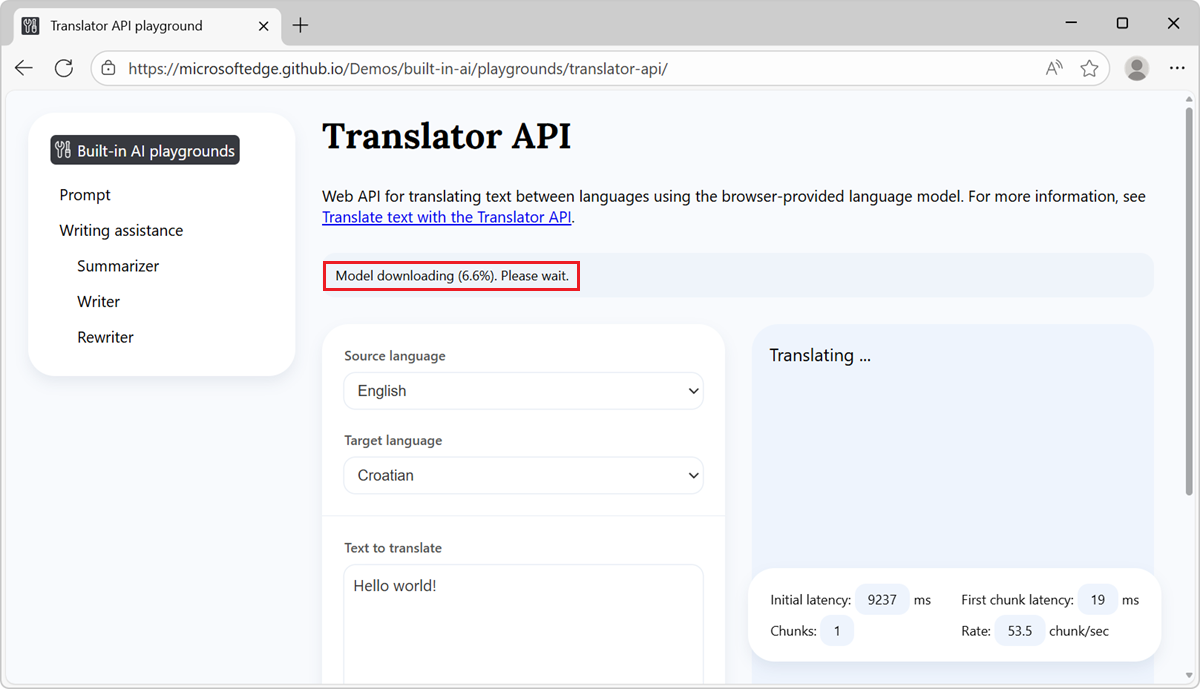
If the model download doesn't start, restart Microsoft Edge and try again.
After the model has downloaded, the model starts generating a translation of the text from the source language into the target language.
The output is generated in the response section of the page:
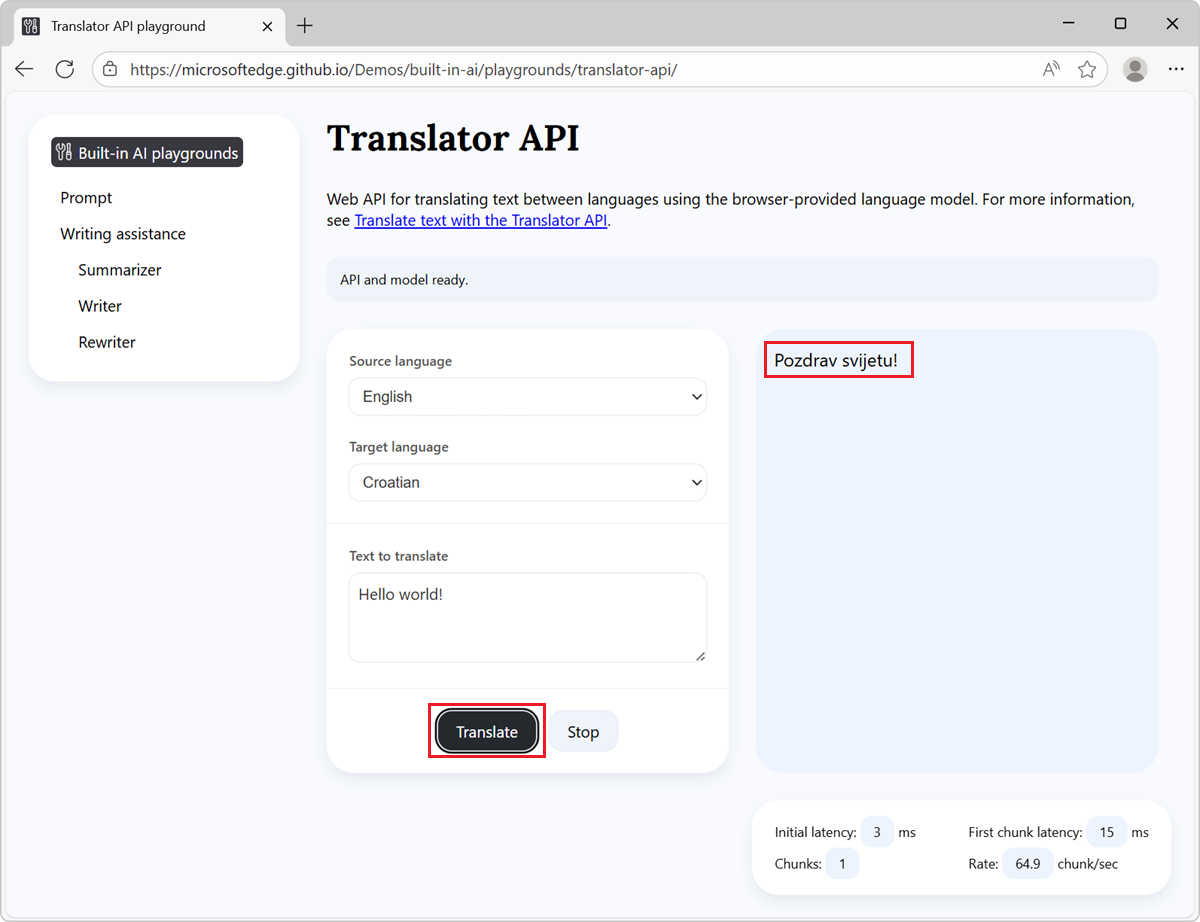
To stop generating the response, at any time, click the Stop button.
See also:
- /built-in-ai/ - Source code and Readme for the Built-in AI playgrounds demo.
Use the Translator API
The next sections are about using the Translator API.
Check if the Translator API is enabled
Before using the Translator API in your website's code, check that the API is available, by testing the presence of the Translator object:
if (!Translator) {
  // The Translator API is not available.
} else {
  // The Translator API is available.
}
Check if the model can be used (availability())
The Translator API has the following requirements:
- Translating from the specified source language to the specified target language must be supported.
- The translation model for the language pair and the model runtime must already have been downloaded by Microsoft Edge.
To check whether the Translator API can be used, call Translator.availability():
const availability = await Translator.availability({
  sourceLanguage: "en",
  targetLanguage: "es"
});

if (availability == "unavailable") {
  // The model is not available.
}

if (availability == "downloadable" || availability == "downloading") {
  // The model can be used, but it needs to be downloaded first.
}

if (availability == "available") {
  // The model is available and can be used.
}
For sourceLanguage and targetLanguage, use the language codes in Tags for Identifying Languages, as strings.
Create a new session (create())
Creating a session instructs the browser to load the language model in memory, so that it can be used. Before you can translate text, create a new session by using the Translator.create() method and specify the source and target languages:
// Create a Translator session.
const session = await Translator.create({
  sourceLanguage: "en",
  targetLanguage: "es"
});
You can monitor the model download by using the monitor option, as follows.
Monitor the progress of the model download (monitor)
You can follow the progress of the model download by using the monitor option. This is useful when the model has not yet been fully downloaded onto the device where it will be used, to inform users of your website that they should wait.
// Use the monitor option to monitor the model download.
const session = await Translator.create({
  sourceLanguage: "en",
  targetLanguage: "es",
  monitor: m => {
    // Use the monitor object argument to add an listener for the
    // downloadprogress event.
    m.addEventListener("downloadprogress", event => {
      // The event is an object with the loaded and total properties.
      if (event.loaded == event.total) {
        // The model is fully downloaded.
      } else {
        // The model is still downloading.
        const percentageComplete = (event.loaded / event.total) * 100;
      }
    });
  }
});
Run the Translator API
After you have created a model session, you can translate text. The Translation API provides two methods to translate text:
session.translate()returns a promise, which resolves after the text has been translated.session.translateStreaming()immediately returns a stream object, which you can use to display the translated text, token-by-token, as it's being generated.
Details are below.
Wait for the text to be translated (translate())
Translates text. Returns a promise, which resolves after the text has been translated.
To wait for the text to be fully translated before continuing to run code, use the translate() asynchronous method. This method returns a promise that resolves after the API has finished generating text:
// Create a Translator session.
const translatorSession = await Translator.create({
  sourceLanguage: "en",
  targetLanguage: "es"
});

// Translate the text and wait for the translation to be done.
const translatedText = await translatorSession.translate(sourceText);

// Use the translation.
console.log(translatedText);
Display tokens as they're generated (translateStreaming())
Translates text. Immediately returns a stream object, which you can use to display the translated text, token-by-token, as it is being generated.
To display the tokens as they're being generated, use this streaming method. The translateStreaming() method returns a stream object immediately. Use the returned stream object to display the response tokens as they're being generated:
// Create a Translator session.
const translatorSession = await Translator.create({
  sourceLanguage: "en",
  targetLanguage: "es"
});

// Ask the model to translate text.
const stream = translatorSession.translateStreaming(sourceText);

// Use the stream object to display tokens that are generated by the model,
// as they are being generated.
for await (const token of stream) {
  console.log(token);
}
Stop translating text (abortController.signal)
To stop translating text before the promise or stream returned by the above methods have resolved or ended, use an AbortController signal:
// Create a Translator session.
const translatorSession = await Translator.create({
  sourceLanguage: "en",
  targetLanguage: "es"
});

// Create an AbortController object.
const abortController = new AbortController();

// Use the model session to translate some text and pass the AbortController
// object by using the signal option.
const stream = translatorSession.translateStreaming(sourceText, {
  signal: abortController.signal
});

// Later, perhaps when the user presses a "Stop" button, call the abort()
// method on the AbortController object to stop translating text.
abortController.abort();
Destroy a session (destroy())
After translating text, destroy the session to let the browser know that you don't need the language model anymore, so that the model can be unloaded from memory.
You can destroy a session in two different ways:
- By using the
destroy()method. - By using an
AbortController.
Details are below.
Destroy a session by calling destroy()
To destroy a session by calling destroy() with a Translator session:
const session = await Translator.create({
  sourceLanguage: "en",
  targetLanguage: "es"
});

// Later, destroy the session by using the destroy method.
session.destroy();
Destroy a session by using AbortController
To destroy a session by creating an AbortController object, create a Translator session, and then call abort():
// Create an AbortController object.
const controller = new AbortController();

// Create a Translator session and pass the
// AbortController object by using the signal option.
const session = await Translator.create({
  sourceLanguage: "en",
  targetLanguage: "es",
  signal: controller.signal
});

// Later, perhaps when the user interacts with the UI, destroy the session by
// calling the abort() function of the AbortController object.
controller.abort();
Send feedback
We're interested in learning about:
- The range of scenarios for which you use the Translator API.
- Any issues with the Translator API.
- Any issues with the on-device translation models.
- Whether other task-specific, built-in APIs would be useful.
To send feedback about your scenarios and the tasks you want to achieve, please add a comment to the Translator API feedback issue.
If you notice any issues when using the API instead, please report it on the repo.
You can also contribute to the discussion about the design of the Translator API at the W3C Web Machine Learning Working Group repository.
See also
- Prompt a built-in language model with the Prompt API
- Summarize, write, and rewrite text with the Writing Assistance APIs
GitHub:
- webmachinelearning / translation-api repo.
- Translator and Language Detector APIs
- Tags for Identifying Languages - for
sourceLanguageandtargetLanguage.
- Tags for Identifying Languages - for
Azure docs:
- Azure AI Translator documentation
- Limitations in Azure AI Translator Transparency Note.
Demos repo:
- Translator API playground
- /built-in-ai/ - Source code and Readme for the Built-in AI playgrounds demo.