Exercise - Create, access and manipulate variables
In this exercise, you create a flow that prompts users to enter information about new clients and then registers them in an Excel file.
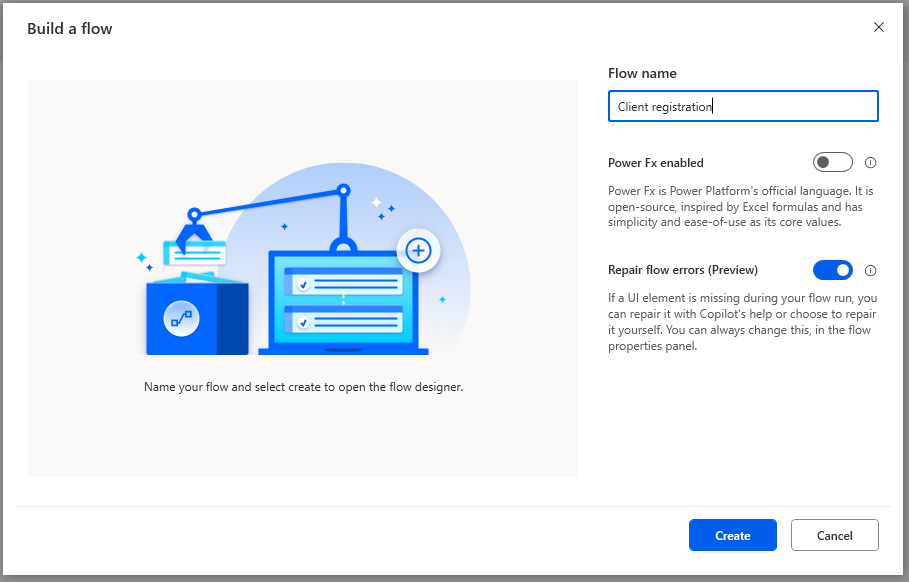
Launch Power Automate desktop app and create a new flow named Client registration.
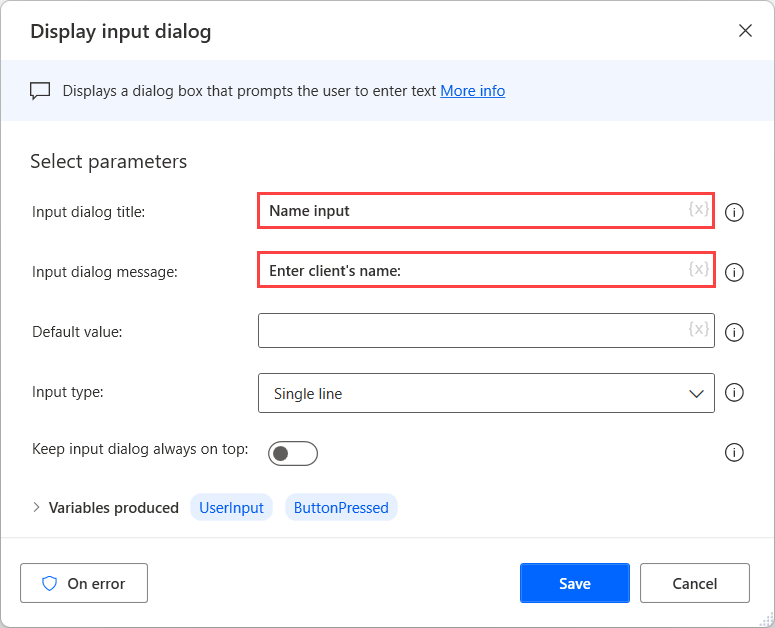
Deploy a Display input dialog action and enter a message asking for the client's name in the Input dialog message field.
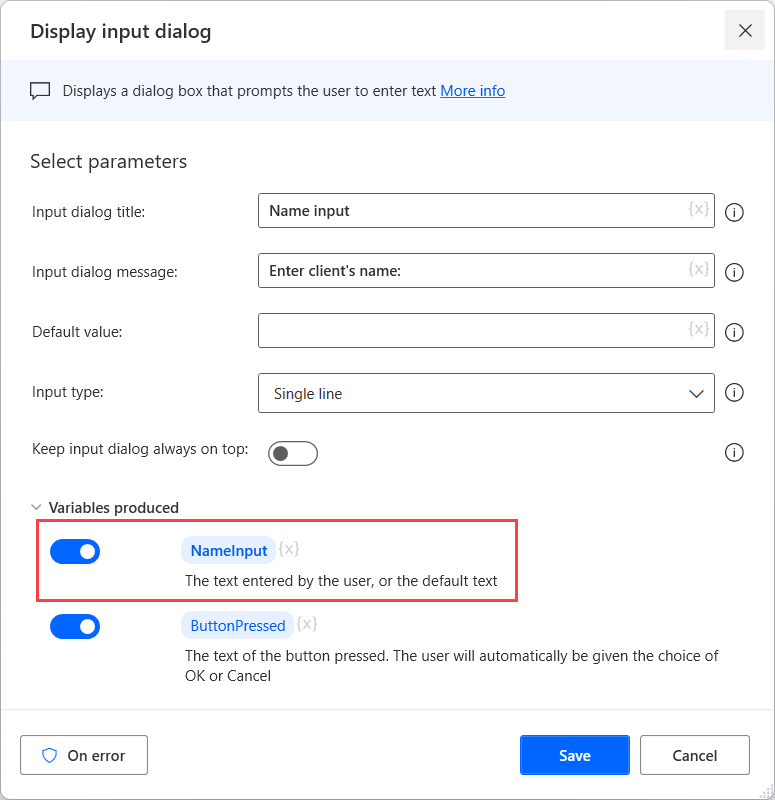
Rename the UserInput variable to a more descriptive name, such as NameInput. Then Save the action.
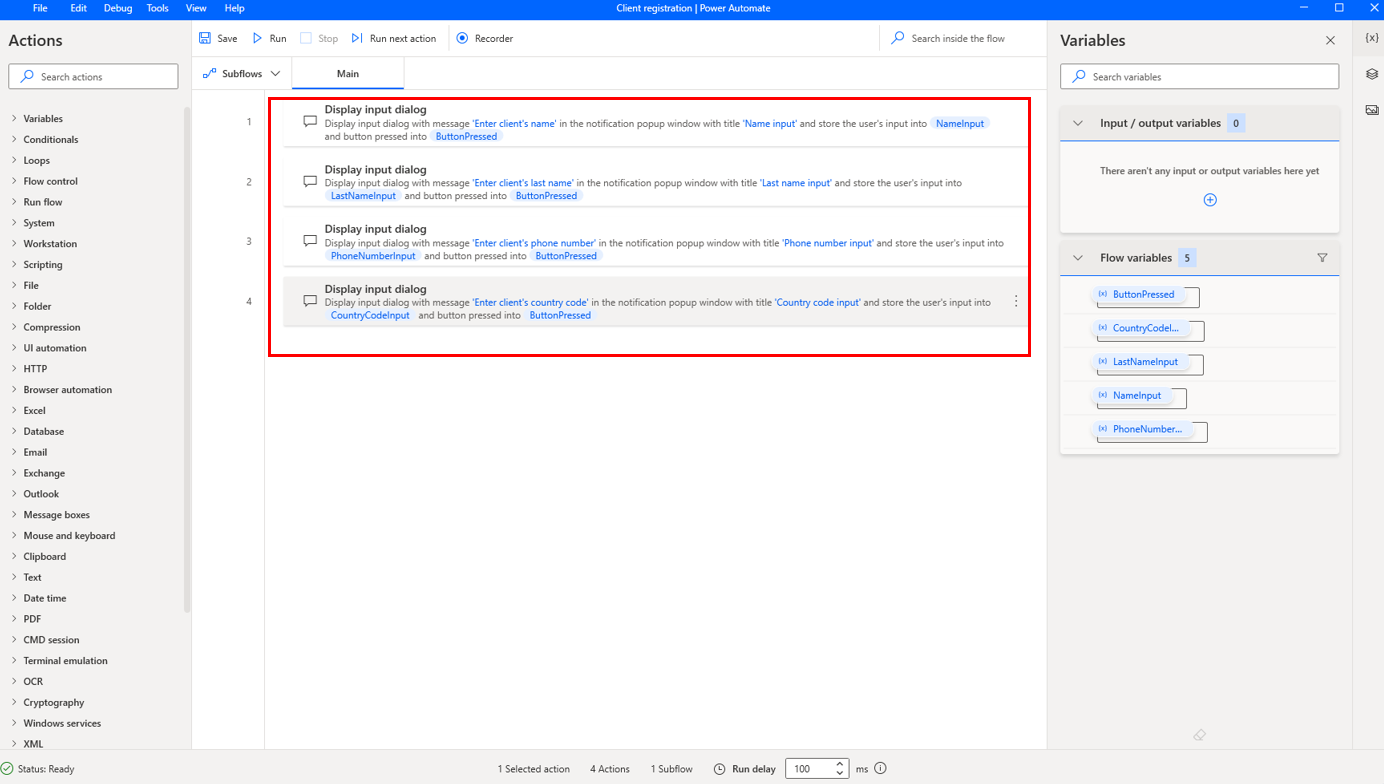
Repeat the last two steps three more times for the last name, the phone number, and the country code, respectively.
Add a Set variable action in the workspace to join the name and the last name into a new variable called FullName.
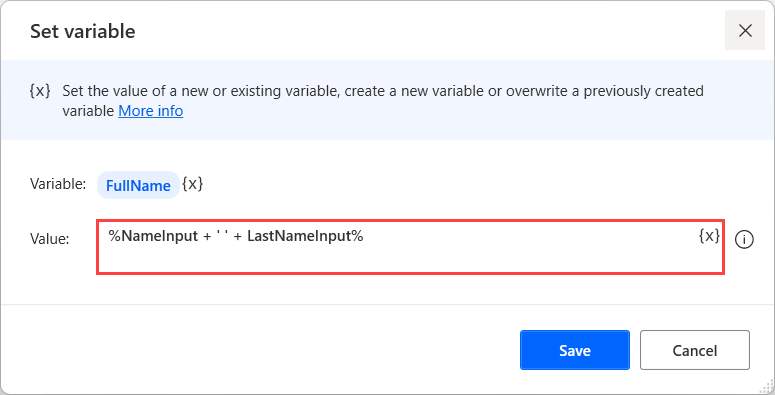
Repeat the fifth step to join the country code and the phone number into a variable called FullPhoneNumber.
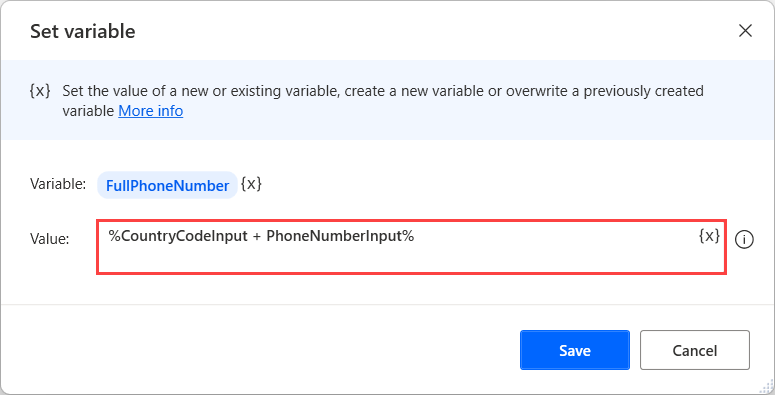
Because you created both variables through a Display input dialog action, they're texts and not numbers. If the variables were numbers, the action above would perform addition and not string concatenation.
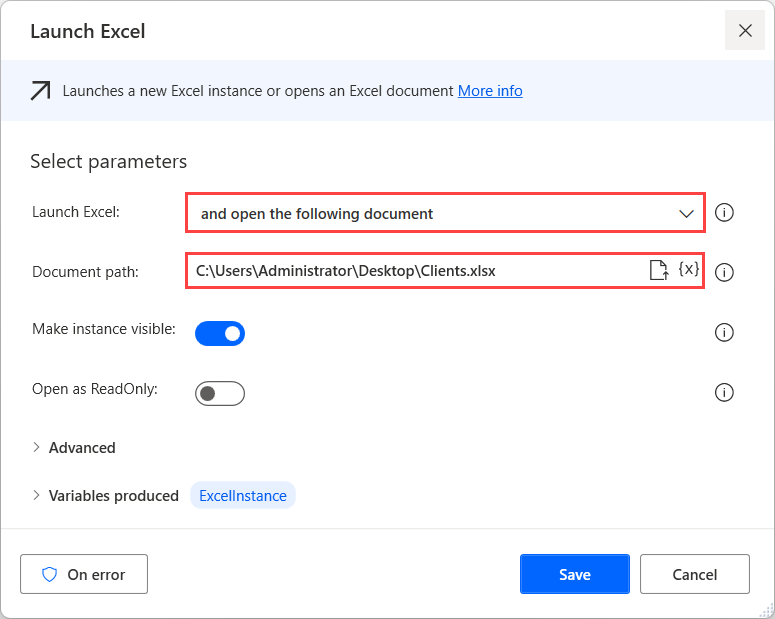
Add a Launch Excel action to open the Excel file containing the clients' information.
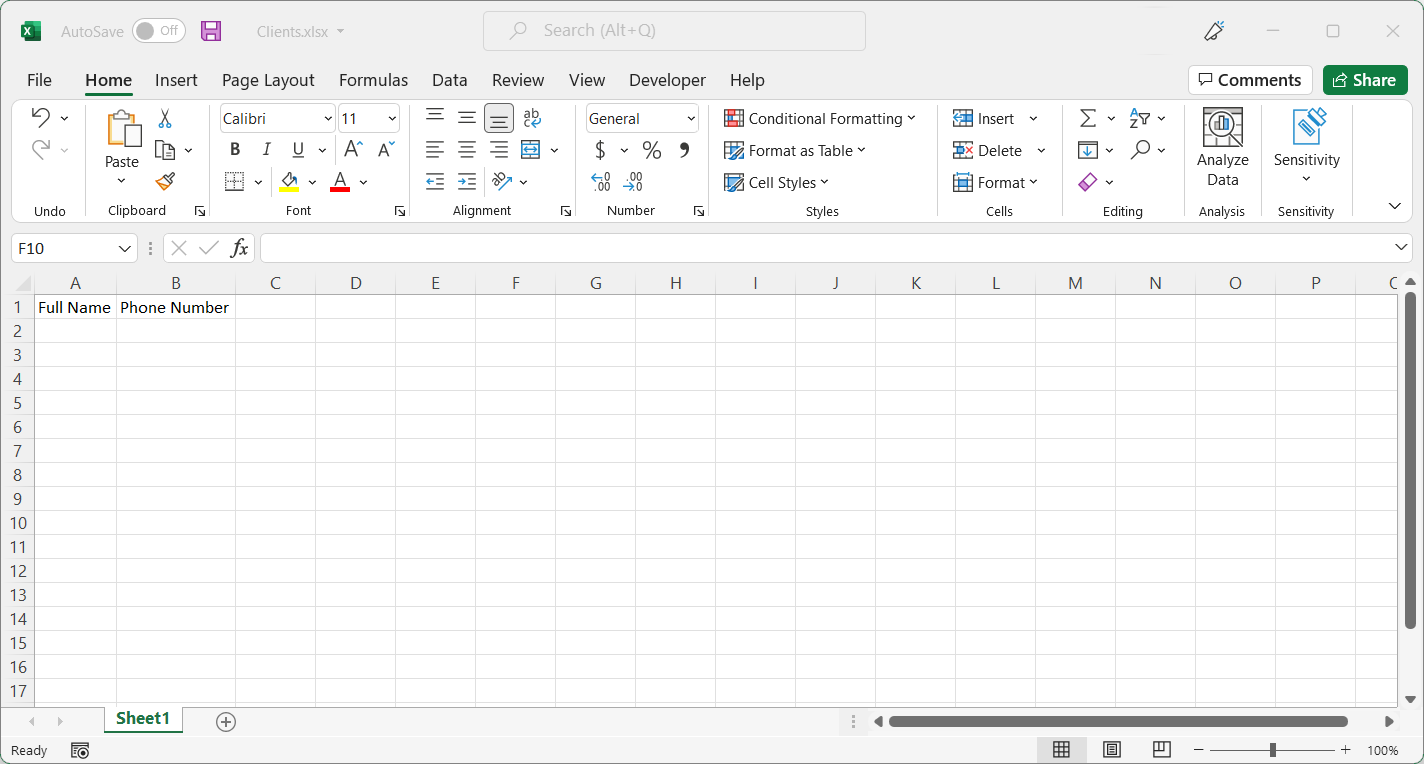
The file must contain two columns, one for the clients' full name and one for the phone number.
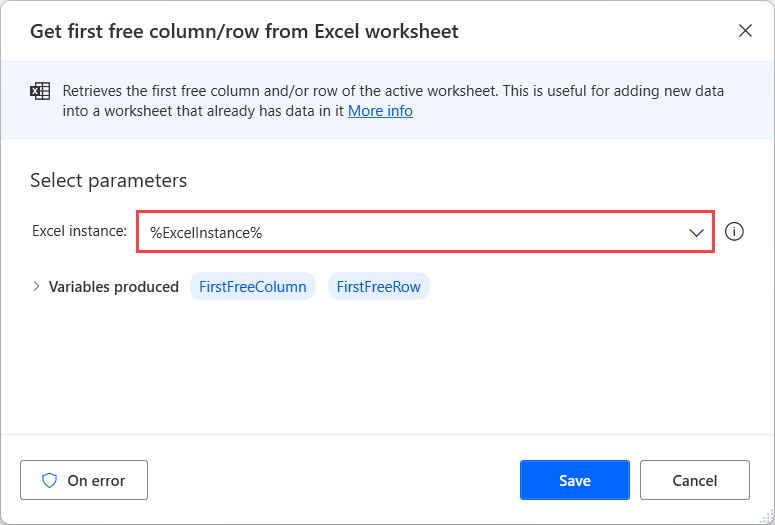
Use the created Excel instance as an input for a Get first free column/row from Excel worksheet action.
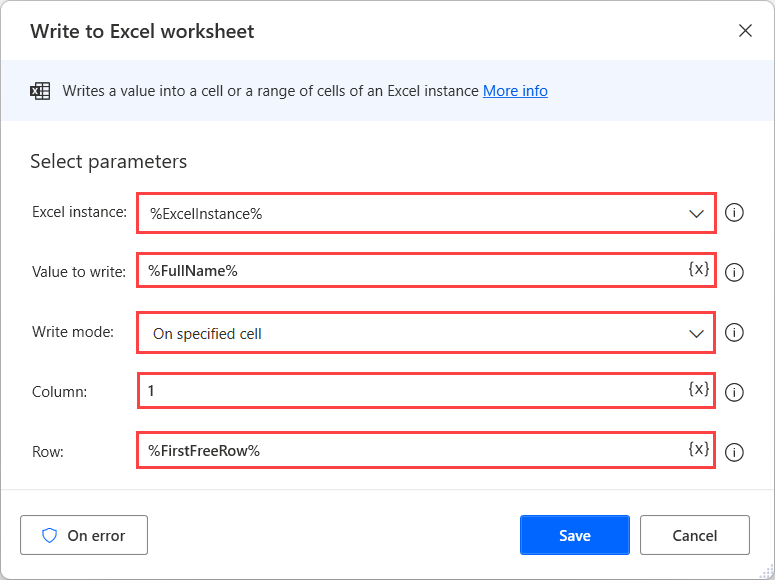
Deploy a Write to Excel worksheet action and enter the following values:
- The Excel instance field with the respective Excel instance variable.
- The Value to write field with the FullName variable.
- The Column field with the value 1.
- The Row field with the FirstFreeRow variable.
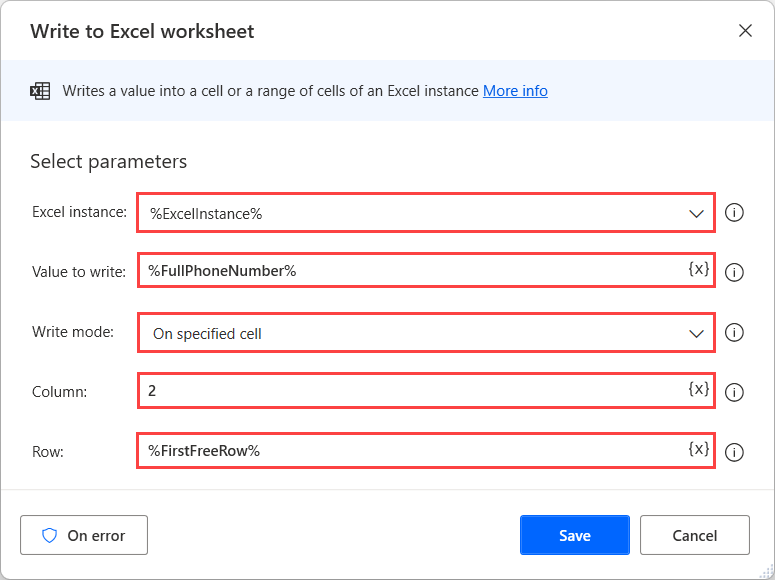
Repeat the previous step, entering the Value to write field with the FullPhoneNumber variable and the Column field with the value 2.
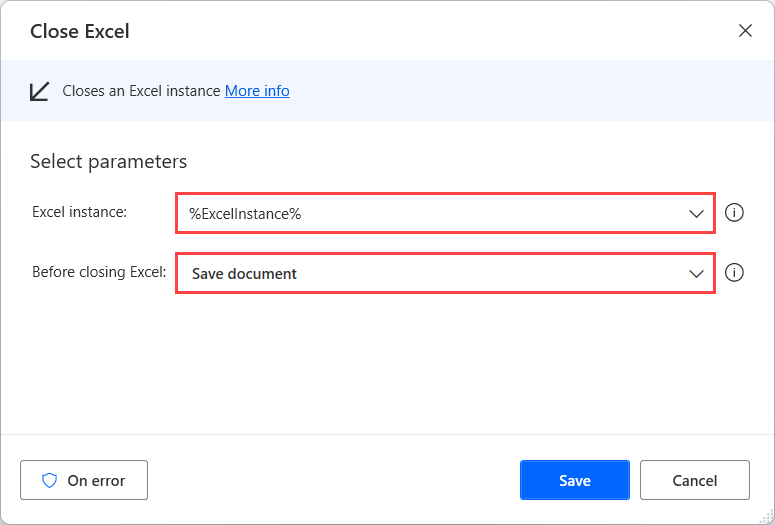
Lastly, add a Close Excel action to save and close the launched Excel worksheet.
Now, the flow should resemble the following image. To check that it runs as expected, ensure that your Excel worksheet is closed, and then select the Run button in your flow. As you run the flow, you see the input popups appear on your screen. Continue inputting the information. When the flow finishes, you can open the worksheet to ensure that the data was properly recorded.
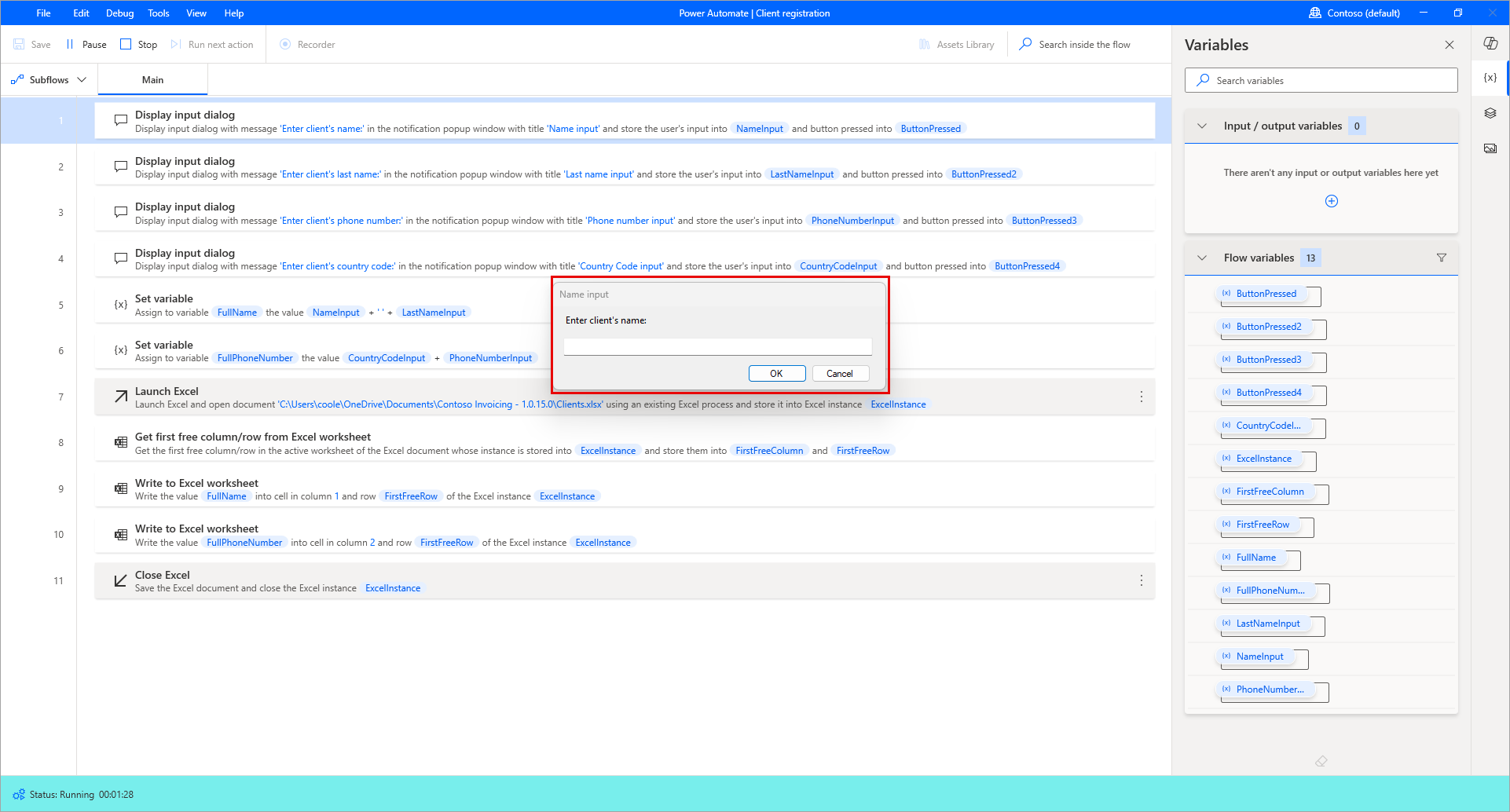
Congratulations! You know how to use variables in a Power Automate desktop flow.