Manage segments
After you create and activate your segment, you might discover that you need to adjust it. For example, you might want to adjust the priority to a higher number because this segment now takes priority over a different segment. You can make multiple modifications to segments after you create them, such as editing segment criteria, changing priorities, and deleting or disabling a segment.
Edit a segment
After you create and activate a segment, you might realize that it isn't identifying members as you intended. The reason could be because the criteria that you used to create the segment is incorrect or should be changed. For example, your organization has reorganized their regions, so areas that were in one region before are now in another region. If you need to, you can update the conditions that you've defined in a segment as needed.
To modify segment conditions in the Sales Hub app, go to Sales Insights settings > Work assignment. Select the record type that you want to work with from the Record type list and then open the segment that you want to edit.
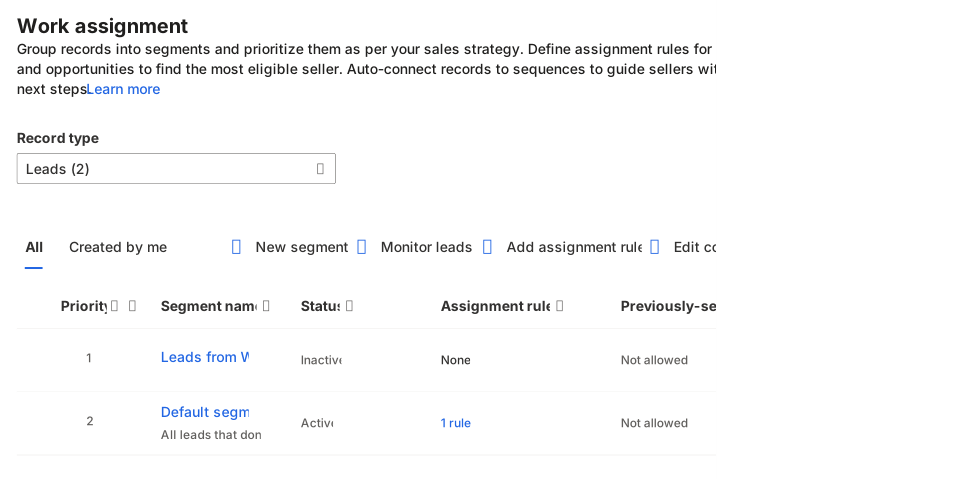
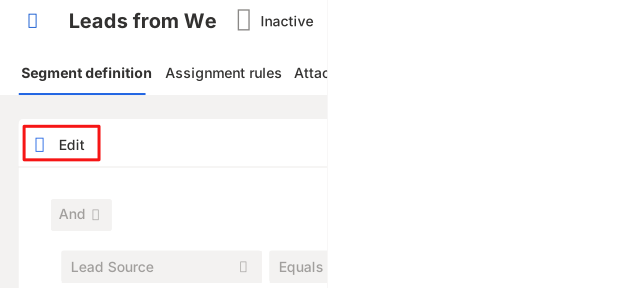
After you update the conditions, select Save. Then, in the confirmation message that appears, select Update segment.
Important
The system applies changes to records that you create in the future in the application. The records that the segment has already been applied to don't change.
For more information, see Edit a segment.
Set the segment priority
When a record matches multiple segments, it's connected to the segment with the highest priority. Occasionally, you might need to change the priority of a segment as your organizational needs change. You can set the priority of a segment anytime by using the Change Priority option.
Important
When you change the priority of a segment, the records that are already connected to the segment remain connected. Only new or updated records are connected to the segment based on the set priority.
You can change the priority of a segment in the Sales Hub app by going to Sales Insights settings > Work assignment and selecting the type that you want to work with.
Select the segment that you want to change the priority for and then select Change priority. On the Change Priority dialog, enter the priority of the segment.
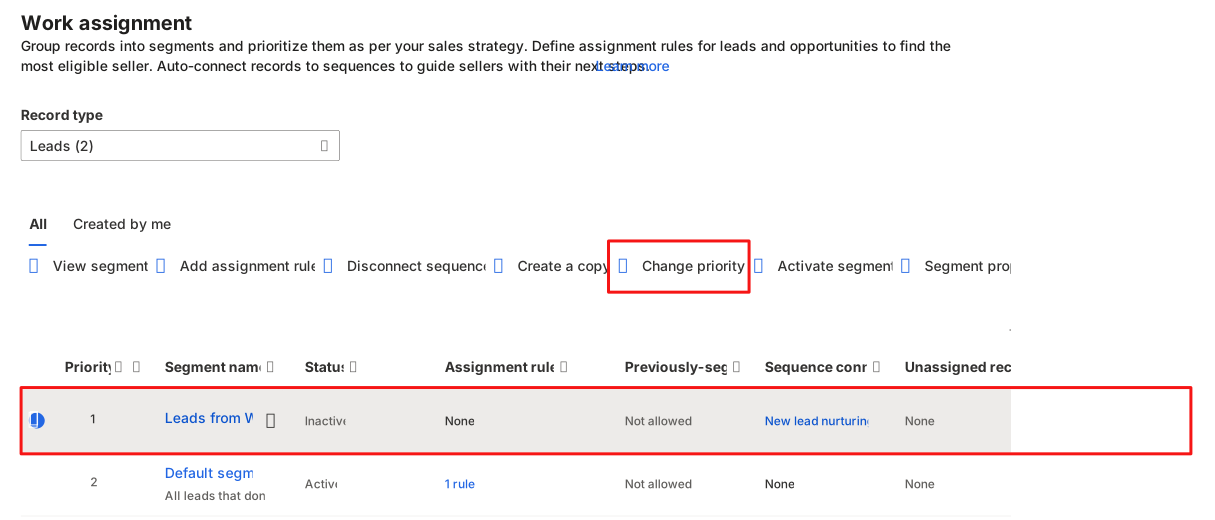
For more information, see Prioritize segments.
Delete or deactivate a segment
You can deactivate or delete a segment that's no longer required in your organization. Deactivation retains the segment in the application, and the records that were already connected to it remain connected; however, future records won't be connected to it. When a segment is deleted, segment records that are already connected to a sequence aren't affected.
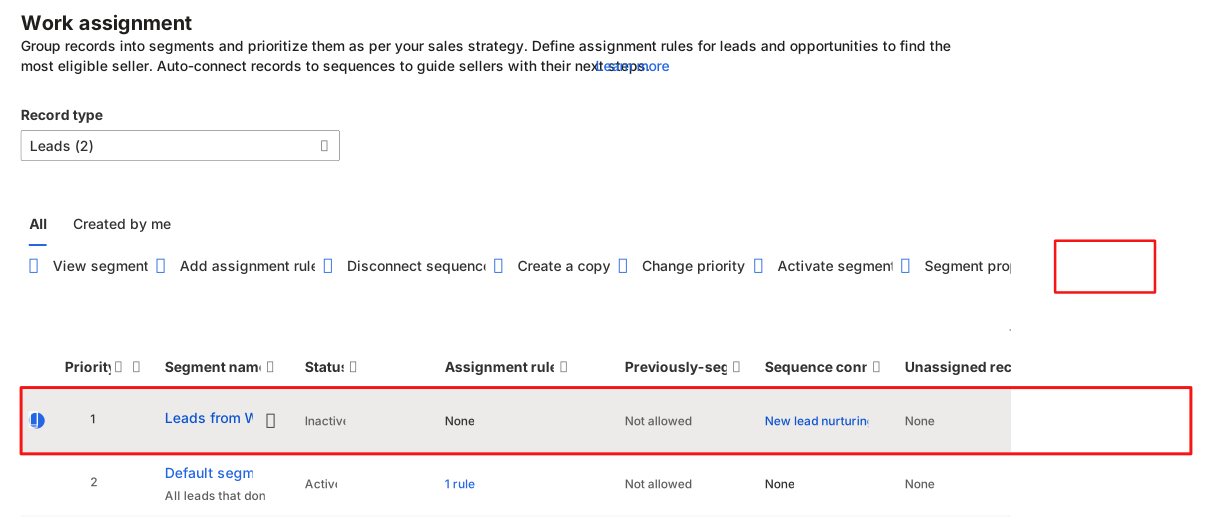
In the Sales Hub app, go to Sales Insights settings > Work assignment and select the Record type that you want to work with.
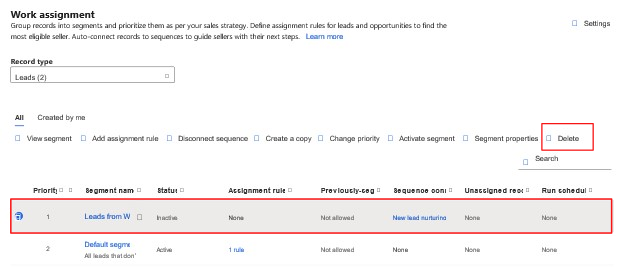
When you hover your mouse cursor over a segment, a vertical ellipsis displays next to the Segment name. Select the ellipsis to display the More Options menu, where you can select one of the following options:
View Segment - Displays segment details.
Change Priority - Select to change the priority of the segment.
Deactivate - Deactivates the segment.
Delete - Permanently removes the segment.
For more information, see Delete or deactivate a segment.