Not
Bu sayfaya erişim yetkilendirme gerektiriyor. Oturum açmayı veya dizinleri değiştirmeyi deneyebilirsiniz.
Bu sayfaya erişim yetkilendirme gerektiriyor. Dizinleri değiştirmeyi deneyebilirsiniz.
Kullanıcıların WinUI uygulamanızdaki dosyalara veya klasörlere göz atmasına ve klasör seçmesine izin vermek için Windows Uygulama SDK'sı dosya ve klasör seçicileri kullanın. Seçici API'leri, kullanıcıların cihazlarında ve bulut depolama konumlarında gezinmelerine yardımcı olan tanıdık bir Windows deneyimi sağlar. Bu makalede dosya açma seçicilerini ve klasör seçicilerini uygulama, davranışlarını özelleştirme ve uygulamanızda seçili sonuçları işleme işlemlerinin nasıl gerçekleştirileceği gösterilir.
Windows Uygulama SDK'sı FileOpenPicker ve FileSavePicker sınıfları, kullanıcıların açılacak veya kaydedilecek dosyanın adını ve konumunu belirtmesine olanak tanıyan bir seçici iletişim kutusu oluşturur. FolderPicker sınıfı bir klasör seçmenize olanak tanır.
Dosyaları kaydetmek için seçici kullanma hakkında bilgi edinmek için bkz. Dosyayı Windows Uygulama SDK'sı seçiciyle kaydetme.
Prerequisites
- Windows Uygulama SDK'sı 1.8 veya üzeri.
Microsoft.Windows.Storage.PickersBu makalede kullanılan API'ler Windows Uygulama SDK'sı 1.8'de tanıtılmıştır. Projeniz daha eski bir sürümü hedefliyorsa, eski yaklaşım hakkında bilgi için HWND birlikte çalışabilirliği ile WinRT seçicilerini kullanma bölümüne bakın.
Önemli API'ler
Bu makalede aşağıdaki API'ler kullanılır:

WinUI 3 Galeri uygulaması, WinUI denetimlerinin ve özelliklerinin etkileşimli örneklerini içerir. uygulamayı Microsoft Store adresinden alın veya GitHub üzerindeki kaynak koduna göz atın.
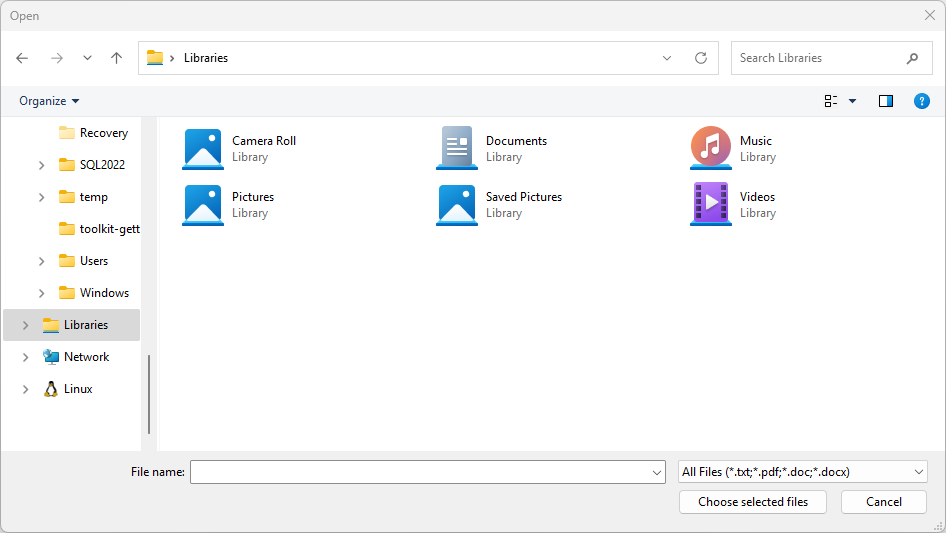
Dosya seçici kullanıcı arabirimi
Dosya seçici, kullanıcıları yönlendirmek ve dosyaları açarken veya kaydederken tutarlı bir deneyim sağlamak için bilgileri görüntüler.
Bu bilgiler şunları içerir:
- Geçerli konum
- Kullanıcının seçtiği öğe veya öğeler
- Kullanıcının göz atabileceği konum ağacı. Bu konumlar, Müzik veya İndirmeler klasörü gibi dosya sistemi konumlarının yanı sıra dosya seçici sözleşmesini (Kamera, Fotoğraflar ve Microsoft OneDrive gibi) uygulayan uygulamaları içerir.
Kullanıcıların dosyaları açmasına veya kaydetmesini sağlayan bir uygulamanız olabilir. Kullanıcı bu eylemi başlattığında uygulamanız, dosya seçici arayüzünü görüntüleyen dosya seçiciyi çağırır.
Seçiciler uygulamanızla nasıl çalışır?
Bir seçici kullanarak, uygulamanız kullanıcının sistemindeki dosya ve klasörlere erişebilir, bunlara göz atabilir ve bunları kaydedebilir. Uygulamanız bu seçmeleri, seçilen dosya veya klasörün yolunu sağlayan basit PickFileResult ve PickFolderResult nesneleri olarak alır.
Seçici, kullanıcının dosya sisteminden veya diğer uygulamalardan dosya ve klasör seçmesine izin vermek için tek, birleşik bir arabirim kullanır. Diğer uygulamalardan seçilen dosyalar, dosya sistemindeki dosyalara benzer. Genel olarak, uygulamanız bunlar üzerinde diğer nesnelerle aynı şekilde çalışabilir. Diğer uygulamalar, dosya seçici sözleşmelerine katılarak dosyaları kullanılabilir hale getirir.
Örneğin, kullanıcınızın bir dosyayı açabilmesi için uygulamanızda dosya seçiciyi çağırabilirsiniz. Bu eylem, uygulamanızı arama yapan uygulama yapar. Dosya seçici, kullanıcının dosyada gezinmesini ve dosyayı seçmesini sağlamak için sistemle ve diğer uygulamalarla etkileşim kurar. Kullanıcınız bir dosya seçtiğinde, dosya seçici bu dosyanın uygulamanızın yolunu döndürür.
Örnek açmak için bir dosya seçin
Aşağıdaki kod, kullanıcının fotoğraf gibi tek bir dosya seçmesine izin vermek için FileOpenPicker sınıfının nasıl kullanılacağını gösterir. Kod, seçicinin görünümünü ve davranışını özelleştirmek için özellikleri ayarlar ve picker'ı PickSingleFileAsync yöntemini kullanarak kullanıcıya gösterir. Kullanıcı bir dosya seçerse, uygulama dosyanın içeriğini okur ve bir değişkende depolar.
using Microsoft.Windows.Storage.Pickers;

var openPicker = new FileOpenPicker(this.AppWindow.Id)
{
    // (Optional) Specify the initial location for the picker.
    //     If the specified location doesn't exist on the user's machine, it falls back to the DocumentsLibrary.
    //     If not set, it defaults to PickerLocationId.Unspecified, and the system will use its default location.
    SuggestedStartLocation = PickerLocationId.DocumentsLibrary,

    // (Optional) specify the text displayed on the commit button.
    //     If not specified, the system uses a default label of "Open" (suitably translated).
    CommitButtonText = "Choose selected files",

    // (Optional) specify file extension filters. If not specified, defaults to all files (*.*).
    FileTypeFilter = { ".txt", ".pdf", ".doc", ".docx" },

    // (Optional) specify the view mode of the picker dialog. If not specified, defaults to List.
    ViewMode = PickerViewMode.List,
};

var result = await openPicker.PickSingleFileAsync();
if (result is not null)
{
    var content = System.IO.File.ReadAllText(result.Path);
}
else
{
    // Add your error handling here.
}
#include <winrt/Microsoft.Windows.Storage.Pickers.h>
#include <fstream>
#include <string>

using namespace winrt::Microsoft::Windows::Storage::Pickers;

FileOpenPicker openPicker(this->AppWindow().Id());

// (Optional) Specify the initial location for the picker.
//     If the specified location doesn't exist on the user's machine, it falls back to the DocumentsLibrary.
//     If not set, it defaults to PickerLocationId.Unspecified, and the system will use its default location.
openPicker.SuggestedStartLocation(PickerLocationId::DocumentsLibrary);

// (Optional) specify the text displayed on the commit button.
//     If not specified, the system uses a default label of "Open" (suitably translated).
openPicker.CommitButtonText(L"Choose selected files");

// (Optional) specify file extension filters. If not specified, defaults to all files (*.*).
openPicker.FileTypeFilter().ReplaceAll({ L".txt", L".pdf", L".doc", L".docx" });

// (Optional) specify the view mode of the picker dialog. If not specified, defaults to List.
openPicker.ViewMode(PickerViewMode::List);

auto result{ co_await openPicker.PickSingleFileAsync() };
if (result)
{
    std::ifstream fileReader(result.Path().c_str());
    std::string text((std::istreambuf_iterator<char>(fileReader)), std::istreambuf_iterator<char>());
    winrt::hstring hText = winrt::to_hstring(text);
}
else
{
    // Add your error handling here.
}
Örnek açmak için birden çok dosya seçin
Kullanıcının birden çok dosya seçmesine de izin vekleyebilirsiniz. Aşağıdaki kod, kullanıcının fotoğraflar gibi birden çok dosya seçmesine izin vermek için FileOpenPicker sınıfının nasıl kullanılacağını gösterir. İşlem aynıdır, ancak PickMultipleFilesAsync yöntemi PickFileResult nesnelerinin bir koleksiyonunu döndürür. Ham dosya yoluna ihtiyaç duyduğunuzda, her sonuç Path özelliğini sağlar.
using Microsoft.Windows.Storage.Pickers;

var openPicker = new FileOpenPicker(this.AppWindow.Id);

var results = await openPicker.PickMultipleFilesAsync();
if (results.Count > 0)
{
    var pickedFilePaths = results.Select(f => f.Path);
    foreach (var path in pickedFilePaths)
    {
        var content = System.IO.File.ReadAllText(path);
    }
}
else
{
    // Add your error handling here.
}
#include <winrt/Microsoft.Windows.Storage.Pickers.h>
#include <fstream>
#include <string>

using namespace winrt::Microsoft::Windows::Storage::Pickers;

FileOpenPicker openPicker(this->AppWindow().Id());
auto results{ co_await openPicker.PickMultipleFilesAsync() };
if (results.Size() > 0)
{
    for (auto const& result : results)
    {
        std::ifstream fileReader(result.Path().c_str());
        std::string text((std::istreambuf_iterator<char>(fileReader)), std::istreambuf_iterator<char>());
        winrt::hstring hText = winrt::to_hstring(text);
    }
}
else
{
    // Add your error handling here.
}
Klasör örneği seçme
FolderPicker sınıfını kullanarak bir klasör seçmek için aşağıdaki kodu kullanın. Bu kod bir klasör seçici oluşturur, PickSingleFolderAsync yöntemini kullanarak kullanıcıya gösterir ve pickFolderResult nesnesinde seçili klasörün yolunu alır. Kullanıcı bir klasör seçerse, uygulama klasörün yolunu alır ve daha sonra kullanmak üzere bir değişkende depolar.
using Microsoft.Windows.Storage.Pickers;

var folderPicker = new FolderPicker(this.AppWindow.Id)
{
    // (Optional) Specify the initial location for the picker.
    //     If the specified location doesn't exist on the user's machine, it falls back to the DocumentsLibrary.
    //     If not set, it defaults to PickerLocationId.Unspecified, and the system will use its default location.
    SuggestedStartLocation = PickerLocationId.DocumentsLibrary,

    // (Optional) specify the text displayed on the commit button.
    //     If not specified, the system uses a default label of "Open" (suitably translated).
    CommitButtonText = "Select Folder",

    // (Optional) specify the view mode of the picker dialog. If not specified, default to List.
    ViewMode = PickerViewMode.List,
};

var result = await folderPicker.PickSingleFolderAsync();

if (result is not null)
{
    var path = result.Path;
}
else
{
    // Add your error handling here.
}
#include <winrt/Microsoft.Windows.Storage.Pickers.h>

using namespace winrt::Microsoft::Windows::Storage::Pickers;

FolderPicker folderPicker(this->AppWindow().Id());

// (Optional) Specify the initial location for the picker.
//     If the specified location doesn't exist on the user's machine, it falls back to the DocumentsLibrary.
//     If not set, it defaults to PickerLocationId.Unspecified, and the system will use its default location.
folderPicker.SuggestedStartLocation(PickerLocationId::DocumentsLibrary);

// (Optional) specify the text displayed on the commit button.
//     If not specified, the system uses a default label of "Open" (suitably translated).
folderPicker.CommitButtonText(L"Select Folder");

// (Optional) specify the view mode of the picker dialog. If not specified, default to List.
folderPicker.ViewMode(PickerViewMode::List);

auto result{ co_await folderPicker.PickSingleFolderAsync() };
if (result)
{
    auto path{ result.Path() };
}
else
{
    // Add your error handling here.
}
Tavsiye
Uygulamanız bir seçici aracılığıyla bir dosyaya veya klasöre her eriştiğinde, onu Windows Çalışma Zamanı (WinRT) API'lerini kullanarak izlemek için uygulamanızın FutureAccessList veya MostRecentlyUsedList'e ekleyin. Daha fazla bilgi için bkz. Son kullanılan dosyaları ve klasörleri izleme.
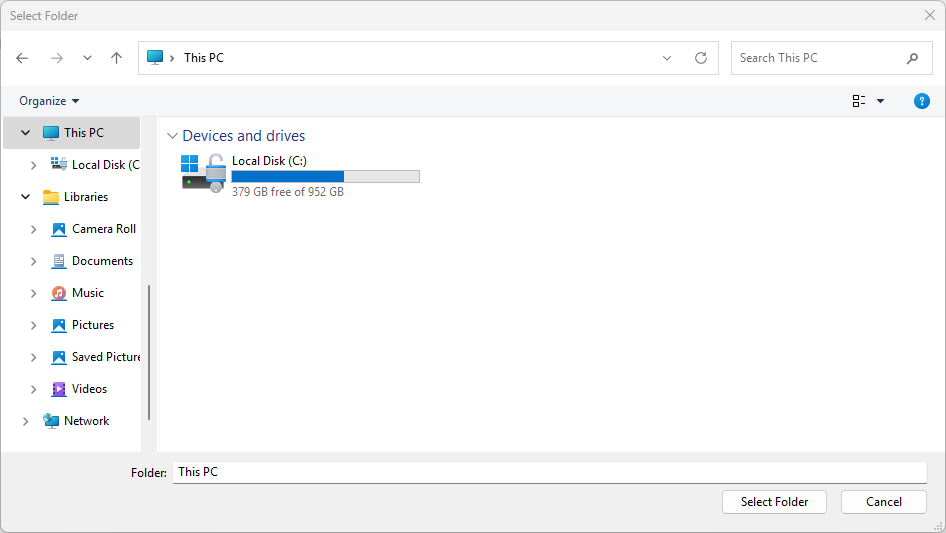
Klasör seçici kullanıcı arabirimi şöyle görünür:
WinRT seçicilerini HWND birlikte çalışabilirliği ile kullanma
Projeniz Windows Uygulama SDK'sı 1.7'yi veya daha eski bir sürümünü hedefliyorsa ya da eski Windows.Storage.Pickers API'lerini kullanıyorsanız (örneğin, UWP'den geçiş yaparken), seçiciyi göstermeden önce onu bir pencere tanıtıcısıyla (HWND) başlatmanız gerekir. Bu adım olmadan, seçim aracı masaüstü (WinUI 3) uygulamalarında özel durum hatası verir veya sessizce başarısız olur.
Important
WinUI 3 masaüstü uygulamalarında yoktur CoreWindow. Seçiciyi, herhangi bir WinRT.Interop.InitializeWithWindow.Initialize çağrısından önce IInitializeWithWindow::Initialize (C#) veya Pick*Async (C++/WinRT) çağrısını yaparak uygulama pencerenizle ilişkilendirmeniz gerekir.
C# örneği (eski WinRT seçicileri)
// This example assumes you have a reference to your app's main window.
// In a Window class, use 'this'. In a Page, use a stored reference like App.MainWindow.

var picker = new Windows.Storage.Pickers.FileOpenPicker();
picker.FileTypeFilter.Add(".png");
picker.FileTypeFilter.Add(".jpg");

// Get the window handle (HWND) for the current WinUI 3 window.
var hwnd = WinRT.Interop.WindowNative.GetWindowHandle(App.MainWindow);

// Associate the picker with the window.
WinRT.Interop.InitializeWithWindow.Initialize(picker, hwnd);

var file = await picker.PickSingleFileAsync();
if (file is null)
{
    // The user cancelled the picker.
}
C++/WinRT örneği (eski WinRT seçicileri)
// pch.h
#include <winrt/Windows.Storage.Pickers.h>
#include <microsoft.ui.xaml.window.h>
#include <shobjidl_core.h>

// MainWindow.xaml.cpp — inside a MainWindow member function
Windows::Storage::Pickers::FileOpenPicker picker;
picker.FileTypeFilter().Append(L".png");
picker.FileTypeFilter().Append(L".jpg");

// Get the window handle (HWND) of the current WinUI 3 window.
auto windowNative{ this->m_inner.as<::IWindowNative>() };
HWND hwnd{ 0 };
windowNative->get_WindowHandle(&hwnd);

// Associate the picker with the window.
auto initializeWithWindow{ picker.as<::IInitializeWithWindow>() };
initializeWithWindow->Initialize(hwnd);

auto file{ co_await picker.PickSingleFileAsync() };
if (!file)
{
    // The user cancelled the picker.
}
Tavsiye
Yeni uygulamalar için önerilen yaklaşım, Windows Uygulama SDK'sı seçicilerini (Microsoft.Windows.Storage.Pickers) kullanmaktır; bunlar oluşturucusunda bir WindowId kabul eder ve InitializeWithWindow düzenini gerektirmez. Bu makalenin önceki bölümlerindeki örneklere bakın.
Pencere tutamacını alma hakkında daha fazla bilgi için bkz. Pencere tutamacını alma (HWND).
İlgili içerik
- Microsoft. Windows. Storage.Pickers ad alanı
- dosyayı Windows Uygulama SDK'sı seçiciyle kaydetme
- Windows Uygulama SDK'sı ile Dosyalar, klasörler ve kitaplıklar
- Bir pencere tutamağını (HWND) alın
- .NET uygulamasından birlikte çalışma API'lerini çağır
- CoreWindow'a bağlı WinRT kullanıcı arabirimi nesnelerini görüntüleme
- WinUI Galerisi dosya seçici örneği
GitHub'da bizimle işbirliği yapın
Bu içeriğin kaynağı GitHub'da bulunabilir; burada ayrıca sorunları ve çekme isteklerini oluşturup gözden geçirebilirsiniz. Daha fazla bilgi için katkıda bulunan kılavuzumuzu inceleyin.

Windows developer