Not
Bu sayfaya erişim yetkilendirme gerektiriyor. Oturum açmayı veya dizinleri değiştirmeyi deneyebilirsiniz.
Bu sayfaya erişim yetkilendirme gerektiriyor. Dizinleri değiştirmeyi deneyebilirsiniz.
Windows uygulamalarınızdaki işaret cihazlarından (dokunma, fare, kalem/ekran kalemi ve dokunmatik yüzey gibi) giriş verilerini alın, işleyin ve yönetin.
Önemli
Yalnızca net, iyi tanımlanmış bir gereksinim varsa ve platform denetimleri tarafından desteklenen etkileşimler senaryonuzu desteklemiyorsa özel etkileşimler oluşturun.
Windows uygulamanızdaki etkileşim deneyimlerini özelleştirdiğinizde kullanıcılar bunların tutarlı, sezgisel ve bulunabilir olmasını bekler. Bu nedenlerden dolayı, özel etkileşimlerinizi platform denetimleri tarafından desteklenenler üzerinde modellemenizi öneririz. Platform denetimleri standart etkileşimler, animasyonlu fizik efektleri, görsel geri bildirim ve erişilebilirlik dahil olmak üzere tam Windows app kullanıcı etkileşimi deneyimi sağlar.
Önemli API'ler
Yönergeler
Etkileşim deneyimlerinin çoğu, kullanıcının etkileşim kurmak istediği nesneyi dokunma, fare, kalem/ekran kalemi ve dokunmatik yüzey gibi giriş cihazları aracılığıyla işaret ederek tanımlamasını içerir. Bu giriş cihazları tarafından sağlanan ham İnsan Arabirimi Cihazı (HID) verileri birçok ortak özellik içerdiğinden, veriler birleştirilmiş bir giriş yığınında yükseltilir ve birleştirilir ve cihazdan bağımsız işaretçi verileri olarak kullanıma sunulur. Daha sonra Windows uygulamalarınız, kullanılan giriş cihazı konusunda endişelenmeden bu verileri kullanabilir.
Uyarı
Cihaza özgü bilgiler, uygulamanızın gerektirdiği durumlarda ham HID verilerinden çıkarılır.
Giriş yığınındaki her giriş noktası (veya temas), çeşitli işaretçi olay işleyicileri aracılığıyla PointerRoutedEventArgs parametresi üzerinden sunulan bir Pointer nesnesiyle temsil edilir. Çoklu kalem veya çoklu dokunma girişi söz konusu olduğunda, her temas benzersiz bir giriş işaretçisi olarak kabul edilir.
İmleç olayları
İşaretçi olayları, giriş cihazı türü ve algılama durumu (aralıkta veya temas halinde) gibi temel bilgileri ve konum, basınç, temas geometrisi gibi genişletilmiş bilgileri sunar. Ayrıca, kullanıcının hangi fare düğmesine bastığı veya kalem silgi ucunun kullanılıp kullanılmadığı gibi belirli cihaz özellikleri de kullanılabilir. Uygulamanızın giriş cihazlarıyla özellikleri arasında ayrım yapması gerekiyorsa bkz. Giriş cihazlarını tanımlama.
Windows uygulamaları aşağıdaki işaretçi olaylarını dinleyebilir:
Uyarı
İşaretçi olay işleyicisi içindeki bu öğede CapturePointer'ı çağırarak işaretçi girişini belirli bir kullanıcı arabirimi öğesiyle kısıtlayın. Bir işaretçi bir öğe tarafından yakalandığında, işaretçi nesnenin sınırlayıcı alanının dışına hareket ettiğinde bile yalnızca bu nesne işaretçi giriş olaylarını alır. IsInContact (fare düğmesine basıldı, dokunma veya ekran kalemi temasta) doğru olmalıdır ki CapturePointer başarılı olsun.
| Event | Description |
|---|---|
| İşaretçi İptal Edildi | Bir işaretçi platform tarafından iptal edildiğinde gerçekleşir. Bu, aşağıdaki durumlarda oluşabilir: • Giriş yüzeyinin aralığında bir kalem algılandığında dokunmatik işaretçiler iptal edilir. • Etkin bir temas 100 ms'den uzun süre algılanmaz. • Monitör/ekran değiştirilir (çözünürlük, ayarlar, çoklu mon yapılandırması). • Masaüstü kilitli veya kullanıcı oturumdan çıktı. • Eşzamanlı kişi sayısı cihazın desteklediği sayıyı aştı. |
| PointerCaptureLost | Başka bir ui öğesi işaretçiyi yakaladığında, işaretçi serbest bırakıldığında veya başka bir işaretçi program aracılığıyla yakalandığında gerçekleşir. Not: karşılık gelen işaretçi yakalama olayı yok. |
| İşaretçiGirildi | Bu olay, bir işaretçi bir öğenin sınırlayıcı alanına girdiğinde gerçekleşir. Bu, dokunmatik yüzey, fare ve kalem girişi için biraz farklı şekillerde gerçekleşebilir. • Dokunma, bu olayı tetiklemek için ya eleman üzerine doğrudan bir dokunuşla ya da elemanın sınırlayıcı alanına girildiğinde parmak temasını gerektirir. • Hem fare hem de dokunmatik yüzey, her zaman görünür olan bir ekran imlecine sahiptir ve fare veya dokunmatik yüzey düğmesine basılmış olmasa bile bu olayı tetikler. • Dokunma gibi, kalem de bu olayı elemanın üzerine doğrudan dokunarak veya elemanın sınırlayıcı alanına girerek tetikler. Ancak kalem, true olduğunda bu olayı tetikleyen bir vurgulama durumuna da (IsInRange) sahiptir. |
| PointerExited | bir işaretçi bir öğenin sınırlayıcı alanından ayrıldığında gerçekleşir. Bu, dokunmatik yüzey, fare ve kalem girişi için biraz farklı şekillerde gerçekleşebilir. • Dokunma, parmakla temas gerektirir ve işaretçi öğenin sınırlayıcı alanından dışarı hareket ettiğinde bu olayı tetikler. • Hem fare hem de dokunmatik yüzey, her zaman görünür olan bir ekran imlecine sahiptir ve fare veya dokunmatik yüzey düğmesine basılmış olmasa bile bu olayı tetikler. • Dokunma gibi kalem de elemanın sınırlayıcı alanından dışarı hareket ederken bu olayı tetikler. Ancak, kalemin IsInRange olarak adlandırılan bir hover durumu da vardır ve bu durum true'dan false'a değiştiğinde olayı tetikler. |
| İşaretçi Taşındı | İşaretçi bir öğenin sınırlayıcı alanı içinde koordinatları, düğme durumunu, basıncı, eğimi veya temas geometrisini (örneğin genişlik ve yükseklik) değiştirdiğinde gerçekleşir. Bu, dokunmatik yüzey, fare ve kalem girişi için biraz farklı şekillerde gerçekleşebilir. • Dokunma, parmakla temas gerektirir ve bu olayı yalnızca öğenin sınırlayıcı alanı içinde temas halinde tetikler. • Hem fare hem de dokunmatik yüzey, her zaman görünür olan bir ekran imlecine sahiptir ve fare veya dokunmatik yüzey düğmesine basılmış olmasa bile bu olayı tetikler. • Dokunma gibi kalem de öğenin sınırlayıcı alanı içinde temas halindeyken bu olayı tetikler. Ancak kalemin, öğenin sınırlayıcı alanı içindeyken ve IsInRange true olduğunda bu olayı tetikleyen bir hover durumu da vardır. |
| PointerPressed | Bir işaretçi, bir öğenin sınırlayıcı alanı içinde (dokunma, fare düğmesi, kalem veya dokunmatik yüzey düğmesi gibi) bir basma eylemini gösterdiğinde gerçekleşir. CapturePointer bu olay için işleyiciden çağrılmalıdır. |
| PointerReleased | İşaretçi, bir öğenin sınırlayıcı alanı içinde dokunma bırakma, fare düğmesi bırakma, kalem bırakma veya dokunmatik yüzey düğmesi bırakma gibi bir serbest bırakma eylemini gösterdiğinde veya işaretçi yakalandığında sınırlayıcı alanın dışında olduğunda gerçekleşir. |
| İşaretçiTekerleğiDeğişti | Fare tekerleği döndürüldüğünde gerçekleşir. Fare girişi, fare girişi ilk algılandığında atanan tek bir işaretçiyle ilişkilendirilir. Fare düğmesine (sol, tekerlek veya sağ) tıklanması, işaretçi ile o düğme arasında, PointerMoved olayı aracılığıyla ikincil bir ilişki oluşturur. |
İşaretçi olayı örneği
Birden çok işaretçi için olayları dinlemeyi ve işlemeyi ve ilişkili işaretçiler için çeşitli özellikleri almayı gösteren temel bir işaretçi izleme uygulamasından bazı kod parçacıkları aşağıdadır.
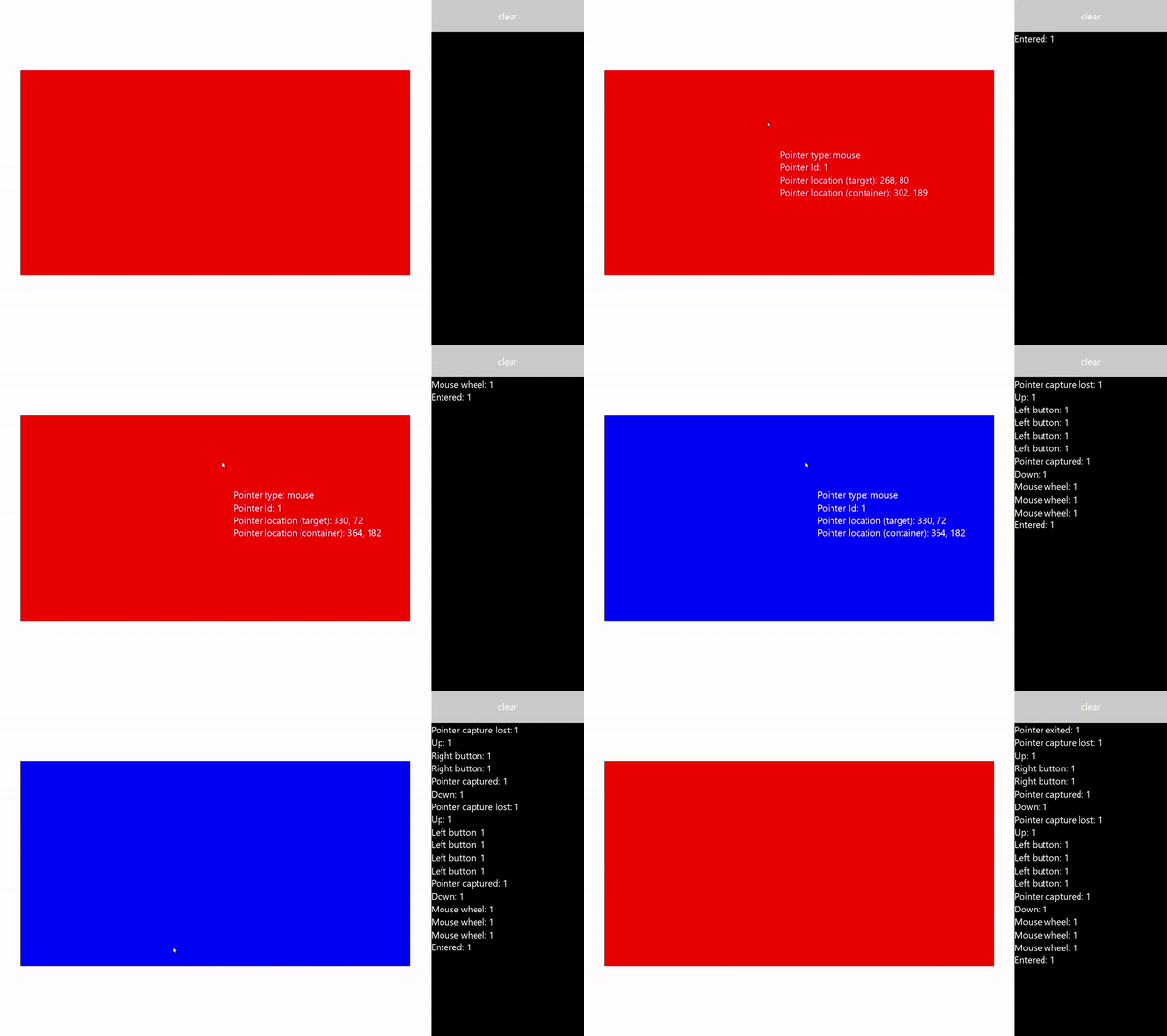
Bu örneği Pointer giriş örneğinden indirin (temel)
Uyarı
Bu örnekte UWP proje yapısı kullanılmaktadır. İşaretçi olayı API'leri (PointerPressed, PointerMovedvb.) ve PointerRoutedEventArgs gösterilen desenler, ad alanını kullanan Microsoft.UI.Xaml.Input WinUI 3 masaüstü uygulamalarında aynı şekilde çalışır.
Kullanıcı arabirimini oluşturma
Bu örnekte, işaretçi girişi kullanan nesne olarak bir Dikdörtgen (Target) kullanıyoruz. İşaretçi durumu değiştiğinde hedefin rengi değişir.
Her işaretçinin ayrıntıları, hareket ettikçe işaretçiyi izleyen kayan TextBlock içinde görüntülenir. İşaretçi olayları, dikdörtgenin sağındaki RichTextBlock içinde bildirilir.
Bu örnekteki kullanıcı arabirimi için Genişletilebilir Uygulama Biçimlendirme Dili (XAML) budur.
<Grid Background="{ThemeResource ApplicationPageBackgroundThemeBrush}">
    <Grid.ColumnDefinitions>
        <ColumnDefinition Width="*" />
        <ColumnDefinition Width="250"/>
    </Grid.ColumnDefinitions>
    <Grid.RowDefinitions>
        <RowDefinition Height="*" />
        <RowDefinition Height="320" />
        <RowDefinition Height="*"/>
    </Grid.RowDefinitions>
    <Canvas Name="Container"
            Grid.Column="0"
            Grid.Row="1"
            HorizontalAlignment="Center"
            VerticalAlignment="Center"
            Margin="245,0"
            Height="320"  Width="640">
        <Rectangle Name="Target"
                    Fill="#FF0000"
                    Stroke="Black"
                    StrokeThickness="0"
                    Height="320" Width="640" />
    </Canvas>
    <Grid Grid.Column="1" Grid.Row="0" Grid.RowSpan="3">
        <Grid.RowDefinitions>
            <RowDefinition Height="50" />
            <RowDefinition Height="*" />
        </Grid.RowDefinitions>
        <Button Name="buttonClear"
                Grid.Row="0"
                Content="Clear"
                Foreground="White"
                HorizontalAlignment="Stretch"
                VerticalAlignment="Stretch">
        </Button>
        <ScrollViewer Name="eventLogScrollViewer" Grid.Row="1"
                        VerticalScrollMode="Auto"
                        Background="Black">
            <RichTextBlock Name="eventLog"
                        TextWrapping="Wrap"
                        Foreground="#FFFFFF"
                        ScrollViewer.VerticalScrollBarVisibility="Visible"
                        ScrollViewer.HorizontalScrollBarVisibility="Disabled"
                        Grid.ColumnSpan="2">
            </RichTextBlock>
        </ScrollViewer>
    </Grid>
</Grid>
İşaretçi olaylarını dinleme
Çoğu durumda, olay işleyicisinin PointerRoutedEventArgs aracılığıyla işaretçi bilgilerini almanızı öneririz.
Olay bağımsız değişkeni gereken işaretçi ayrıntılarını göstermiyorsa, genişletilmiş PointerPoint bilgilerine GetCurrentPoint ve GetIntermediatePoints yöntemlerini kullanarak PointerRoutedEventArgs aracılığıyla erişebilirsiniz.
Aşağıdaki kod, her etkin işaretçiyi izlemek için genel sözlük nesnesini ayarlar ve hedef nesne için çeşitli işaretçi olay dinleyicilerini tanımlar.
// Dictionary to maintain information about each active pointer.
// An entry is added during PointerPressed/PointerEntered events and removed
// during PointerReleased/PointerCaptureLost/PointerCanceled/PointerExited events.
Dictionary<uint, Microsoft.UI.Xaml.Input.Pointer> pointers;

public MainPage()
{
    this.InitializeComponent();

    // Initialize the dictionary.
    pointers = new Dictionary<uint, Microsoft.UI.Xaml.Input.Pointer>();

    // Declare the pointer event handlers.
    Target.PointerPressed +=
        new PointerEventHandler(Target_PointerPressed);
    Target.PointerEntered +=
        new PointerEventHandler(Target_PointerEntered);
    Target.PointerReleased +=
        new PointerEventHandler(Target_PointerReleased);
    Target.PointerExited +=
        new PointerEventHandler(Target_PointerExited);
    Target.PointerCanceled +=
        new PointerEventHandler(Target_PointerCanceled);
    Target.PointerCaptureLost +=
        new PointerEventHandler(Target_PointerCaptureLost);
    Target.PointerMoved +=
        new PointerEventHandler(Target_PointerMoved);
    Target.PointerWheelChanged +=
        new PointerEventHandler(Target_PointerWheelChanged);

    buttonClear.Click +=
        new RoutedEventHandler(ButtonClear_Click);
}
İşaretçi olaylarını işleme
Ardından, temel işaretçi olay işleyicilerini göstermek için kullanıcı arabirimi geri bildirimini kullanacağız.
Bu işleyici PointerPressed olayını yönetir. Olayı olay günlüğüne ekler, işaretçiyi etkin işaretçi sözlüğüne ekler ve işaretçi ayrıntılarını görüntüleriz.
Uyarı
PointerPressed ve PointerReleased olayları her zaman çiftler halinde gerçekleşmez. Uygulamanız, işaretçi basılıyken sonuçlanabilecek olayları (örneğin, PointerExited, PointerCanceled ve PointerCaptureLost) dinlemeli ve işlemelidir.
/// <summary>
/// The pointer pressed event handler.
/// PointerPressed and PointerReleased don't always occur in pairs.
/// Your app should listen for and handle any event that can conclude
/// a pointer down (PointerExited, PointerCanceled, PointerCaptureLost).
/// </summary>
/// <param name="sender">Source of the pointer event.</param>
/// <param name="e">Event args for the pointer routed event.</param>
void Target_PointerPressed(object sender, PointerRoutedEventArgs e)
{
    // Prevent most handlers along the event route from handling the same event again.
    e.Handled = true;

    PointerPoint ptrPt = e.GetCurrentPoint(Target);

    // Update event log.
    UpdateEventLog("Down: " + ptrPt.PointerId);

    // Lock the pointer to the target.
    Target.CapturePointer(e.Pointer);

    // Update event log.
    UpdateEventLog("Pointer captured: " + ptrPt.PointerId);

    // Check if pointer exists in dictionary (ie, enter occurred prior to press).
    if (!pointers.ContainsKey(ptrPt.PointerId))
    {
        // Add contact to dictionary.
        pointers[ptrPt.PointerId] = e.Pointer;
    }

    // Change background color of target when pointer contact detected.
    Target.Fill = new SolidColorBrush(Microsoft.UI.Colors.Green);

    // Display pointer details.
    CreateInfoPop(ptrPt);
}
- Bu işleyici PointerEntered olayını yönetir. Olayı olay günlüğüne ekler, işaretçiyi işaretçi koleksiyonuna ekler ve işaretçi ayrıntılarını görüntüleriz.
/// <summary>
/// The pointer entered event handler.
/// We do not capture the pointer on this event.
/// </summary>
/// <param name="sender">Source of the pointer event.</param>
/// <param name="e">Event args for the pointer routed event.</param>
private void Target_PointerEntered(object sender, PointerRoutedEventArgs e)
{
    // Prevent most handlers along the event route from handling the same event again.
    e.Handled = true;

    PointerPoint ptrPt = e.GetCurrentPoint(Target);

    // Update event log.
    UpdateEventLog("Entered: " + ptrPt.PointerId);

    // Check if pointer already exists (if enter occurred prior to down).
    if (!pointers.ContainsKey(ptrPt.PointerId))
    {
        // Add contact to dictionary.
        pointers[ptrPt.PointerId] = e.Pointer;
    }

    if (pointers.Count == 0)
    {
        // Change background color of target when pointer contact detected.
        Target.Fill = new SolidColorBrush(Microsoft.UI.Colors.Blue);
    }

    // Display pointer details.
    CreateInfoPop(ptrPt);
}
Bu işleyici PointerMoved olayını yönetir. Olayı olay günlüğüne ekleyip işaretçi ayrıntılarını güncelleştiriyoruz.
Önemli
Fare girişi, fare girişi ilk algılandığında atanan tek bir işaretçiyle ilişkilendirilir. Fare düğmesine (sol, tekerlek veya sağ) tıklanması, İşaretçi ile pointerPressed olayı arasında ikincil bir ilişki oluşturur. PointerReleased olayı yalnızca aynı fare düğmesi serbest bırakıldığında tetiklenir (bu olay tamamlanana kadar işaretçiyle başka hiçbir düğme ilişkilendirılamaz). Bu özel ilişki nedeniyle, diğer fare düğmesi tıklamaları PointerMoved olayı üzerinden yönlendirilir.
/// <summary>
/// The pointer moved event handler.
/// </summary>
/// <param name="sender">Source of the pointer event.</param>
/// <param name="e">Event args for the pointer routed event.</param>
private void Target_PointerMoved(object sender, PointerRoutedEventArgs e)
{
    // Prevent most handlers along the event route from handling the same event again.
    e.Handled = true;

    PointerPoint ptrPt = e.GetCurrentPoint(Target);

    // Multiple, simultaneous mouse button inputs are processed here.
    // Mouse input is associated with a single pointer assigned when
    // mouse input is first detected.
    // Clicking additional mouse buttons (left, wheel, or right) during
    // the interaction creates secondary associations between those buttons
    // and the pointer through the pointer pressed event.
    // The pointer released event is fired only when the last mouse button
    // associated with the interaction (not necessarily the initial button)
    // is released.
    // Because of this exclusive association, other mouse button clicks are
    // routed through the pointer move event.
    if (ptrPt.PointerDevice.PointerDeviceType == Windows.Devices.Input.PointerDeviceType.Mouse)
    {
        if (ptrPt.Properties.IsLeftButtonPressed)
        {
            UpdateEventLog("Left button: " + ptrPt.PointerId);
        }
        if (ptrPt.Properties.IsMiddleButtonPressed)
        {
            UpdateEventLog("Wheel button: " + ptrPt.PointerId);
        }
        if (ptrPt.Properties.IsRightButtonPressed)
        {
            UpdateEventLog("Right button: " + ptrPt.PointerId);
        }
    }

    // Display pointer details.
    UpdateInfoPop(ptrPt);
}
- Bu işleyici PointerWheelChanged olayını yönetir. Olayı olay günlüğüne ekler, işaretçiyi işaretçi dizisine ekler (gerekirse) ve işaretçi ayrıntılarını görüntüleriz.
/// <summary>
/// The pointer wheel event handler.
/// </summary>
/// <param name="sender">Source of the pointer event.</param>
/// <param name="e">Event args for the pointer routed event.</param>
private void Target_PointerWheelChanged(object sender, PointerRoutedEventArgs e)
{
    // Prevent most handlers along the event route from handling the same event again.
    e.Handled = true;

    PointerPoint ptrPt = e.GetCurrentPoint(Target);

    // Update event log.
    UpdateEventLog("Mouse wheel: " + ptrPt.PointerId);

    // Check if pointer already exists (for example, enter occurred prior to wheel).
    if (!pointers.ContainsKey(ptrPt.PointerId))
    {
        // Add contact to dictionary.
        pointers[ptrPt.PointerId] = e.Pointer;
    }

    // Display pointer details.
    CreateInfoPop(ptrPt);
}
- Bu işleyici, dijitalleştiriciyle temasın sona erdirildiği PointerReleased olayını yönetir. Olayı olay günlüğüne ekler, işaretçiyi işaretçi koleksiyonundan kaldırır ve işaretçi ayrıntılarını güncelleştiririz.
/// <summary>
/// The pointer released event handler.
/// PointerPressed and PointerReleased don't always occur in pairs.
/// Your app should listen for and handle any event that can conclude
/// a pointer down (PointerExited, PointerCanceled, PointerCaptureLost).
/// </summary>
/// <param name="sender">Source of the pointer event.</param>
/// <param name="e">Event args for the pointer routed event.</param>
void Target_PointerReleased(object sender, PointerRoutedEventArgs e)
{
    // Prevent most handlers along the event route from handling the same event again.
    e.Handled = true;

    PointerPoint ptrPt = e.GetCurrentPoint(Target);

    // Update event log.
    UpdateEventLog("Up: " + ptrPt.PointerId);

    // If event source is mouse or touchpad and the pointer is still
    // over the target, retain pointer and pointer details.
    // Return without removing pointer from pointers dictionary.
    // For this example, we assume a maximum of one mouse pointer.
    if (ptrPt.PointerDevice.PointerDeviceType != Windows.Devices.Input.PointerDeviceType.Mouse)
    {
        // Update target UI.
        Target.Fill = new SolidColorBrush(Microsoft.UI.Colors.Red);

        DestroyInfoPop(ptrPt);

        // Remove contact from dictionary.
        if (pointers.ContainsKey(ptrPt.PointerId))
        {
            pointers[ptrPt.PointerId] = null;
            pointers.Remove(ptrPt.PointerId);
        }

        // Release the pointer from the target.
        Target.ReleasePointerCapture(e.Pointer);

        // Update event log.
        UpdateEventLog("Pointer released: " + ptrPt.PointerId);
    }
    else
    {
        Target.Fill = new SolidColorBrush(Microsoft.UI.Colors.Blue);
    }
}
- Bu işleyici PointerExited olayını yönetir (dijitalleştiriciyle iletişim sağlandığında). Olayı olay günlüğüne ekler, işaretçi dizisinden işaretçiyi kaldırır ve işaretçi ayrıntılarını güncelleştiririz.
/// <summary>
/// The pointer exited event handler.
/// </summary>
/// <param name="sender">Source of the pointer event.</param>
/// <param name="e">Event args for the pointer routed event.</param>
private void Target_PointerExited(object sender, PointerRoutedEventArgs e)
{
    // Prevent most handlers along the event route from handling the same event again.
    e.Handled = true;

    PointerPoint ptrPt = e.GetCurrentPoint(Target);

    // Update event log.
    UpdateEventLog("Pointer exited: " + ptrPt.PointerId);

    // Remove contact from dictionary.
    if (pointers.ContainsKey(ptrPt.PointerId))
    {
        pointers[ptrPt.PointerId] = null;
        pointers.Remove(ptrPt.PointerId);
    }

    if (pointers.Count == 0)
    {
        Target.Fill = new SolidColorBrush(Microsoft.UI.Colors.Red);
    }

    // Update the UI and pointer details.
    DestroyInfoPop(ptrPt);
}
- Bu işleyici PointerCanceled olayını yönetir. Olayı olay günlüğüne ekler, işaretçi dizisinden işaretçiyi kaldırır ve işaretçi ayrıntılarını güncelleştiririz.
/// <summary>
/// The pointer canceled event handler.
/// Fires for various reasons, including:
///    - Touch contact canceled by pen coming into range of the surface.
///    - The device doesn't report an active contact for more than 100ms.
///    - The desktop is locked or the user logged off.
///    - The number of simultaneous contacts exceeded the number supported by the device.
/// </summary>
/// <param name="sender">Source of the pointer event.</param>
/// <param name="e">Event args for the pointer routed event.</param>
private void Target_PointerCanceled(object sender, PointerRoutedEventArgs e)
{
    // Prevent most handlers along the event route from handling the same event again.
    e.Handled = true;

    PointerPoint ptrPt = e.GetCurrentPoint(Target);

    // Update event log.
    UpdateEventLog("Pointer canceled: " + ptrPt.PointerId);

    // Remove contact from dictionary.
    if (pointers.ContainsKey(ptrPt.PointerId))
    {
        pointers[ptrPt.PointerId] = null;
        pointers.Remove(ptrPt.PointerId);
    }

    if (pointers.Count == 0)
    {
        Target.Fill = new SolidColorBrush(Microsoft.UI.Colors.Black);
    }

    DestroyInfoPop(ptrPt);
}
Bu işleyici PointerCaptureLost olayını yönetir. Olayı olay günlüğüne ekler, işaretçi dizisinden işaretçiyi kaldırır ve işaretçi ayrıntılarını güncelleştiririz.
Uyarı
PointerReleased yerine PointerCaptureLost oluşabilir. İşaretçi yakalama, kullanıcı etkileşimi, başka bir işaretçinin program aracılığıyla yakalanması ve PointerReleased çağrısı gibi çeşitli nedenlerle kaybolabilir.
/// <summary>
/// The pointer capture lost event handler.
/// Fires for various reasons, including:
///    - User interactions
///    - Programmatic capture of another pointer
///    - Captured pointer was deliberately released
// PointerCaptureLost can fire instead of PointerReleased.
/// </summary>
/// <param name="sender">Source of the pointer event.</param>
/// <param name="e">Event args for the pointer routed event.</param>
private void Target_PointerCaptureLost(object sender, PointerRoutedEventArgs e)
{
    // Prevent most handlers along the event route from handling the same event again.
    e.Handled = true;

    PointerPoint ptrPt = e.GetCurrentPoint(Target);

    // Update event log.
    UpdateEventLog("Pointer capture lost: " + ptrPt.PointerId);

    if (pointers.Count == 0)
    {
        Target.Fill = new SolidColorBrush(Microsoft.UI.Colors.Black);
    }

    // Remove contact from dictionary.
    if (pointers.ContainsKey(ptrPt.PointerId))
    {
        pointers[ptrPt.PointerId] = null;
        pointers.Remove(ptrPt.PointerId);
    }

    DestroyInfoPop(ptrPt);
}
İşaretçi özelliklerini alma
Daha önce belirtildiği gibi, ek işaretçi bilgilerinin çoğunu, PointerRoutedEventArgs nesnesinin GetCurrentPoint ve GetIntermediatePoints yöntemleri aracılığıyla elde edilen bir Microsoft.UI.Input.PointerPoint nesnesinden almanız gerekir. Aşağıdaki kod parçacıkları nasıl yapılacağını gösterir.
- İlk olarak, her işaretçi için yeni bir TextBlock oluşturacağız.
/// <summary>
/// Create the pointer info popup.
/// </summary>
/// <param name="ptrPt">Reference to the input pointer.</param>
void CreateInfoPop(PointerPoint ptrPt)
{
    TextBlock pointerDetails = new TextBlock();
    pointerDetails.Name = ptrPt.PointerId.ToString();
    pointerDetails.Foreground = new SolidColorBrush(Microsoft.UI.Colors.White);
    pointerDetails.Text = QueryPointer(ptrPt);

    TranslateTransform x = new TranslateTransform();
    x.X = ptrPt.Position.X + 20;
    x.Y = ptrPt.Position.Y + 20;
    pointerDetails.RenderTransform = x;

    Container.Children.Add(pointerDetails);
}
- Ardından, bu işaretçiyle ilişkilendirilmiş mevcut bir TextBlock'taki işaretçi bilgilerini güncelleştirmenin bir yolunu sunuyoruz.
/// <summary>
/// Update the pointer info popup.
/// </summary>
/// <param name="ptrPt">Reference to the input pointer.</param>
void UpdateInfoPop(PointerPoint ptrPt)
{
    foreach (var pointerDetails in Container.Children)
    {
        if (pointerDetails.GetType().ToString() == "Microsoft.UI.Xaml.Controls.TextBlock")
        {
            TextBlock textBlock = (TextBlock)pointerDetails;
            if (textBlock.Name == ptrPt.PointerId.ToString())
            {
                // To get pointer location details, we need extended pointer info.
                // We get the pointer info through the getCurrentPoint method
                // of the event argument.
                TranslateTransform x = new TranslateTransform();
                x.X = ptrPt.Position.X + 20;
                x.Y = ptrPt.Position.Y + 20;
                pointerDetails.RenderTransform = x;
                textBlock.Text = QueryPointer(ptrPt);
            }
        }
    }
}
- Son olarak çeşitli işaretçi özelliklerini sorgulayacağız.
/// <summary>
/// Get pointer details.
/// </summary>
/// <param name="ptrPt">Reference to the input pointer.</param>
/// <returns>A string composed of pointer details.</returns>
String QueryPointer(PointerPoint ptrPt)
{
    String details = "";

    switch (ptrPt.PointerDevice.PointerDeviceType)
    {
        case Windows.Devices.Input.PointerDeviceType.Mouse:
            details += "\nPointer type: mouse";
            break;
        case Windows.Devices.Input.PointerDeviceType.Pen:
            details += "\nPointer type: pen";
            if (ptrPt.IsInContact)
            {
                details += "\nPressure: " + ptrPt.Properties.Pressure;
                details += "\nrotation: " + ptrPt.Properties.Orientation;
                details += "\nTilt X: " + ptrPt.Properties.XTilt;
                details += "\nTilt Y: " + ptrPt.Properties.YTilt;
                details += "\nBarrel button pressed: " + ptrPt.Properties.IsBarrelButtonPressed;
            }
            break;
        case Windows.Devices.Input.PointerDeviceType.Touch:
            details += "\nPointer type: touch";
            details += "\nrotation: " + ptrPt.Properties.Orientation;
            details += "\nTilt X: " + ptrPt.Properties.XTilt;
            details += "\nTilt Y: " + ptrPt.Properties.YTilt;
            break;
        default:
            details += "\nPointer type: n/a";
            break;
    }

    GeneralTransform gt = Target.TransformToVisual(this);
    Point screenPoint;

    screenPoint = gt.TransformPoint(new Point(ptrPt.Position.X, ptrPt.Position.Y));
    details += "\nPointer Id: " + ptrPt.PointerId.ToString() +
        "\nPointer location (target): " + Math.Round(ptrPt.Position.X) + ", " + Math.Round(ptrPt.Position.Y) +
        "\nPointer location (container): " + Math.Round(screenPoint.X) + ", " + Math.Round(screenPoint.Y);

    return details;
}
Birincil işaretçi
Dokunmatik basamaklandırıcı veya dokunmatik yüzey gibi bazı giriş cihazları, farenin veya kalemin tipik tek işaretçisinden daha fazlasını destekler (çoğu durumda Surface Hub iki kalem girişini desteklediğinden).
Tek bir birincil işaretçiyi tanımlamak ve ayırt etmek için PointerPointerProperties sınıfının salt okunur IsPrimary özelliğini kullanın (birincil işaretçi her zaman giriş dizisi sırasında algılanan ilk işaretçidir).
Birincil işaretçiyi tanımlayarak fare veya kalem girişine öykünmek, etkileşimleri özelleştirmek veya başka belirli işlevler veya kullanıcı arabirimi sağlamak için kullanabilirsiniz.
Uyarı
Birincil işaretçi bir giriş dizisi sırasında serbest bırakılır, iptal edilir veya kaybolursa, yeni bir giriş dizisi başlatılana kadar birincil giriş işaretçisi oluşturulmaz (tüm işaretçiler serbest bırakıldığında, iptal edildiğinde veya kaybolduğunda giriş dizisi sona erer).
Birincil işaretçi animasyon örneği
Bu kod parçacıkları, bir kullanıcının uygulamanızdaki işaretçi girişleri arasında ayrım yapmaya yardımcı olmak için özel görsel geri bildirim sağlamayı gösterir.
Bu uygulama, birincil işaretçiyi vurgulamak için hem renk hem de animasyon kullanır.
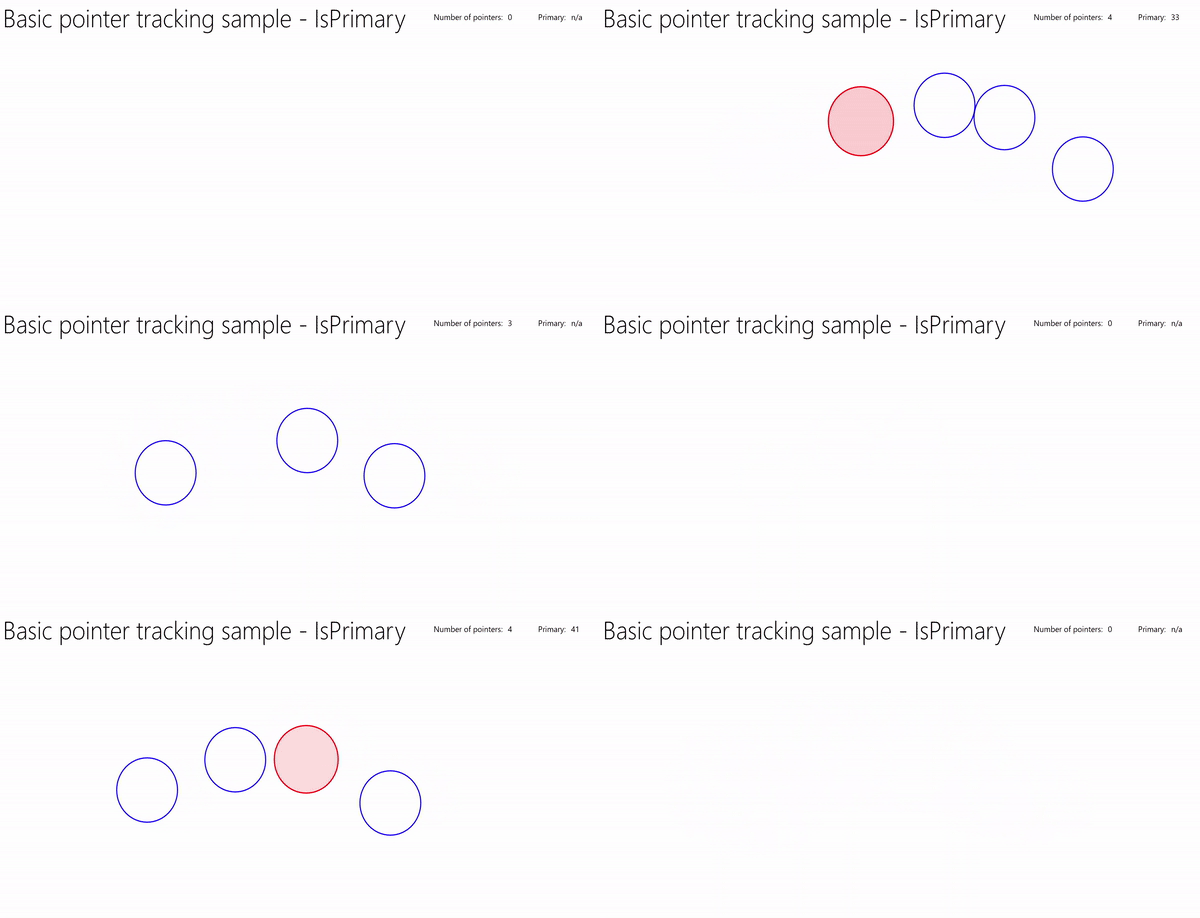
Bu örneği Pointer giriş örneğinden indirin (Animasyonlu UserControl)
Görsel geri bildirim
Biz, her işaretçinin tuvalde nerede olduğunu vurgulayan ve birincil işaretçiye karşılık gelen elipsi animasyonlu hale getirmek için bir Storyboard kullanan, XAML Elips nesnesini temel alan bir UserControl tanımlarız.
XAML şu şekildedir:
<UserControl
    x:Class="UWP_Pointers.PointerEllipse"
    xmlns="http://schemas.microsoft.com/winfx/2006/xaml/presentation"
    xmlns:x="http://schemas.microsoft.com/winfx/2006/xaml"
    xmlns:local="using:UWP_Pointers"
    xmlns:d="http://schemas.microsoft.com/expression/blend/2008"
    xmlns:mc="http://schemas.openxmlformats.org/markup-compatibility/2006"
    mc:Ignorable="d"
    d:DesignHeight="100"
    d:DesignWidth="100">

    <UserControl.Resources>
        <Style x:Key="EllipseStyle" TargetType="Ellipse">
            <Setter Property="Transitions">
                <Setter.Value>
                    <TransitionCollection>
                        <ContentThemeTransition/>
                    </TransitionCollection>
                </Setter.Value>
            </Setter>
        </Style>

        <Storyboard x:Name="myStoryboard">
            <!-- Animates the value of a Double property between
            two target values using linear interpolation over the
            specified Duration. -->
            <DoubleAnimation
              Storyboard.TargetName="ellipse"
              Storyboard.TargetProperty="(RenderTransform).(ScaleTransform.ScaleY)"
              Duration="0:0:1"
              AutoReverse="True"
              RepeatBehavior="Forever" From="1.0" To="1.4">
            </DoubleAnimation>

            <!-- Animates the value of a Double property between
            two target values using linear interpolation over the
            specified Duration. -->
            <DoubleAnimation
              Storyboard.TargetName="ellipse"
              Storyboard.TargetProperty="(RenderTransform).(ScaleTransform.ScaleX)"
              Duration="0:0:1"
              AutoReverse="True"
              RepeatBehavior="Forever" From="1.0" To="1.4">
            </DoubleAnimation>

            <!-- Animates the value of a Color property between
            two target values using linear interpolation over the
            specified Duration. -->
            <ColorAnimation
                Storyboard.TargetName="ellipse"
                EnableDependentAnimation="True"
                Storyboard.TargetProperty="(Fill).(SolidColorBrush.Color)"
                From="White" To="Red"  Duration="0:0:1"
                AutoReverse="True" RepeatBehavior="Forever"/>
        </Storyboard>
    </UserControl.Resources>

    <Grid x:Name="CompositionContainer">
        <Ellipse Name="ellipse"
        StrokeThickness="2"
        Width="{x:Bind Diameter}"
        Height="{x:Bind Diameter}"
        Style="{StaticResource EllipseStyle}" />
    </Grid>
</UserControl>
Arka planındaki kod da şu şekildedir:
using Windows.Foundation;
using Microsoft.UI.Xaml;
using Microsoft.UI.Xaml.Controls;
using Microsoft.UI.Xaml.Media;

// The User Control item template is documented at
// https://go.microsoft.com/fwlink/?LinkId=234236

namespace UWP_Pointers
{
    /// <summary>
    /// Pointer feedback object.
    /// </summary>
    public sealed partial class PointerEllipse : UserControl
    {
        // Reference to the application canvas.
        Canvas canvas;

        /// <summary>
        /// Ellipse UI for pointer feedback.
        /// </summary>
        /// <param name="c">The drawing canvas.</param>
        public PointerEllipse(Canvas c)
        {
            this.InitializeComponent();
            canvas = c;
        }

        /// <summary>
        /// Gets or sets the pointer Id to associate with the PointerEllipse object.
        /// </summary>
        public uint PointerId
        {
            get { return (uint)GetValue(PointerIdProperty); }
            set { SetValue(PointerIdProperty, value); }
        }
        // Using a DependencyProperty as the backing store for PointerId.
        // This enables animation, styling, binding, etc...
        public static readonly DependencyProperty PointerIdProperty =
            DependencyProperty.Register("PointerId", typeof(uint),
                typeof(PointerEllipse), new PropertyMetadata(null));


        /// <summary>
        /// Gets or sets whether the associated pointer is Primary.
        /// </summary>
        public bool PrimaryPointer
        {
            get { return (bool)GetValue(PrimaryPointerProperty); }
            set
            {
                SetValue(PrimaryPointerProperty, value);
            }
        }
        // Using a DependencyProperty as the backing store for PrimaryPointer.
        // This enables animation, styling, binding, etc...
        public static readonly DependencyProperty PrimaryPointerProperty =
            DependencyProperty.Register("PrimaryPointer", typeof(bool),
                typeof(PointerEllipse), new PropertyMetadata(false));


        /// <summary>
        /// Gets or sets the ellipse style based on whether the pointer is Primary.
        /// </summary>
        public bool PrimaryEllipse
        {
            get { return (bool)GetValue(PrimaryEllipseProperty); }
            set
            {
                SetValue(PrimaryEllipseProperty, value);
                if (value)
                {
                    SolidColorBrush fillBrush =
                        (SolidColorBrush)Application.Current.Resources["PrimaryFillBrush"];
                    SolidColorBrush strokeBrush =
                        (SolidColorBrush)Application.Current.Resources["PrimaryStrokeBrush"];

                    ellipse.Fill = fillBrush;
                    ellipse.Stroke = strokeBrush;
                    ellipse.RenderTransform = new CompositeTransform();
                    ellipse.RenderTransformOrigin = new Point(.5, .5);
                    myStoryboard.Begin();
                }
                else
                {
                    SolidColorBrush fillBrush =
                        (SolidColorBrush)Application.Current.Resources["SecondaryFillBrush"];
                    SolidColorBrush strokeBrush =
                        (SolidColorBrush)Application.Current.Resources["SecondaryStrokeBrush"];
                    ellipse.Fill = fillBrush;
                    ellipse.Stroke = strokeBrush;
                }
            }
        }
        // Using a DependencyProperty as the backing store for PrimaryEllipse.
        // This enables animation, styling, binding, etc...
        public static readonly DependencyProperty PrimaryEllipseProperty =
            DependencyProperty.Register("PrimaryEllipse",
                typeof(bool), typeof(PointerEllipse), new PropertyMetadata(false));


        /// <summary>
        /// Gets or sets the diameter of the PointerEllipse object.
        /// </summary>
        public int Diameter
        {
            get { return (int)GetValue(DiameterProperty); }
            set { SetValue(DiameterProperty, value); }
        }
        // Using a DependencyProperty as the backing store for Diameter.  This enables animation, styling, binding, etc...
        public static readonly DependencyProperty DiameterProperty =
            DependencyProperty.Register("Diameter", typeof(int),
                typeof(PointerEllipse), new PropertyMetadata(120));
    }
}
Kullanıcı arabirimini oluşturma
Bu örnekteki kullanıcı arabirimi, işaretçileri izlediğimiz ve işaretçi göstergelerini ile birincil işaretçi animasyonunu (varsa) görüntülediğimiz giriş Canvas ile sınırlıdır. Ayrıca, bir işaretçi sayacını ve birincil işaretçi tanımlayıcısını içeren bir üst bilgi çubuğu barındırır.
MainPage.xaml şu şekildedir:
<Grid Background="{ThemeResource ApplicationPageBackgroundThemeBrush}">
    <Grid.RowDefinitions>
        <RowDefinition Height="Auto"/>
        <RowDefinition Height="*"/>
    </Grid.RowDefinitions>
    <StackPanel x:Name="HeaderPanel"
                Orientation="Horizontal"
                Grid.Row="0">
        <StackPanel.Transitions>
            <TransitionCollection>
                <AddDeleteThemeTransition/>
            </TransitionCollection>
        </StackPanel.Transitions>
        <TextBlock x:Name="Header"
                    Text="Basic pointer tracking sample - IsPrimary"
                    Style="{ThemeResource HeaderTextBlockStyle}"
                    Margin="10,0,0,0" />
        <TextBlock x:Name="PointerCounterLabel"
                    VerticalAlignment="Center"
                    Style="{ThemeResource BodyTextBlockStyle}"
                    Text="Number of pointers: "
                    Margin="50,0,0,0"/>
        <TextBlock x:Name="PointerCounter"
                    VerticalAlignment="Center"
                    Style="{ThemeResource BodyTextBlockStyle}"
                    Text="0"
                    Margin="10,0,0,0"/>
        <TextBlock x:Name="PointerPrimaryLabel"
                    VerticalAlignment="Center"
                    Style="{ThemeResource BodyTextBlockStyle}"
                    Text="Primary: "
                    Margin="50,0,0,0"/>
        <TextBlock x:Name="PointerPrimary"
                    VerticalAlignment="Center"
                    Style="{ThemeResource BodyTextBlockStyle}"
                    Text="n/a"
                    Margin="10,0,0,0"/>
    </StackPanel>

    <Grid Grid.Row="1">
        <!--The canvas where we render the pointer UI.-->
        <Canvas x:Name="pointerCanvas"/>
    </Grid>
</Grid>
İşaretçi olaylarını işleme
Son olarak, ana işaretçi olay işleyicilerimizi MainPage.xaml.cs kod-arkasında tanımlarız. Önceki örnekte temel bilgiler anlatıldığı için kodu burada yeniden oluşturmayacağız, ancak çalışma örneğini Pointer giriş örneğinden (Animasyonlu UserControl) indirebilirsiniz.
İlgili makaleler
Konu örnekleri
Diğer örnekler
- Basic giriş örneği
- Düşük gecikmeli giriş örneği
- Kullanıcı etkileşim modu örneği
- Focus görselleri örneği
- Windows Uygulama SDK'sı GestureRecognizer örneği
- Win32 dokunmalı isabet testi örneği
Arşiv örnekleri
GitHub'da bizimle işbirliği yapın
Bu içeriğin kaynağı GitHub'da bulunabilir; burada ayrıca sorunları ve çekme isteklerini oluşturup gözden geçirebilirsiniz. Daha fazla bilgi için katkıda bulunan kılavuzumuzu inceleyin.

Windows developer