Not
Bu sayfaya erişim yetkilendirme gerektiriyor. Oturum açmayı veya dizinleri değiştirmeyi deneyebilirsiniz.
Bu sayfaya erişim yetkilendirme gerektiriyor. Dizinleri değiştirmeyi deneyebilirsiniz.
Grafik cihaz arabirimi (GDI) işlevini kullanarak neredeyse tüm şekillerin içini boyamak için fırça kullanabilirsiniz. Buna dikdörtgenlerin, üç noktanın, çokgenlerin ve yolların iç kısımları dahildir. Uygulamanızın gereksinimlerine bağlı olarak, belirtilen renkte düz bir fırça, stok fırçası, tarama fırçası veya desen fırçası kullanabilirsiniz.
Bu bölüm, özel fırça iletişim kutusunun oluşturulmasını gösteren kod örnekleri içerir. İletişim kutusu, sistemin fırça olarak kullandığı bit eşlemi temsil eden bir kılavuz içerir. Kullanıcı bu kılavuzu kullanarak desen fırçası bit eşlemi oluşturabilir ve ardından Test Deseni düğmesine tıklayarak özel deseni görüntüleyebilir.
Aşağıdaki çizimde, Özel Fırça iletişim kutusu kullanılarak oluşturulan bir desen gösterilmektedir.
Özel fırça iletişim kutusunun 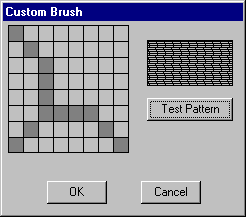
İletişim kutusunu görüntülemek için önce bir iletişim kutusu şablonu oluşturmanız gerekir. Aşağıdaki iletişim kutusu şablonu, Özel Fırça iletişim kutusunu tanımlar.
CustBrush DIALOG 6, 18, 160, 118
STYLE WS_DLGFRAME | WS_POPUP | WS_VISIBLE | WS_CAPTION
CAPTION "Custom Brush"
FONT 8, "MS Sans Serif"
BEGIN
    CONTROL         "", IDD_GRID, "Static", SS_BLACKFRAME |
                    WS_CHILD, 3, 2, 83, 79
    CONTROL         "", IDD_RECT, "Static", SS_BLACKFRAME |
                    WS_CHILD, 96, 11, 57, 28
    PUSHBUTTON      "Test Pattern", IDD_PAINTRECT, 96, 47, 57, 14
    PUSHBUTTON      "OK", IDD_OK, 29, 98, 40, 14
    PUSHBUTTON      "Cancel", IDD_CANCEL, 92, 98, 40, 14
END
Özel Fırça iletişim kutusu beş denetim içerir: bit eşlem kılavuz penceresi, desen görüntüleme penceresi ve Test Deseni, Tamamve İptaletiketli üç basma düğmesi. Test Deseni basma düğmesi, kullanıcının deseni görüntülemesini sağlar. İletişim kutusu şablonu, iletişim kutusu penceresinin genel boyutlarını belirtir, her denetime bir değer atar, her denetimin konumunu belirtir vb. Daha fazla bilgi için bkz. İletişim Kutuları.
İletişim kutusu şablonundaki denetim değerleri, uygulamanın üst bilgi dosyasında aşağıdaki gibi tanımlanmış sabitlerdir.
#define IDD_GRID      120
#define IDD_RECT      121
#define IDD_PAINTRECT 122
#define IDD_OK        123
#define IDD_CANCEL    124
bir iletişim kutusu şablonu oluşturup uygulamanın kaynak tanımı dosyasına ekledikten sonra, bir iletişim kutusu yordamı yazmanız gerekir. Bu yordam, sistemin iletişim kutusuna gönderdiği iletileri işler. Uygulamanın kaynak kodundan alınan aşağıdaki alıntıda, Özel Fırça iletişim kutusu prosedürü ve bu prosedürün çağırdığı uygulama tanımlı iki işlev gösterilmektedir.
BOOL CALLBACK BrushDlgProc( HWND hdlg, UINT message, LONG wParam,
                            LONG lParam)
{
    static HWND hwndGrid;       // grid-window control
    static HWND hwndBrush;      // pattern-brush control
    static RECT rctGrid;        // grid-window rectangle
    static RECT rctBrush;       // pattern-brush rectangle
    static UINT bBrushBits[8];  // bitmap bits
    static RECT rect[64];       // grid-cell array
    static HBITMAP hbm;         // bitmap handle
    HBRUSH hbrush;              // current brush
    HBRUSH hbrushOld;           // default brush
    HRGN hrgnCell;              // test-region handle
    HDC hdc;                    // device context (DC) handle
    int x, y, deltaX, deltaY;   // drawing coordinates
    POINTS ptlHit;              // mouse coordinates
    int i;                      // count variable

    switch (message)
        {
        case WM_INITDIALOG:

            // Retrieve a window handle for the grid-window and
            // pattern-brush controls.

            hwndGrid = GetDlgItem(hdlg, IDD_GRID);
            hwndBrush = GetDlgItem(hdlg, IDD_RECT);

            // Initialize the array of bits that defines the
            // custom brush pattern with the value 1 to produce a
            // solid white brush.

            for (i=0; i<8; i++)
                bBrushBits[i] = 0xFF;

            // Retrieve dimensions for the grid-window and pattern-
            // brush controls.

            GetClientRect(hwndGrid, &rctGrid);
            GetClientRect(hwndBrush, &rctBrush);

            // Determine the width and height of a single cell.

            deltaX = (rctGrid.right - rctGrid.left)/8;
            deltaY = (rctGrid.bottom - rctGrid.top)/8;

            // Initialize the array of cell rectangles.

            for (y=rctGrid.top, i=0; y < rctGrid.bottom; y += deltaY)
            {
                for(x=rctGrid.left; x < (rctGrid.right - 8) && i < 64;
                        x += deltaX, i++)
                {
                    rect[i].left = x; rect[i].top = y;
                    rect[i].right = x + deltaX;
                    rect[i].bottom = y + deltaY;
                }
            }
            return FALSE;


        case WM_PAINT:

            // Draw the grid.

            hdc = GetDC(hwndGrid);

            for (i=rctGrid.left; i<rctGrid.right;
                 i+=(rctGrid.right - rctGrid.left)/8)
            {
                 MoveToEx(hdc, i, rctGrid.top, NULL);
                 LineTo(hdc, i, rctGrid.bottom);
            }
            for (i=rctGrid.top; i<rctGrid.bottom;
                 i+=(rctGrid.bottom - rctGrid.top)/8)
            {
                 MoveToEx(hdc, rctGrid.left, i, NULL);
                 LineTo(hdc, rctGrid.right, i);
            }
            ReleaseDC(hwndGrid, hdc);
            return FALSE;


        case WM_LBUTTONDOWN:

            // Store the mouse coordinates in a POINT structure.

            ptlHit = MAKEPOINTS((POINTS FAR *)lParam);

            // Create a rectangular region with dimensions and
            // coordinates that correspond to those of the grid
            // window.

            hrgnCell = CreateRectRgn(rctGrid.left, rctGrid.top,
                        rctGrid.right, rctGrid.bottom);

            // Retrieve a window DC for the grid window.

            hdc = GetDC(hwndGrid);

            // Select the region into the DC.

            SelectObject(hdc, hrgnCell);

            // Test for a button click in the grid-window rectangle.

            if (PtInRegion(hrgnCell, ptlHit.x, ptlHit.y))
            {
                // A button click occurred in the grid-window
                // rectangle; isolate the cell in which it occurred.

                for(i=0; i<64; i++)
                {
                    DeleteObject(hrgnCell);

                    hrgnCell = CreateRectRgn(rect[i].left,
                               rect[i].top,
                               rect[i].right, rect[i].bottom);

                    if (PtInRegion(hrgnCell, ptlHit.x, ptlHit.y))
                    {
                        InvertRgn(hdc, hrgnCell);

                        // Set the appropriate brush bits.

                         if (i % 8 == 0)
                            bBrushBits[i/8] = bBrushBits[i/8] ^ 0x80;
                         else if (i % 8 == 1)
                            bBrushBits[i/8] = bBrushBits[i/8] ^ 0x40;
                         else if (i % 8 == 2)
                            bBrushBits[i/8] = bBrushBits[i/8] ^ 0x20;
                         else if (i % 8 == 3)
                            bBrushBits[i/8] = bBrushBits[i/8] ^ 0x10;
                         else if (i % 8 == 4)
                            bBrushBits[i/8] = bBrushBits[i/8] ^ 0x08;
                         else if (i % 8 == 5)
                            bBrushBits[i/8] = bBrushBits[i/8] ^ 0x04;
                         else if (i % 8 == 6)
                            bBrushBits[i/8] = bBrushBits[i/8] ^ 0x02;
                         else if (i % 8 == 7)
                            bBrushBits[i/8] = bBrushBits[i/8] ^ 0x01;

                      // Exit the "for" loop after the bit is set.

                         break;
                    } // end if

                } // end for

            } // end if

            // Release the DC for the control.

            ReleaseDC(hwndGrid, hdc);
            return TRUE;


        case WM_COMMAND:
            switch (wParam)
            {
               case IDD_PAINTRECT:

                    hdc = GetDC(hwndBrush);

                    // Create a monochrome bitmap.

                    hbm = CreateBitmap(8, 8, 1, 1,
                          (LPBYTE)bBrushBits);

                    // Select the custom brush into the DC.

                    hbrush = CreatePatternBrush(hbm);

                    hbrushOld = SelectObject(hdc, hbrush);

                    // Use the custom brush to fill the rectangle.

                    Rectangle(hdc, rctBrush.left, rctBrush.top,
                              rctBrush.right, rctBrush.bottom);

                    // Clean up memory.
                    SelectObject(hdc, hbrushOld);
                    DeleteObject(hbrush);
                    DeleteObject(hbm);

                    ReleaseDC(hwndBrush, hdc);
                    return TRUE;

                case IDD_OK:

                case IDD_CANCEL:
                    EndDialog(hdlg, TRUE);
                    return TRUE;

            } // end switch
            break;
        default:
            return FALSE;
        }
}


int GetStrLngth(LPTSTR cArray)
{
    int i = 0;

    while (cArray[i++] != 0);
    return i-1;

}

DWORD RetrieveWidth(LPTSTR cArray, int iLength)
{
    int i, iTmp;
    double dVal, dCount;

    dVal = 0.0;
    dCount = (double)(iLength-1);
    for (i=0; i<iLength; i++)
    {
        iTmp = cArray[i] - 0x30;
        dVal = dVal + (((double)iTmp) * pow(10.0, dCount--));
    }

    return (DWORD)dVal;
}
Özel Fırça iletişim kutusu yordamı, aşağıdaki tabloda açıklandığı gibi dört iletiyi işler.
| İleti | Eylem |
|---|---|
| WM_INITDIALOG | Kılavuz penceresi ve desen fırçası denetimleri için bir pencere tutamacını ve boyutlarını alır, kılavuz penceresi denetimindeki tek bir hücrenin boyutlarını hesaplar ve kılavuz hücresi koordinatlarından oluşan bir dizi başlatır. |
| WM_PAINT | Kılavuz penceresi denetiminde kılavuz desenini çizer. |
| WM_LBUTTONDOWN | Kullanıcı sol fare düğmesine bastığında imlecin kılavuz penceresi denetiminde olup olmadığını belirler. Bu durumda, iletişim kutusu yordamı uygun kılavuz hücresini invert eder ve bu hücrenin durumunu özel fırça için bitmap oluşturmak amacıyla kullanılan bir bit dizisine kaydeder. |
| WM_COMMAND | Üç basmalı düğme kontrolü için girişi işler. Kullanıcı Test Deseni düğmesine tıklarsa, iletişim kutusu yordamı Test Deseni denetimini yeni özel fırça deseniyle boyar. Kullanıcı Tamam veya İptal Et düğmesine tıklarsa, iletişim kutusu yordamı eylemleri buna göre gerçekleştirir. |
İletiler ve ileti işleme hakkında daha fazla bilgi için bkz. İletiler ve İleti Kuyrukları.
İletişim kutusu yordamını yazdıktan sonra, uygulamanın üst bilgi dosyasına yordamın işlev tanımını ekleyin ve ardından uygulamanın uygun noktasında iletişim kutusu yordamını çağırın.
Uygulamanın üst bilgi dosyasından aşağıdaki alıntı, iletişim kutusu yordamının işlev tanımını ve çağıran iki işlevi gösterir.
BOOL CALLBACK BrushDlgProc(HWND, UINT, WPARAM, LPARAM);
int GetStrLngth(LPTSTR);
DWORD RetrieveWidth(LPTSTR, int);
Son olarak, aşağıdaki kod iletişim kutusu yordamının uygulamanın kaynak kodu dosyasından nasıl çağrıldığını gösterir.
    DialogBox((HANDLE)GetModuleHandle(NULL),
        (LPTSTR)"CustBrush",
        hWnd,
        (DLGPROC) BrushDlgProc);
Bu çağrı genellikle kullanıcının uygulama menüsünden bir seçenek belirlemesine yanıt olarak yapılır.