Support and renewal items
You can use the items that you've entered as support and renewal items to calculate the charge amount for the original support. Additionally, you can use them to calculate the renewal amount when you create a billing schedule in Subscription billing. In this function, you can enter information for the support contract and the renewal contract. However, when you enter the support contract information, the only item that's been added to the sales order is considered the support item. Conversely, when you enter the renewal contract information, the item that you used to create the billing schedule is the renewal item.
You can take advantage of support and renewals. Consider a scenario where you have a customer who purchases a server. You offer a data backup subscription for the first year and give your customer the option to renew that subscription every year. The renewal item would be the renewal of the subscription every year and the support item would be the subscription for the first year.
Dynamics 365 Finance allows you to apply different levels of support for support and renewal items. Whether it's a percentage of the original item amount or the standard amount, you can customize it to your needs.
Before you can use the support and renewal functionality, you'll need to create at least one support or renewal level. You can also associate an item with its support and renewal items on the Item setup page, and specify the default support and renewal settings for new billing schedules on the Recurring contract billing parameters page.
To create a support or renewal level, follow these steps:
Go to Subscription billing > Recurring contract billing > Setup > Support and renewal levels.
Select New.
Enter a unique name in the Support level field.
Add a description for the support level in the Description field.
Select the Support calculation method. Options that you can choose from include Percent or Standard amount. If you select Percent, enter a percentage in the Support percentage field.
Select the Renewal calculation method. Options that you can choose from include Percent or Standard amount. If you select Percent, enter a percentage in the Renewal percentage field.
Note
If you select Standard amount, the amount is specified when the transaction is created. When you select Percent, you'll base the price of your item on the percentage that's entered. For example, if your support and renewal percentage is 35 percent, then the price of the item will be 35 percent of the parent item's price.

Select Save.
Follow these steps to apply different support levels to items and update renewal information:
Go to Accounts receivable > Orders > All sales orders.
Select New to create a new sales order.
In Sales order lines, select Add line.
Enter Item number.
Select Invoice on the FastTab and then go to Support and renewal > Add support and renewal.
Select the Support and renewal quantity and the Support and renewal level.
On the Sales lines, select if you want your item to be Support or Renewal.
Note
If you select Support, you'll need to enter the Support item. If you select Renewal, then you'll need to select the Renewal item.
Depending on your selection, enter the Renewal item or the Support item.
Note
Make sure that you specify the Percent for a Renewal item on the Sales line unless the support level uses the Standard amount renewal calculation method.
Update Billing frequency and Renewal start date under Renewal contract if you want to adjust the information.
Note
If you want to update the information surrounding Billing frequency and Renewal start date, select Yes under Override start date.
In Line details, under Billing schedule number, you can link the support and renewal to an existing billing schedule.
Note
If you leave the Billing schedule number field blank, a new billing schedule will be created.
Select OK.
Go to Generate > Invoice.
Select OK and then select OK to continue with posting the document.
Go to Subscription billing > Recurring contract billing > Billing schedules > All billing schedules.
Select the billing schedule that you created or the existing billing schedule that you added the renewal and support to.
Note
Notice that the item that you linked to the support and renewal is in Billing schedule lines with the updated information.
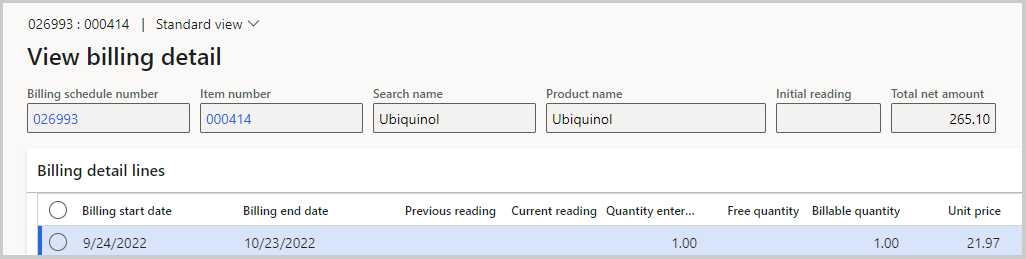
Under Billing schedule lines, go to View billing detail, which will show your first initial invoice and the next year added. By default, auto renewal will be turned on. Essentially, when you invoice your period beginning on the selected start date, another period would be added automatically until it's turned off or until it's terminated or put on hold.
Note
You can make changes to the support and renewal inside of the specific billing schedule. Under Billing schedule lines, select the line and then select Support and renewal to open the Support and renewal audit page. When you change the Support plan level, Renewal percentage, or Renewal amount value, you must enter a value in the Reason for change field, and then select Process.
