Import lease information
The Lease import framework allows you to adjust multiple leases in one step, saving time and reducing the chance of human error. This capability can connect Finance with external data entities to help you efficiently upload data. You can use the import process to adjust a lease, update nonfinancial information, or add new leases. You can view and edit the leasing data before you import it.
Lease import process types
When a lease is migrated, the system performs the action that is specified in the Process type field.
| Process type | Description |
|---|---|
| Add record | Creates a lease in the system. The payment schedule must be manually confirmed, and the initial recognition journal entry must be manually posted after the migration. |
| Update record | Updates field values for a lease that is already in the system. Only the fields that are selected on the Update field selection page are updated. Select nonfinancial fields, because this process type doesn't adjust the lease. |
| Adjust record | Adjusts the lease, which causes a financial lease modification. The system creates a new payment schedule by using the new data, but it doesn't confirm the payment schedule or post the adjustment journal entry. |
Lease import setup
Follow these steps to create the import:
Create a template for the import by using the Data management workspace.
In the Data Management workspace, export the Lease staging, Payment contract staging, and Executory contract staging data entities and then update the template.
Go to Asset leasing > Lease import framework > Import header. The Import header page lists the three data entities.
To view the staging data, prior to the process being run, select the Staging data option in the Action Pane.
From the Staging data page, you can take the following actions:
- See differences in data - View the differences between what is currently in the system and what is in the staging tables.
- Validate the import data - The system runs several validations to ensure that the records are successfully imported.
- Migrate lease records - To process an individual lease, select Migrate lease records on the Import header page. When a lease is migrated, the system performs the action that is specified in the Process type field.
- Run the Compare and Difference reports - To compare an individual lease record, select a lease and then select Compare. You should complete this step to generate a Differences report before you migrate the lease records. The Compare action isn't available for leases that use the Add record process type, because there's nothing to compare the lease against.
To compare, validate, or migrate multiple leases at the same time, go to Asset leasing > Lease import framework > Periodic, and then select Compare, Validate, or Migrate.
Set up Update fields
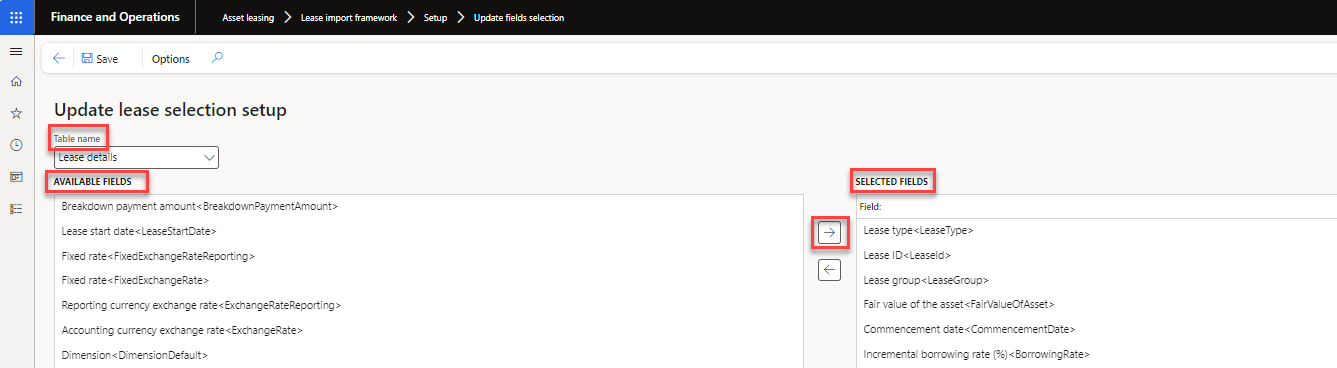
Prior to using the Lease import framework to update leases, make sure that you define fields for the import in the Asset leasing > Lease import framework > Setup > Update field selection section. This page allows you to select the field that you update on the lease. The table names that you can select for the import are:
- Lease details
- Payment schedule contract
- Executory cost contact
After you have selected the table name that you are updating, you are presented with a list of fields to add to your update import. Select the field in the Available fields list, and then select the right arrow to add them to the Selected fields list.