Export, import, and copy data into a legal entity
This unit explains how to copy data into a legal entity, and how to import and export data in finance and operations apps.
Control data order by using entity sequencing
When exporting, importing, or copying data by using data projects, it’s often necessary to control the order in which entities are processed. Entity sequencing ensures that dependent data is created before data that relies on it, preventing validation errors and incomplete records.
Sequencing is especially important when working with related master data or hierarchical entities.
What is entity sequencing?
Entity sequencing defines the processing order of entities within a data project. When sequencing is enabled, the system processes entities according to their dependencies instead of processing them arbitrarily.
For example:
Customers must exist before customer addresses.
Products must exist before released products.
Main accounts must exist before ledger transactions.
Using sequencing helps ensure data integrity during export, import, and copy operations.
When sequencing is required
Use entity sequencing when:
Entities have parent–child relationships
Referential integrity must be preserved
You’re importing or copying related master data
You encounter errors because dependent records are processed before their prerequisites
Sequencing is not required for standalone entities with no dependencies.
How sequencing works in data projects
When sequencing is enabled in a data project:
The system processes entities according to the configured sequence, which is typically based on known entity dependencies.
Entities are processed in the correct order.
Child entities wait until parent entities are successfully processed.
Errors caused by missing prerequisite data are reduced.
Sequencing can be applied to:
Export projects
Import projects
Copy into legal entity jobs
Recurring data jobs
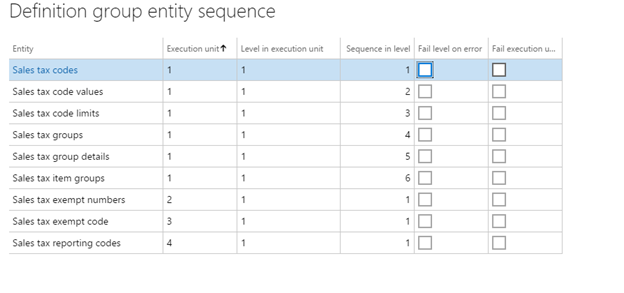
You can view or edit the sequence of entities in a data project by using the Entity sequence button in the Action Pane. Adjust the sequence as needed to ensure proper execution.
Note
Sequencing works at two levels: sequencing entities within a data package, and sequencing the order of data package imports across modules. Both types must be considered to ensure data integrity. Proper sequencing ensures that data dependencies are respected, reducing errors during the import or export process.
Sequencing and recurring data jobs
For recurring integrations, sequencing becomes even more important:
Ensures consistent results across repeated runs
Prevents partial data loads
Supports reliable automation
When setting up recurring data jobs, always verify that sequencing is enabled for projects that include related entities. This is especially important for integrations that rely on incremental or scheduled data synchronization.
Sequencing versus no sequencing
| Scenario | Sequencing Recommended |
|---|---|
| Importing related master data | ✔ Yes |
| Copying configuration data across legal entities | ✔ Yes |
| Exporting independent reference data | ❌ No |
| One-time flat file export | ❌ No |
This table reinforces decision-making, which the exam frequently tests.
Common sequencing mistakes
Importing child entities before parent entities (Results in referential integrity errors)
Disabling sequencing in recurring jobs (Causes intermittent failures)
Assuming sequencing is automatic for all projects
Including unrelated entities in the same sequence
Understanding these mistakes helps avoid integration failures.
Tip
Quick Reference: Use sequencing when entities have dependencies. Verify the sequence using the Entity sequence button and always enable sequencing for recurring jobs that include related data.
Now that you understand entity sequencing concepts, the next section explains how to create and manage data import, export, and copy jobs.
Data import and export jobs
To create and manage data import and export jobs in finance and operations apps, you can use the Data management workspace. By default, the data import and export process creates a staging table for each entity in the target database. Staging tables let you verify, clean up, or convert data before you move it.
The following are steps to import or export data.
- Create an import or export job, where you will complete the following tasks:
- Define the project category.
- Identify the entities to import or export.
- Set the data format for the job.
- Sequence the entities so that they are processed in logical groups and in an order that makes sense.
- Determine whether to use staging tables.
- Validate that the source data and target data are mapped correctly.
- Verify the security for your import or export job.
- Run the import or export job.
- Validate that the job ran as expected by reviewing the job history.
- Clean up the staging tables.
Create an import or export job
A data import or export job can be run one time or as many times as needed. We recommend that you take the time to select an appropriate project category for your import or export job. Project categories can help you manage related jobs.
When you select an entity, you must select the format of the data that will be exported or imported. You can define formats by using the Data sources setup tile. A source data format is a combination of Type, File format, Row delimiter and Column delimiter.
Entities can be sequenced in a data template or in import and export jobs. When you run a job that contains more than one data entity, you must make sure that they are correctly sequenced. Primarily, you sequence entities to address any functional dependencies among entities. If entities don’t have any functional dependencies, they can be scheduled for parallel import or export.
Verify the security for your import or export job
Access to the Data management workspace can be restricted so that non-administrator users can access only specific data jobs. Access to a data job implies full access to the run history of that job and access to the staging tables. Therefore, you need to make sure that appropriate access controls are in place when you create a data job.
Use the Applicable roles menu to restrict the job to one or more security roles. Only users in those roles will have access to the job. You can also restrict a job to specific users. Securing a job by users instead of roles provides more control when multiple users are assigned to a role.
A job can be secured by roles, users, and legal entity at the same time. Data jobs are global in nature. Therefore, if a data job was created and used in a legal entity, the job will be visible in other legal entities in the system. This default behavior might be preferred in some application scenarios.
For example, an organization that imports invoices by using data entities might provide a centralized invoice processing team that is responsible for managing invoice errors for all divisions in the organization. In this scenario, it’s useful for the centralized invoice processing team to have access to invoice import jobs from all legal entities. Therefore, the default behavior meets the requirement from a legal entity perspective.
However, an organization might want to have invoice processing teams for each legal entity. In this case, a team in a legal entity should have access only to the invoice import job in its own legal entity. To meet this requirement, you can configure legal entity–based access control on the data jobs by using the Applicable legal entities menu inside the data job. After the configuration is done, users can view only jobs that are available in the legal entity that they are currently signed in to. To view jobs from another legal entity, users must switch to that legal entity.
Clean up the staging tables
You can clean up staging tables by using the Staging clean up feature in the Data management workspace. You can use the following options to select which records should be deleted from which staging table:
- Entity – If only an entity is provided, all records from that entity’s staging table are deleted. Select this option to clean up all the data for the entity across all data projects and all jobs.
- Job ID – If only a job ID is provided, all records for all entities in the selected job are deleted from the appropriate staging tables.
- Data projects – If only a data project is selected, all records for all entities and across all jobs for the selected data project are deleted.
Watch this video to learn how to perform data export and import by using the Data management workspace:
Resources
To learn more, see