Нотатка
Доступ до цієї сторінки потребує авторизації. Можна спробувати ввійти або змінити каталоги.
Доступ до цієї сторінки потребує авторизації. Можна спробувати змінити каталоги.
Remote builds enable you to offload the process of building container images from your local development environment to a managed build service in the cloud. This approach is especially useful for large or complex builds, or when your local machine lacks the necessary resources or dependencies. The Azure Developer CLI (azd) supports remote builds through Azure Container Registry (ACR) Tasks for any host that supports the docker configuration, including Azure App Service, Azure Container Apps, Azure Kubernetes Service (AKS), Azure AI online endpoints, and Azure AI agents.
Azure Container Registry supports remote builds by providing a secure, cloud-based environment where your source code and Dockerfiles can be built into container images. With ACR Tasks, you can automate image builds and deployments, ensuring consistency and scalability across your development and production environments.
Note
The docker.remoteBuild setting described in this article is separate from the remoteBuild setting used for code-based Azure Functions deployments. The Functions setting controls server-side Oryx package building for Flex Consumption function apps and doesn't use Azure Container Registry or the fallback behavior described in this article. For more information, see the remoteBuild service property in the azd schema reference.
Using remote builds in your Azure Developer CLI (azd) templates offers several benefits:
- Resource efficiency: Offload compute-intensive builds to the cloud.
- Consistency: Ensure builds are reproducible and isolated from local environment differences.
- Scalability: Build multiple images in parallel without taxing your local machine.
- Security: Keep sensitive build secrets and credentials in Azure, not on your local device.
Configure remote builds
To configure the Azure Developer CLI to use remote builds with Azure Container Registry, follow these steps:
Update your infrastructure files:
- Ensure your infrastructure-as-code (IaC) templates (such as Bicep, ARM, or Terraform) provision an Azure Container Registry resource.
- Grant the necessary permissions for your build process to push and pull images from the registry.
In your project’s
azure.yaml, update thedockerconfiguration to use remote builds:services: webapp: project: ./src/webapp language: js host: containerapp docker: path: ./Dockerfile remoteBuild: trueRun the
azd uporazd deploycommand.azddetects the remote build configuration and submits your build to the Azure Container Registry provisioned by the template.
Fallback to a local build
azd falls back to building locally only when Azure Container Registry can't schedule the build because ACR Tasks operations are unavailable. This condition is reported as the TasksOperationsNotAllowed service error. This condition typically occurs when subscription eligibility or service policy doesn't allow ACR Tasks.
Errors that occur after a build is scheduled—such as Dockerfile or compilation failures, build cancellation, or failures reading the remote build's status or logs—are returned to you directly. azd doesn't fall back to a local build in these cases, because the failure isn't related to whether ACR could schedule the task.
Keep the following points in mind when you rely on fallback:
- Fallback is automatic and non-interactive. You don't need to pass a flag or answer a prompt for it to occur.
- Fallback requires a working Docker or Podman installation on your local machine. If neither is installed and running, the local build attempt fails.
- If the local fallback build also fails,
azdreturns both the original remote error and the local build error so you can diagnose either issue. - There's no separate setting to disable fallback while keeping
docker.remoteBuild: true. If you always want to build locally, setdocker.remoteBuildtofalseinstead, which skips the remote build attempt entirely.
Verify the remote build
After the azd up workflow completes, verify the remote build run in the Azure portal:
Navigate to the provisioned container registry.
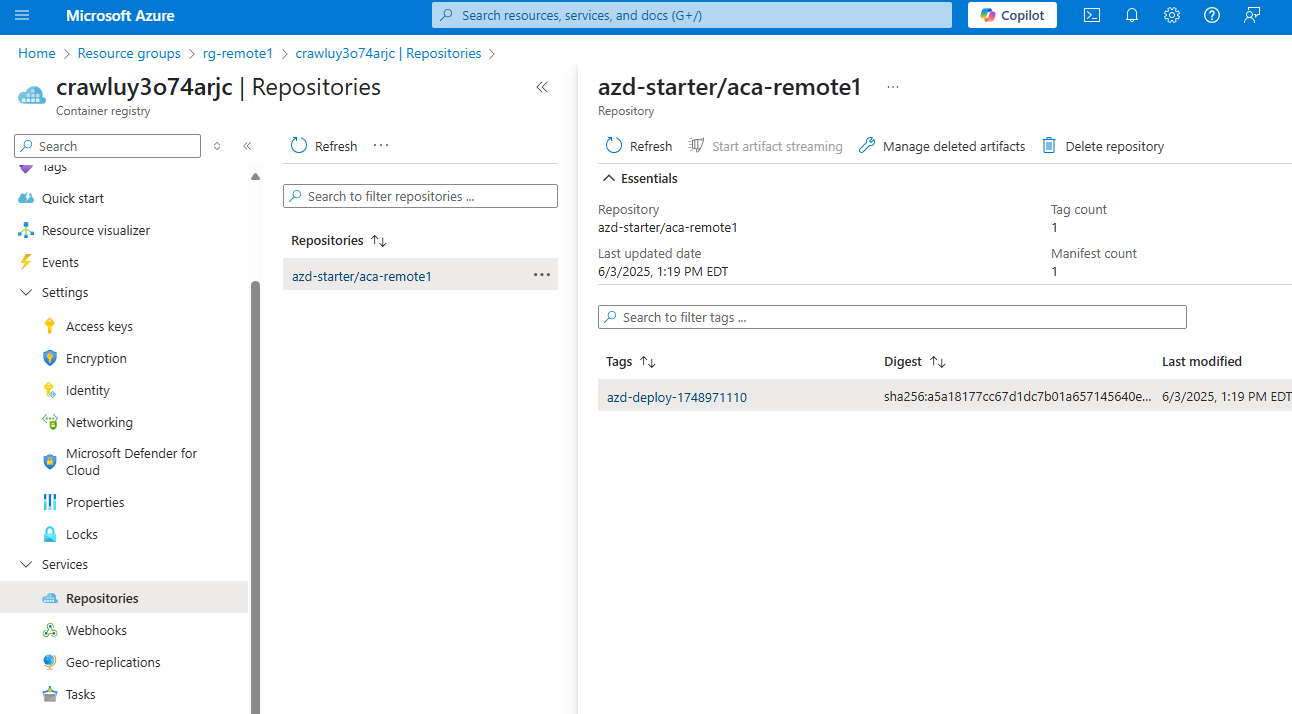
In the left navigation, select Services > Repositories.
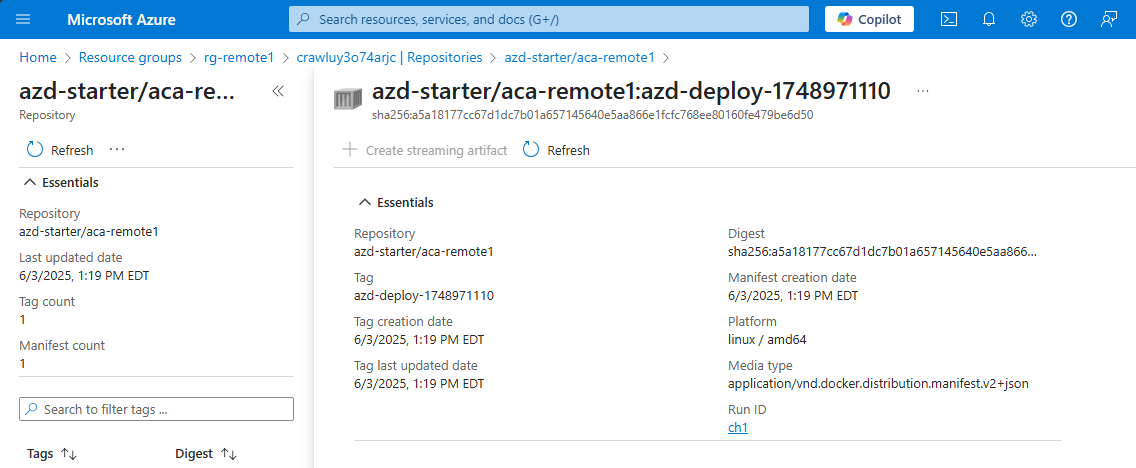
Select the repository from the list, and then select the most recent tag.
Select the Run ID to view the output logs for the container build process.
Browse the logs to view key build steps, such as the retrieval of Docker base images or source code compilation.