Conditional actions
You use Conditionals to modify a flow's behavior based on certain conditions. Conditions may include the comparison of two values, or more specific information, such as the existence of a file or the contents of a web page.
There are two major categories that divide conditional actions in Power Automate for desktop:
- The If group of actions
- The Switch group of actions
If group of actions
The If group of actions allows users to evaluate whether a certain condition is true. The structure of an If conditional includes:
- Initial condition
- Alternative conditions (0 or more)
- Unconditional alternative (optional)
- End of conditional block
Thus, the simplest If structure is as below:
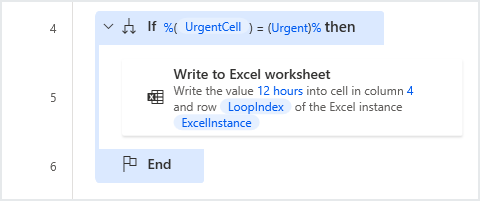
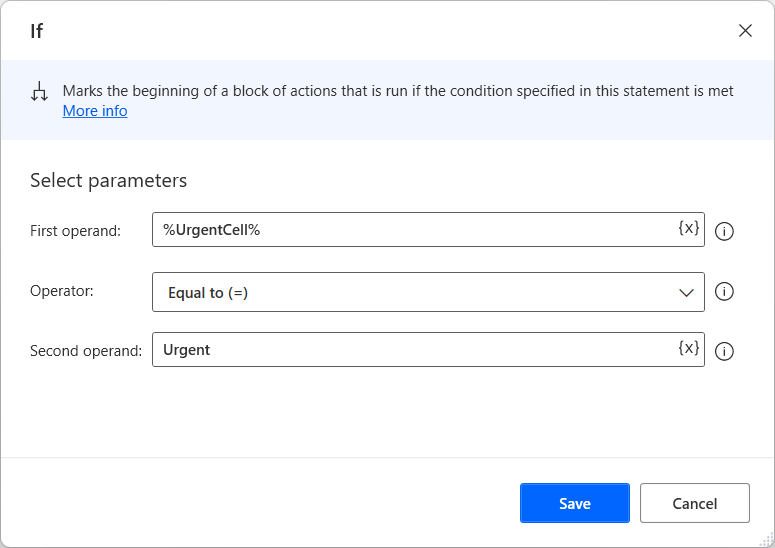
Configured this way, Action #2 will only run if the %UrgentCell% variable contains the value Urgent.
Some initial conditions in the If group are If, If File Exists, If Window Contains, If Text on-Screen actions. All conditional blocks in the If group end with the End If Action.
You may add alternative conditions using the Else If action; these conditions will only be considered if all the previous conditions were false. For example, in the flow below, the flow will only select the Subscription cell if the initial condition is not met; in this case, if the %UrgentCell% variable does not contain the value Urgent:
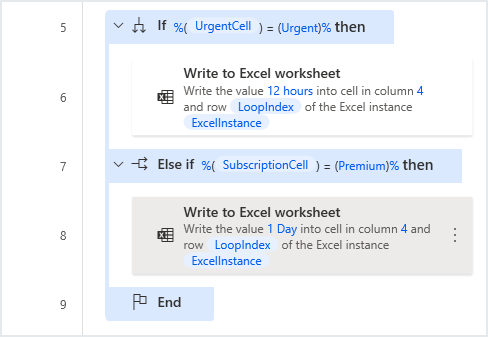
You can add multiple alternative conditions, and these conditions do not necessarily have to be related.
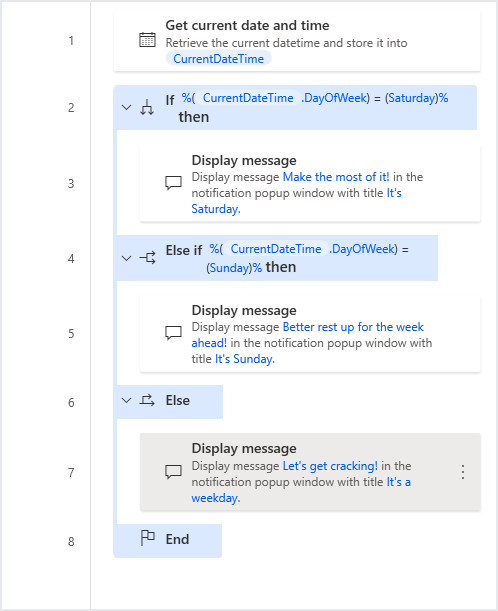
You may also add an unconditional alternative using the Else Action; this will run if all the conditions before it have failed:
Switch group of actions
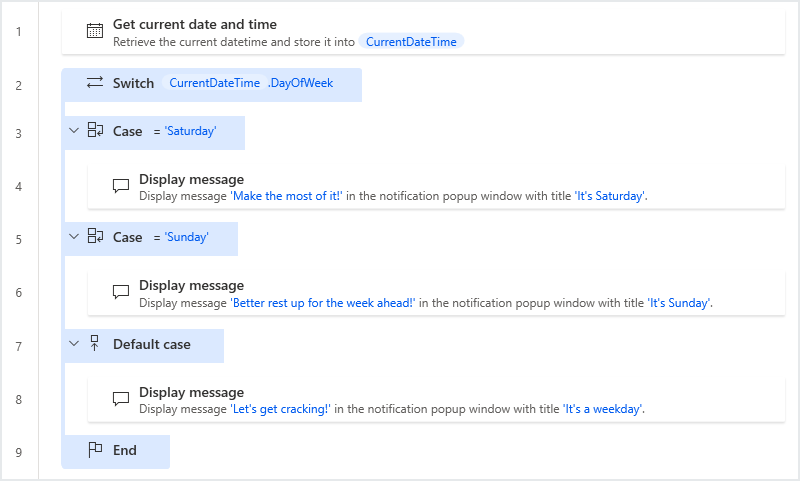
The Switch group of actions evaluates a single variable and compares it to other values. Switch and If actions vary in the following ways:
- If blocks allow evaluation and comparison with more than one variable; Switch checks a single variable
- If actions can evaluate more than the value of a variable (for example, checking whether folders or files exist, checking values of web page or window content); Switch actions work only with values and variables.
The structure of a Switch conditional is:
- Initial value input
- Alternative cases (1 or more)
- Unconditional case (optional)
- End of conditional block
Thus, the simplest Switch structure is:
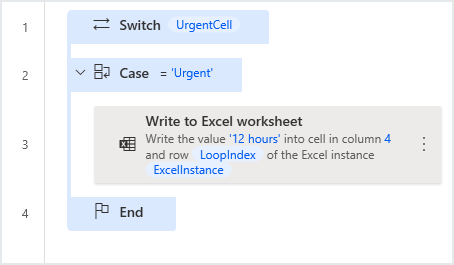
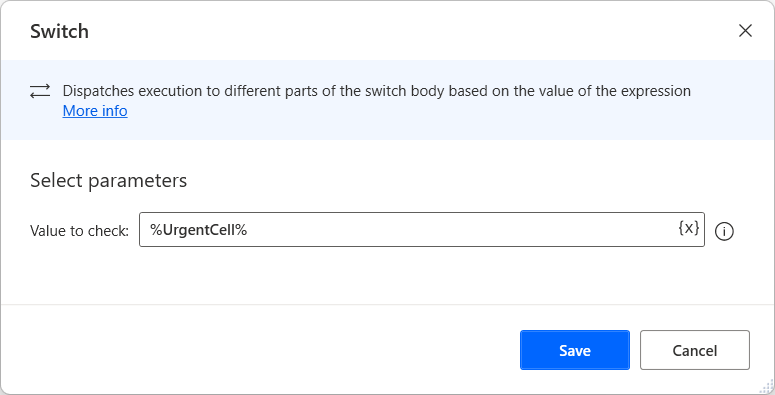
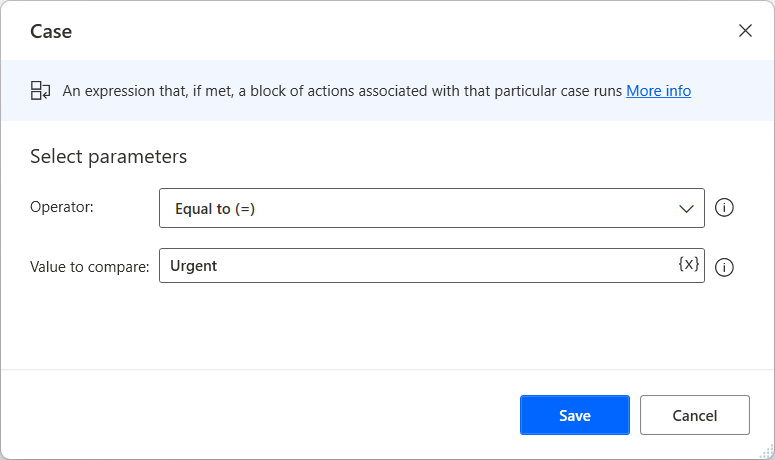
As with the If group of actions, the Write to Excel Worksheet action only runs if the %UrgentCell% variable contains the value Urgent.
Each Switch block begins with the Switch action and ends with an End Switch action. You can add alternative cases within the Switch block by using the Case and End Case actions.
You can add multiple alternative conditions; these conditions all refer to the variable specified in the Switch action.
You may also add an unconditional alternative by using the Default Case action; as was the case in the If group of actions, this will run if no other Case action before it runs: