Language
Note
Access to this page requires authorization. You can try signing in or changing directories.
Access to this page requires authorization. You can try changing directories.
Visual Studio provides IntelliSense-based completions and formatting refactorings that help you write and organize code more efficiently.
DateTime and TimeSpan completion
Applies to: C#
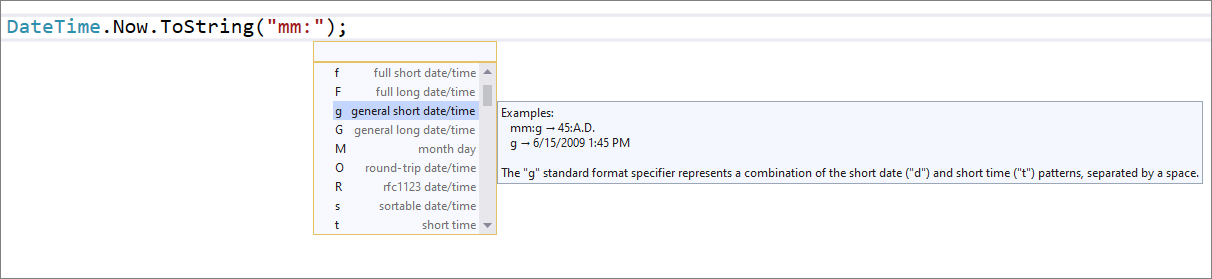
This feature uses the IntelliSense menu to help write DateTime and TimeSpan string literals and format strings. IntelliSense gives you basic completion and an explanation of what each character means.
Place your cursor in the DateTime or TimeSpan format string.
Press Ctrl+Space to trigger the IntelliSense menu.
Select the character you would like to add.
Regex completion through IntelliSense
Applies to: C#, Visual Basic
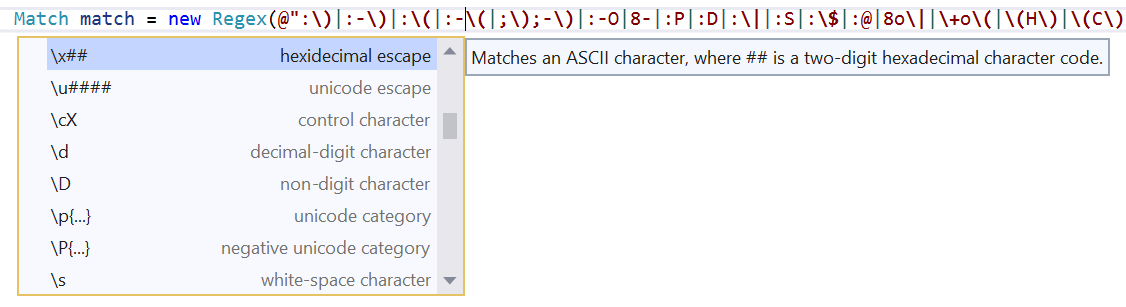
This feature uses the IntelliSense menu to help write regular expressions. IntelliSense gives you basic completion and an explanation of what each regex character means.
Place your cursor in the regex string.
Press Ctrl+Space to trigger the IntelliSense menu.
Select the character you would like to add to your regex string.
IntelliSense completion for unimported types and extension methods
Applies to: C#, Visual Basic
IntelliSense gives completion suggestions for types and extension methods that aren't imported with a using directive, and automatically adds the using directive when you commit the suggestion.
After you start to enter the name of a type or extension method with a dependency in your project, IntelliSense shows you suggestions. In the list, items from unimported namespaces are shown with their containing namespace as a suffix.
Tip
You can show/hide items from unimported namespaces on demand by selecting Expander next to the completion list. (Or use the Alt+A keyboard shortcut.)
To change the default behavior, open the Tools > Options pane and expand the All Settings > Languages > C# (or Visual Basic) > IntelliSense section. Select or clear the Show items from unimported namespaces checkbox.
Tip
You can show/hide items from unimported namespaces on demand by selecting Expander next to the completion list. (Or use the Alt+A keyboard shortcut.)
To change the default behavior, open the Tools > Options dialog and expand the Text Editor > C# (or Visual Basic) > IntelliSense section. Select or clear the Show items from unimported namespaces checkbox, and then select OK.
Select a suggestion and commit an unimported item.
The
usingdirective is automatically added to your file.
Wrap and align call chains
Applies to: C#, Visual Basic
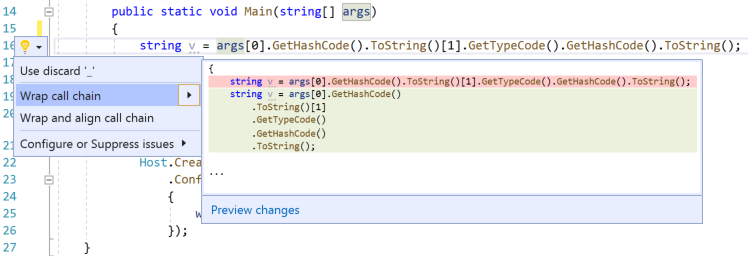
This refactoring wraps and aligns chains of method calls for improved readability.
Place your cursor in any of the call chains.
Press Ctrl+. to trigger the Quick Actions and Refactorings menu.
Select Wrap call chain or Wrap and align call chain to accept the refactoring.
Wrap, indent, and align parameters or arguments
Applies to: C#, Visual Basic
This refactoring wraps, indents, and aligns parameters or arguments in method declarations or calls for improved readability.
Place your cursor in a parameter list.
Press Ctrl+. to trigger the Quick Actions and Refactorings menu.
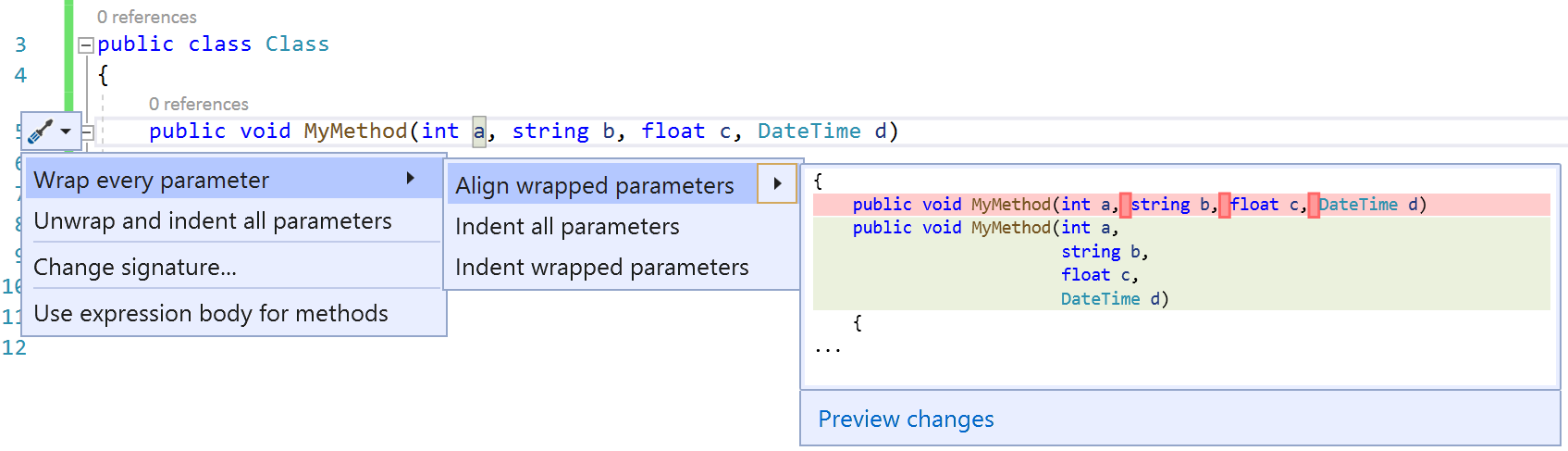
Select Wrap every parameter to accept the refactoring.
Wrap binary expressions
Applies to: C#, Visual Basic
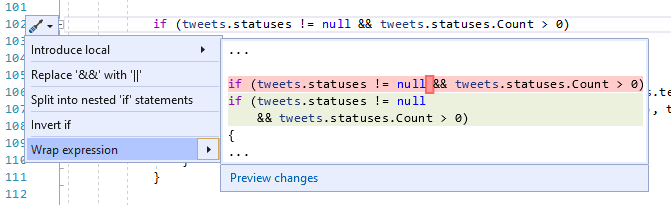
This refactoring wraps binary expressions for improved readability.
Place your cursor in the binary expression.
Press Ctrl+. to trigger the Quick Actions and Refactorings menu.
Select Wrap expression to accept the refactoring.