Note
Access to this page requires authorization. You can try signing in or changing directories.
Access to this page requires authorization. You can try changing directories.
Azure DevOps Services | Azure DevOps Server | Azure DevOps Server 2022
Work-in-Progress (WIP) limits are a core Kanban practice that restricts how many items your team works on at each stage. By focusing on finishing work before starting new work, teams improve throughput and software quality.
WIP limits set soft constraints on the number of items allowed in each board column. You can exceed these limits, but the board highlights the column count so your team can take action. This article explains how to determine, set, and manage WIP limits.
Tip
You can use AI to help with this task later in this article, or see Enable AI assistance with Azure DevOps MCP Server to get started.
Prerequisites
| Category | Requirements |
|---|---|
| Access levels | At least Basic access. |
| Permissions | To configure team settings: Member of the Project Administrators security group or Team Administrator role. For more information, see Change project-level permissions. |
Determine initial WIP limits
Use the following guidelines to set your starting WIP limits:
- Count current work — Review items in each column to establish a baseline.
- Scale by team size — Allow two to three items per team member in a stage. For example, three developers × two items each = a WIP limit of six.
- Start low — Lower limits surface bottlenecks faster, so you can address process issues early.
Keep within WIP limits
After you set WIP limits, track how well your team stays within them.
Respecting WIP limits means not pulling items into a column when doing so would exceed the limit. When a column goes over its limit, the board highlights it immediately — signaling the team to finish existing work before pulling new items.

Staying within WIP limits can be uncomfortable at first. Team members who prefer to multitask might feel constrained, while others might wait for upstream work to finish. Meet frequently as a team to discuss these adjustments and reinforce the practice.
Identify bottlenecks
Bottlenecks — columns where items sit unworked for days — indicate waste in your workflow. Monitor your board over time to spot them. Frequent bottlenecks usually mean WIP limits are too high; no bottlenecks at all can mean limits are too low.
Take periodic snapshots of your board to see where work flows smoothly and where it stalls.

Snapshots help your team track:
- Average item count per column
- Ratio of active items to team members per column
- Items that stayed in a column for extended periods
- Completed items and average throughput over time
Eliminate waste
Waste is anything that doesn't contribute to delivering value. To address bottlenecks, identify and remove the sources of waste in your workflow. Common forms of waste in software development include:
- Unused code or features
- Defects that require rework
- Waiting time and delays
- Unnecessary handoffs between teams
- Incomplete or unclear requirements
- Inefficient communication
Discuss these sources as a team and collaboratively find solutions.
Set WIP limits
Before you set WIP limits, ensure you mapped your team's workflow to columns.
Select
 to open board settings.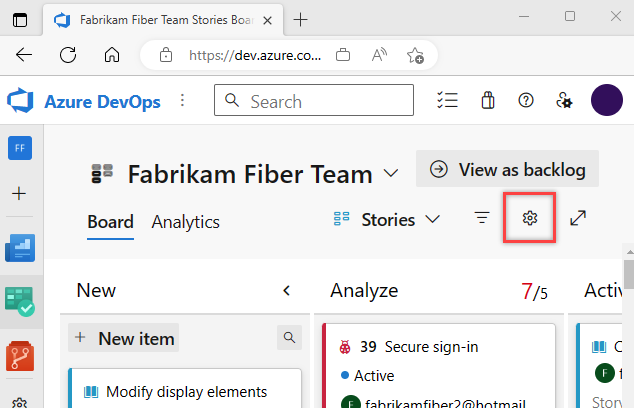
Select Columns, then select a column tab and enter the WIP limit.

Note
Available column titles vary based on the process your project uses and whether your team treats bugs like requirements or tasks.
Select Save.
Challenges and solutions
Exceeding WIP limits by one or two items is normal. If your team consistently exceeds limits by three or more, review your processes or adjust the limits.
After several weeks of using WIP limits, discuss what's working and what isn't. The following lists cover common challenges and proven solutions.
Common challenges
- Social dynamics — Some team members resist rules, take on extra work, or believe multitasking is more productive.
- Variability of work — Uneven item sizes (user stories vs. bugs) and mixed estimates (hours, days, story points) make a single WIP limit hard to apply evenly.
- Ignoring systemic problems — Teams push through bottlenecks instead of addressing the underlying workflow issues.
- Culture change — Adopting WIP limits requires adjustments to systems, team habits, and organizational culture.
Proven solutions
- Prioritize team productivity — Shift focus from individual output to overall flow. Encourage collaboration over multitasking.
- Right-size work items — Discuss item size before starting. Break large items into smaller, consistently sized tasks.
- Help upstream work move forward — When idle, assist with upstream items or help unblock teammates instead of pulling new work.
- Staff stages adequately — Ensure enough specialists in each workflow stage to prevent bottlenecks.
- Build shared understanding — Hold regular retrospectives, document team policies, and reinforce Kanban principles.
- Use metrics to adjust — Track WIP counts and lead times, and adjust limits based on the data.
- Support culture change — Apply change management principles and give the team ownership of WIP limit decisions.
Use AI to analyze work in progress
If you connect the Azure Boards MCP Server to your AI agent in agent mode, you can use natural language prompts to analyze work in progress across your board columns.
| Task | Example prompt |
|---|---|
| Count items per column | How many work items are in each workflow state for my team's backlog? |
| Find overloaded columns | Show me all active work items in the 'In Progress' state for the <Contoso> project |
| Identify stale items | Find work items in the 'Active' state that haven't been updated in the last 14 days |
| Check team capacity | List all work items assigned to <Jamal> that are currently in progress |
| Analyze per-person WIP | Show the count of active work items per team member in area path <Contoso\\Frontend> and flag anyone with more than 5 |
| Detect WIP spikes | Compare the count of in-progress work items this week vs last week for my team in <Contoso> |
| Find multitasking risks | List team members in <Contoso> who have active work items across more than 2 different features |
| Review column throughput | Show how many work items moved from Active to Resolved per week over the last 4 weeks in <Contoso> |
| Identify flow blockers | List work items in <Contoso> that have been in the same state for longer than the average time items spend in that state |
| Suggest WIP rebalancing | Show team members in <Contoso> with no active work items alongside those with more than 3 |
Note
Agent mode and the MCP Server use natural language, so you can adjust these prompts or ask follow-up questions to refine the results.