Note
Access to this page requires authorization. You can try signing in or changing directories.
Access to this page requires authorization. You can try changing directories.
Cloud PC configurations encompass settings that affect Cloud PCs, specifically addressing configurations that can be enabled or disabled after initial provisioning. Cloud PC configurations support targeting to user groups or all users.
The Cloud PC configurations page lets IT administrators manage the following settings for the user:
AI-enabled features (Frontier preview): The hybrid compute framework will be installed and allow end user’s device to use AI-enabled features.
Enable local admin (preview): If enabled, each user in the assigned groups is elevated to a local administrator of each of their own Cloud PCs. These permissions apply at the user level.
Business continuity and disaster recovery features: These features help protect Cloud PCs and support recovery during service interruptions. To learn more, see Business continuity and disaster recovery.
Note
We recommend using Cloud PC configurations when configuring the Enable local admin (preview) setting. Existing configurations of Enable local admin (preview) in User Settings can continue to be managed there for now. Over time, we recommend moving these configurations to Cloud PC configurations as support through User Settings is phased out.
Note
The AI-enabled features are applicable only to devices with specs of 8vCPU/32GB/128GB and higher.
Add a new setting
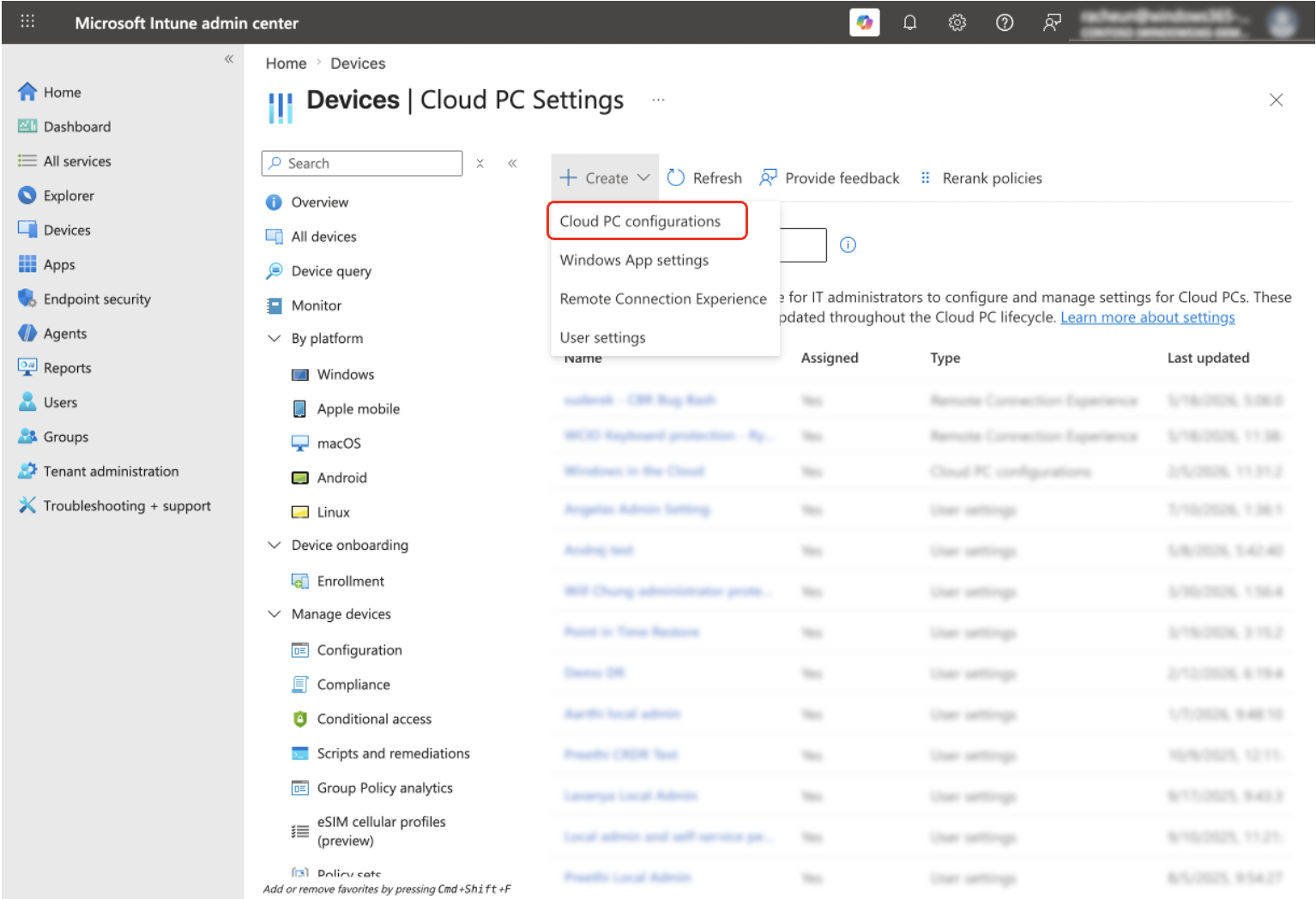
Sign in to the Microsoft Intune admin center, select Devices > Cloud PC Settings (under Manage Windows 365 Cloud PCs).
Click on Create and select Cloud PC configurations from the dropdown.
Enter a Name for the setting and include a Description (optional).
On the Configuration settings tab, select Enable or Disable for any of the settings you would like to configure. For any setting you don't want to configure, you can leave them as their default state of Not configured.
Add any Scope tags you would like to configure. To learn more about scope tags, go here.
Under Assignments, choose Add groups or Add all users.
Under Select groups to include, choose a group of users to get the settings > Select.
Select Next.
On the Review + save page, select Create.
Edit a setting
Sign in to the Microsoft Intune admin center, select Devices > Cloud PC Settings (under Manage Windows 365 Cloud PCs).
Select the Cloud PC configurations policy that you want to edit.
To change the name of the policy or to turn settings on or off, select Edit next to Settings.
Make any changes you want.
On the Review + Save page, select Update.
To edit assignments, select Edit next to Assignments > Add groups to add another user group, or select Add all users to assign the configuration to all users. To remove existing groups, select the ellipses (…) > Remove.
Select Next.
On the Review + Save page, select Update.
Delete a setting
Sign in to the Microsoft Intune admin center, select Devices > Cloud PC Settings (under Manage Windows 365 Cloud PCs).
On the Cloud PC Settings page, you can view the created settings.
Select the ellipses (…) in the row of the setting you want to delete > Delete.
Select Yes on the confirmation pop up to delete the setting permanently.