Note
Access to this page requires authorization. You can try signing in or changing directories.
Access to this page requires authorization. You can try changing directories.
The Connection quality report helps Windows 365 administrators identify devices that might be performing below expectations. Connection quality is a subjective concept with many variables defining what is acceptable in any given circumstance. Admins should use the objective data provided by this report, feed it into their own subjective performance criteria, to determine their organization's policies and remediations.
Use the Cloud PC connection quality report
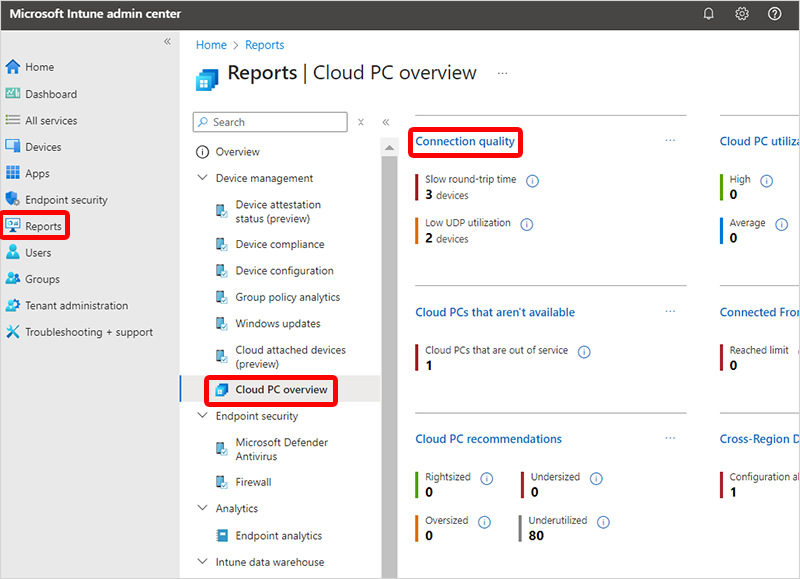
To get to the Cloud PC connection quality report, sign in to Microsoft Intune admin center, select Reports > Cloud PC overview > Connection quality.
The device list shows the individual Cloud PCs with the following columns:
- Device name
- Round Trip Time for the most recent (or current) connection (RTT): The number of milliseconds it takes, at the transport layer only, for communication between the client and the Cloud PC. Lower values indicate better round-trip connectivity.
- Round Trip Time for the specified date range (P50)
- Available bandwidth for the most recent (or current) connection
- Available bandwidth for the specified date range (P50): network bandwidth observed during sessions with the specified CPC sample set.
- Connection gateway
- Remoting sign-in time (P50): The number of seconds it took the user to complete the sign-in process.
- Client IP address
- Protocol for most recent (or current) connection
- UDP Utilization average over date range
- Device type: The type of Cloud PC based on the offering (Enterprise, Windows 365 Flex dedicated, Windows 365 Flex shared).
Each row in the report gives links to the specific Cloud PC where you can find greater detail regarding the devices connection history and related performance.
You can use the Columns and Add filter options to customize the report:
- Choose which columns are displayed.
- Filter the range for each column.
- Choose the date range (7 days or 28 days).
You can use these filters to identify connections that don't meet your organization's requirements. Then, you can evaluate potential causes, like:
- Network, host, or client configurations that limit protocol choice.
- Geographic distance.
- Authentication methods and architecture.
- Appropriateness of the client or host.
Investigate connection quality with Windows 365 Admin Assistant (preview)
You can use Windows 365 Admin Assistant in the Microsoft Intune admin center to investigate Cloud PCs that don't meet your organization's connection quality requirements. The Assistant can analyze available connection performance, history, and configuration data to help identify patterns and recommend further checks.
For example, you can ask:
Investigate high round trip time and low available bandwidth for [Cloud PC IDs]. Are there patterns related to connection protocol, gateway, or network routing?
Compare remoting sign-in times for [user UPN(s)] with other users during the same period. What authentication or connection configuration differences should I investigate?
Compare connection quality for [Cloud PC ID] across its recent connections. What changed when performance declined?
Specify the affected users or Cloud PCs, time range, and metrics that don't meet your requirements. Distinguish values for the most recent connection from P50 values for the selected date range when describing the issue.
Review the supporting connection data before making changes. The Assistant provides recommendations but doesn't change network configurations, authentication policies, or Cloud PC settings.