Note
Access to this page requires authorization. You can try signing in or changing directories.
Access to this page requires authorization. You can try changing directories.
This settings object allows IT administrators the ability to customize options for users of the Windows App. Windows App settings support targeting to user groups or all users.
The Windows App settings page lets IT administrators manage the following settings for the user:
Enable users to reset their Cloud PC: Enabling this setting will allow targeted users to reprovision their Cloud PC from within the Windows 365 app and web app.
Allow users to initiate a Restore: Allow user to initiate restore service.
Allow users to initiate Disaster Recovery Plus service: Protect Cloud PCs during regional outages. Learn more about optional Business Continuity and Disaster Recovery.
Enable users to provision new Cloud PC instances: Enabling this setting will allow targeted users to provision their Reserve Cloud PC from within the Windows 365 app and web app.
Note
Applicable only to user groups assigned to Windows 365 Enterprise, Windows 365 Flex Dedicated, and Windows 365 Reserve provisioning policies.
Add a new setting
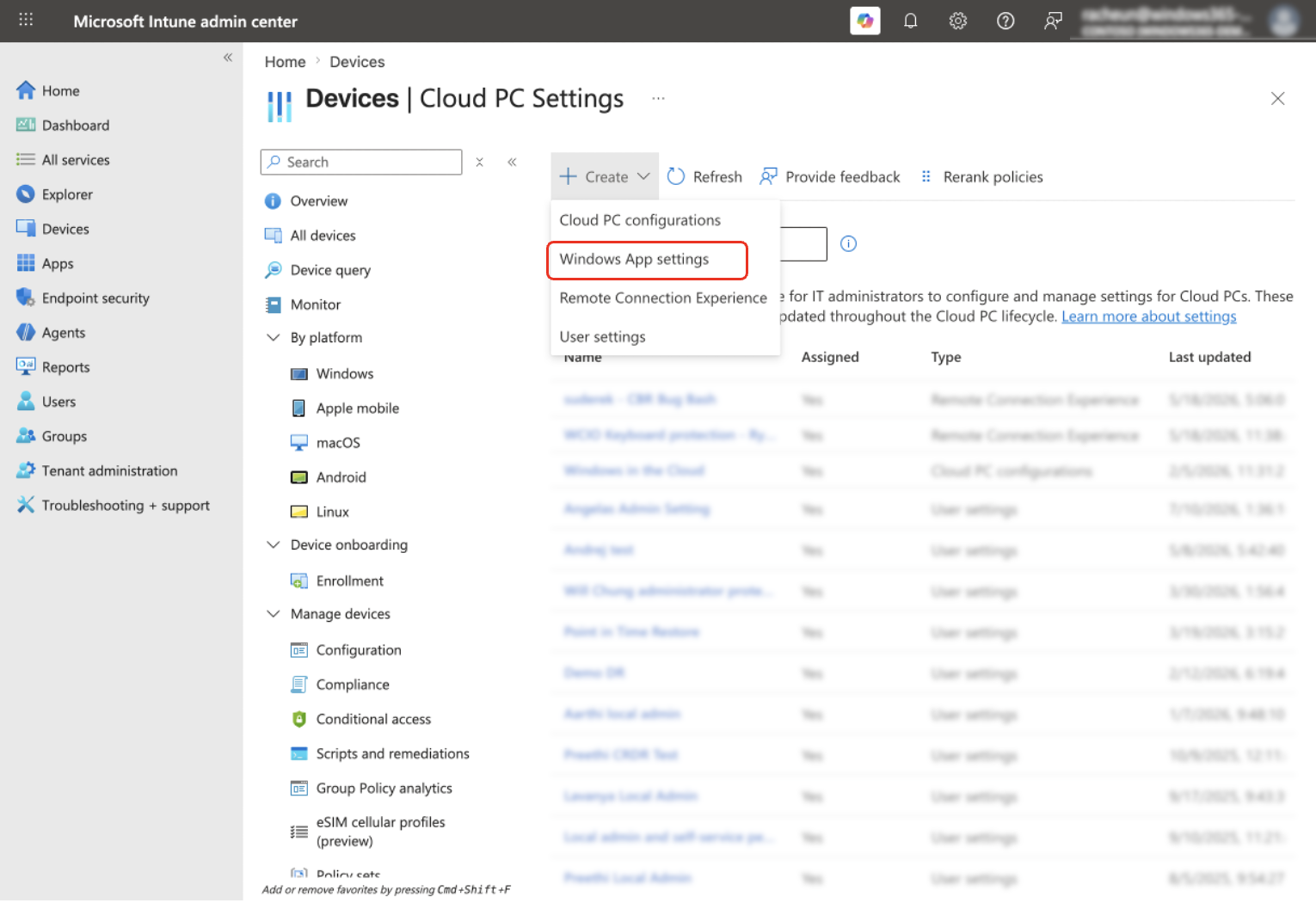
Sign in to the Microsoft Intune admin center, select Devices > Cloud PC Settings (under Manage Windows 365 Cloud PCs).
Click on Create and select Windows App settings from the dropdown.
Enter a Name for the setting and include a Description (optional).
On the Configuration settings tab, select Enable or Disable for any of the settings you would like to configure. For any settings you do not want to configure, you can leave them as their default state of Not configured.
Add any Scope tags you would like to configure. To learn more about scope tags, go here.
Under Assignments, choose Add groups or Add all users.
Under Select groups to include, choose a group of users to get the settings > Select.
Select Next.
On the Review + save page, select Create.
Note
When there's a conflict between Windows App settings and User settings (legacy), the Windows App settings will override User settings (legacy).
Edit a Windows App setting
Sign in to the Microsoft Intune admin center, select Devices > Cloud PC Settings (under Manage Windows 365 Cloud PCs).
Select the Windows App settings policy that you want to edit.
To change the name of the policy or to turn settings on or off, select Edit next to Settings.
Make any changes you want.
On the Review + Save page, select Update.
To edit assignments, select Edit next to Assignments > Add groups to add another user group, or select Add all users to assign the configuration to all users. To remove existing groups, select the ellipses (…) > Remove.
Select Next.
On the Review + Save page, select Update.
Delete a Windows App setting
Sign in to the Microsoft Intune admin center, select Devices > Cloud PC Settings (under Manage Windows 365 Cloud PCs).
On the Settings page, you can view the created settings.
Select the ellipses (…) in the row of the setting you want to delete > Delete.
Select Yes on the confirmation pop up to delete the setting permanently.