Once you're connected to your devices and apps using Windows App, it's important to know how to use its features and configure settings. This article shows you how to use different input methods, such as keyboard, mouse, touch, and pen in Windows App.
Select a tab for the platform you're using.
Here's how to use the different input methods in Windows App for Windows. You can use a built-in or external PC keyboard, mouse, and trackpad to control devices or apps.
Keyboard shortcuts
There are several keyboard shortcuts you can use with your devices and apps. These shortcuts are divided into two categories: those shortcuts to control the session window, and those shortcuts to use in the remote session.
Here are the keyboard shortcuts you can use to control the session window:
| Key combination |
Description |
| CTRL+ALT+HOME |
Activates the connection bar when in full-screen mode and the connection bar isn't pinned. |
| CTRL+ALT+PAUSE |
Switches the client between full-screen mode and window mode. |
Most common Windows keyboard shortcuts, such as CTRL+C for copy and CTRL+Z for undo, are the same in a remote session. When you're using a device or app in windowed mode, there are some keyboard shortcuts that are different so that Windows knows when to use them in a remote session or on your local device. These keyboard shortcuts are:
| Windows shortcut |
Windows App shortcut |
Description |
| CTRL+ALT+DELETE |
CTRL+ALT+END |
Shows the Windows Security dialog box. Also applicable in fullscreen mode. |
| ALT+TAB |
ALT+PAGE UP |
Switches between programs from left to right. |
| ALT+SHIFT+TAB |
ALT+PAGE DOWN |
Switches between programs from right to left. |
WINDOWS key
or
CTRL+ESC |
ALT+HOME |
Shows the Start menu. |
| ALT+SPACE BAR |
ALT+DELETE |
Shows the system menu. |
| PRINT SCREEN |
CTRL+ALT++ (plus sign) |
Takes a snapshot of the entire remote session, and places it in the clipboard. |
| ALT+PRINT SCREEN |
CTRL+ALT+- (minus sign) |
Takes a snapshot of the active window in the remote session, and places it in the clipboard. |
Note
Keyboard shortcuts don't work when using device or app sessions that are nested.
Keyboard shortcuts for the new connection experience (preview)
The new connection experience in Windows App introduces additional keyboard shortcuts to help you manage and navigate remote sessions. These shortcuts are available in addition to the existing shortcuts listed in the previous section.
| Key combination |
Description |
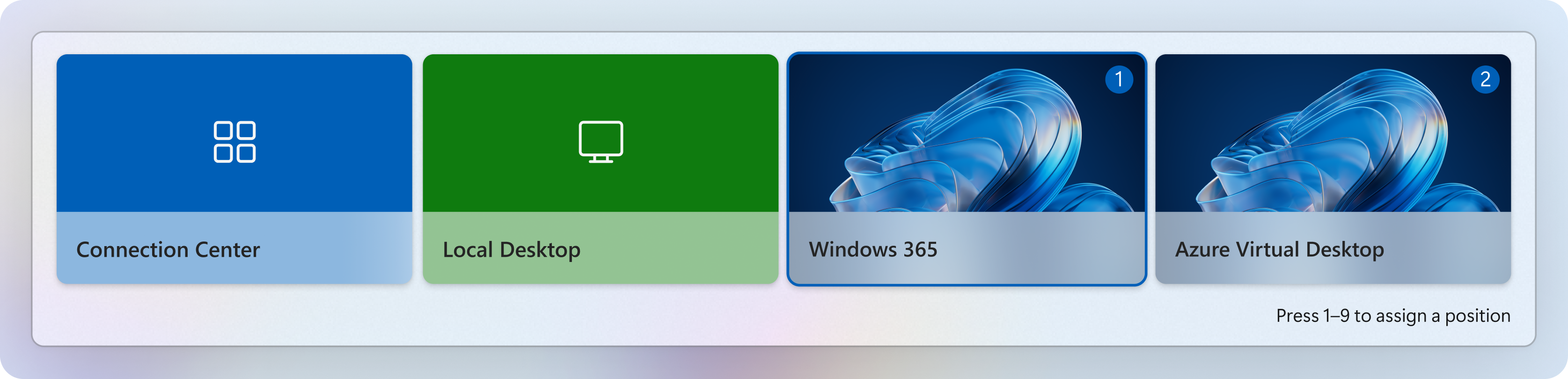
| CTRL+WINDOWS+↑ |
Opens the Switch connection menu. You can assign a number (1-9) to each connection for quick access. This doesn't apply to Connection Center or the local desktop.
 |
| CTRL+WINDOWS+↓ |
Opens the Quick actions menu. |
| CTRL+WINDOWS+↓+? |
Displays the available keyboard shortcuts.
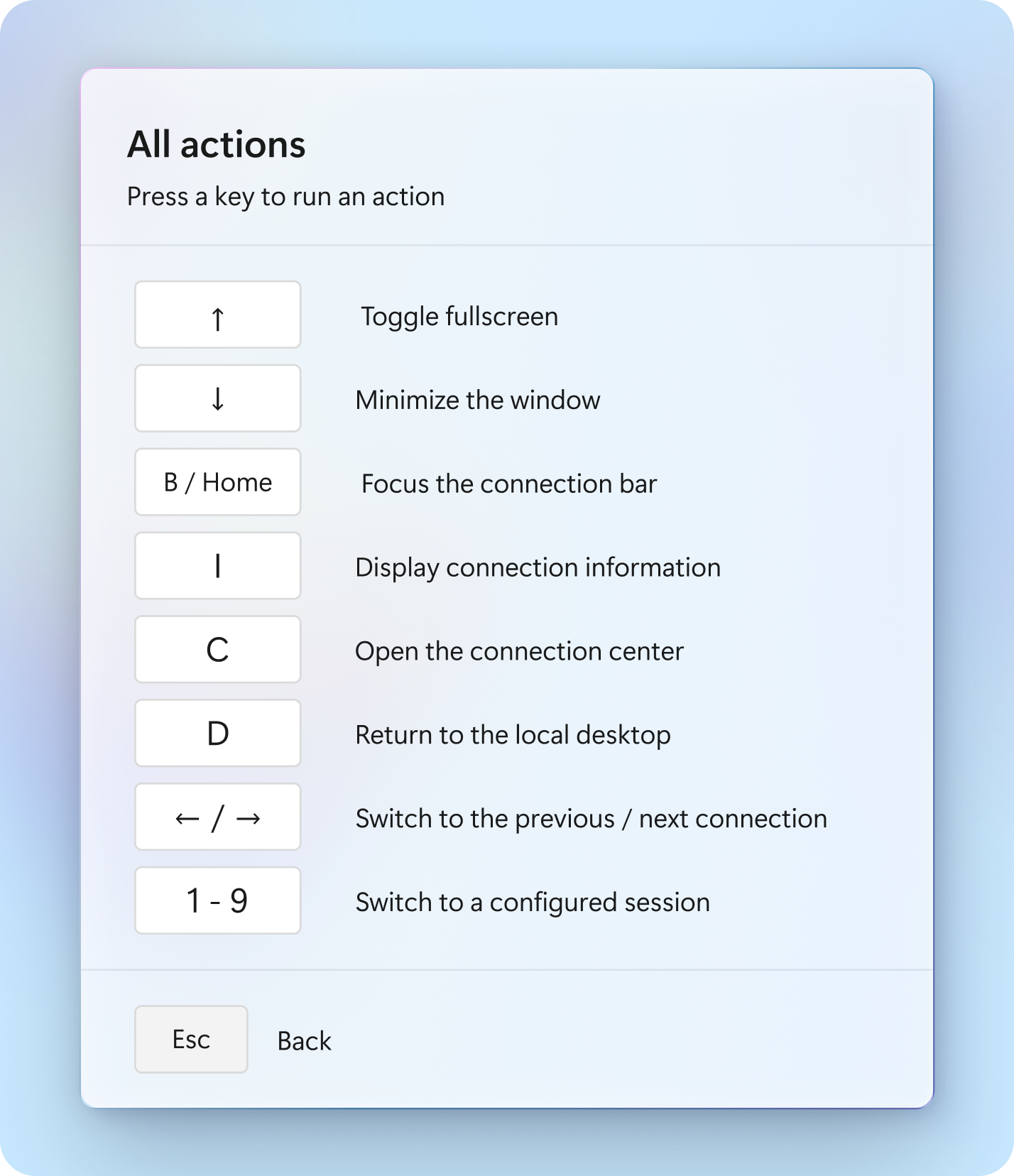 |
| CTRL+WINDOWS+↓+↑ |
Switches between full-screen and windowed modes. |
| CTRL+WINDOWS+↓+↓ |
Minimizes the remote session window. |
CTRL+WINDOWS+↓+HOME
or
CTRL+WINDOWS+↓+B |
Expands the connection bar and moves keyboard focus to it. |
| CTRL+WINDOWS+↓+I |
Opens the Connection information window. |
| CTRL+WINDOWS+↓+C |
Opens Connection Center. |
| CTRL+WINDOWS+↓+D |
Returns to the local desktop. |
CTRL+WINDOWS+↓+←
or
CTRL+WINDOWS+↓+→ |
Switches to the previous or next active connection. |
| CTRL+WINDOWS+↓+1-9 |
Switches to the connection assigned to the selected number. |
Keyboard language
By default, devices and apps use the same keyboard language, also known as locale, as your Windows PC. For example, if your Windows PC uses en-GB for English (United Kingdom), the same is also used by Windows in the remote session.
You can manually set which keyboard language to use in the remote session by following the steps at Manage the language and keyboard/input layout settings in Windows. You might need to close and restart the application you're currently using for the keyboard changes to take effect.
Use touch gestures
You can use touch gestures to replicate mouse actions in your remote session. If you connect to a device or app running Windows 10 or later, native Windows touch and multi-touch gestures are supported.
The following table shows which mouse operations map to which gestures:
| Mouse operation |
Gesture |
| Left-click |
Tap with one finger |
| Right-click |
Tap and hold with one finger |
| Left-click and drag |
Double-tap and hold with one finger, then drag |
| Right-click |
Tap with two fingers |
| Right-click and drag |
Double-tap and hold with two fingers, then drag |
| Mouse wheel |
Tap and hold with two fingers, then drag up or down |
| Zoom |
With two fingers, pinch to zoom out and move fingers apart to zoom in |
Here's how to use the different input methods in Windows App for macOS. You can use a built-in or external Mac keyboard, mouse, and trackpad to control devices or apps.
Keyboard shortcuts
Mac and Windows keyboard layouts differ slightly; for example, the Command key on a Mac keyboard equals the Windows key on a Windows keyboard. To help with the differences the different layouts makes when using keyboard shortcuts, Windows App automatically maps common shortcuts found in macOS so they work in Windows. These shortcuts are:
| Key combination |
Function |
| Command+C |
Copy |
| Command+X |
Cut |
| Command+V |
Paste |
| Command+A |
Select all |
| Command+Z |
Undo |
| Command+F |
Find |
| Command+W |
Close |
In addition, the Option key to the right of the space bar on a Mac keyboard equals the Alt Gr key in Windows.
Keyboard language
By default, devices and apps use the same keyboard language, also known as locale, as your Mac. For example, if your Mac uses en-GB for English (United Kingdom), the same is also used by Windows in the remote session.
There are some Mac-specific layouts or custom layouts for which an exact match might not be available on the Windows device you're connecting to. Your Mac keyboard is matched to the best available on the remote session. If your keyboard layout is set to a variation of a language, such as Canadian-French, and if the remote session can't map you to that exact variation, it maps the closest available language instead. For example, if you choose the Canadian-French locale and it isn't available, but French is, French is chosen as the closest language. In this case, some of the Mac keyboard shortcuts you're used to using on your Mac might not work as expected in the remote session.
There are some scenarios where characters in the remote session don't match the characters you typed on the Mac keyboard:
- If you're using a keyboard that the remote session doesn't recognize. When Windows in the remote session doesn't recognize the keyboard, it defaults to the language last used with the remote session.
- Connecting to a previously disconnected remote session where that session uses a different keyboard language than the language you're currently trying to use.
- Switching keyboard modes between unicode and scancode. To learn more, see Keyboard modes.
You can manually set which keyboard language to use in the remote session by following the steps at Manage the language and keyboard/input layout settings in Windows. You might need to disconnect from your remote session and reconnect for the keyboard changes to take effect.
Keyboard modes
There are two different modes you can use that control how keyboard input is interpreted in a remote session: scancode and unicode.
With scancode, user input is redirected by sending key press up and down information to the remote session. Each key is identified by its physical position on the keyboard and uses the keyboard layout of the remote session, not the keyboard of the local device. For example, scancode 31 is the key next to Caps Lock. On a US keyboard this key would produce the character 'A', while on a French keyboard this key would produce the character 'Q'.
With unicode, user input is redirected by sending each character to the remote session. When a key is pressed, the locale of the user is used to translate this input to a character. This translation can be the character 'a' by pressing the 'a' key, but you can enable an Input Method Editor (IME), allowing you to input multiple keystrokes to create more complex characters, such as for Chinese and Japanese input sources. Here are some examples of when to use each mode.
When to use scancode:
Dealing with characters that aren't printable, such as Arrow Up or shortcut combinations.
Using certain applications that don't accept scancode input for characters such as: Hyper-V VMConnect (for example, when trying to enter a BitLocker password), VMware Remote Console, all applications written using the Qt framework (for example R Studio, TortoiseHg, QtCreator).
Using applications that utilize scancode input for actions, such as Space bar to check/uncheck a checkbox, or individual keys as shortcuts, for example applications in browser.
When to use unicode:
To avoid a mismatch in expectations. If you expect the keyboard to behave like a Mac keyboard and not like a PC keyboard, you can run into issues where Mac and PC have differences for the same locale/region layout.
When the keyboard layout used on the local device might not be available in the remote session.
To switch between keyboard modes:
Open Windows App.
From the macOS menu bar, select Connections, then select Keyboard Mode.
Choose Scancode or Unicode.
Alternatively, you can use the following keyboard shortcut to select each mode:
Note
When connecting to Azure Virtual Desktop or Windows 365 using the Windows App on macOS, Japanese keyboards may be incorrectly detected as using a US layout. This can result in unexpected key behavior. To resolve this, users can switch to Unicode input mode by pressing Control+Command+U
Windows App supports Input Method Editor (IME) in a remote session for input sources. The local macOS IME experience is accessible in the remote session.
Important
For an IME to work, the input mode needs to be in unicode mode. To learn more, see Keyboard modes.
Use trackpad gestures in a remote session
You can use native trackpad gestures in a remote session. The following table shows which trackpad operations when compared to mouse operations are supported:
| Mouse operation |
Gesture |
| Left-click |
Tap with one finger |
| Right-click |
Tap with two fingers, click in bottom-right corner, or click in bottom-left corner (mirrors your macOS setting) |
| Left-click and drag |
Tap and hold with one finger, then drag |
| Right-click drag |
Tap and hold with two fingers, then drag |
| Mouse wheel |
Drag up or down with two fingers |
Mouse and trackpad device support
You can use a separate mouse or trackpad with Windows App. In order to use right-click or secondary-click, you might need to configure macOS to enable right-click, or you can plug in a standard PC two-button USB mouse. For more information on how to configure right-click on macOS, see Right-click on Mac.
Here's how to use the different input methods in Windows App for iOS/iPadOS. You can use native touch gestures, or keyboard, mouse, trackpad, and pen to control and interact with devices or apps.
Keyboard shortcuts
You can use familiar keyboard shortcuts when using a keyboard with your iPad or iPhone and Windows App. Mac and Windows keyboard layouts differ slightly - for example, the Command key on a Mac keyboard equals the Windows key on a Windows keyboard. To help with the differences when using keyboard shortcuts, Windows App automatically maps common shortcuts found in iOS/iPadOS so they work in Windows. These shortcuts are:
| Key combination |
Function |
| Command+C |
Copy |
| Command+X |
Cut |
| Command+V |
Paste |
| Command+A |
Select all |
| Command+Z |
Undo |
| Command+F |
Find |
| Command++ |
Zoom in |
| Command+- |
Zoom out |
In addition, here are some other keyboard shortcuts to be aware of when using Windows App on iOS/iPadOS:
The Option key to the right of the space bar on an Apple keyboard equals the Alt Gr in Windows.
On some European versions of the Apple Magic Keyboard for iPad, there can be a conflict when using the Option key for shortcuts in Windows compared to the character input you're expecting in iPadOS. The following table shows an example from a German keyboard layout:
| Key combination |
Windows |
iPadOS |
| Option+L |
Application specific shortcut |
Enters @ |
| Option+E |
Application specific shortcut |
Enters € |
You can use the keyboard shortcut Option+Command+9 to toggle between the Windows and iPadOS behavior.
Note
We only support Apple first-party keyboards and third-party hardware keyboards in Windows App on iOS/iPadOS. Third-party software keyboards aren't supported.
Use touch gestures and mouse modes in a remote session
You can use touch gestures to replicate mouse actions in your remote session. Two mouse modes are available:
Direct touch: where you tap on the screen is the equivalent to clicking a mouse in that position. The mouse pointer isn't shown on screen.
Mouse pointer: The mouse pointer is shown on screen. When you tap the screen and move your finger, the mouse pointer moves.
Native Windows touch and multi-touch gestures are supported in direct touch mode. The following table shows which mouse operations and trackpad gestures map to which gestures in specific mouse modes:
| Mode |
Mouse operation |
Touch gesture |
Touch gesture sent to remote session¹ |
| Direct touch |
Left-click |
Tap with one finger |
Yes |
| Direct touch |
Right-click |
Tap and hold with one finger |
Yes |
| Mouse pointer |
Cursor movement |
Tap and hold with one finger, drag |
Yes |
| Mouse pointer |
Left-click |
Tap with one finger |
Yes |
| Mouse pointer |
Left-click and drag |
Double-tap and hold with one finger, then drag |
Yes |
| Mouse pointer |
Right-click |
Tap with two fingers, or tap and hold with one finger |
Yes |
| Mouse pointer |
Right-click drag |
Double-tap and hold with two fingers, then drag |
Yes |
| Mouse pointer |
Mouse wheel/scrolling |
Tap and hold with two fingers, then drag up or down |
Yes |
| Mouse pointer |
Zoom |
With two fingers, pinch to zoom out and spread fingers apart to zoom in |
No |
- Yes means the touch gesture is sent to the remote session. No means the touch gesture happens on the local device. You can also include SHIFT and ALT modifiers with touch gestures that are sent to a remote session.
Mouse and trackpad device support
You can use a separate mouse or trackpad with Windows App. However, support for these devices depends on whether you're using iOS or iPadOS. iPadOS natively supports a mouse and trackpad as an input method; for more information, see Connect a Bluetooth mouse or trackpad to your iPad.
On iOS, the only native support for a mouse and trackpad is through AssistiveTouch. AssistiveTouch provides a cursor emulating touch input, so it doesn't support right-click actions or external monitor support, so we don't recommend using it with Windows App. For iPhone users projecting a remote session to a larger external monitor, we recommend the following options:
Use Windows App as trackpad, where the iPhone itself can serve as a trackpad for the remote session. The app will automatically convert to a trackpad once connected to external monitor.
Use a supported Bluetooth mouse which are compatible with Windows App. The following models are supported:
Surface mouse
SwiftPoint mouse
Use Surface mouse with the Windows App on iOS (Preview)
The Windows App on iOS supports Surface mouse, enabling more precise pointer control and improved productivity when accessing Windows from an iPhone.
This feature is available in preview.
Supported devices
The following devices are supported:
Prerequisites
Before pairing your Surface mouse with an iPhone, ensure that you have:
An iPhone 15 or above with Bluetooth enabled
A Windows PC with the latest Windows updates installed
A supported Surface mouse
Important
A Windows PC is required to update Surface mouse firmware. Firmware updates cannot be performed from an iPhone or iPad.
Update Surface mouse firmware
To ensure compatibility with the Windows App on iOS, your mouse must be updated to the required firmware version using a Windows PC.
Required firmware versions:
- Surface Arc Mouse: firmware version 2.2 or later
To update mouse firmware:
Go to the following URLs to download the MSI package from a Windows PC:
- Download Surface Arc Mouse firmware v2.2
Double-click the MSI package and run in administrator mode.
Connect your Surface mouse to the Windows PC using Bluetooth.
Keep the mouse connected and unused for 10 minutes until the update finishes.
Pair Surface mouse with iPhone
After the firmware update completes, pair your Surface mouse with your iPhone.
Press the Bluetooth button on the Surface mouse to enter pairing mode.
On the iPhone, open Settings > Bluetooth.
Select the Surface mouse from the list of available devices.
Confirm that the mouse is connected.
Use Surface Mouse in the Windows App
Once paired:
Open the Windows App on your iPhone.
The Windows App automatically detects the connected Surface mouse.
The mouse is available for use immediately within your remote session.
No additional configuration is required.
Use SwiftPoint mouse with the Windows App on iOS
In order to benefit from the Swiftpoint integration, you must connect a Swiftpoint mouse to your iPhone and in Windows App.
Supported devices
The following devices are supported:
- Swiftpoint ProPoint
- Swiftpoint PadPoint
- SwiftPoint GT
Pair SwiftPoint mouse with iPhone
Put the mouse in pairing mode for Bluetooth.
On the iPhone, open Settings > Bluetooth.
The mouse should be listed under Other devices. Tap the name of the mouse to pair it.
Use SwiftPoint mouse in the Windows App
Open Windows App.
In the top left-hand corner, tap the menu icon (the circle with three dots inside), then tap Settings.
Tap Input Devices, then in the list of the devices, tap the name of the SwiftPoint mouse you want to use.
Tap the back arrow (<), then tap the X mark. You're ready to connect to a remote session and use the Swiftpoint mouse.
You can use the touch gestures or the virtual keyboard on Android in Windows App, or you can pair a physical bluetooth keyboard and mouse.
Here's how to use the different input methods in Windows App for Android/Chrome OS.
Keyboard and keyboard shortcuts
You can use a physical keyboard that you use on your local device automatically when you connect to a remote session. If you don't have a physical keyboard, you can use the on-screen keyboard in Windows App. Once you're connected to a remote session, tap the keyboard icon in the connection bar to show or hide the on-screen keyboard.
You can also use familiar keyboard shortcuts for Windows when using a keyboard with your local device and Windows App.
Keyboard modes
There are two different modes you can use that control how keyboard input is interpreted in a remote session: scancode and unicode.
With scancode, user input is redirected by sending key press up and down information to the remote session. Each key is identified by its physical position on the keyboard and uses the keyboard layout of the remote session, not the keyboard of the local device. For example, scancode 31 is the key next to Caps Lock. On a US keyboard this key would produce the character 'A', while on a French keyboard this key would produce the character 'Q'.
With unicode, user input is redirected by sending each character to the remote session. When a key is pressed, the locale of the user is used to translate this input to a character. This translation can be the character 'a' by pressing the 'a' key, but you can enable an Input Method Editor (IME), allowing you to input multiple keystrokes to create more complex characters, such as for Chinese and Japanese input sources. Here are some examples of when to use each mode.
When to use scancode:
Dealing with characters that aren't printable, such as Arrow Up or shortcut combinations.
Using certain applications that don't accept scancode input for characters such as: Hyper-V VMConnect (for example, when trying to enter a BitLocker password), VMware Remote Console, all applications written using the Qt framework (for example R Studio, TortoiseHg, QtCreator).
Using applications that utilize scancode input for actions, such as Space bar to check/uncheck a checkbox, or individual keys as shortcuts, for example applications in browser.
When to use unicode:
To switch between keyboard modes:
Open Windows App.
Tap the user profile icon to open the settings pane. If you haven't added any remote resources, you need to select the X (cross) icon on the start screen first.
Tap General.
Toggle Use scancode input when available to on to use scancode, or off to use unicode.
Use touch gestures and mouse modes in a remote session
You can use touch gestures to replicate mouse actions in your remote session. Two mouse modes are available:
Direct touch: where you tap on the screen is the equivalent to clicking a mouse in that position. The mouse pointer isn't shown on screen.
Mouse pointer: The mouse pointer is shown on screen. When you tap the screen and move your finger, the mouse pointer moves.
Native Windows touch and multi-touch gestures are supported in direct touch mode. The following table shows which mouse operations map to which gestures in specific mouse modes:
| Mouse mode |
Mouse operation |
Gesture |
| Direct touch |
Left-click |
Tap with one finger |
| Direct touch |
Right-click |
Tap and hold with one finger |
| Mouse pointer |
Left-click |
Tap with one finger |
| Mouse pointer |
Left-click and drag |
Double-tap and hold with one finger, then drag |
| Mouse pointer |
Right-click |
Tap with two fingers, or tap and hold with one finger |
| Mouse pointer |
Right-click drag |
Double-tap and hold with two fingers, then drag |
| Mouse pointer |
Mouse wheel |
Tap and hold with two fingers, then drag up or down |
| Mouse pointer |
Zoom |
With two fingers, pinch to zoom out and spread fingers apart to zoom in |
Touchscreen or Touchpad
Touchscreen and touchpad input behavior can vary on Android devices.
Some touchpads are interpreted by the Android operating system as mouse input, generating relative cursor movement. Others are interpreted as touchscreen input, generating absolute touch events.
Windows App processes input events provided by the Android operating system. Gesture recognition, interpretation of multi‑finger gestures, and scrolling behavior are performed by the system before the events are passed to the app.
Here's how to use the different input methods in Windows App in a web browser. You can use a built-in or external PC keyboard, trackpad, and mouse to control devices or apps.
Keyboard shortcuts
There are several keyboard shortcuts you can use with your devices and apps. Most common Windows keyboard shortcuts, such as CTRL+C for copy and CTRL+Z for undo, are the same in a remote session. There are some keyboard shortcuts that are different so Windows knows when to use them in a remote session or on your local device. These keyboard shortcuts are:
| Windows shortcut |
Windows App shortcut (Windows) |
Windows App shortcut (macOS) |
Description |
| CTRL+ALT+DELETE |
CTRL+ALT+END |
Fn+Control+Option+Backspace |
Shows the Windows Security dialog box. |
Windows key
or
CTRL+ESC |
ALT+F3 |
Option+F3 |
Shows the Start menu. |
| ALT+TAB |
ALT+PAGE UP |
Fn+Option+Arrow Up |
Switches between programs from left to right. |
| ALT+SHIFT+TAB |
ALT+PAGE DOWN |
Fn+Option+Arrow Down |
Switches between programs from right to left. |
Note
You can copy and paste text only. Files can't be copied or pasted to and from the remote session when using a web browser.
You can also configure Windows App so that all keyboard shortcuts behave the same as they would natively on a Windows device. When keyboard shortcuts are enabled, the remote session opens full-screen as it doesn't work windowed. You must enter full-screen mode to use keyboard shortcuts. For a full list of shortcuts, see Keyboard shortcuts in Windows.
To enable keyboard shortcuts:
Sign in to Windows App using your web browser.
Connect to a device or app.
On the toolbar of the session, select the cog icon for In session configuration.
Check the box for Keyboard shortcuts (preview).
Select Update.
Enter full screen from the toolbar, or if you're prompted about keyboard shortcuts, select Enter full screen.
You can use an Input Method Editor (IME) in the remote session to enter complex characters, enter characters that don't enter in certain applications, or where certain characters are mismatched, such as when using a different language between the local session and the remote session.
Before you can use an IME in a remote session, the language pack for the keyboard you want to use must be installed on the remote device you want to connect to.
To enable an alternative keyboard layout:
Sign in to Windows App using your web browser.
Connect to a device or app.
On the toolbar of the session, select the cog icon for In session settings.
Toggle Enable alternative keyboard layout to on.
Select the remote keyboard layout you want to use from the drop-down list.
Select Update.
You need to disconnect from your remote session and reconnect for the settings to take effect. For Disconnect to update settings, select Now or Before next session from the drop-down list, then select Continue.
Note
If the language pack isn't installed on the session host, the keyboard in the remote session will default to English (United States).
Standard keyboard input may not work as expected when using an IME.
Copy and paste with a RemoteApp
There is a limitation using copy and paste with an Azure Virtual Desktop RemoteApp in a web browser. Copy and paste works as expected when using keyboard shortcuts, such as CTRL+C for copy and CTRL+V for paste, but not initially when using copy and paste from a right-click context menu where the paste option isn't available. This behavior happens because Windows App doesn't have access to the clipboard content until you initiate a copy and paste action from the keyboard, at which point the paste option is available.
