語言
在本教學課程中,您會建立包含單一字串處理方法的簡單公用程序連結庫。
類別程式庫會定義應用程式所呼叫的類型和方法。 若函式庫針對 .NET 標準 2.0,任何支援 .NET 標準 2.0 的 .NET 實作(包括 .NET 框架)都能呼叫該函式庫。 如果函式庫針對 .NET 10,任何針對 .NET 10 的應用程式都可以呼叫它。 這個教學展示了如何鎖定 .NET 10。
當您建立類別庫時,您可以將它散發為第三方元件,或發佈為包含一或多個應用程式的配套元件。
先決條件
Visual Studio 搭配安裝了.NET桌面應用程式開發 工作負載。 當你選擇這個工作負載時,.NET SDK 會自動安裝。
- 最新的 .NET SDK
- Visual Studio Code 編輯器
- C# 開發套件
安裝指示
在 Windows 上,這個 WinGet 設定檔 用來安裝所有前置條件。 如果您已安裝某些專案,WinGet 將會略過此步驟。
- 下載檔案,然後按兩下以執行它。
- 閱讀許可協議,輸入 y,然後在系統提示接受時選取 [輸入]。
- 如果您在任務欄中收到閃爍的用戶帳戶控制 (UAC) 提示,請允許安裝繼續。
在其他平臺上,您必須個別安裝這些元件。
- 從 .NET SDK 下載頁面下載 推薦安裝程式,雙擊即可執行。 下載頁面會偵測您的平臺,並建議您平臺的最新安裝程式。
- 從 Visual Studio Code 首頁下載最新安裝程式,雙擊即可執行。 該頁面還會偵測您的平臺,並且應該提供適合您系統的正確連結。
- 按兩下 C# DevKit 擴充功能頁面上的 [安裝] 按鈕。 這會打開 Visual Studio 程式碼,並詢問你是否要安裝或啟用該擴充功能。 選取 [安裝]。
- 一個GitHub帳號,用於使用 GitHub Codespaces。 如果你還沒有,可以在 GitHub.com 建立免費帳號。
建立解決方案
先建立一個空白解法來存放類別庫專案。 Visual Studio 解決方案可作為一個或多個專案的容器。 將相關專案加入同一解決方案。
若要建立空白解決方案:
啟動 Visual Studio。
在開始視窗中,選擇 Create a new project (建立新專案)。
在 建立新專案 頁面上,在搜尋方塊中輸入 解決方案 。 選擇 [空白解決方案 ] 範本,然後選擇 [下一步]。
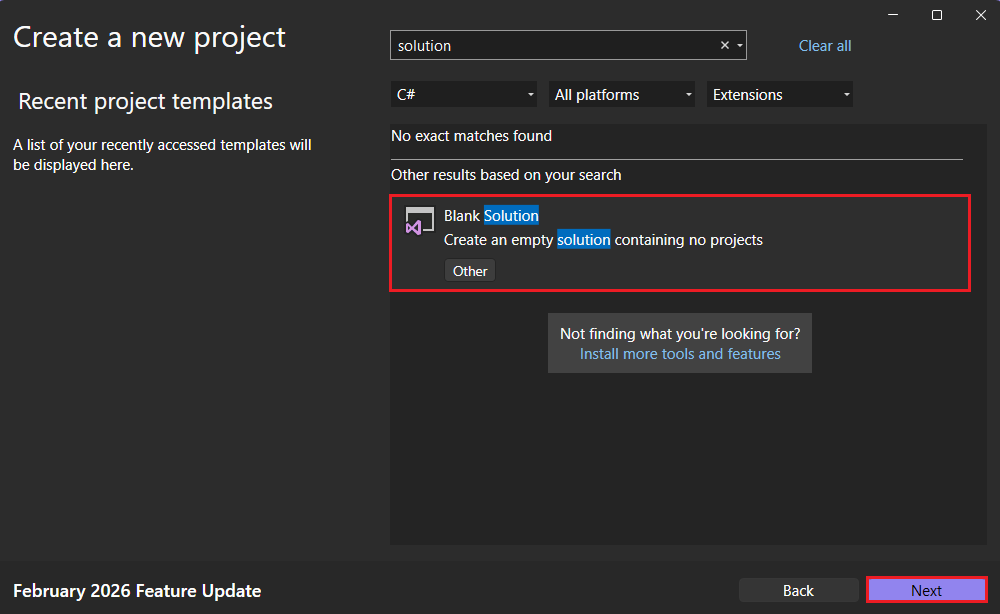
在 [設定您的新專案] 頁面上,在 [解決方案名稱] 方塊中輸入 ClassLibraryProjects。 然後選擇 建立。
首先建立一個名為「StringLibrary」的 .NET 類別函式庫專案及相關解決方案。 解決方案可作為一或多個專案的容器。 您將將其他相關專案新增至相同的解決方案。
啟動 Visual Studio Code。
到檔案總管檢視,選擇 Create .NET Project。 或者,你也可以用 Ctrl+Shift+P(MacOS 上的 Command+Shift+P)開啟指令面板,然後輸入「.NET」,找到並選擇 .NET: New Project 指令。
選擇專案範本 的類別庫。
然後選取您要建立新專案的位置:建立名為
ClassLibraryProjects的資料夾,然後加以選取。將專案命名 StringLibrary。
選擇 .sln 作為解決方案檔案格式。
選擇 「顯示所有範本選項」。
接著選擇.NET 10。 然後選擇 建立專案。
在「你信任這個資料夾檔案的作者嗎?」對話框中,選擇「我信任作者」。 你可以信任作者,因為這個資料夾只有 .NET 產生並由你新增或修改的檔案。
先建立一個 GitHub Codespace 並搭配教學環境,然後建立一個 .NET 類別函式庫專案。
打開瀏覽器視窗,前往tutorial codespace倉庫。
選擇綠色 的程式碼 按鈕,然後選擇 程式碼空間 標籤。
選擇
+標誌或綠色的 「主程式碼空間建立 」按鈕,使用此環境建立新的程式碼空間。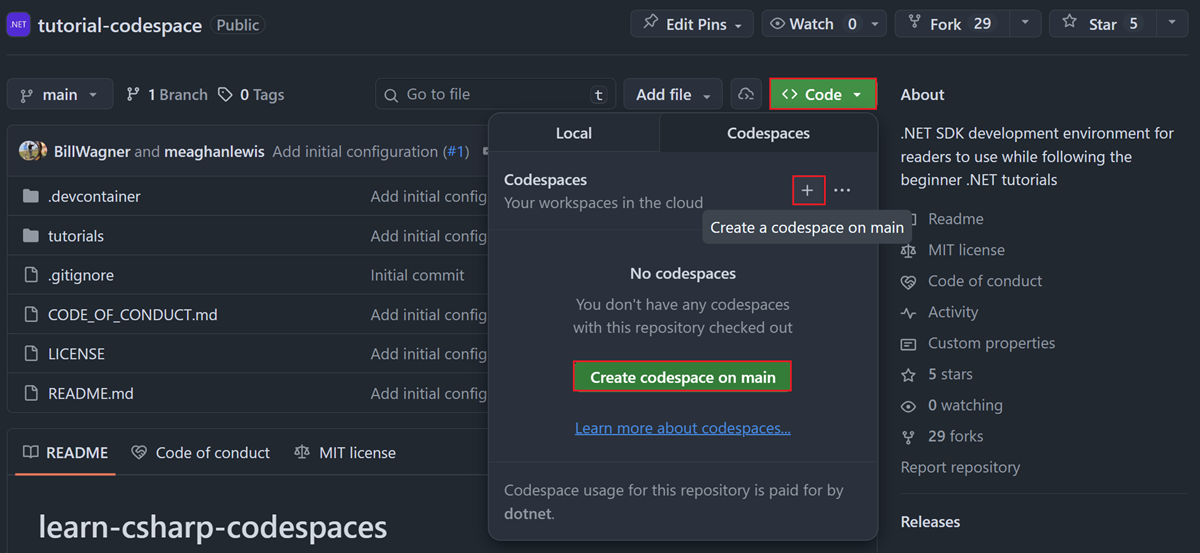
當你的程式空間載入時,打開終端機並進入教學資料夾:
cd tutorials建立一個新的類別函式庫專案:
dotnet new classlib -n StringLibrary
建立類別庫專案
新增一個名為 StringLibrary 的 .NET 類函式庫專案。
在 Solution Explorer 中右鍵點擊方案,選擇 新增>專案。
在 [新增專案 ] 頁面上,在搜尋方塊中輸入 library 。 從語言列表中選擇
C# 或Visual Basic ,然後從平台列表中選擇 所有平台 。 選擇 [類別程式庫] 範本,然後選擇 [ 下一步]。在 [設定您的新專案] 頁面上,在 [專案名稱] 方塊中輸入 StringLibrary,然後選擇 [下一步]。
在 Additional information 頁面,選擇 .NET 10,然後選擇 Create。
請確認函式庫針對的是正確版本的 .NET。 右鍵點擊Solution Explorer中的函式庫專案,然後選擇Properties。 目標框架文字框顯示專案目標為 .NET 10.0。
如果你用的是 Visual Basic,請清除 Default namespace 文字框中的文字。
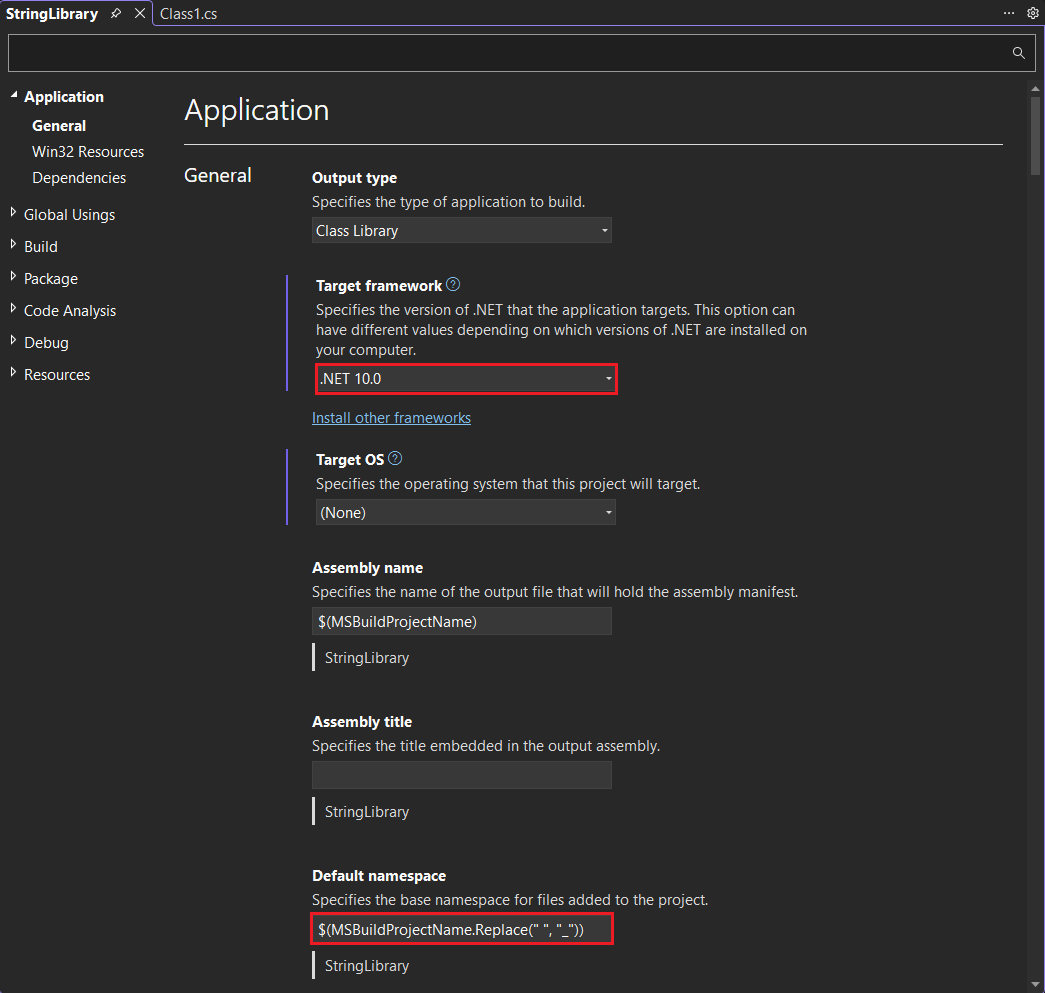
對於每個專案,Visual Basic 會自動建立一個對應專案名稱的命名空間。 在本教學課程中,您會在程式碼檔中使用
namespace關鍵字以定義最上層命名空間。將 Class1.cs 或 Class1.vb 的程式碼視窗中的程式碼取代為下列程式碼,然後儲存檔案。 如果未顯示您要使用的語言,請變更頁面頂端的語言選取器。
namespace UtilityLibraries;

public static class StringLibrary
{
    public static bool StartsWithUpper(this string? str)
    {
        if (string.IsNullOrWhiteSpace(str))
            return false;

        return char.IsUpper(str[0]);
    }
}
Imports System.Runtime.CompilerServices Namespace UtilityLibraries Public Module StringLibrary <Extension> Public Function StartsWithUpper(str As String) As Boolean If String.IsNullOrWhiteSpace(str) Then Return False End If Dim ch As Char = str(0) Return Char.IsUpper(ch) End Function End Module End Namespace類別程式庫
UtilityLibraries.StringLibrary,包含名為StartsWithUpper的方法。 這個方法會傳回一個 Boolean 值,指出目前字串實例是否以大寫字元開頭。 Unicode 標準區分大寫字元和小寫字元。 如果字元是大寫,Char.IsUpper(Char) 方法會傳回true。StartsWithUpper會實作為 擴充方法,讓您可以呼叫它,就像是 String 類別的成員一樣。 在 C# 程式碼中,?後的問號(string)表示字串可能是 null。在功能表列上,選取 [建置>建置解決方案] 或按 Ctrl+Shift+B 以確認專案編譯時沒有錯誤。
專案被創建並 Class1.cs 啟動。
請將 Class1.cs 內容替換為以下代碼:
namespace UtilityLibraries;

public static class StringLibrary
{
    public static bool StartsWithUpper(this string? str)
    {
        if (string.IsNullOrWhiteSpace(str))
            return false;

        return char.IsUpper(str[0]);
    }
}
類別程式庫
UtilityLibraries.StringLibrary,包含名為StartsWithUpper的方法。 這個方法會傳回一個 Boolean 值,指出目前字串實例是否以大寫字元開頭。 Unicode 標準區分大寫字元和小寫字元。 如果字元是大寫,Char.IsUpper(Char) 方法會傳回true。儲存檔案。
在Explorer視圖底部展開Solution Explorer。
在
Solution Explorer 中點選解決方案,選擇 Build ,或開啟指令面板選擇.NET: Build ,以建立解決方案並驗證專案是否能順利編譯。終端機輸出看起來像下列範例:
  Determining projects to restore...
  All projects are up-to-date for restore.
  StringLibrary -> C:\Projects\ClassLibraryProjects\StringLibrary\bin\Debug\net10.0\StringLibrary.dll
Build succeeded.
    0 Warning(s)
    0 Error(s)
Time Elapsed 00:00:02.78
前往 StringLibrary 資料夾:
cd StringLibrary打開 Class1.cs 並用以下代碼替換其內容:
namespace UtilityLibraries;

public static class StringLibrary
{
    public static bool StartsWithUpper(this string? str)
    {
        if (string.IsNullOrWhiteSpace(str))
            return false;

        return char.IsUpper(str[0]);
    }
}
類別程式庫
UtilityLibraries.StringLibrary,包含名為StartsWithUpper的方法。 這個方法會傳回一個 Boolean 值,指出目前字串實例是否以大寫字元開頭。 Unicode 標準區分大寫字元和小寫字元。 如果字元是大寫,Char.IsUpper(Char) 方法會傳回true。儲存檔案並建立專案:
dotnet build該建置應該會順利完成,沒有錯誤。
將主控台應用程式新增至解決方案
新增使用類別庫的主控台應用程式。 該應用程序將提示用戶輸入字符串並報告字符串是否以大寫字符開頭。
新增一個名為 ShowCase 的 .NET 控制台應用程式。
在 Solution Explorer 中右鍵點擊方案,然後選擇 Add>New Project。
在 [新增專案 ] 頁面上,在搜尋方塊中輸入 console 。 從語言列表中選擇
C# 或Visual Basic ,然後從平台列表中選擇 所有平台 。選擇 Console App 範本,然後選擇 「下一步」。
在 [設定您的新專案] 頁面上,在 [專案名稱] 方塊中輸入 ShowCase。 然後選擇 [下一步]。
在附加資訊頁面,請選擇Framework框中的.NET 10。 然後選擇 建立。
在 Program.cs 或 Program.vb 檔案的程式碼視窗中,將所有程式碼取代為下列程式碼。
using System;
using UtilityLibraries;

int row = 0;

do
{
    if (row == 0 || row >= 25)
        ResetConsole();

    string? input = Console.ReadLine();
    if (string.IsNullOrWhiteSpace(input)) break;
    Console.WriteLine($"Input: {input} {"Begins with uppercase? ",30}: " +
                      $"{(input.StartsWithUpper() ? "Yes" : "No")}{Environment.NewLine}");
    row += 3;
} while (true);
return;

// Declare a ResetConsole local method
void ResetConsole()
{
    if (row > 0)
    {
        Console.WriteLine("Press any key to continue...");
        Console.ReadKey();
    }
    Console.Clear();
    Console.WriteLine($"{Environment.NewLine}Press <Enter> only to exit; otherwise, enter a string and press <Enter>:{Environment.NewLine}");
    row = 3;
}
Imports UtilityLibraries Module Program Dim row As Integer = 0 Sub Main() Do If row = 0 OrElse row >= 25 Then ResetConsole() Dim input As String = Console.ReadLine() If String.IsNullOrEmpty(input) Then Return Console.WriteLine($"Input: {input} {"Begins with uppercase? ",30}: " + $"{If(input.StartsWithUpper(), "Yes", "No")} {Environment.NewLine}") row += 3 Loop While True End Sub Private Sub ResetConsole() If row > 0 Then Console.WriteLine("Press any key to continue...") Console.ReadKey() End If Console.Clear() Console.WriteLine($"{Environment.NewLine}Press <Enter> only to exit; otherwise, enter a string and press <Enter>:{Environment.NewLine}") row = 3 End Sub End Module程式碼會使用變數
row來維護寫入主控台視窗的資料列數計數。 每當它大於或等於 25 時,程式代碼就會清除主控台視窗,並向使用者顯示訊息。程式會提示使用者輸入字串。 它指出字串是否以大寫字元開頭。 如果使用者按 Enter 鍵而不輸入字串,則應用程式會結束,且主控台視窗會關閉。
在
Solution Explorer 中右鍵點選解決方案,選擇 New Project ,或在指令面板中選擇.NET: New Project 。選擇 主控台應用程式。
把它命名為 ShowCase,選擇預設目錄並選擇 建立專案。
開啟 ShowCase/Program.cs,用以下的程式碼取代所有現有的程式碼。
using System;
using UtilityLibraries;

int row = 0;

do
{
    if (row == 0 || row >= 25)
        ResetConsole();

    string? input = Console.ReadLine();
    if (string.IsNullOrWhiteSpace(input)) break;
    Console.WriteLine($"Input: {input} {"Begins with uppercase? ",30}: " +
                      $"{(input.StartsWithUpper() ? "Yes" : "No")}{Environment.NewLine}");
    row += 3;
} while (true);
return;

// Declare a ResetConsole local method
void ResetConsole()
{
    if (row > 0)
    {
        Console.WriteLine("Press any key to continue...");
        Console.ReadKey();
    }
    Console.Clear();
    Console.WriteLine($"{Environment.NewLine}Press <Enter> only to exit; otherwise, enter a string and press <Enter>:{Environment.NewLine}");
    row = 3;
}
程式碼會使用變數
row來維護寫入主控台視窗的資料列數計數。 每當它大於或等於 25 時,程式代碼就會清除主控台視窗,並向使用者顯示訊息。程式會提示使用者輸入字串。 它指出字串是否以大寫字元開頭。 如果使用者按 Enter 鍵而不輸入字串,則應用程式會結束,且主控台視窗會關閉。
儲存您的變更。
回到教學資料夾,建立一個新的主控台應用程式:
cd ..
dotnet new console -n ShowCase
打開 ShowCase/Program.cs ,並將所有程式碼替換成以下程式碼:
using System;
using UtilityLibraries;

int row = 0;

do
{
    if (row == 0 || row >= 25)
        ResetConsole();

    string? input = Console.ReadLine();
    if (string.IsNullOrWhiteSpace(input)) break;
    Console.WriteLine($"Input: {input} {"Begins with uppercase? ",30}: " +
                      $"{(input.StartsWithUpper() ? "Yes" : "No")}{Environment.NewLine}");
    row += 3;
} while (true);
return;

// Declare a ResetConsole local method
void ResetConsole()
{
    if (row > 0)
    {
        Console.WriteLine("Press any key to continue...");
        Console.ReadKey();
    }
    Console.Clear();
    Console.WriteLine($"{Environment.NewLine}Press <Enter> only to exit; otherwise, enter a string and press <Enter>:{Environment.NewLine}");
    row = 3;
}
程式碼會使用變數
row來維護寫入主控台視窗的資料列數計數。 每當它大於或等於 25 時,程式代碼就會清除主控台視窗,並向使用者顯示訊息。程式會提示使用者輸入字串。 它指出字串是否以大寫字元開頭。 如果使用者按 Enter 鍵而不輸入字串,則應用程式會結束,且主控台視窗會關閉。
儲存您的變更。
新增專案參考
一開始,新的控制台應用程式項目無法存取類別庫。 若要允許它呼叫類別庫中的方法,請建立類別庫專案的專案參考。
在 Solution Explorer 中,右鍵點擊
ShowCase專案的 Dependencies節點,選擇 Add Project Reference。在 Visual Studio 中新增「參考」的右鍵選單項目 在 [參考管理員] 對話方塊中,選取 StringLibrary 專案,然後選取 [ 確定]。
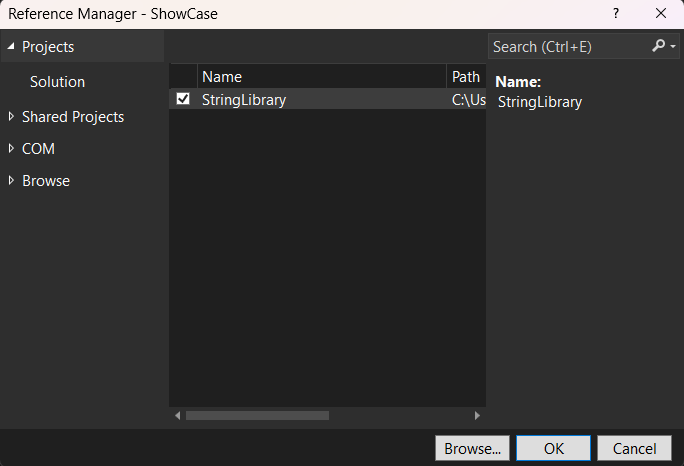
在 Solution Explorer 中,右鍵點擊 ShowCase專案,選擇 Add Project Reference。
選取 [StringLibrary]。
小提示
或者,您也可以將以下內容加入 ShowCase.csproj:
<ItemGroup>
  <ProjectReference Include="..\StringLibrary\StringLibrary.csproj" />
</ItemGroup>
在 ShowCase 專案中新增對 StringLibrary 專案的參考:
cd ShowCase
dotnet add reference ../StringLibrary/StringLibrary.csproj
執行應用程式
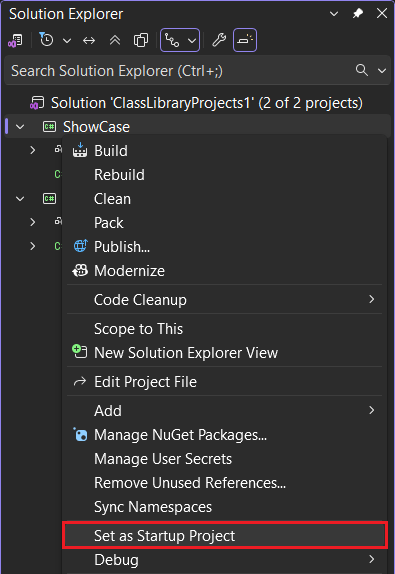
在 Solution Explorer,按一下滑鼠右鍵 ShowCase專案,並在右鍵選單中選擇 設為啟動專案。
按 Ctrl+F5 編譯並運行程序,無需調試。
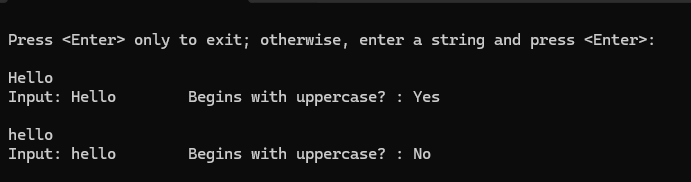
輸入字串並按 Enter 鍵來試用該程序,然後按 Enter 鍵退出。
使用上方選單列選擇「 執行>不進行除錯」。
選取 C#。
選擇 C#: ShowCase.
如果您收到錯誤,指出未載入 C# 程式,請關閉您已開啟的資料夾,然後開啟
ShowCase資料夾。 然後再次嘗試執行應用程式。輸入字串並按 Enter 鍵來試用該程序,然後按 Enter 鍵退出。
終端機輸出看起來像下列範例:
Press <Enter> only to exit; otherwise, enter a string and press <Enter>:

A string that starts with an uppercase letter
Input: A string that starts with an uppercase letter
Begins with uppercase? : Yes

a string that starts with a lowercase letter
Input: a string that starts with a lowercase letter
Begins with uppercase? : No
啟動 ShowCase 應用程式:
dotnet run輸入字串並按 Enter 鍵來試用該程序,然後按 Enter 鍵退出。
終端機輸出看起來像下列範例:
Press <Enter> only to exit; otherwise, enter a string and press <Enter>:

A string that starts with an uppercase letter
Input: A string that starts with an uppercase letter
Begins with uppercase? : Yes

a string that starts with a lowercase letter
Input: a string that starts with a lowercase letter
Begins with uppercase? : No
其他資源
清理資源
GitHub 會在你 30 天不活躍後自動刪除你的 Codespace。 如果你打算繼續探索這個系列的更多教學,可以讓你的 Codespace 保持配置。 如果你準備好造訪 .NET 網站下載 .NET SDK,你可以刪除你的 Codespace。 要刪除你的 Codespace,打開瀏覽器視窗並導航到 你的 Codespaces。 你會在視窗中看到你的代碼空間清單。 在學習教學程式碼空間中選擇三個點...()。 然後選擇「刪除」。
後續步驟
在本教學課程中,您已建立類別庫。 在下一個教學課程中,您將瞭解如何對類別程式庫進行單元測試。
或者,你也可以跳過自動化單元測試,透過建立 NuGet 套件來學習如何分享函式庫:
或者,學習如何發佈主機應用程式。 如果您從本教學課程中建立的解決方案發佈主控台應用程式,類別程式庫會以 .dll 檔案的形式隨之而來。
