適用於: SQL Server 2019 (15.x) 及以後版本在 Windows Azure SQL 資料庫上
本文說明如何配置支援伺服器端安全隔離環境計算的啟用金鑰,這些金鑰用於Always Encrypted的安全隔離環境。
管理「始終加密」金鑰的一般指引與流程適用於配置啟用 enclave 金鑰時。 本文探討與 Always Encrypted 和安全區域相關的詳細資料。
若要使用 SQL Server Management Studio 或 PowerShell 佈建支援安全區域的資料行主金鑰,請確認新的金鑰支援安全區域計算。 這會促使工具(SSMS 或 PowerShell)產生 CREATE COLUMN MASTER KEY 一個語句,將資料庫欄位的主金鑰元資料設定 ENCLAVE_COMPUTATIONS 為 。 如需詳細資訊,請參閱 CREATE COLUMN MASTER KEY (Transact-SQL)。
工具也會使用資料行主要金鑰對資料行主要屬性進行數位簽署,並會將簽章儲存在資料庫中繼資料內。 簽章能防止 ENCLAVE_COMPUTATIONS 設定被惡意竄改。 SQL 用戶端驅動程式會在允許使用安全區域之前先驗證簽章。 這提供了安全管理員對哪些欄位資料可以在隔區內計算的控制權。
ENCLAVE_COMPUTATIONS 是固定的,這表示您在中繼資料中定義資料行主要金鑰後,便無法進行變更。 若要啟用使用欄位加密金鑰進行隔島計算,該欄位主金鑰會加密該金鑰,你需要旋轉欄位主金鑰,並以啟用隔區功能的欄位主金鑰取代。 請參見旋轉啟用 enclave 鍵。
Note
目前,SSMS 與 PowerShell 都支援儲存在 Azure Key Vault 或 Windows 憑證商店中的啟用 enclave 欄位主金鑰。 硬體安全模組(使用 CNG 或 CAPI)不被支援。
若要建立已啟用記憶體保護區的資料行加密金鑰,您需要確認您選取已啟用記憶體保護區的資料行主要金鑰來加密新金鑰。
下列各節提供詳細資料,說明如何使用 SSMS 和 PowerShell 來佈建已啟用記憶體保護區的金鑰。
使用 SQL Server Management Studio 配置啟用 enclave 的金鑰
您可在 SQL Server Management Studio 中佈建:
- 一個啟用 Enclave 的欄位主金鑰,使用 「新欄位主金鑰 」對話框。
- 啟用了 enclave 的欄位加密金鑰,透過 新的欄位加密金鑰 對話方塊來使用。
Always Encrypted 精靈也允許你建立啟用 enclave 的欄位主金鑰和啟用 enclave 的欄位加密金鑰。
安裝最新版本的 SQL Server Management Studio(SSMS)。
使用「新建欄位主金鑰」對話框來配置供應區隔的欄位主金鑰
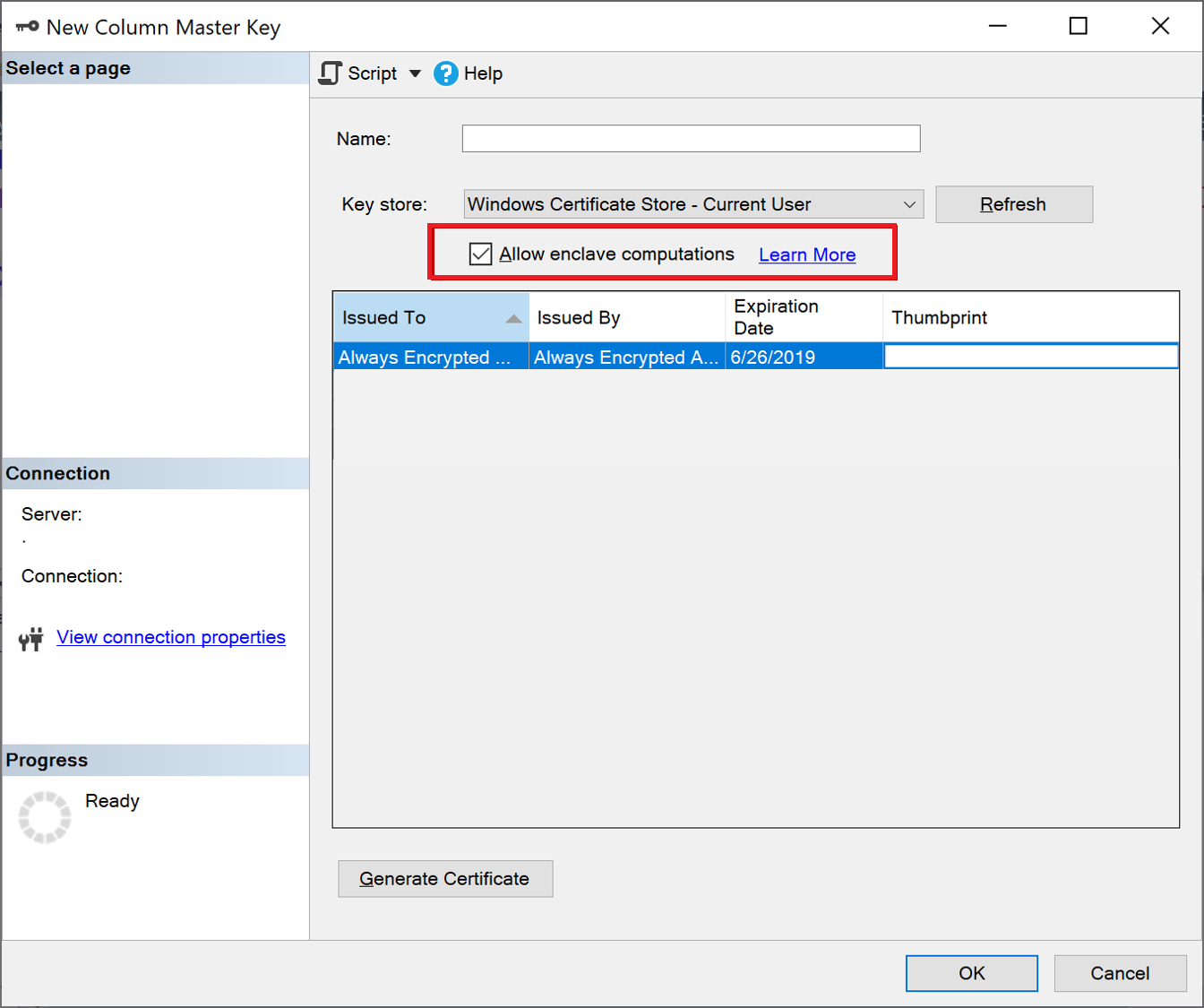
若要佈建啟用封裝功能的資料行主金鑰,請按照使用 [新增資料行主金鑰] 對話方塊來佈建資料行主金鑰中的步驟進行操作。 請確認選取允許區塊計算。 請參閱以下的螢幕擷取畫面:
Note
只有當資料庫設定有安全記憶體保護區時,才會出現 [允許記憶體保護區計算] 核取方塊。 如果你正在使用 SQL Server,請參考 「在 SQL Server 中配置安全隔離區」。 如果你正在使用 Azure SQL 資料庫,請參考「 啟用 Always Encrypted with secure enclaves」來保護你的 Azure SQL 資料庫。
Tip
若要檢查特定欄位主索引鍵是否支持 enclaving 功能,請在 [物件總管] 中以滑鼠右鍵按一下該欄位主索引鍵,並選取[屬性]。 若金鑰已啟用加密區,視窗中便會出現 [加密區計算: 允許],此顯示金鑰的屬性。 或者,您可以使用 sys.column_master_keys (Transact-SQL) 檢視。
使用“新列加密金鑰”對話框配置封裝啟用的列加密金鑰
要配置已啟用 enclave 的欄位加密金鑰,請依照 使用新的欄位加密金鑰對話框的「配置欄位加密金鑰」中步驟。 選擇欄位主鍵時,請確保它已啟用 enclave 功能。
Tip
若要檢查資料行加密金鑰是否已啟用禁區功能,請在 [物件總管] 中以滑鼠右鍵按一下該資料行加密金鑰,並選取 [屬性]。 若金鑰已啟用加密區,視窗中便會出現 [加密區計算: 允許],此顯示金鑰的屬性。
使用 PowerShell 配置啟用安全區域的金鑰
若要使用 PowerShell 佈建啟用記憶體保護區的金鑰,則需要有 SqlServer PowerShell 模組版本 22 或更高版本。
一般而言,使用 PowerShell 佈建 Always Encrypted 金鑰中所描述 PowerShell 的 Always Encrypted 金鑰佈建工作流程 (搭配或不搭配角色隔離),其也適用於已啟用記憶體保護區的金鑰。 本節描述與加密區啟用的金鑰相關的特定詳細資料。
SqlServer PowerShell 模組擴充了 New-SqlCertificateStoreColumnMasterKeySettings 和 New-SqlAzureKeyVaultColumnMasterKeySettings 的 cmdlet -AllowEnclaveComputations 參數,讓你在配置過程中指定一個欄位主金鑰,並且啟用了 enclave。 要麼 cmdlet 建立一個本地物件,或者它包含欄位主金鑰的屬性,這些屬性存放在 Azure Key Vault 或 Windows 憑證庫中。 若指定,該 -AllowEnclaveComputations 屬性會在本地物件中標記該鍵為 enclave enabled。 同時,指令長可存取參考的欄位主金鑰(在 Azure Key Vault 或 Windows 憑證商店),對金鑰屬性進行數位簽署。 一旦你為新的 enclave 啟用欄位主鍵建立 settings 物件,就可以在後續呼叫 New-SqlColumnMasterKey 指令檔時使用它,建立描述該新鍵的資料庫中元資料物件。
佈建已啟用記憶體保護區資料行加密金鑰的過程,與佈建未啟用記憶體保護區資料行加密金鑰的過程沒有任何不同。 你只需要確保用來加密新欄位加密金鑰的欄位主金鑰是啟用 enclave 的。
Note
SqlServer PowerShell 模組目前不支援提供存儲在硬體安全模組中的具備 enclaves 功能的金鑰(使用 CNG 或 CAPI)。
範例 - 使用 Windows 憑證儲存庫配置啟用 enclave 的金鑰
以下的端對端範例展示如何配置已啟用 enclave 的金鑰,並將資料欄主金鑰儲存在 Windows 憑證存放區中。 指令碼是以不使用角色隔離的 Windows 憑證存放區 (範例) 中範例為基礎。 值得注意的是在 -AllowEnclaveComputations Cmdlet 中使用了 參數,這是兩個範例中工作流程的唯一差異。
# Create a column master key in Windows Certificate Store.
$cert = New-SelfSignedCertificate -Subject "AlwaysEncryptedCert" -CertStoreLocation Cert:CurrentUser\My -KeyExportPolicy Exportable -Type DocumentEncryptionCert -KeyUsage DataEncipherment -KeySpec KeyExchange

# Import the SqlServer module.
Import-Module "SqlServer" -MinimumVersion 22.0.50

# Connect to your database.
$serverName = "<server name>"
$databaseName = "<database name>"
# Change the authentication method in the connection string, if needed.
$connStr = "Server = " + $serverName + "; Database = " + $databaseName + "; Integrated Security = True; TrustServerCertificate = True"
$database = Get-SqlDatabase -ConnectionString $connStr

# Create a SqlColumnMasterKeySettings object for your column master key
# using the -AllowEnclaveComputations parameter.
$cmkSettings = New-SqlCertificateStoreColumnMasterKeySettings -CertificateStoreLocation "CurrentUser" -Thumbprint $cert.Thumbprint -AllowEnclaveComputations

# Create column master key metadata in the database.
$cmkName = "CMK1"
New-SqlColumnMasterKey -Name $cmkName -InputObject $database -ColumnMasterKeySettings $cmkSettings

# Generate a column encryption key, encrypt it with the column master key and create column encryption key metadata in the database.
$cekName = "CEK1"
New-SqlColumnEncryptionKey -Name $cekName  -InputObject $database -ColumnMasterKey $cmkName
範例 - 使用 Azure Key Vault 配置支援閃點區的金鑰
以下端對端範例展示了如何配置啟用 enclave 的金鑰,將欄位主金鑰存放在 Azure Key Vault 的金鑰庫中。 指令碼是以不使用角色隔離的 Azure Key Vault (範例) 中範例為基礎。 請務必注意已啟用記憶體保護區金鑰與未啟用記憶體保護區金鑰工作流程之間的兩項差異。
- 在以下指令碼中,New-SqlCertificateStoreColumnMasterKeySettings 使用
-AllowEnclaveComputations參數來讓新資料行主要金鑰啟用安全區域功能。 - 以下指令碼使用 Get-AzAccessToken Cmdlet 來取得金鑰保存庫的存取權杖。 這是必要的,因為 New-SqlAzureKeyVaultColumnMasterKeySettings 需要有權存取 Azure Key Vault 才能簽署資料行主要金鑰的屬性。
# Create a column master key in Azure Key Vault.
Import-Module "SqlServer" -MinimumVersion 22.0.50
Import-Module Az.Accounts -MinimumVersion 2.2.0
Connect-AzAccount
$SubscriptionId = "<Azure SubscriptionId>"
$resourceGroup = "<resource group name>"
$azureLocation = "<datacenter location>"
$akvName = "<key vault name>"
$akvKeyName = "<key name>"
$azureCtx = Set-AzConteXt -SubscriptionId $SubscriptionId # Sets the context for the below cmdlets to the specified subscription.
New-AzResourceGroup -Name $resourceGroup -Location $azureLocation # Creates a new resource group - skip, if your desired group already exists.
New-AzKeyVault -VaultName $akvName -ResourceGroupName $resourceGroup -Location $azureLocation # Creates a new key vault - skip if your vault already exists.
Set-AzKeyVaultAccessPolicy -VaultName $akvName -ResourceGroupName $resourceGroup -PermissionsToKeys get, create, delete, list, wrapKey,unwrapKey, sign, verify -UserPrincipalName $azureCtx.Account
$akvKey = Add-AzKeyVaultKey -VaultName $akvName -Name $akvKeyName -Destination "Software"

# Connect to your database.
$serverName = "<server name>"
$databaseName = "<database name>"
# Change the authentication method in the connection string, if needed.
$connStr = "Server = " + $serverName + "; Database = " + $databaseName + "; Integrated Security = True; TrustServerCertificate = True"
$database = Get-SqlDatabase -ConnectionString $connStr

# Obtain an access token for key vaults.
$keyVaultAccessToken = (Get-AzAccessToken -ResourceUrl https://vault.azure.net).Token

# Create a SqlColumnMasterKeySettings object for your column master key.
$cmkSettings = New-SqlAzureKeyVaultColumnMasterKeySettings -KeyURL $akvKey.ID -AllowEnclaveComputations -KeyVaultAccessToken $keyVaultAccessToken

# Create column master key metadata in the database.
$cmkName = "CMK1"
New-SqlColumnMasterKey -Name $cmkName -InputObject $database -ColumnMasterKeySettings $cmkSettings

# Generate a column encryption key, encrypt it with the column master key and create column encryption key metadata in the database.
$cekName = "CEK1"
New-SqlColumnEncryptionKey -Name $cekName -InputObject $database -ColumnMasterKey $cmkName -KeyVaultAccessToken $keyVaultAccessToken