AI Builder 發票處理與 Power Fx 相結合,讓您可以快速準確地從發票中提取關鍵詳細資訊,例如發票 ID、廠商名稱和日期。 這種低程式碼解決方案簡化了資料處理並簡化了財務流程。
支援的文件類型:發票
需求
為了獲得最佳效果,請每份文件提供一張清晰的照片或高品質的掃描件。
如需進一步了解,請參閱發票處理預建 AI 模型中的支援的語言和檔案區段的要求。
可用欄位
| 可用欄位 | 類型 |
|---|---|
| AmountDue | 文字 |
| BillingAddress | 文字 |
| BillingAddressRecipient | 文字 |
| CustomerAddress | 文字 |
| CustomerAddressRecipient | 文字 |
| CustomerId | 文字 |
| CustomerName | 文字 |
| 客戶稅號 | 文字 |
| 到期日期 | 文字 |
| InvoiceDate | 文字 |
| InvoiceId | 文字 |
| InvoiceTotal | 文字 |
| paymentTerms | 文字 |
| PreviousUnpaidBalance | 文字 |
| PurchaseOrder | 文字 |
| RemittanceAddress | 文字 |
| RemittanceAddressRecipient | 文字 |
| ServiceAddress | 文字 |
| ServiceAddressRecipient | 文字 |
| ServiceEndDate | 文字 |
| ServiceStartDate | 文字 |
| ShippingAddress | 文字 |
| ShippingAddressRecipient | 文字 |
| SubTotal | 文字 |
| TotalTax | 文字 |
| VendorAddress | 文字 |
| VendorAddressRecipient | 文字 |
| VendorName | 文字 |
| VendorTaxId | 文字 |
可用資料表項目
| 可用項目 | 類型 |
|---|---|
| 總額 | 文字 |
| Date | 文字 |
| Description | 文字 |
| ProductCode | 文字 |
| 數量 | 文字 |
| 稅額 | 文字 |
| 單位 | 文字 |
| UnitPrice | 文字 |
建置您的畫布應用程式
登入 Power Apps。
在左側導覽窗格中,選擇 + 建立。
選取從空白開始畫布應用程式圖標。
命名您的應用程式,選取平板電腦或手機格式,然後選取建立。
在應用程式編輯器中,從左側導覽窗格中選擇資料>新增資料,然後搜尋發票處理。
選擇 + 插入>新增圖片。
選取 + 插入>文字標籤。
選擇 Label1 並輸入類似以下範例的公式,其中
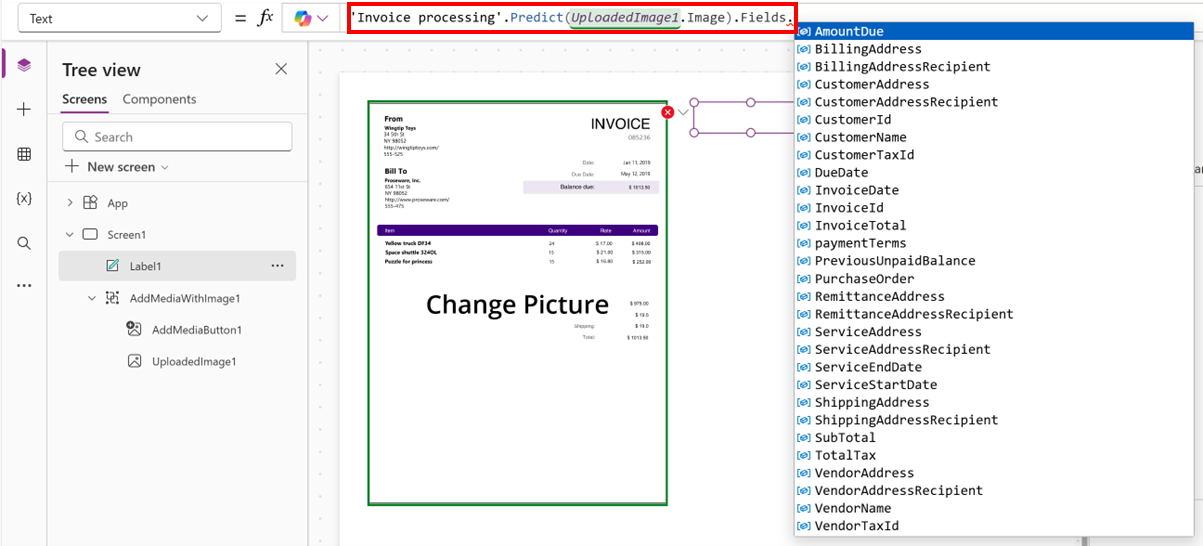
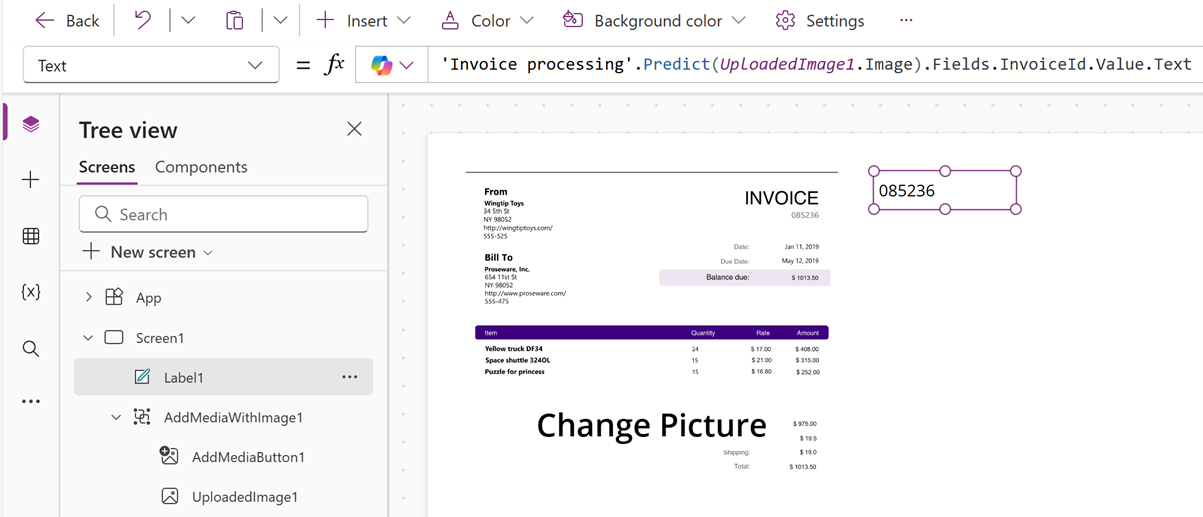
UploadedImage1是映像容器:'Invoice processing'.Predict(UploadedImage1.Image).Fields.InvoiceId.Value.Text您可以從可用欄位中選擇所需的欄位。
選擇儲存,然後選擇播放按鈕。
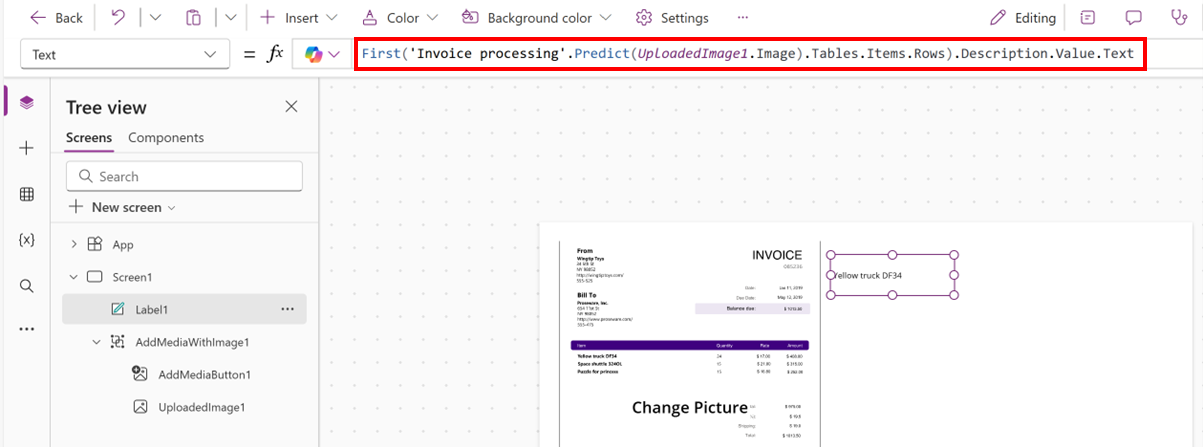
您也可以使用此公式從結果中擷取第一個項目,並將該項目的描述提取為文字字串。
First('Invoice processing'.Predict(UploadedImage1.Image).Tables.Items.Rows).Description.Value.Text
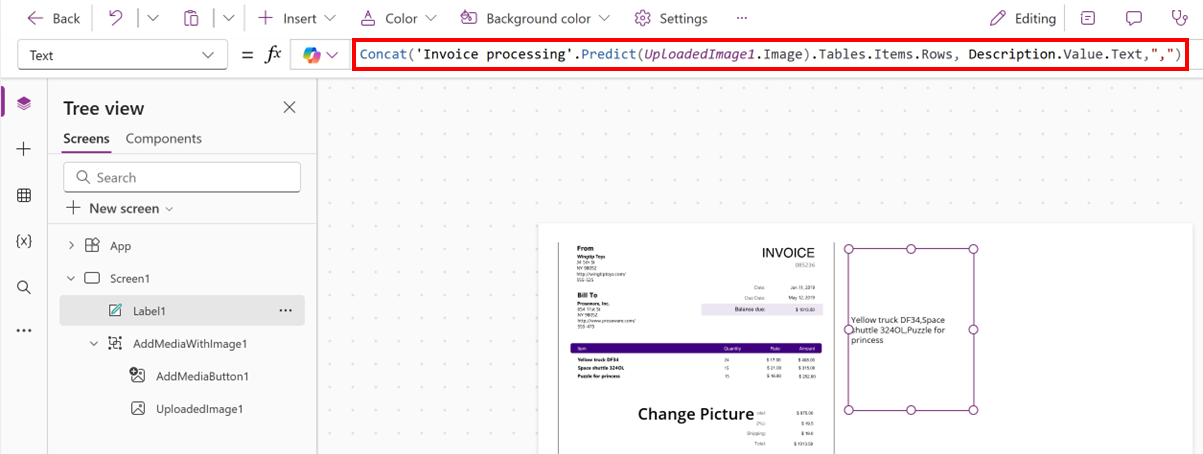
此運算式將發票相關影像的預測結果中每列描述欄位的文字值連接起來,並用逗號和空格分隔每個值。
Concat('Invoice processing'.Predict(UploadedImage1.Image).Tables.Items.Rows, Description.Value.Text, Char(10))