除了核心 SDK 之外,還有適用於特定架構的外掛程式,例如 React 外掛程式、React 原生外掛程式和 Angular 外掛程式。
這些外掛程式提供額外的功能以及與特定架構的整合。
必要條件
- 安裝 JavaScript SDK。
- 請確定您想要安裝的 React 外掛程式版本與您的 Application Insights 版本相容。 如需詳細資訊,請參閱 React 外掛程式的相容性矩陣。
這個外掛程式有什麼作用?
適用於 Application Insights JavaScript SDK 的 React 外掛程式能夠:
- 追蹤路由器歷程記錄
- 追蹤例外狀況
- 追蹤元件使用量
- 在 React Context 中使用 Application Insights
新增外掛程式
若要新增外掛程式,請遵循本節中的步驟。
安裝套件
npm install @microsoft/applicationinsights-react-js @microsoft/applicationinsights-web
將延伸模組新增至您的程式碼
初始化與 Application Insights 的連線:
附註
如果您使用歷程記錄第 5 版或更新版本,createBrowserHistory 不再支援 basename 選項。
不要使用 const browserHistory = createBrowserHistory({ basename: '' });,而要使用 const browserHistory = createBrowserHistory();。
若要檢查您的歷程記錄版本,請執行 npm list history。
import React from 'react';
import { ApplicationInsights } from '@microsoft/applicationinsights-web';
import { ReactPlugin } from '@microsoft/applicationinsights-react-js';
import { createBrowserHistory } from "history";
const browserHistory = createBrowserHistory({ basename: '' });
var reactPlugin = new ReactPlugin();
// *** Add the Click Analytics plug-in. ***
/* var clickPluginInstance = new ClickAnalyticsPlugin();
   var clickPluginConfig = {
     autoCapture: true
}; */
var appInsights = new ApplicationInsights({
    config: {
        connectionString: 'YOUR_CONNECTION_STRING_GOES_HERE',
        // *** If you're adding the Click Analytics plug-in, delete the next line. ***
        extensions: [reactPlugin],
     // *** Add the Click Analytics plug-in. ***
     // extensions: [reactPlugin, clickPluginInstance],
        extensionConfig: {
          [reactPlugin.identifier]: { history: browserHistory }
       // *** Add the Click Analytics plug-in. ***
       // [clickPluginInstance.identifier]: clickPluginConfig
        }
    }
});
appInsights.loadAppInsights();
(選擇性) 新增 Click Analytics 外掛程式
如果您想要新增 Click Analytics 外掛程式:
取消註解 Click Analytics 的行。
視您要新增的外掛程式而定,執行下列其中一項:
- 針對 React,刪除
extensions: [reactPlugin],。 - 針對 React Native,刪除
extensions: [RNPlugin]。 - 針對 Angular,刪除
extensions: [angularPlugin],。
- 針對 React,刪除
請參閱使用 Click Analytics 插件以繼續進行設定流程。
組態
本節涵蓋 Application Insights JavaScript SDK 架構延伸模組的組態設定。
追蹤路由器歷程記錄
| 名稱 | 類型 | 是必要的嗎? | 預設 | 描述 |
|---|---|---|---|---|
| 歷程 | 物件 | 選擇性 | null | 追蹤路由器歷程記錄。 如需詳細資訊,請參閱 React 路由器套件文件。 若要追蹤路由器歷程記錄,大部分的使用者都可以在 enableAutoRouteTrackingJavaScript SDK 設定中使用 欄位。 此欄位會收集與 history 物件相同的頁面檢視資料。您使用未更新瀏覽器 URL 的路由器實作時,請使用 history 物件,這是設定所接聽的內容。 您不應該同時啟用 enableAutoRouteTracking 欄位和 history 物件,因為您會取得多個頁面檢視事件。 |
下列程式碼範例示範如何啟用 enableAutoRouteTracking 欄位。
var reactPlugin = new ReactPlugin();
var appInsights = new ApplicationInsights({
    config: {
        connectionString: 'YOUR_CONNECTION_STRING_GOES_HERE',
        enableAutoRouteTracking: true,
        extensions: [reactPlugin]
    }
});
appInsights.loadAppInsights();
追蹤例外狀況
React 錯誤界限提供在 React 應用程式內發生例外狀況時,以正常方式處理未攔截到的例外狀況所用的方式。 發生這類例外狀況時,可能需要記錄例外狀況。 Application Insights React 外掛程式提供錯誤界限元件,在例外狀況發生時會自動記錄例外狀況。
import React from "react";
import { reactPlugin } from "./AppInsights";
import { AppInsightsErrorBoundary } from "@microsoft/applicationinsights-react-js";

const App = () => {
    return (
        <AppInsightsErrorBoundary onError={() => <h1>I believe something went wrong</h1>} appInsights={reactPlugin}>
            /* app here */
        </AppInsightsErrorBoundary>
    );
};
有兩個屬性需要傳遞給 AppInsightsErrorBoundary。 這兩個屬性是為應用程式所建立的 ReactPlugin 執行個體,以及發生例外狀況時要呈現的元件。 在未處理的例外狀況發生時,系統會透過提供給錯誤界限的資訊來呼叫 trackException,而且 onError 元件隨即顯示。
收集裝置資訊
Application Insights Web 套件已經收集包含瀏覽器、作業系統、版本和語言的裝置資訊。
設定 (其他)
追蹤元件使用量
React 外掛程式特有的功能是您可以檢測特定元件並個別追蹤這些元件。
如要藉由使用量追蹤檢測 React 元件,請套用 withAITracking 高階元件函式。 若要啟用元件的 Application Insights,請將 withAITracking 標籤包圍該元件:
import React from 'react';
import { withAITracking } from '@microsoft/applicationinsights-react-js';
import { reactPlugin, appInsights } from './AppInsights';

// To instrument various React components usage tracking, apply the `withAITracking` higher-order
// component function.

class MyComponent extends React.Component {
    ...
}

// withAITracking takes 4 parameters (reactPlugin, Component, ComponentName, className).
// The first two are required and the other two are optional.

export default withAITracking(reactPlugin, MyComponent);
其會測量從 ComponentDidMount 事件到 ComponentWillUnmount 事件的時間。 為了讓結果更加精確,其會使用 React Component Engaged Time = ComponentWillUnmount timestamp - ComponentDidMount timestamp - idle time 來減去使用者閒置的時間。
探索資料
使用 Azure 監視器計量瀏覽器來繪製自訂計量名稱 React Component Engaged Time (seconds) 的圖表,並且依 Component Name此自訂計量。
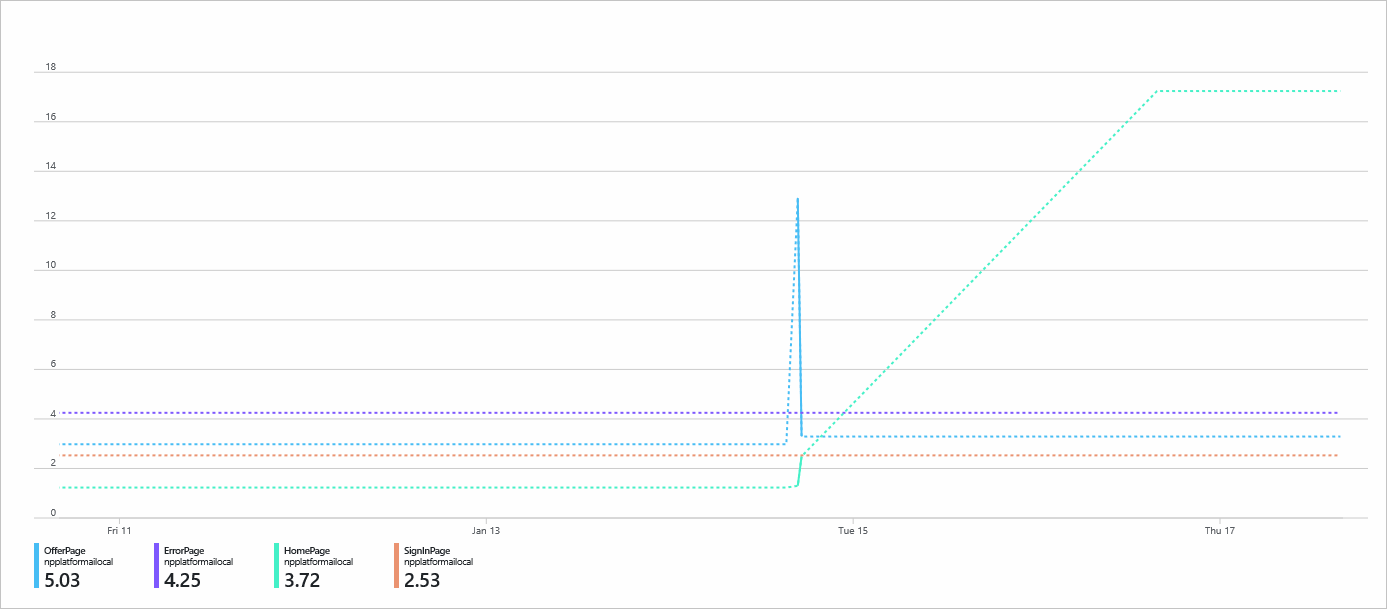
您也可以執行自訂查詢來分割 Application Insights 資料,以根據您的需求產生報表和視覺效果。 以下是自定義查詢的範例。 請直接貼上到查詢編輯器中來測試。
customMetrics
| where name contains "React Component Engaged Time (seconds)"
| summarize avg(value), count() by tostring(customDimensions["Component Name"])
新的自訂計量最多可能需要 10 分鐘時間才會出現在 Azure 入口網站中。
在 React Context 中使用 Application Insights
我們提供一般勾點,可讓您自訂個別元件的變更追蹤。 或者,您可以使用 useTrackMetric 或 useTrackEvent,這是我們提供的預先定義聯繫人,可用來追蹤元件的變更。
Application Insights 的 React 勾點其設計目的為使用 React Context 作為其所包含的層面。 若要使用 Context,請初始化 Application Insights,然後匯入內容物件:
import React from "react";
import { AppInsightsContext } from "@microsoft/applicationinsights-react-js";
import { reactPlugin } from "./AppInsights";

const App = () => {
    return (
        <AppInsightsContext.Provider value={reactPlugin}>
            /* your application here */
        </AppInsightsContext.Provider>
    );
};
此 Context 提供者會讓 Application Insights 成為其所有子元件內的可用 useContext 勾點:
import React from "react";
import { useAppInsightsContext } from "@microsoft/applicationinsights-react-js";

const MyComponent = () => {
    const appInsights = useAppInsightsContext();
    const metricData = {
        average: engagementTime,
        name: "React Component Engaged Time (seconds)",
        sampleCount: 1
      };
    const additionalProperties = { "Component Name": 'MyComponent' };
    appInsights.trackMetric(metricData, additionalProperties);

    return (
        <h1>My Component</h1>
    );
}
export default MyComponent;
useTrackMetric
useTrackMetric 鉤子會複製 withAITracking 高階元件的功能,而無需增加其他元件於元件結構中。 勾點會採用兩個引數:
- Application Insights 執行個體,您可從
useAppInsightsContext勾點取得。 - 進行追蹤的元件所用的識別碼,例如其名稱。
import React from "react";
import { useAppInsightsContext, useTrackMetric } from "@microsoft/applicationinsights-react-js";

const MyComponent = () => {
    const appInsights = useAppInsightsContext();
    const trackComponent = useTrackMetric(appInsights, "MyComponent");

    return (
        <h1 onHover={trackComponent} onClick={trackComponent}>My Component</h1>
    );
}
export default MyComponent;
其運作方式如同高階元件,但會回應勾點生命週期事件,而非元件的生命週期。 如果需要對於特定互動執行,則必須明確將勾點提供給使用者事件。
useTrackEvent
useTrackEvent 勾點可用於追蹤應用程式可能需要追蹤的任何自訂事件,例如按一下按鈕或呼叫其他 API。 採用四個引數:
- Application Insights 執行個體,您可從
useAppInsightsContext勾點取得。 - 事件的名稱。
- 事件資料物件,封裝了必須追蹤的變更。
- skipFirstRun (選擇性) 旗標,以在初始化時跳過對
trackEvent的呼叫。 預設值會設定為true,以更接近非勾點版本的運作方式來模擬。 使用useEffect勾點,此效果會在每次值更新時觸發,包括值的初始設定。 因此,過早開始追蹤,可能導致記錄下不必要的事件。
import React, { useState, useEffect } from "react";
import { useAppInsightsContext, useTrackEvent } from "@microsoft/applicationinsights-react-js";

const MyComponent = () => {
    const appInsights = useAppInsightsContext();
    const [cart, setCart] = useState([]);
    const trackCheckout = useTrackEvent(appInsights, "Checkout", cart);
    const trackCartUpdate = useTrackEvent(appInsights, "Cart Updated", cart);
    useEffect(() => {
        trackCartUpdate({ cartCount: cart.length });
    }, [cart]);

    const performCheckout = () => {
        trackCheckout();
        // submit data
    };

    return (
        <div>
            <ul>
                <li>Product 1 <button onClick={() => setCart([...cart, "Product 1"])}>Add to Cart</button></li>
                <li>Product 2 <button onClick={() => setCart([...cart, "Product 2"])}>Add to Cart</button></li>
                <li>Product 3 <button onClick={() => setCart([...cart, "Product 3"])}>Add to Cart</button></li>
                <li>Product 4 <button onClick={() => setCart([...cart, "Product 4"])}>Add to Cart</button></li>
            </ul>
            <button onClick={performCheckout}>Checkout</button>
        </div>
    );
}

export default MyComponent;
使用勾點時,可向其提供資料承載,藉以在事件儲存至 Application Insights 中時,新增更多資料至事件。
範例應用程式
下一步
- 若要檢閱常見問題 (FAQ),請參閱 JavaScript 架構延伸模組常見問題
- 確認資料正在傳輸