如 Azure 監視器中的 Kubernetes 監視中所述,Azure 監視器的多個功能會一起運作,以提供 Azure Kubernetes Service (AKS) 叢集的完整監視。 本文說明如何為 AKS 叢集啟用下列功能:
- Prometheus 指標
- 受控 Grafana
- 容器記錄
- 控制層紀錄
必要條件
建立工作區
下表說明支援本文中啟用的 Azure 監視器功能所需的工作區。 如果您還沒有每種類型的工作區,您可以在入門流程中建立它們。 請參閱設計Log Analytics工作區架構,以取得要建立的工作區數目和放置位置的指引。
| 功能 | 工作區 | 備註 |
|---|---|---|
| 受控 Prometheus | Azure 監視器工作區 | 如果您在上線時未指定現有的 Azure 監視器工作區,則會使用資源群組的預設工作區。 若叢集區域中還沒有預設工作區,則名稱格式為 DefaultAzureMonitorWorkspace-<mapped_region> 的工作區將在名稱為 DefaultRG-<cluster_region> 的資源群組建立。Contributor 權限足以讓附加元件將資料傳送至 Azure 監視器工作區。 連結 Azure 監視器工作區以檢視 Azure 受控 Grafana 中的計量時,您將需要 Owner 層級權限。 這是必要的,因為執行上線步驟的使用者必須能夠提供 Azure 受控 Grafana 系統識別 Monitoring Reader 角色在 Azure 監視器工作區上查詢計量。 |
| 容器記錄 控制層紀錄 |
Log Analytics 工作區 | 您可以將叢集連結至相同 Microsoft Entra 租使用者中不同 Azure 訂用帳戶中的 Log Analytics 工作區,但您必須使用 Azure CLI 或 Azure Resource Manager 範本。 您目前無法使用 Azure 入口網站執行此設定。 如果您要將現有的叢集連接到另一個訂用帳戶中的Log Analytics工作區,則必須在訂用帳戶中向Log Analytics工作區註冊 Microsoft.ContainerService 資源提供者。 如需更多資訊,請參閱註冊資源業者。 如果您未指定現有的 Log Analytics 工作區,則會使用資源群組的預設工作區。 若叢集區域中還沒有預設工作區,則會使用格式為 DefaultWorkspace-<GUID>-<Region> 的名稱建立一個工作區。欲了解用於預設工作區的支援對應配對清單,請參閱容器深入解析支援的區域對應。 如需如何使用網路安全界限設定工作區的指引,請參閱使用網路安全界限設定 Azure 監視器。 |
| 受控 Grafana | Azure 受控 Grafana 工作區 | 將 Grafana 工作區連結至 Azure 監視器工作區,讓從叢集收集的 Prometheus 計量可供 Grafana 儀表板使用。 |
啟用 Prometheus 指標和容器日誌
當您在叢集上啟用 Prometheus 和容器記錄時,叢集中會安裝容器化版本的 Azure 監視器代理程式 。 您可以在新的或現有的叢集上同時設定這些功能,或個別啟用每個功能。
在為您的叢集啟用受控 Grafana 的同時,啟用 Prometheus 計量的抓取。 如需連結 Azure 監視器工作區和 Azure 受控 Grafana 工作區的選項,請參閱連結 Grafana 工作區。
必要條件
- 叢集必須使用受控識別驗證。
- 下列資源提供者必須在叢集和 Azure 監視器工作區的訂用帳戶中註冊:
- Microsoft.ContainerService(微軟容器服務)
- Microsoft.Insights
- Microsoft.AlertsManagement
- Microsoft.Monitor
- 下列資源提供者必須在 Grafana 工作區訂用帳戶中註冊:
- Microsoft.Dashboard
必要條件
Prometheus 指標
根據您是要建立新叢集還是更新現有叢集,使用 -enable-azure-monitor-metrics 選項搭配 az aks create 或 az aks update,以安裝抓取 Prometheus 計量的計量附加元件。 這會使用 Azure 監視器中的預設 Prometheus 計量設定中所述的設定。 如需修改此設定,請參閱 在 Azure 監視器適用於 Prometheus 的受控服務中自訂 Prometheus 計量的抓取。
請參閱下列範例。
### Use default Azure Monitor workspace
az aks create/update --enable-azure-monitor-metrics --name <cluster-name> --resource-group <cluster-resource-group>

### Use existing Azure Monitor workspace
az aks create/update --enable-azure-monitor-metrics --name <cluster-name> --resource-group <cluster-resource-group> --azure-monitor-workspace-resource-id <workspace-name-resource-id>

### Use an existing Azure Monitor workspace and link with an existing Grafana workspace
az aks create/update --enable-azure-monitor-metrics --name <cluster-name> --resource-group <cluster-resource-group> --azure-monitor-workspace-resource-id <azure-monitor-workspace-name-resource-id> --grafana-resource-id  <grafana-workspace-name-resource-id>

### Use optional parameters
az aks create/update --enable-azure-monitor-metrics --name <cluster-name> --resource-group <cluster-resource-group> --ksm-metric-labels-allow-list "namespaces=[k8s-label-1,k8s-label-n]" --ksm-metric-annotations-allow-list "pods=[k8s-annotation-1,k8s-annotation-n]"
範例
az aks create/update --enable-azure-monitor-metrics --name "my-cluster" --resource-group "my-resource-group" --azure-monitor-workspace-resource-id "/subscriptions/aaaa0a0a-bb1b-cc2c-dd3d-eeeeee4e4e4e/resourceGroups/my-resource-group/providers/microsoft.monitor/accounts/my-workspace"
選擇性參數
上述每個命令都允許下列選擇性參數。 每個參數名稱都不同,但其用法相同。
| 參數 | 名稱和描述 |
|---|---|
| 註釋鍵 | --ksm-metric-annotations-allow-listKubernetes 註解索引鍵的逗號分隔清單,要在資源的 kube_resource_annotations 計量中使用。 例如,kube_pod_annotations 是 Pod 資源的註釋計量。 根據預設,計量只包含名稱和命名空間標籤。 若要包含更多註釋,請提供資源名稱的複數形式列表以及您想為這些資源允許的 Kubernetes 註釋鍵。 您可以改為對於每個資源提供單一 *,允許任何註釋,但會產生嚴重的效能影響。 例如: pods=[kubernetes.io/team,...],namespaces=[kubernetes.io/team],... 。 |
| 標籤索引鍵 | --ksm-metric-labels-allow-list以逗號分隔的更多 Kubernetes 標籤索引鍵清單,用於資源的 kube_resource_labels 計量 kube_resource_labels 計量。 例如,kube_pod_labels 是 pods 資源的標籤指標。 根據預設此計量只包含名稱和命名空間標籤。 若要包含更多標籤,請以複數形式提供資源名稱清單,以及您想要允許它們的 Kubernetes 標籤索引鍵:每個資源都可以提供單一 * 以允許任何標籤,但這具有嚴重的效能影響。 例如: pods=[app],namespaces=[k8s-label-1,k8s-label-n,...],... 。 |
| 錄製規則 | --enable-windows-recording-rules可讓您啟用 Windows 儀錶板正常運作所需的錄製規則群組。 |
附註
請注意,使用 ksm-metric-annotations-allow-list 和 ksm-metric-labels-allow-list 設定的參數可以被覆寫,或也可以使用 ama-metrics-settings-configmap 來替代設定。
容器日誌
使用 --addon monitoring 選項與 az aks create 來建立新叢集,或使用 az aks enable-addon 更新現有叢集,以啟用容器記錄的收集。 請參閱下文以修改日誌收集設定。
請參閱下列範例。
### Use default Log Analytics workspace
az aks enable-addons --addon monitoring --name <cluster-name> --resource-group <cluster-resource-group-name>

### Use existing Log Analytics workspace
az aks enable-addons --addon monitoring --name <cluster-name> --resource-group <cluster-resource-group-name> --workspace-resource-id <workspace-resource-id>

### Use custom log configuration file
az aks enable-addons --addon monitoring --name <cluster-name> --resource-group <cluster-resource-group-name> --workspace-resource-id <workspace-resource-id> --data-collection-settings dataCollectionSettings.json

### Use legacy authentication
az aks enable-addons --addon monitoring --name <cluster-name> --resource-group <cluster-resource-group-name> --workspace-resource-id <workspace-resource-id> --enable-msi-auth-for-monitoring false
範例
az aks enable-addons --addon monitoring --name "my-cluster" --resource-group "my-resource-group" --workspace-resource-id "/subscriptions/aaaa0a0a-bb1b-cc2c-dd3d-eeeeee4e4e4e/resourceGroups/my-resource-group/providers/Microsoft.OperationalInsights/workspaces/my-workspace"
記錄配置檔
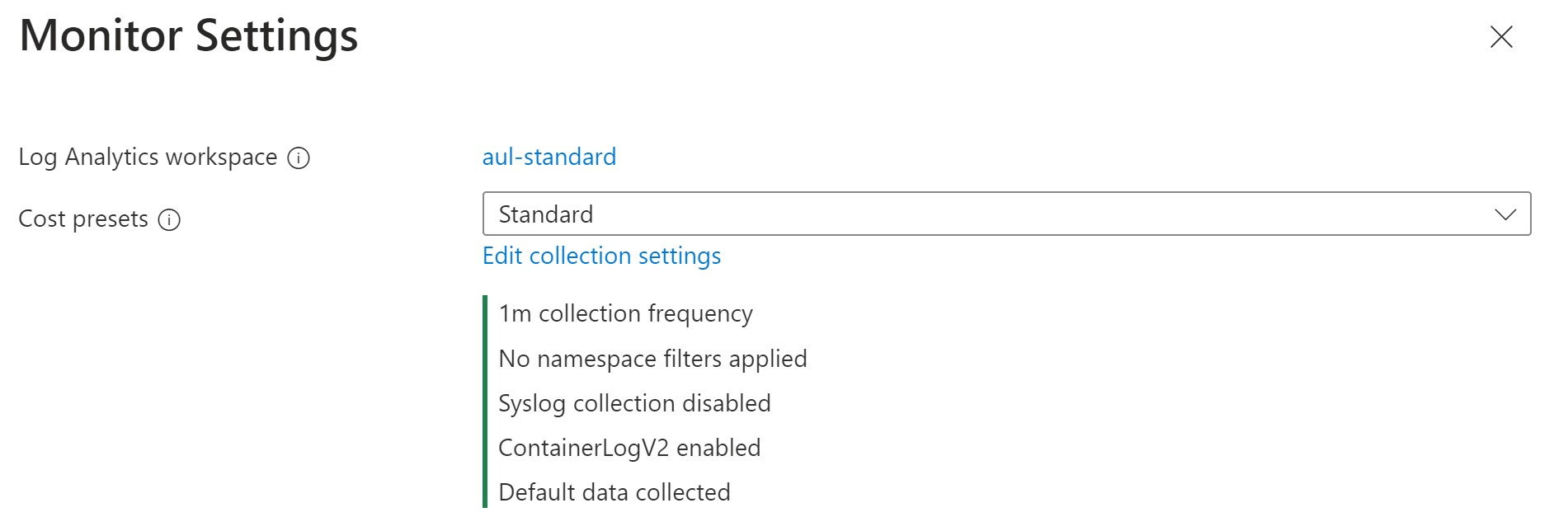
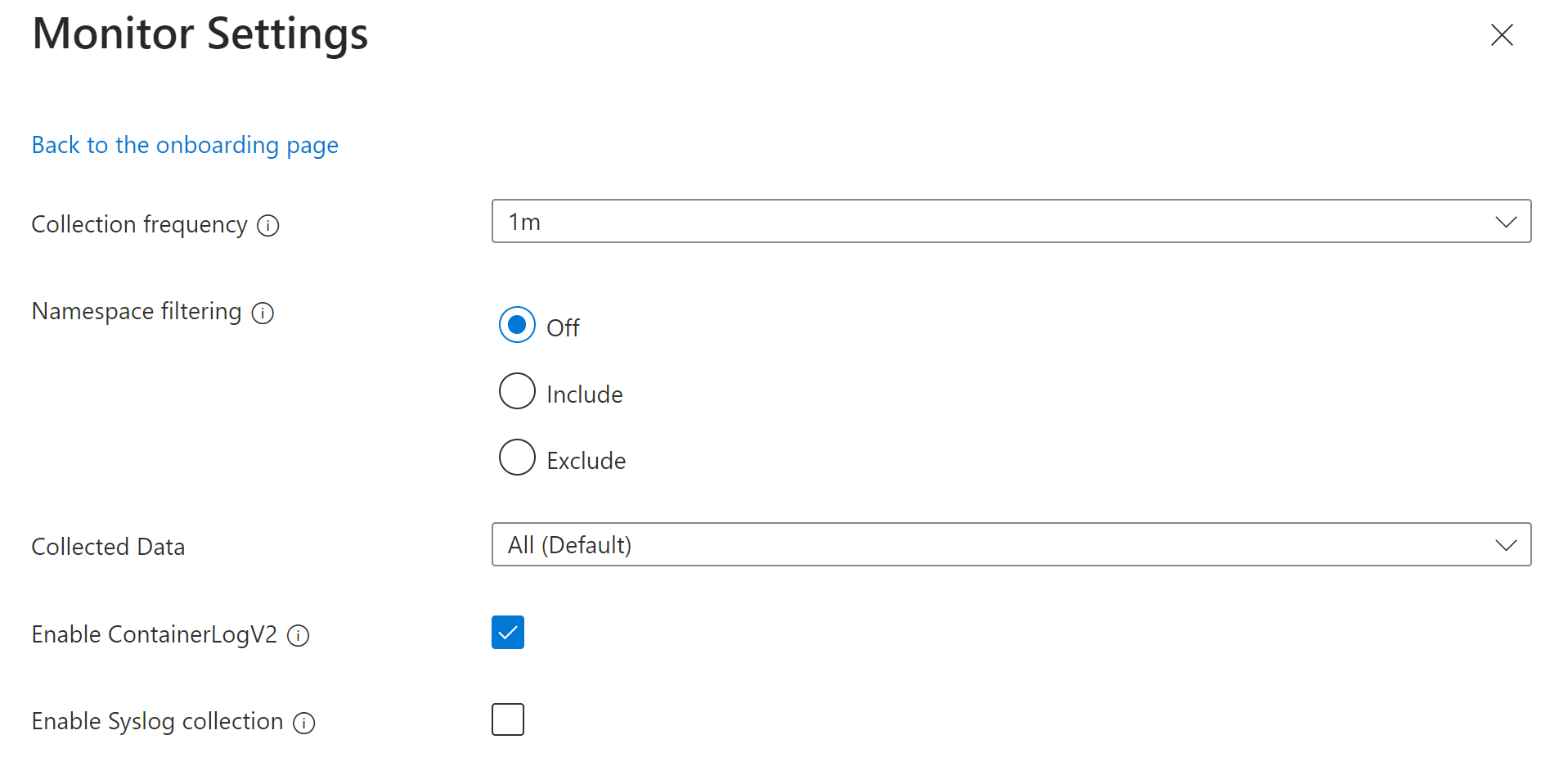
若要自訂叢集的日誌收集設定,您可以使用下列格式將組態提供為 JSON 檔案。 如果您未提供組態檔,則會使用下表中識別的預設設定。
{
  "interval": "1m",
  "namespaceFilteringMode": "Include",
  "namespaces": ["kube-system"],
  "enableContainerLogV2": true,
  "streams": ["Microsoft-Perf", "Microsoft-ContainerLogV2"]
}
下表說明組態中的每個設定。
| 名稱 | 描述 |
|---|---|
interval |
決定代理程式收集資料的頻率。 有效值為 1m - 30m,間隔為 1m 如果值超出允許範圍,則預設為 1 m。 預設值:1 分鐘。 |
namespaceFilteringMode |
包含:只從 [命名空間] 欄位中的值收集資料。 排除:從 [命名空間] 欄位中的值以外的所有命名空間收集資料。 關閉:忽略任何命名空間選取項目,並收集所有命名空間的資料。 預設值:關閉 |
namespaces |
以逗號分隔的 Kubernetes 命名空間陣列,可根據 namespaceFilteringMode 收集庫存和效能資料。 例如,搭配 Include 的 namespaces = ["kube-system", "default"] 設定只會收集這兩個命名空間。 如果使用 Exclude 設定,則代理程式會從kube-system 和 default 以外的所有其他命名空間收集資料。 如果使用 Off 設定,代理程式會從所有命名空間收集資料,包括 kube-system 和 default。 無效和無法辨識的命名空間會被忽略。 沒有。 |
enableContainerLogV2 |
啟用 ContainerLogV2 結構描述的布林值旗標。 如果設定為 true,stdout/stderr 記錄會擷取至 ContainerLogV2 資料表。 如果未設定,除非在 ConfigMap 中另有指定,否則容器記錄會擷取至 ContainerLog 資料表。 指定個別資料流時,您必須包含 ContainerLog 或 ContainerLogV2 的對應資料表。 預設值:True |
streams |
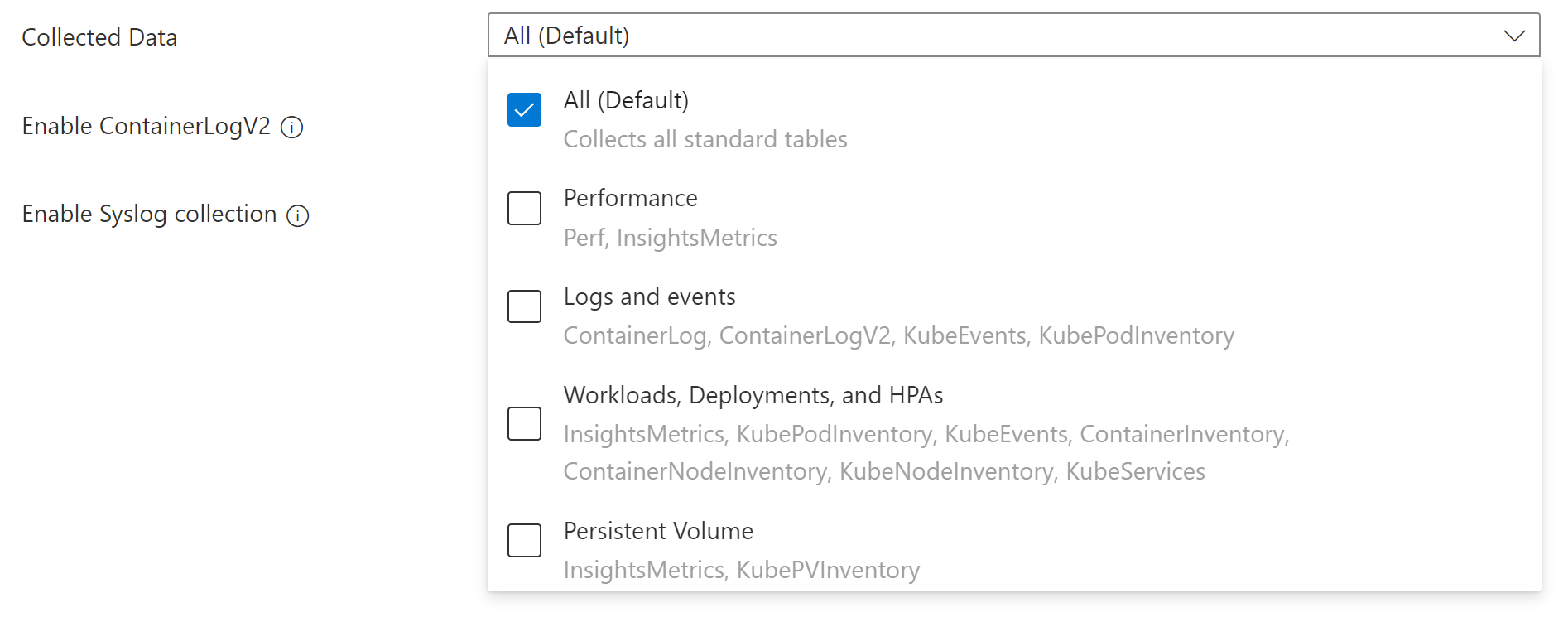
表格流陣列 請參閱 串流值 ,以取得有效串流及其對應資料表的清單。 預設值:ContainerLogV2、KubeEvents、KubePodInventory |
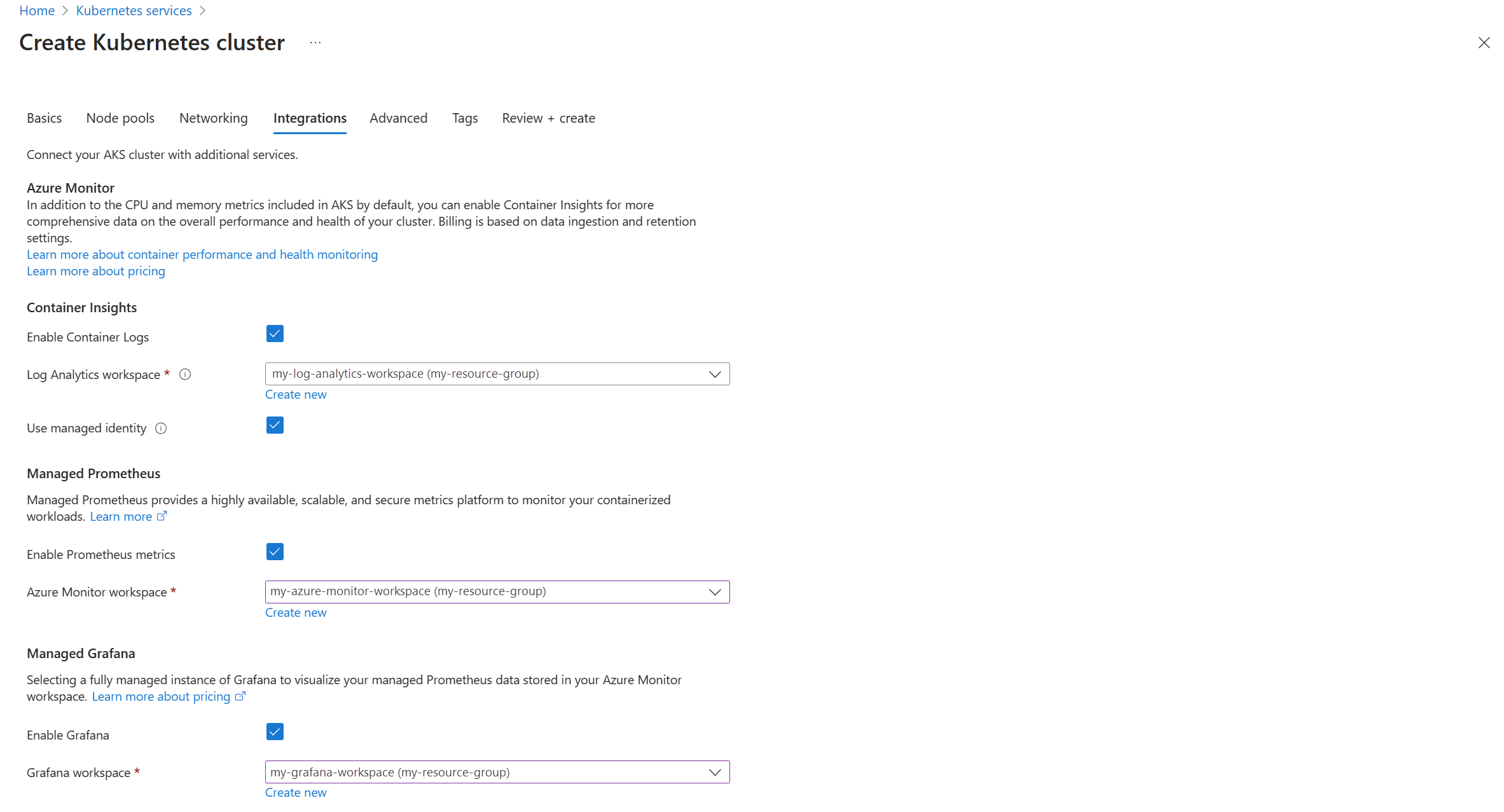
![新 AKS 叢集的 [監視] 索引標籤螢幕擷取畫面。](media/kubernetes-monitoring-enable/new-cluster-monitoring-tab.png#lightbox)
![現有 AKS 叢集的 [監視] 索引標籤螢幕擷取畫面。](media/kubernetes-monitoring-enable/existing-cluster-monitoring-tab.png#lightbox)
串流值
當您指定要使用 CLI 或 ARM 收集資料表時,您可以指定對應至 Log Analytics 工作區中特定資料表的串流名稱。 下表列出每個資料表的串流名稱。
| Stream | 容器深入解析資料表 |
|---|---|
| Microsoft-ContainerInventory | ContainerInventory |
| Microsoft-ContainerLog | ContainerLog |
| Microsoft-ContainerLogV2 | ContainerLogV2 |
| Microsoft-ContainerLogV2-HighScale | ContainerLogV2 (高縮放模式)1 |
| Microsoft-ContainerNodeInventory | ContainerNodeInventory |
| Microsoft-InsightsMetrics | InsightsMetrics |
| Microsoft-KubeEvents | KubeEvents |
| Microsoft-KubeMonAgentEvents | KubeMonAgentEvents |
| Microsoft-KubeNodeInventory | KubeNodeInventory |
| Microsoft-KubePodInventory | KubePodInventory |
| Microsoft-KubePVInventory | KubePVInventory |
| Microsoft-KubeServices | KubeServices |
| Microsoft-Perf | Perf |
| Microsoft-RetinaNetworkFlowLogs | RetinaNetworkFlowLogs |
1 不要同時使用 Microsoft-ContainerLogV2 和 Microsoft-ContainerLogV2-HighScale。 這會導致資料重複。
適用的資料表和計量
收集頻率和命名空間篩選的設定不會套用至所有記錄資料。 下表列出了 Log Analytics 工作區中的資料表及其套用於每個資料表的設定。
| 資料表名稱 | 間隔? | 命名空間? | 備註 |
|---|---|---|---|
| ContainerInventory | Yes | Yes | |
| ContainerNodeInventory | Yes | 否 | 用於命名空間的資料收集設定不適用,因為 Kubernetes 節點不是以命名空間為範圍的資源 |
| KubeNodeInventory | Yes | 否 | 用於命名空間的資料收集設定不適用,Kubernetes 節點不是以命名空間為範圍的資源 |
| KubePodInventory | Yes | Yes | |
| KubePVInventory | Yes | Yes | |
| KubeServices | Yes | Yes | |
| KubeEvents | 否 | Yes | 用於間隔的資料收集設定不適用於 Kubernetes 事件 |
| Perf | Yes | Yes | 用於命名空間的資料收集設定不適用於 Kubernetes 節點相關計量,因為 Kubernetes 節點不是以命名空間為範圍的物件。 |
| InsightsMetrics | Yes | Yes | 資料收集設定僅適用於收集下列命名空間的計量收集:container.azm.ms/kubestate、container.azm.ms/pv 和 container.azm.ms/gpu |
附註
命名空間篩選不適用於 ama-logs 代理程式記錄。 因此,即使 kube-system 命名空間列在排除的命名空間中,仍會內嵌與 ama-logs 代理程式容器相關聯的記錄。
| 計量命名空間 | 間隔? | 命名空間? | 備註 |
|---|---|---|---|
| Insights.container/nodes | Yes | 否 | 節點不是以命名空間為範圍的資源 |
| Insights.container/pods | Yes | Yes | |
| Insights.container/containers | Yes | Yes | |
| Insights.container/persistentvolumes | Yes | Yes |
特殊場景
請查看以下參考資料,以瞭解特定案例的組態需求。
- 如果您使用私人連結,請參閱 在 Azure 監視器中啟用 Kubernetes 監視的私人連結。
- 若要在具有網路安全性周邊的環境中啟用容器記錄,請參閱 使用網路安全性周邊設定 Azure Monitor 以配置您的 Log Analytics 工作區。
- 若要啟用監控附加元件的高擴展模式,請遵循啟用高擴展模式中的上線程式。 您還必須按照更新 ConfigMap 中的說明設定 ConfigMap,並且需要將 DCR 串流從
Microsoft-ContainerLogV2變更為Microsoft-ContainerLogV2-HighScale。
啟用控制平面記錄
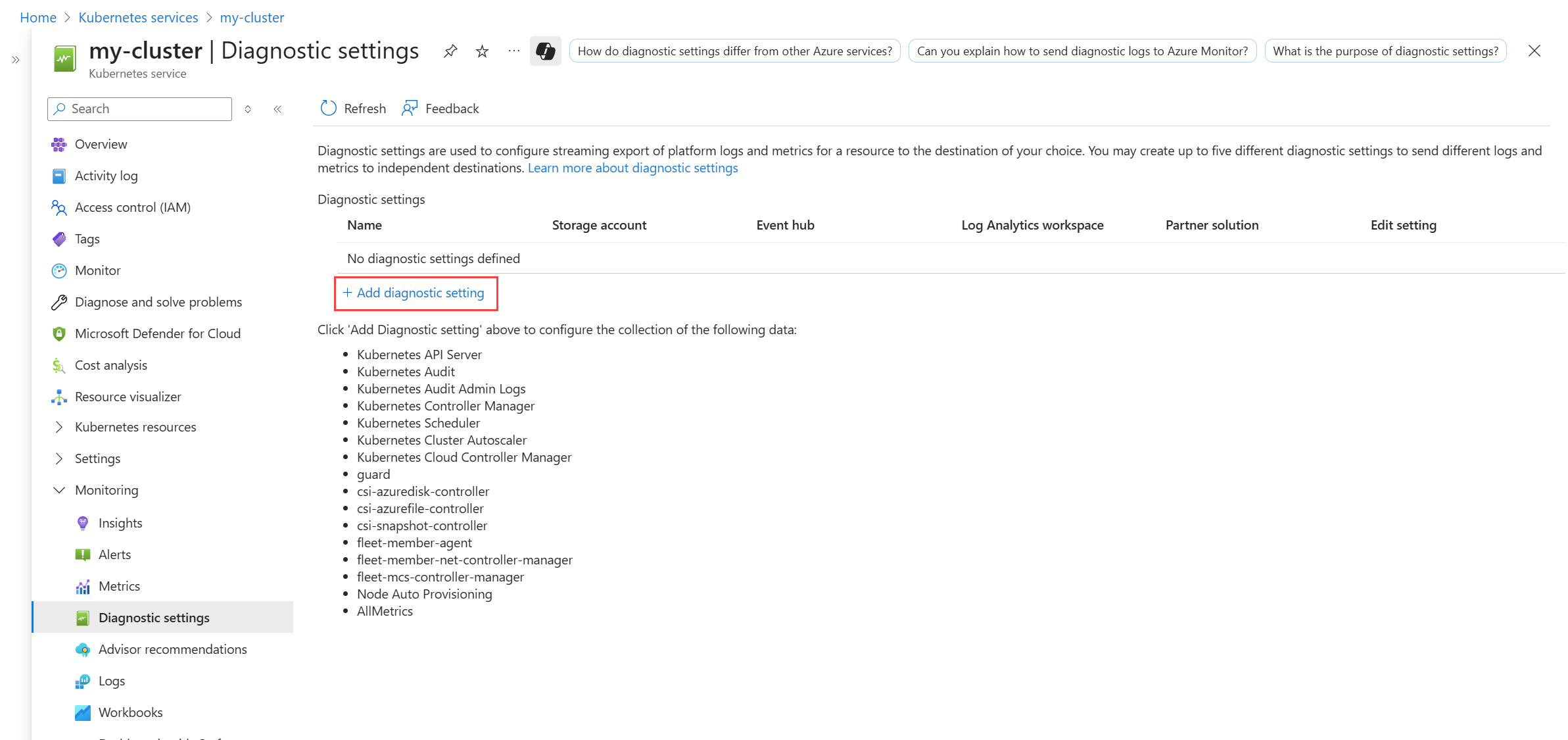
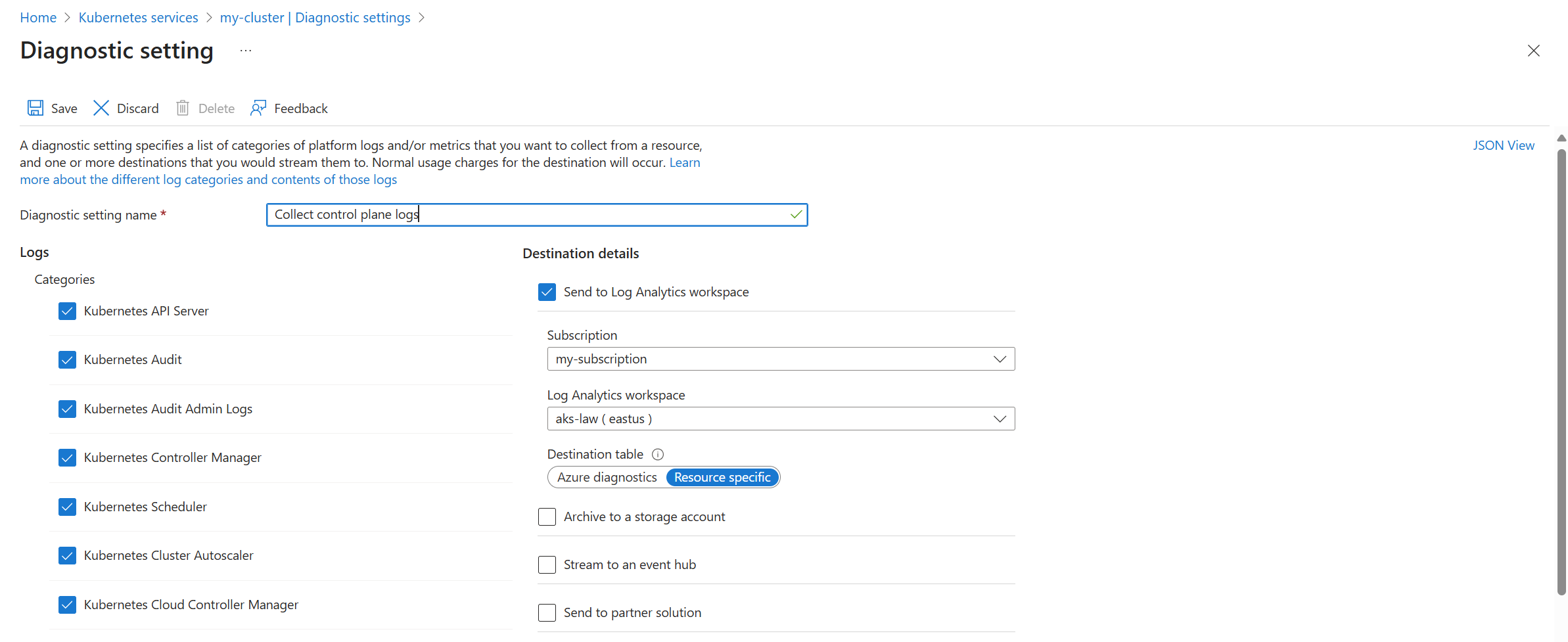
控制平面記錄會在 Azure 監視器中實作為 資源記錄 。 若要收集這些記錄,請建立叢集的 診斷設定 。 將它們傳送至與容器記錄相同的 Log Analytics 工作區。
使用 az monitor diagnostic-settings create 命令,使用 Azure CLI 建立診斷設定。 請參閱此命令的文件,以取得其參數的說明。
下列範例會建立診斷設定,將所有 Kubernetes 類別傳送至 Log Analytics 工作區。 這包括 資源特定模式 ,可將記錄傳送至 Microsoft.ContainerService/fleets 支援的資源記錄中列出的特定資料表。
az monitor diagnostic-settings create \
--name 'Collect control plane logs' \
--resource  /subscriptions/<subscription ID>/resourceGroups/<resource group name>/providers/Microsoft.ContainerService/managedClusters/<cluster-name> \
--workspace /subscriptions/<subscription ID>/resourcegroups/<resource group name>/providers/microsoft.operationalinsights/workspaces/<log analytics workspace name> \
--logs '[{"category": "karpenter-events","enabled": true},{"category": "kube-audit","enabled": true},
{"category": "kube-apiserver","enabled": true},{"category": "kube-audit-admin","enabled": true},{"category": "kube-controller-manager","enabled": true},{"category": "kube-scheduler","enabled": true},{"category": "cluster-autoscaler","enabled": true},{"category": "cloud-controller-manager","enabled": true},{"category": "guard","enabled": true},{"category": "csi-azuredisk-controller","enabled": true},{"category": "csi-azurefile-controller","enabled": true},{"category": "csi-snapshot-controller","enabled": true},{"category": "fleet-member-agent","enabled": true},{"category": "fleet-member-net-controller-manager","enabled": true},{"category": "fleet-mcs-controller-manager","enabled": true}]'
--metrics '[{"category": "AllMetrics","enabled": true}]' \
--export-to-resource-specific true
啟用 Windows 計量 (預覽版)
自受控 Prometheus 附加元件容器版本 6.4.0-main-02-22-2023-3ee44b9e 起,AKS 叢集已啟用 Windows 計量集合。 啟用 Azure 監視器度量附加元件可以使 Windows DaemonSet Pod 開始在您的節點集區上執行。 Windows Server 2019 和 Windows Server 2022 都有支援。 請遵循下列步驟,讓 Pod 從您的 Windows 節點集區收集計量。
附註
在 windows-exporter-daemonset.yaml 中沒有 CPU/記憶體限制,因此可能會導致 Windows 系統資源過度配置。 如需詳細資訊,請參閱 資源保留
當您部署工作負載時,請設定容器的資源儲存體和 CPU 限制。 這也會從 NodeAllocatable 減去,並協助全叢集排程器判斷要放置於哪些節點上的 Pod。 排程沒有限制的 Pod 可能會過度佈建 Windows 節點,而且在極端情況下可能會導致節點變成狀況不良。
安裝 Windows 匯出工具
藉由部署 windows-exporter-daemonset YAML 檔案,在 AKS 節點上手動安裝 Windows 匯出工具以存取 Windows 計量。 啟用下列收集器。 如需更多收集器,請參閱 適用於 Windows 指標的 Prometheus 匯出工具。
[defaults]containermemoryprocesscpu_info
部署 windows-exporter-daemonset YAML 檔案。 如果節點中套用了任何污點,您必須套用適當的容忍。
kubectl apply -f windows-exporter-daemonset.yaml
啟用 Windows 計量
在指標設定 ConfigMap 中將 windowsexporter 和 windowskubeproxy 布林值 設定為 true ,並將其套用至叢集。 請參閱 使用 ConfigMap 自訂 Kubernetes 叢集的 Prometheus 指標集合。
啟用錄製規則
開啟立即可用儀表板所需的錄製規則:
- 如果使用 CLI 上線,請包含選項
--enable-windows-recording-rules。 - 如果使用 ARM 範本、Bicep 或 Azure 原則來上線,請在參數檔案中將
enableWindowsRecordingRules設定為true。 - 如果叢集已上線,請使用此 ARM 範本和此參數檔案來建立規則群組。 這會新增必要的記錄規則,而且不是叢集上的 ARM 作業,也不會影響叢集目前的監視狀態。
驗證部署
使用 kubectl 命令行工具 來確認代理程式是否已正確部署。
受控 Prometheus
確認 DaemonSet 已正確部署於 Linux 節點集區
kubectl get ds ama-metrics-node --namespace=kube-system
Pod 的數目應該等於叢集上的 Linux 節點數目。 輸出應類似下列範例:
User@aksuser:~$ kubectl get ds ama-metrics-node --namespace=kube-system
NAME               DESIRED   CURRENT   READY   UP-TO-DATE   AVAILABLE   NODE SELECTOR   AGE
ama-metrics-node   1         1         1       1            1           <none>          10h
確認已正確部署 Windows 節點
kubectl get ds ama-metrics-win-node --namespace=kube-system
Pod 的數目應該等於叢集上的 Windows 節點數目。 輸出應類似下列範例:
User@aksuser:~$ kubectl get ds ama-metrics-node --namespace=kube-system
NAME                   DESIRED   CURRENT   READY   UP-TO-DATE   AVAILABLE   NODE SELECTOR   AGE
ama-metrics-win-node   3         3         3       3            3           <none>          10h
確認已針對 Prometheus 部署兩個 ReplicaSet
kubectl get rs --namespace=kube-system
輸出應類似下列範例:
User@aksuser:~$kubectl get rs --namespace=kube-system
NAME                            DESIRED   CURRENT   READY   AGE
ama-metrics-5c974985b8          1         1         1       11h
ama-metrics-ksm-5fcf8dffcd      1         1         1       11h
容器記錄
確認 DaemonSet 已正確部署於 Linux 節點集區
kubectl get ds ama-logs --namespace=kube-system
Pod 的數目應該等於叢集上的 Linux 節點數目。 輸出應類似下列範例:
User@aksuser:~$ kubectl get ds ama-logs --namespace=kube-system
NAME       DESIRED   CURRENT   READY     UP-TO-DATE   AVAILABLE   NODE SELECTOR   AGE
ama-logs   2         2         2         2            2           <none>          1d
確認已正確部署 Windows 節點
kubectl get ds ama-logs-windows --namespace=kube-system
Pod 的數目應該等於叢集上的 Windows 節點數目。 輸出應類似下列範例:
User@aksuser:~$ kubectl get ds ama-logs-windows --namespace=kube-system
NAME                   DESIRED   CURRENT   READY     UP-TO-DATE   AVAILABLE   NODE SELECTOR     AGE
ama-logs-windows           2         2         2         2            2       <none>            1d
驗證容器記錄解決方案的部署
kubectl get deployment ama-logs-rs --namespace=kube-system
輸出應類似下列範例:
User@aksuser:~$ kubectl get deployment ama-logs-rs --namespace=kube-system
NAME          READY   UP-TO-DATE   AVAILABLE   AGE
ama-logs-rs   1/1     1            1           24d
使用 CLI 來檢視設定
使用 aks show 命令來了解解決方案已啟用、Log Analytics 工作區資源識別碼,以及叢集的摘要資訊。
az aks show --resource-group <resourceGroupofAKSCluster> --name <nameofAksCluster>
此命令會傳回解決方案的 JSON 格式資訊。
addonProfiles 區段應包含 omsagent 的相關資訊,如下列範例所示:
"addonProfiles": {
    "omsagent": {
        "config": {
            "logAnalyticsWorkspaceResourceID": "/subscriptions/aaaa0a0a-bb1b-cc2c-dd3d-eeeeee4e4e4e/resourcegroups/my-resource-group/providers/microsoft.operationalinsights/workspaces/my-workspace",
            "useAADAuth": "true"
        },
        "enabled": true,
        "identity": null
    },
}
下一步
- 如果您在嘗試上線時遇到問題,請檢閱 疑難排解指南。
- 請學習如何在 Azure 入口網站中使用容器分析來分析 Kubernetes 監視資料。