Azure MCP 伺服器會使用模型內容通訊協定 (MCP) 來標準化 AI 應用程式與外部工具和資料來源之間的整合,讓 AI 系統能夠執行內容感知 Azure 資源的作業。
此文章涵蓋:
- 使用 Azure MCP 伺服器安裝和驗證
- 連線到 Eclipse 的 AI 開發環境中的 Azure MCP 伺服器
- 執行提示以測試作業並與 Azure 資源互動
先決條件
向 Azure 驗證
Azure MCP 伺服器會使用 Azure 帳戶和 Microsoft Entra ID 提供順暢的驗證體驗。 要使用 Azure MCP Server,首先透過本地開發工具如 Azure CLI、Azure Developer CLI、Visual Studio 或 Visual Studio Code 來認證 Azure。 Azure MCP 伺服器會自動從這些工具探索您的認證,並使用它們向 Azure 服務進行驗證。
例如,若要使用 Azure CLI 登入:
az login執行下列命令來驗證您的驗證狀態,以查看您目前登入的帳戶和訂用帳戶:
az account show請確定您的使用者帳戶具有您想要互動之 Azure 服務的適當角色指派。 你打算透過 Azure MCP Server 存取的 Azure 資源,必須已經存在於你的 Azure 訂閱中。 例如,常見的角色指派包括:
- Blob 儲存體資料貢獻者 - 讀取和寫入儲存體帳戶中的 Blob 資料。
- 儲存體帳戶參與者 - 管理儲存體帳戶設定。
- 貢獻者 - 跨訂用帳戶的全面資源管理。
- 讀取者 - Azure 資源的唯讀存取權。
如需角色指派和本機開發驗證的詳細資訊,請參閱 在本機開發期間向 Azure 服務驗證 .NET 應用程式。
安裝 Azure MCP 伺服器
在 Eclipse 中安裝和設定 Azure MCP 伺服器:
移至 Help > Eclipse Marketplace。
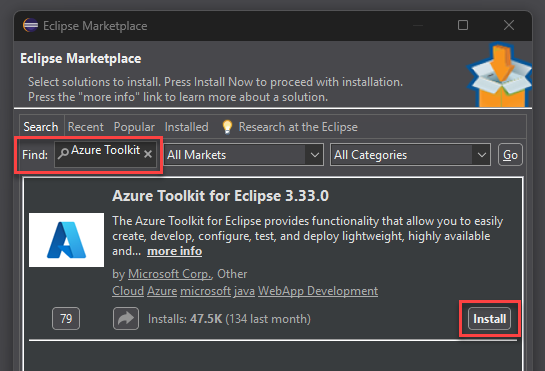
在 [Eclipse Marketplace] 視窗中搜尋 Azure 工具組。
在搜尋結果中,選取 [ 安裝 Azure 工具組]。
備註
在安裝程式中,請確定 GitHub Copilot 和 GitHub Copilot – Nightly 外掛程式都已更新至最新版本。
在 [ 確認選取的功能 ] 視窗中,檢查是否已選取 [ 適用於 Eclipse 的 Azure MCP 伺服器 ]。
選取 [確認],然後等待外掛程式安裝。 安裝完成時重新啟動 Eclipse。
![顯示 [確認所選功能] 視窗的螢幕擷取畫面,並選取了適用於 Eclipse 的 Azure MCP 伺服器。](../../media/eclipse-confirm-features.png)
驗證並測試 Azure MCP 伺服器
安裝 Azure 工具組之後,請在 Copilot 中核准 Azure MCP 伺服器註冊。
在 Copilot 聊天窗格中,選取 工具 圖示,然後選取 找到新的 MCP 伺服器 - 需要核准。

在 [確認 MCP 伺服器註冊 ] 視窗中,選取 [Azure MCP 伺服器] 資料列,然後選取 [ 核准]。
![已選取 Azure MCP 伺服器並核准選項的 [確認 MCP 伺服器註冊] 視窗的螢幕擷取畫面。](../../media/eclipse-confirm-registration.png)
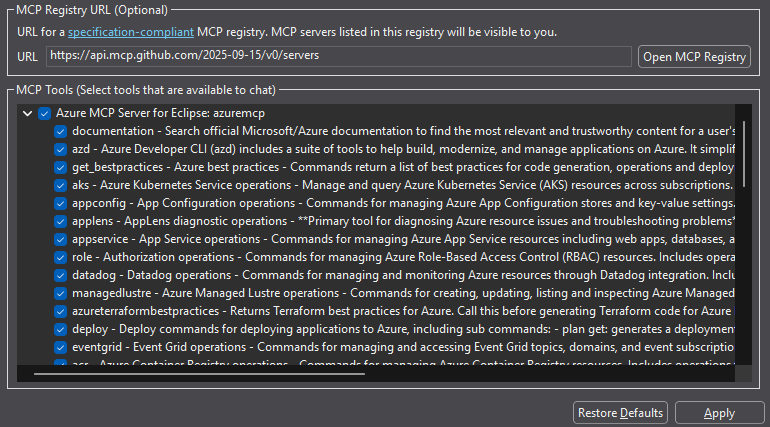
在 Copilot 聊天窗格中,再次選取 工具 圖示以開啟喜好設定視窗。
檢查適用於 Eclipse 的 Azure MCP 伺服器是否顯示在 [MCP 工具 ] 區段中。
使用提示來測試 Azure MCP 伺服器
在 Copilot 聊天面板中,輸入使用 Azure MCP 伺服器功能的提示,例如下列內容。
List my Azure resource groups備註
您也可以要求 Copilot 直接使用 Azure MCP 伺服器工具,使用語句,例如: 使用 Azure MCP 伺服器列出我的 Azure 資源群組。
當 Eclipse 提示您執行工具
azuremcp/group_list以擷取資源群組時,請選取 繼續。輸出類似下列文字。
The following resource groups are available for your subscription:

1. **DefaultResourceGroup-EUS** (Location: `eastus`)
2. **rg-testing** (Location: `centralus`)
3. **rg-azd** (Location: `eastus2`)
4. **msdocs-sample** (Location: `southcentralus`)
5. **ai-testing** (Location: `eastus2`)

Let me know if you need further details or actions related to any of these resource groups!
探索更多 Azure MCP 操作,並使用類似以下所示的提示進行操作。
List all storage accounts in my subscription
List available tables in my storage accounts
Show the configuration of my App Service instances