在這個快速入門中,你會使用 GitHub Copilot for Azure 代理模式來建立 Azure Cosmos DB 資源,並透過 Python 匯入範例資料。 代理模式在 Visual Studio Code 中執行動作——建立檔案、在終端機執行指令等。
沒有 GitHub Copilot for Azure 代理模式,設定 Cosmos DB 並匯入資料就必須手動撰寫基礎設施即程式碼、Python 腳本,並手動管理相依性。 使用 GitHub Copilot for Azure 代理模式,你可以描述結果,Copilot 處理剩下的部分
先決條件
- Azure 訂用帳戶。 如果你沒有,請 建立一個免費帳號。
- 一個 Azure 資源群組。 你使用這個資源群組的步驟如下。
Visual Studio Code ,並安裝了用於Azure擴充的GitHub Copilot。 - Python 3.9 或更新版本。
-
Azure CLI。 開始前先登入:執行
az login並選擇你想使用的訂閱。 - 可存取代理模式的 GitHub Copilot 訂閱
- 熟悉開始使用 GitHub Copilot for Azure。
設定您的環境
- 在你本機電腦上建立一個新目錄。
- 從該本地目錄(工作區)開啟 Visual Studio Code。
- 下載產品資料並儲存到新的本地目錄(工作區)。
下載 CosmicWorks 的產品資料 ,並存 products.json 到你的工作區資料夾裡。
建置 Azure Cosmos DB 匯入解決方案
在 Visual Studio Code 中,開啟 GitHub Copilot 聊天視窗。
從預設核准切換到自動駕駛(預覽)。
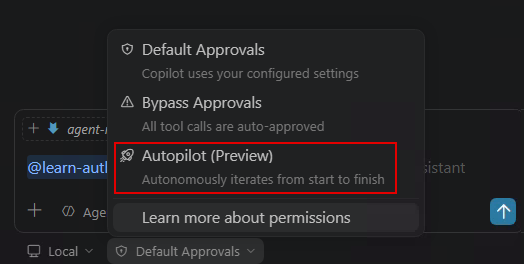
切換到客服模式並選擇你偏好的型號。 輸入下列提示:
Using the products.json file in my workspace, create a Python virtual environment, then set up an Azure Cosmos DB for NoSQL environment in West US (resource group named "<resource-group-name>", account, database, and container with partition key "/categoryId"). Write and run a Python script to import all records into the container. Verify the import by querying the first 5 items. If there are errors, fix them and retry.
Using the products.json file in my workspace, create a Python virtual environment, then set up an Azure Cosmos DB for NoSQL environment in West US (resource group named "<resource-group-name>", account, database, and container with partition key "/categoryId"). Write and run a Python script to import all records into the container. Verify the import by querying the first 5 items. If there are errors, fix them and retry.
用你獨特的價值來取代 <resource-group-name> 。
代理模式負責整個工作流程:建立虛擬環境、配置每個 Azure 資源、產生 Python 匯入腳本、安裝相依、執行匯入,以及驗證結果。 在允許執行前先檢視產生的程式碼。
清理資源
完成後,刪除資源群組以避免持續收費:
Use the Azure CLI to delete the resource group `<resource-group-name>` and all its resources.
或者直接在終端機執行指令:
az group delete --name <resource-group-name> --yes --no-wait