在這個快速入門中,利用 GitHub Copilot 建立一個 React to-do 應用程式,並利用 AI 輔助開發部署到Azure App 服務。 在本地開發時,先從 Copilot 計畫模式建立詳細的實施計畫,再切換到 agent 模式來建置與部署。 使用網頁版 VS Code 時,請全程使用代理模式。 最後,你將獲得以下實務經驗:
- GitHub Copilot Plan mode 用於研究您的專案並制定實施計畫(地方開發)
- GitHub Copilot Agent 模式用於架構、配置及部署完整應用程式
- Azure 技能,以 Azure 專屬知識和工具增強 Copilot
- 一個在 Azure App 服務 上執行的可正常運作待辦事項應用程式
- 供你的待辦事項應用程式使用的 API 端點
- 使用基礎結構範本來佈建及部署 Azure 資源的 Azure Developer CLI (azd)
計畫模式讓 Copilot 能研究你的程式碼庫,並在你寫程式碼前建立結構化的實作計畫,確保需求明確且方法合理。 代理模式讓 Copilot 能自主執行指令、編輯檔案並反覆修正錯誤。 你提供目標,Copilot 決定步驟。
先決條件
- 一個有有效訂閱的 Azure 帳號。 免費創建一個。
- GitHub Copilot訂閱。
無需本地安裝。 VS Code for the Web (vscode.dev/azure) 提供基於瀏覽器的 VS Code 環境,並預裝了 Azure Developer CLI、Node.js及多個Azure擴充功能。
建立新工作區
在瀏覽器中開啟 vscode.dev/azure 。
當提示時,請使用您的 Azure 帳號登入。
在 終端 機視窗中,為你的專案建立一個新的目錄,然後切換到裡面。
mkdir todo-app && cd todo-app
啟用 Azure 技能
Azure Skills 為 Copilot 提供精心策劃的 Azure 專業知識、工作流程與防護措施,讓代理人能就 Azure 服務、基礎設施及部署做出明智決策。 Azure MCP 擴充套件會安裝一個配套擴充功能,將 Azure 技能帶入 VS Code。 它們會自動共同設定 Azure MCP 伺服器、Foundry MCP,以及整個技能層。 欲了解更多資訊,請參閱 Azure Skills Plugin repository。
規劃你的申請
Plan mode讓Copilot在撰寫任何程式碼前,先研究你的專案並產生詳細的實作計畫。 你審查並精煉計畫,然後交給特工模式執行。
在活動欄中選擇聊天圖示,開啟Copilot Chat檢視。
如果你還沒登入 GitHub Copilot,請登入。 在Visual Studio Code狀態列中選擇GitHub Copilot標誌Sign-in按鈕,依照指示與您的GitHub帳號進行認證。
在聊天面板的客服下拉選單中選擇 「計畫 」,或輸入
/plan後加上你的任務描述。將以下提示複製貼上到 Copilot 聊天面板:
/plan
Create a Vite + React single-page application (SPA) to-do app
with the following features:
- Add, remove, and mark complete/incomplete to-do items.
- Use localStorage to persist to-do items between sessions.
- Choose low-cost Azure resources.
- Create a deployment template for Azure Developer CLI (azd).
- Create a README file with instructions on how to test, run, and deploy the app.
Note
如果你還沒設定 GitHub Copilot,系統會提示你登入 GitHub 帳號並設定 Copilot,才能發送提示。 如果你沒有 Copilot 訂閱,你會綁定一個免費帳號,該帳號每月有完成次數和聊天互動限制。
在研究完你的任務後,回答計畫代理人提出的任何澄清問題。 例如:React 應用程式用 TypeScript 或 JavaScript? 應該採用哪種造型方式? azd 範本應該包含 GitHub Actions 的 CI/CD 工作流程嗎?
審查生成的計劃。 你的計畫大致是這樣的:
Plan: Vite + React To-Do SPA with Azure Deployment
A Vite + React + TypeScript SPA scaffolded inside todo-app, with localStorage persistence,
and deployed to Azure Static Web Apps (Free tier) via azd.
No backend required — all state is client-side.
...
計畫代理人會產生高階摘要、執行步驟及驗證步驟。 你可以提交後續提示,反覆修改計畫直到符合你的要求。
代理模式
代理模式讓 GitHub Copilot 能夠執行終端機指令、建立與編輯檔案,並在出現問題時自動修正。 你提供一個高層次的目標,代理人決定下一步。
在聊天面板中選擇 Claude Sonnet 4.6 型號、代理模式及自動駕駛(預覽)。
- 預設的 Auto 模型允許Copilot動態選擇每個步驟的最佳模型。 在本快速入門中,請使用像 Claude Sonnet 4.6 這樣的特定模型,以獲得較具決定性的行為,讓 Copilot 為實作你的計畫所採取的步驟更可預測。
- 代理模式與自動駕駛允許 Copilot 自主執行終端指令並進行檔案變更。 自動駕駛模式讓 Copilot 能夠自我修正和反覆修改,無需你額外輸入。 如果你想要更多控制,請選擇預設核准模式,在每個步驟執行前先核准。
在聊天面板中,選擇 「開始實施 」或 「自動駕駛啟動 」,將計畫交接到代理人模式執行。 自動駕駛模式讓 Copilot 能夠在不需要你額外輸入的情況下反覆迭代。 如果你想要更多控制,請選擇預設核准模式,在每個步驟執行前先核准。
當 Copilot 完成實作時,你會在聊天面板看到類似這樣的輸出:
All done. Here's a summary of what was built:

App (src/)

src/types.ts — Todo interface
src/hooks/useTodos.ts — addTodo, removeTodo, toggleTodo with localStorage persistence
src/components/TodoForm.tsx, TodoItem.tsx, TodoList.tsx — UI components
src/App.tsx — wired together with task remaining counter
src/App.css / src/index.css — vanilla CSS, light/dark mode
Azure / azd

azure.yaml — host: staticwebapp, dist: dist
infra/main.bicep — subscription-scoped resource group + Static Web App (Free tier)
infra/staticwebapp.bicep, main.parameters.json, abbreviations.json
Docs — README.md with local dev, build, azd up deploy, and azd down teardown instructions.

Build passes with no errors (tsc + Vite). Run npm run dev to start locally,
or azd up to provision and deploy to Azure.
應用程式現在已經搭建了指定功能,Azure 基礎設施範本也準備好部署。 README 檔案包含如何測試與部署應用程式的說明。 在部署到 Azure 之前,先在本地測試應用程式,確認它是否如預期運作。
測試應用程式
根據你在規劃模式中回答問題的方式,是否在本地測試你的應用程式可能取決於實作方式。 請先檢視 README 檔案以便在本地測試。
假設應用程式是規劃步驟中產生的 Vite + React SPA,請以以下指令啟動開發伺服器:
npm install && npm run dev
指令啟動 Vite 開發伺服器。 終端機輸出包含應用程式正在執行的 localhost URL。
  VITE v5.4.21  ready in 271 ms

  ➜  Local:   http://localhost:5173/
  ➜  Network: use --host to expose
  ➜  press h + enter to show help
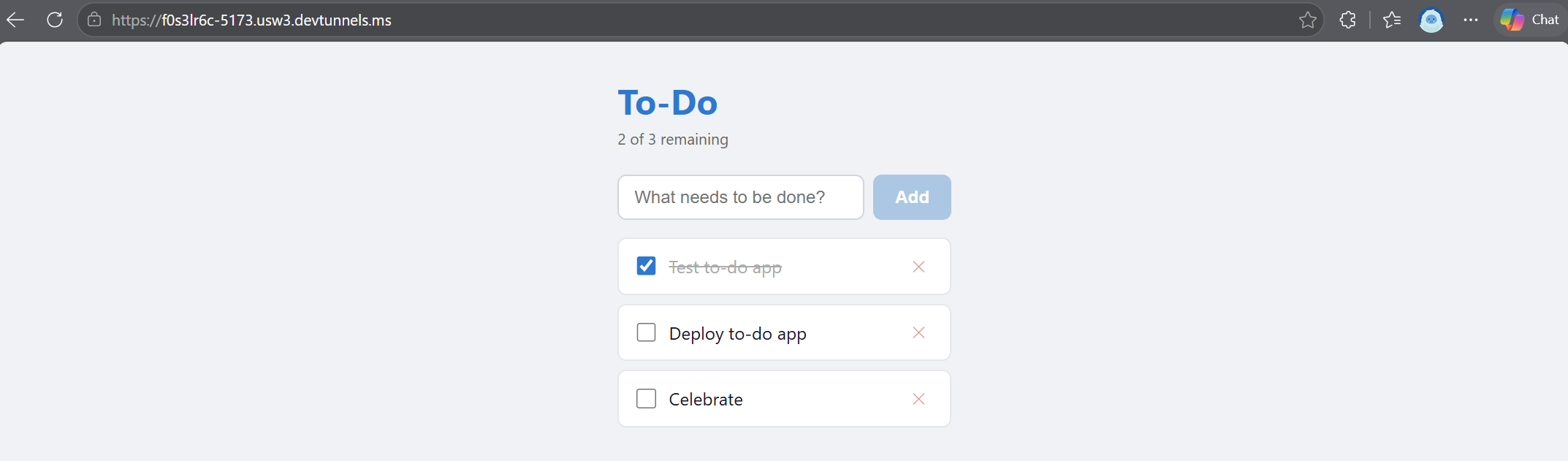
在 「連接埠」 索引標籤中,於瀏覽器開啟 「轉送位址」 連接埠 URL,即可在瀏覽器中查看待辦事項應用程式。
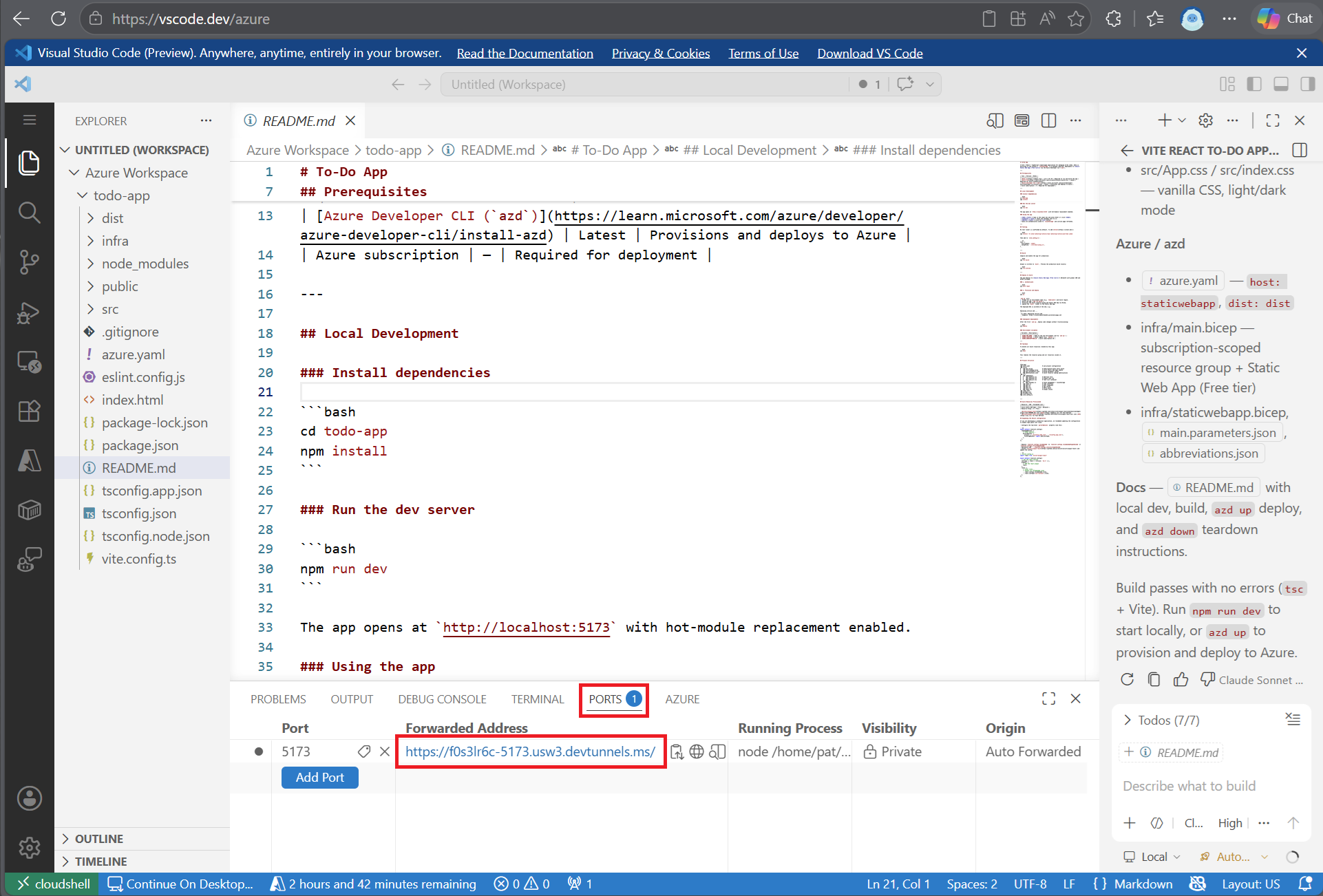
透過新增、切換和移除任務來測試功能,確認一切正常運作。
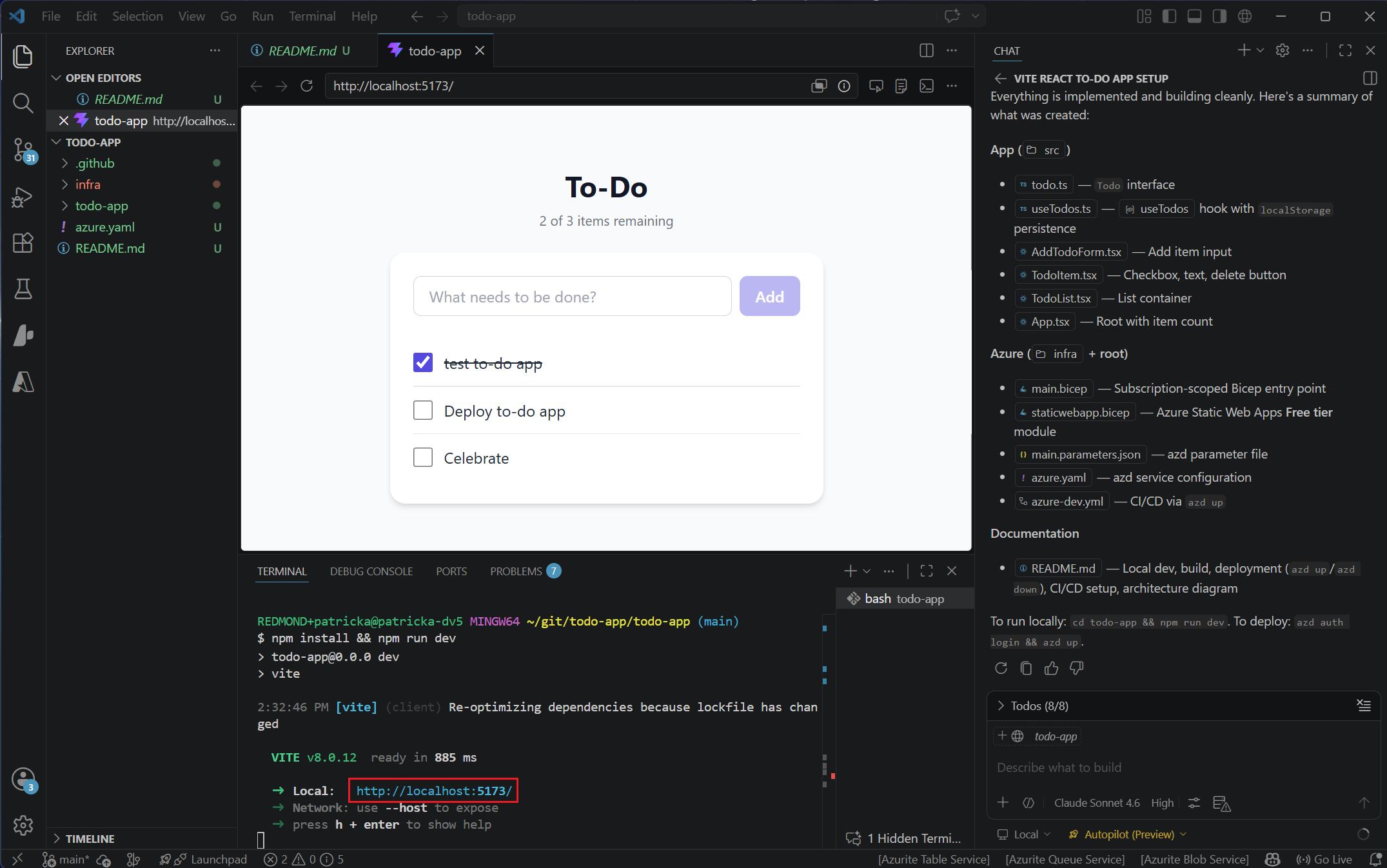
完成測試後,請在終端機中按下 Ctrl + C 來停止開發伺服器。
詢問有關 Azure 服務的資訊
現在你有一個可用的應用程式,請問代理人員哪些 Azure 服務適合用來架設應用程式和儲存持久資料。
複製並貼上以下提示:
I want to change the storage persistence. What are my no-cost or low-cost storage options for this app in Azure?
代理人會利用 Azure Skills 分析您的應用程式架構、資料儲存需求及 API 模式,建議合適的Azure服務來承載您的 to-do 資料。 代理人會考量成本、可擴展性、整合便利性,以及應用程式工作負載的適用性等因素。 代理人接著以以下範例說明其建議:
For this to-do app, these are the best no-cost or low-cost Azure persistence options, ordered from cheapest/simple to stronger capability.

1. Azure Cosmos DB for NoSQL with free tier
- Cost profile: can be zero if you stay within free-tier limits.
- Best for: JSON to-do items, easy API fit, good scaling path.
- Pros: schema-flexible, globally available, SDK support, free tier available.
- Cons: RU-based model can become costly if queries are inefficient.
- Good default choice if you want cloud-native persistence with minimal redesign.

2. Azure Table Storage
- Cost profile: typically very low (often cents to a few dollars at small scale).
- Best for: simple key-based to-do storage.
- Pros: cheapest at low volume, straightforward, durable.
- Cons: limited query features versus Cosmos DB/SQL.
- Great choice if your app only needs basic CRUD by id/user partition.
...
部署至 Azure
在本地測試並確認它正常運作後,部署到 Azure,這樣你就能看到它在雲端運行。
由於你使用
azd進行部署,如果尚未登入,請在終端機中登入 Azure。 跑步:azd auth login將應用程式部署到 Azure。
azd up當系統提示時,請為部署選擇一個唯一的環境名稱。 此名稱用於在 Azure 中建立資源群組,且必須是全球唯一。
當提示時選擇你想部署的 Azure 訂閱。
azd up 指令會配置 infra/ 資料夾中定義的 Azure 資源,建置應用程式,並部署到 Azure。 終端機輸出會包含你已部署應用程式的網址。
Troubleshooting
如果部署失敗或現場站點無法提供建置的生產檔案,請使用以下提示,讓代理程式自動診斷並修復部署。
Deploy the app using `azd up`. If deployment is misconfigured, diagnose and fix automatically until the live site serves built production files, not source or default pages.
Final verification must confirm HTML references production assets and that the main JS/CSS asset URLs return HTTP 200.
Update the README. Return a concise summary and the app website URL.
在開發過程中,你可以使用 GitHub Copilot 來協助除錯問題。 如果遇到錯誤,請複製貼上錯誤結果到聊天視窗,請客服人員協助你理解並修正問題。
查看已部署的資源
使用終端機輸出或 GitHub Copilot Chat 中的已部署應用程式 URL,在瀏覽器中開啟該應用程式。 打開你的應用程式,測試它在雲端是否正常運作。 新增、切換和移除任務,確認一切正常。
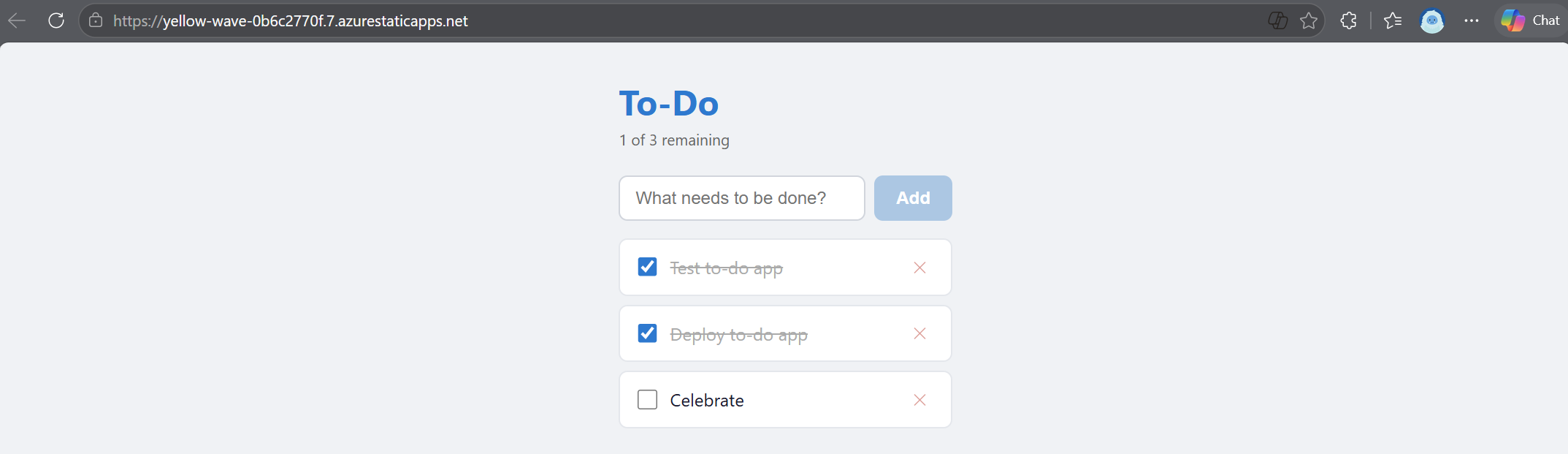
你可以直接在 VS Code 中探索你的 Azure 資源。
- 在活動欄中選擇 Azure 圖示,開啟 Azure 檢視。
- 在 [Resources] 節點中,選取 依據分組 圖示,然後選擇 依資源群組分組,以依照資源群組整理資源。
- 展開 資源 ,並找到由
azd up建立的部署資源群組。 - 展開資源群組以檢視已部署的服務,例如裝載您 Web 應用程式的 App Service,以及由
azd up建立的任何其他資源。 - 右鍵點擊網頁應用程式,選擇 Browse Website以開啟已部署的 to-do 應用程式,或選擇 View in Portal 以查看Azure 入口網站中的資源及部署網址。
清理資源
探索結束後,刪除 Azure 資源以避免產生費用:
azd down
此指令會刪除部署期間建立的所有 Azure 資源,包括資源群組。
下一步
你使用了 GitHub Copilot 規劃模式和代理模式來規劃、建立並將 React 待辦事項應用程式部署到 Azure,而無需手動撰寫程式碼。 繼續累積你所學的內容:
- GitHub Copilot for Azure 文件 - 了解更多關於 AI 輔助 Azure 開發的資訊。
- VS Code for the Web for Azure development - 深入了解基於瀏覽器的開發環境。
- Azure Skills Plugin - 安裝 Azure Skills,以使用 Copilot 進行更強大的 Azure 開發。
- Azure Developer CLI 範本 - 尋找不同語言與架構的範本。