Azure DevOps 服務 |Azure DevOps Server |Azure DevOps Server 2022
本文說明 PowerShell 腳本如何將商務邏輯新增至 Azure Pipelines。 PowerShell v2 (PowerShell@2) 工作會執行 PowerShell 腳本,這些腳本可以存取 Azure DevOps REST API、使用 Azure DevOps 工作專案、管理測試或呼叫其他服務。
您可以在 PowerShell 指令碼中使用 預先定義的變數 或 使用者定義的變數 。 您也可以設定 多重工作輸出變數 ,讓變數可供其他工作使用。 如需詳細資訊,請參閱 定義變數。
您也可以在 PowerShell 指令碼中使用具名參數。 不支援其他類型的參數,例如 參數參數。 如需詳細資訊,請參閱 如何宣告 Cmdlet 參數。
PowerShell 腳本工作
若要使用 PowerShell 腳本,請將 PowerShell v2 (PowerShell@2) 工作新增至管線,然後輸入內嵌 PowerShell 腳本或呼叫 PowerShell 腳本檔案。
建置會使用您源代碼的活動分支。 如果您的管線執行使用 main 程式碼的分支,您的指令碼也會使用分支 main 。
下列範例 targetType: 'inline' 會在屬性中使用 script 並新增內嵌指令碼。
steps:
- task: PowerShell@2
  inputs:
    targetType: 'inline'
    script: Write-Host "Hello world!"
下列範例會將步驟新增至 PowerShell@2 YAML 管線。 程式碼會叫用名為 test.ps1 的 PowerShell 腳本檔案,該檔案位於存放庫的根目錄中。
steps:
- task: PowerShell@2
  inputs:
    targetType: 'filePath'
    filePath: 'test.ps1'
注意
根據預設,工作 PowerShell@2 會使用 Windows PowerShell 5.1 for Windows 代理程式,以及 PowerShell 7.x 用於 Linux/macOS 代理程式。 若要在 Windows 代理程式上使用 PowerShell 7.x,您必須安裝 PowerShell 7.x,並將參數設定 pwsh 為 true。
Microsoft 裝載的代理程式 預設會安裝 PowerShell 7.x。
您也可以將 OR pwsh 步驟新增至 powershell YAML 管線,作為步驟的PowerShell@2捷徑。 此捷徑會在 pwsh macOS、Linux 或 Windows 上執行 PowerShell 7.x。 此 powershell 捷徑會在 Windows 上執行 Windows PowerShell 5.1,或在 Linux 和 macOS 上執行 PowerShell 7.x。
steps:
- pwsh: test.ps1

steps:
- pwsh: Write-Host Hello
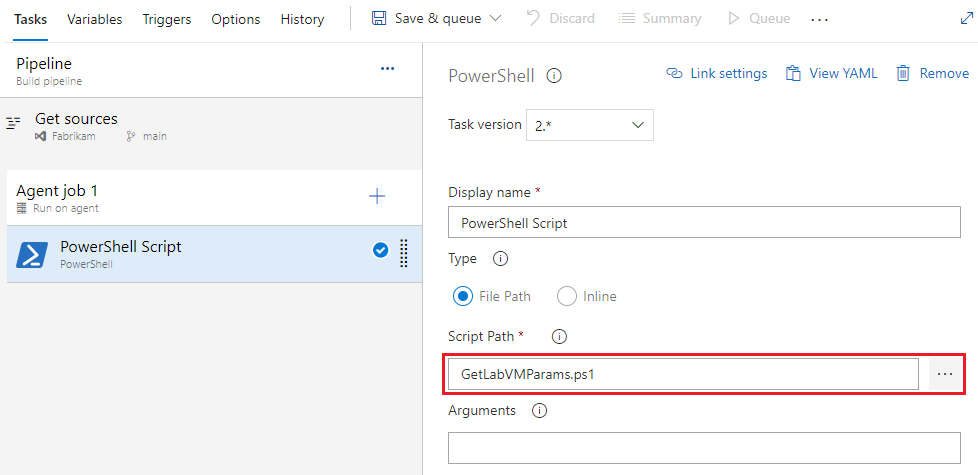
將版本應用至組件的範例腳本
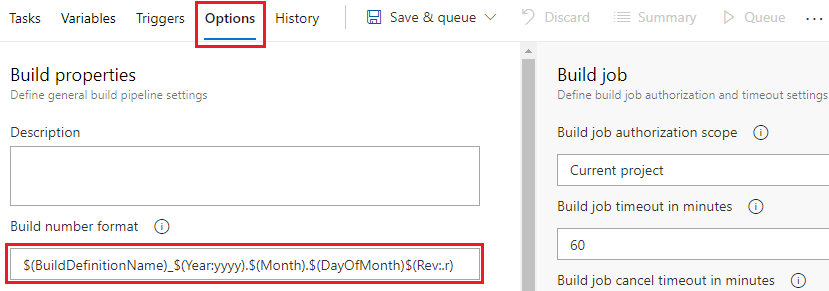
下列 PowerShell 腳本會根據組建編號將版本套用至元件。 例如,如果您的組建編號格式定義 $(BuildDefinitionName)_$(Year:yyyy).$(Month).$(DayOfMonth)$(Rev:.r) 會產生組建編號 Build HelloWorld_2024.07.19.1,指令碼會將版本 2024.07.19.1 套用至元件。
若要成功執行此指令碼,您的組建編號格式必須有四個區段。 如需詳細資訊,請參閱 執行或組建編號。
注意
組建編號也稱為執行編號。
使用管線根層級的屬性,
name在 YAML 管線中自訂組建號碼定義。name: $(BuildDefinitionName)_$(Year:yyyy).$(Month).$(DayOfMonth)$(Rev:.r)將下列 PowerShell 指令碼儲存為存放庫根目錄的檔案。
將工作步驟或
PowerShell@2/或pwsh捷徑新增至powershell管線,並呼叫相對於工作目錄的 PowerShell 腳本檔案檔案路徑。
將版本套用至元件的 PowerShell 腳本:
# Enable -Verbose option
[CmdletBinding()]

# Regular expression pattern to find the version in the build number
$VersionRegex = "\d+\.\d+\.\d+\.\d+"

# If not running on a build server, remind user to set environment variables for debugging
if(-not ($Env:BUILD_SOURCESDIRECTORY -and $Env:BUILD_BUILDNUMBER))
{
    Write-Error "You must set the following environment variables"
    Write-Error "to test this script interactively."
    Write-Host '$Env:BUILD_SOURCESDIRECTORY - For example, enter something like:'
    Write-Host '$Env:BUILD_SOURCESDIRECTORY = "C:\code\Fabrikam\HelloWorld"'
    Write-Host '$Env:BUILD_BUILDNUMBER - For example, enter something like:'
    Write-Host '$Env:BUILD_BUILDNUMBER = "Build HelloWorld_0000.00.00.0"'
    exit 1
}

# Make sure path to source code directory is available
if (-not $Env:BUILD_SOURCESDIRECTORY)
{
    Write-Error ("BUILD_SOURCESDIRECTORY environment variable is missing.")
    exit 1
}
elseif (-not (Test-Path $Env:BUILD_SOURCESDIRECTORY))
{
    Write-Error "BUILD_SOURCESDIRECTORY does not exist: $Env:BUILD_SOURCESDIRECTORY"
    exit 1
}
Write-Verbose "BUILD_SOURCESDIRECTORY: $Env:BUILD_SOURCESDIRECTORY"

# Make sure there's a build number
if (-not $Env:BUILD_BUILDNUMBER)
{
    Write-Error ("BUILD_BUILDNUMBER environment variable is missing.")
    exit 1
}
Write-Verbose "BUILD_BUILDNUMBER: $Env:BUILD_BUILDNUMBER"

# Get and validate the version data
$VersionData = [regex]::matches($Env:BUILD_BUILDNUMBER,$VersionRegex)
switch($VersionData.Count)
{
   0
      {
         Write-Error "Couldn't find version number data in BUILD_BUILDNUMBER."
         exit 1
      }
   1 {}
   default
      {
         Write-Warning "Found more than one instance of version data in BUILD_BUILDNUMBER."
         Write-Warning "Assuming first instance is version."
      }
}
$NewVersion = $VersionData[0]
Write-Verbose "Version: $NewVersion"

# Apply the version to the assembly property files
$files = gci $Env:BUILD_SOURCESDIRECTORY -recurse -include "*Properties*","My Project" |
    ?{ $_.PSIsContainer } |
    foreach { gci -Path $_.FullName -Recurse -include AssemblyInfo.* }
if($files)
{
    Write-Verbose "Applying $NewVersion to $($files.count) files."

    foreach ($file in $files) {
        $filecontent = Get-Content($file)
        attrib $file -r
        $filecontent -replace $VersionRegex, $NewVersion | Out-File $file
        Write-Verbose "$file.FullName - version applied"
    }
}
else
{
    Write-Warning "Found no files."
}
存取 REST API 的範例腳本
下列 PowerShell 腳本會使用環境變數來存取 Azure Pipelines REST API 並擷取管線定義。
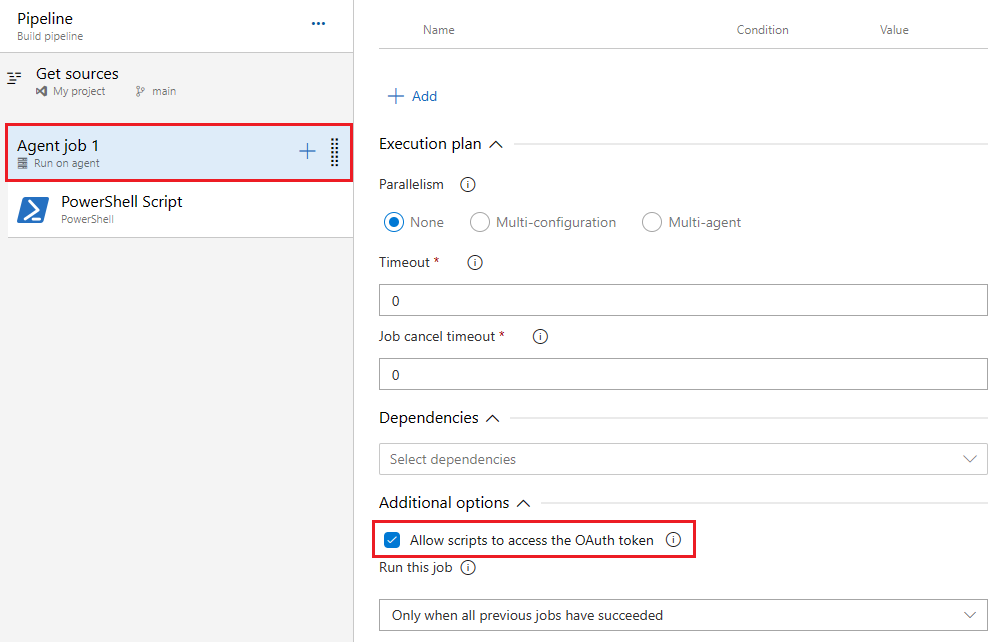
在 YAML 管線中,您可以在工作中$env:SYSTEM_ACCESSTOKEN定義環境變數PowerShell@2,並在內嵌指令碼中使用它來取得 OAuth 權杖以存取 REST API。
- task: PowerShell@2
  inputs:
    targetType: 'inline'
    script: |
      $url = "$($env:SYSTEM_TEAMFOUNDATIONCOLLECTIONURI)$env:SYSTEM_TEAMPROJECTID/_apis/build/definitions/$($env:SYSTEM_DEFINITIONID)?api-version=5.0"
              Write-Host "URL: $url"
              $pipeline = Invoke-RestMethod -Uri $url -Headers @{
                  Authorization = "Bearer $env:SYSTEM_ACCESSTOKEN"
              }
              Write-Host "Pipeline = $($pipeline | ConvertTo-Json -Depth 100)"
  env:
     SYSTEM_ACCESSTOKEN: $(System.AccessToken)