註
Azure AI 搜尋服務 可透過 Azure 入口網站、REST API 及 Azure SDK 取得。 它同時也是 Foundry IQ 的基礎,這是一個管理式知識層,能將企業內容轉化為可重複使用、權限感知的知識庫,供 Microsoft Foundry 入口網站中的代理使用。
Azure AI 搜尋服務 可以利用懂得讀取 Markdown 資料的 indexer,以Azure Blob 儲存體方式索引 Markdown 文件和陣列。
這個教學會教你如何利用 oneToMany Markdown 解析模式和 Search Service REST API 來索引 Markdown 檔案。
在這個教學中,你:
- 設置樣本資料並設定
azureblob資料來源 - 建立 Azure AI 搜尋服務 索引以包含可搜尋內容
- 建立並執行索引器來讀取容器並擷取可搜尋的內容
- 搜尋你剛建立的索引
先決條件
一個有有效訂閱的 Azure 帳號。 免費註冊帳號。
一個Azure 儲存體帳戶。
註
你可以使用免費的搜尋服務來取得這個教學。 免費方案限制你只能使用三個索引、三個索引器和三個資料來源。 本教學課程會各建立一個。 在開始之前,請確保你的服務有空間接受新資源。
準備樣本資料
建立一個 Markdown 檔案
將以下 Markdown 複製並貼上到一個名為 sample_markdown.md. 的檔案中。 範例資料是一個包含各種 Markdown 元素的單一 Markdown 檔案。 我們選擇了一個 Markdown 檔案,以保持在免費方案的儲存限制內。
# Project Documentation
## Introduction
This document provides a complete overview of the **Markdown Features** used within this project. The following sections demonstrate the richness of Markdown formatting, with examples of lists, tables, links, images, blockquotes, inline styles, and more.
---
## Table of Contents
1. [Headers](#headers)
2. [Introduction](#introduction)
3. [Basic Text Formatting](#basic-text-formatting)
4. [Lists](#lists)
5. [Blockquotes](#blockquotes)
6. [Images](#images)
7. [Links](#links)
8. [Tables](#tables)
9. [Code Blocks and Inline Code](#code-blocks-and-inline-code)
10. [Horizontal Rules](#horizontal-rules)
11. [Inline Elements](#inline-elements)
12. [Escaping Characters](#escaping-characters)
13. [HTML Elements](#html-elements)
14. [Emojis](#emojis)
15. [Footnotes](#footnotes)
16. [Task Lists](#task-lists)
17. [Conclusion](#conclusion)
---
## Headers
Markdown supports six levels of headers. Use `#` to create headers:
"# Project Documentation" at the top of the document is an example of an h1 header.
"## Headers" above is an example of an h2 header.
### h3 example
#### h4 example
##### h5 example
###### h6 example
This is an example of content underneath a header.
## Basic Text Formatting
You can apply various styles to your text:
- **Bold**: Use double asterisks or underscores: `**bold**` or `__bold__`.
- *Italic*: Use single asterisks or underscores: `*italic*` or `_italic_`.
- ~~Strikethrough~~: Use double tildes: `~~strikethrough~~`.
## Lists
### Ordered List
1. First item
2. Second item
3. Third item
### Unordered List
- Item A
- Item B
- Item C
### Nested List
1. Parent item
- Child item
- Child item
## Blockquotes
> This is a blockquote.
> Blockquotes are great for emphasizing important information.
>> Nested blockquotes are also possible!
## Images

## Links
[Visit Markdown Guide](https://www.markdownguide.org)
## Tables
| Syntax | Description | Example |
|-------------|-------------|---------------|
| Header | Title | Header Cell |
| Paragraph | Text block | Row Content |
## Code Blocks and Inline Code
### Inline Code
Use backticks to create `inline code`.
### Code Block
```javascript
// JavaScript example
function greet(name) {
console.log(`Hello, ${name}!`);
}
greet('World');
```
## Horizontal Rules
Use three or more dashes or underscores to create a horizontal rule.
---
___
## Inline Elements
Sometimes, it’s useful to include `inline code` to highlight code-like content.
You can also emphasize text like *this* or make it **bold**.
## Escaping Characters
To render special Markdown characters, use backslashes:
- \*Asterisks\*
- \#Hashes\#
- \[Brackets\]
## HTML Elements
You can mix HTML tags with Markdown:
<table>
<tr>
<th>HTML Table</th>
<th>With Markdown</th>
</tr>
<tr>
<td>Row 1</td>
<td>Data 1</td>
</tr>
</table>
## Emojis
Markdown supports some basic emojis:
- :smile: 😄
- :rocket: 🚀
- :checkered_flag: 🏁
## Footnotes
This is an example of a footnote[^1]. Footnotes allow you to add notes without cluttering the main text.
[^1]: This is the content of the footnote.
## Task Lists
- [x] Complete the introduction
- [ ] Add more examples
- [ ] Review the document
## Conclusion
Markdown is a lightweight yet powerful tool for writing documentation. It supports a variety of formatting options while maintaining simplicity and readability.
Thank you for reviewing this example!
上傳檔案並取得一個連接字串
請依照 這些指示 將 sample_markdown.md 檔案上傳到您的 Azure 儲存體 帳戶中的容器。 您也必須取得儲存體帳戶連接字串。 記下 連接字串 和容器名稱,方便日後使用。
複製搜尋服務的 URL 和 API 金鑰
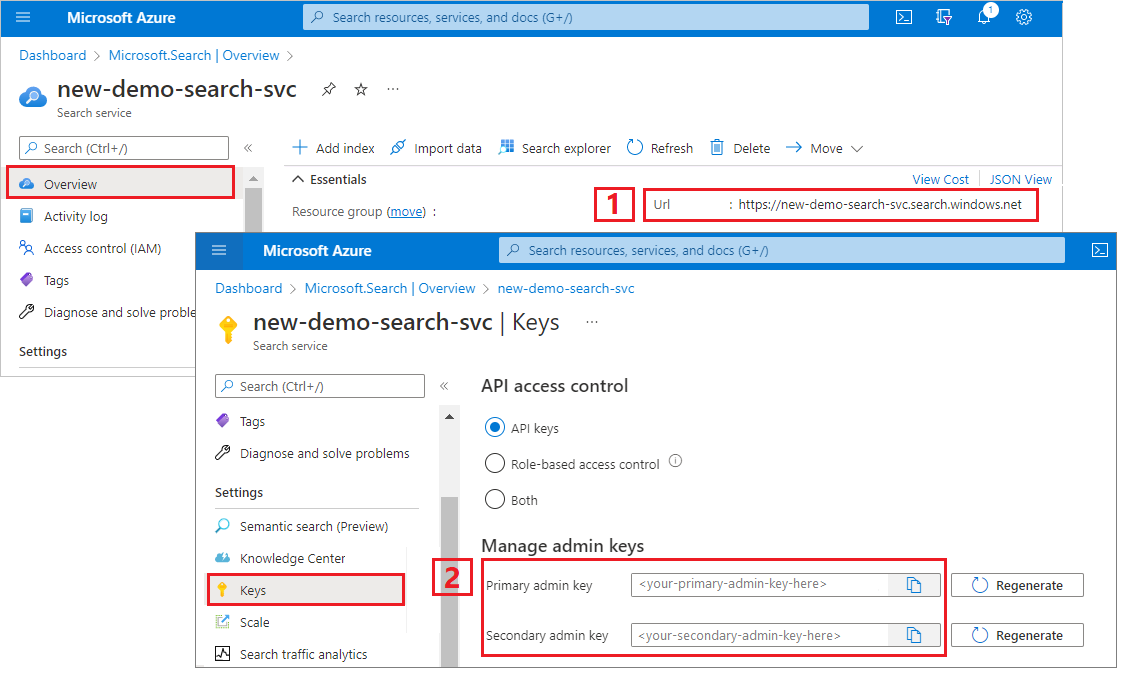
在這個教學中,連接 Azure AI 搜尋服務 需要端點和 API 金鑰。 你可以從 Azure 入口網站取得這些數值。 關於其他連接方法,請參見 受管理身份。
在Azure 入口網站中,進入您的搜尋服務。
從左側窗格選擇 「概覽」。
記下網址,應該看起來像
https://my-service.search.windows.net。從左側窗格選擇 設定>鍵。
記得要用管理員金鑰來取得服務的完整權限。 有兩個可互換的管理金鑰,以確保業務持續運作,以備需要時能夠更換其中一個。 你可以在新增、修改和刪除物件的請求中使用任一鍵。
設定你的 REST 檔案
用 Visual Studio Code 建立一個檔案。
提供請求中使用的變數值。
@baseUrl = PUT-YOUR-SEARCH-SERVICE-ENDPOINT-HERE
@apiKey = PUT-YOUR-ADMIN-API-KEY-HERE
@storageConnectionString = PUT-YOUR-STORAGE-CONNECTION-STRING-HERE
@blobContainer = PUT-YOUR-CONTAINER-NAME-HERE
使用
.rest或.http副檔名來儲存檔案。
如需 REST 用戶端的協助,請參閱 快速入門:使用 REST 進行全文搜尋。
建立資料來源
資料來源 - 建立 (REST API)建立一個資料來源連結,指定要索引哪些資料。
### Create a data source
POST {{baseUrl}}/datasources?api-version=2026-04-01  HTTP/1.1
Content-Type: application/json
api-key: {{apiKey}}

{
    "name" : "sample-markdown-ds",
    "description": null,
    "type": "azureblob",
    "subtype": null,
    "credentials": {
        "connectionString": "{{storageConnectionString}}"
    },
    "container": {
        "name": "{{blobContainer}}",
        "query": null
    },
    "dataChangeDetectionPolicy": null,
    "dataDeletionDetectionPolicy": null
}
發送請求。 回應應該是:
HTTP/1.1 201 Created
Transfer-Encoding: chunked
Content-Type: application/json; odata.metadata=minimal; odata.streaming=true; charset=utf-8
ETag: "0x8DCF52E926A3C76"
Location: https://<YOUR-SEARCH-SERVICE-NAME>.search.windows.net:443/datasources('sample-markdown-ds')?api-version=2026-04-01
Server: Microsoft-IIS/10.0
Strict-Transport-Security: max-age=2592000, max-age=15724800; includeSubDomains
Preference-Applied: odata.include-annotations="*"
OData-Version: 4.0
request-id: 0714c187-217e-4d35-928a-5069251e5cba
elapsed-time: 204
Date: Fri, 25 Oct 2024 19:52:35 GMT
Connection: close

{
  "@odata.context": "https://<YOUR-SEARCH-SERVICE-NAME>.search.windows.net/$metadata#datasources/$entity",
  "@odata.etag": "\"0x8DCF52E926A3C76\"",
  "name": "sample-markdown-ds",
  "description": null,
  "type": "azureblob",
  "subtype": null,
  "credentials": {
    "connectionString": null
  },
  "container": {
    "name": "markdown-container",
    "query": null
  },
  "dataChangeDetectionPolicy": null,
  "dataDeletionDetectionPolicy": null,
  "encryptionKey": null,
  "identity": null
}
建立索引
索引 - 建立 (REST API)會在你的搜尋服務上建立搜尋索引。 索引指定所有欄位及其屬性。
在一對多剖析中,搜尋文件會定義關聯性的「多」端。 你在索引中指定的欄位決定了搜尋文件的結構。
您只需要剖析器支援的 Markdown 元素欄位。 這些領域包括:
content:包含在特定位置找到的原始 Markdown 的字串,依據文件中該位置的標頭中繼資料而定。sections:包含標頭中繼資料子欄位的物件,最多可到所需標頭層級。 例如,當markdownHeaderDepth設為h3時,包含字串欄位h1、h2、 和h3。 這些欄位透過在索引中鏡像此結構,或透過格式/sections/h1、/sections/h2、 等格式的欄位映射來索引。 關於上下文中的範例,請參考以下範例中的索引與索引器配置。 所包含的子欄位包括:-
h1- 包含 h1 標頭值的字串。 如果此時文件中沒有設定,則為空字串。 - (可選)
h2- 包含 h2 標頭值的字串。 如果此時文件中沒有設定,則為空字串。 - (可選)
h3- 包含 h3 標頭值的字串。 如果此時文件中沒有設定,則為空字串。 - (可選)
h4- 包含 h4 標頭值的字串。 如果此時文件中沒有設定,則為空字串。 - (可選)
h5- 包含 h5 標頭值的字串。 如果此時文件中沒有設定,則為空字串。 - (可選)
h6- 包含 h6 標頭值的字串。 如果此時文件中沒有設定,則為空字串。
-
ordinal_position:一個整數值,表示該區段在文件階層中的位置。 此欄位用於將章節按照它們在文件中出現的原始順序排列,從序號 1 開始,並為每個內容區塊依序遞增。
此實作利用索引器中的 欄位映射 ,將豐富內容映射到索引。 欲了解更多關於解析一對多文件結構的資訊,請參閱 索引 Markdown 塊狀結構。
此範例提供了如何索引有場映射與不使用欄位映射的資料範例。 在這種情況下,h1 包含文件的標題,並對應到一個名為 title 的欄位。
h2 和 h3 欄位分別映射為 h2_subheader 和 h3_subheader。
content和ordinal_position欄位不需要映射,因為它們是直接從 Markdown 中提取到使用這些名稱的欄位。 關於不需要欄位映射的完整索引結構範例,請見本節末尾。
### Create an index
POST {{baseUrl}}/indexes?api-version=2026-04-01  HTTP/1.1
Content-Type: application/json
api-key: {{apiKey}}

{
  "name": "sample-markdown-index",
  "fields": [
    {"name": "id", "type": "Edm.String", "key": true, "searchable": true, "retrievable": true, "filterable": true, "facetable": true, "sortable": true},
    {"name": "content", "type": "Edm.String", "key": false, "searchable": true, "retrievable": true, "filterable": true, "facetable": true, "sortable": true},
    {"name": "title", "type": "Edm.String", "searchable": true, "retrievable": true, "filterable": true, "facetable": true, "sortable": true},
    {"name": "h2_subheader", "type": "Edm.String", "searchable": true, "retrievable": true, "filterable": true, "facetable": true, "sortable": true},
    {"name": "h3_subheader", "type": "Edm.String", "searchable": true, "retrievable": true, "filterable": true, "facetable": true, "sortable": true},
    {"name": "ordinal_position", "type": "Edm.Int32", "searchable": false, "retrievable": true, "filterable": true, "facetable": true, "sortable": true}
  ]
}
無欄位映射配置中的索引結構
欄位映射允許你操作和過濾豐富內容,使其符合你想要的索引形狀。 不過,您可能只想直接取得擴充內容。 在這種情況下,該模式會呈現如下:
{
  "name": "sample-markdown-index",
  "fields": [
    {"name": "id", "type": "Edm.String", "key": true, "searchable": true, "retrievable": true, "filterable": true, "facetable": true, "sortable": true},
    {"name": "content", "type": "Edm.String", "key": false, "searchable": true, "retrievable": true, "filterable": true, "facetable": true, "sortable": true},
    {"name": "sections",
      "type": "Edm.ComplexType",
      "fields": [
        {"name": "h1", "type": "Edm.String", "searchable": true, "retrievable": true, "filterable": true, "facetable": true, "sortable": true},
        {"name": "h2", "type": "Edm.String", "searchable": true, "retrievable": true, "filterable": true, "facetable": true, "sortable": true},
        {"name": "h3", "type": "Edm.String", "searchable": true, "retrievable": true, "filterable": true, "facetable": true, "sortable": true}
      ]
    },
    {"name": "ordinal_position", "type": "Edm.Int32", "searchable": false, "retrievable": true, "filterable": true, "facetable": true, "sortable": true}
  ]
}
重申一次,sections 物件中有最多到 h3 的子欄位,因為 markdownHeaderDepth 設為 h3。
如果你使用這個架構,務必在後續請求時做出相應調整。 此步驟需移除索引器設定中的欄位映射,並更新搜尋查詢以使用對應的欄位名稱。
建立並執行索引器
索引器 - 建立 (REST API)會在你的搜尋服務上建立索引器。 索引器連接資料來源,載入並索引資料,並可選擇性地提供排程以自動更新資料。
### Create and run an indexer
POST {{baseUrl}}/indexers?api-version=2026-04-01  HTTP/1.1
Content-Type: application/json
api-key: {{apiKey}}

{
  "name": "sample-markdown-indexer",
  "dataSourceName": "sample-markdown-ds",
  "targetIndexName": "sample-markdown-index",
  "parameters" : {
    "configuration": {
      "parsingMode": "markdown",
      "markdownParsingSubmode": "oneToMany",
      "markdownHeaderDepth": "h3"
      }
    },
  "fieldMappings" : [
    {
      "sourceFieldName": "/sections/h1",
      "targetFieldName": "title",
      "mappingFunction": null
    }
  ]
}
重點:
索引器僅解析最高至
h3的標頭。 任何較低層級的標頭(h4,h5,h6)都會被視為純文字,並會顯示在content欄位中。 這也是為什麼索引映射和場映射只存在於深度為h3的範圍內。content和ordinal_position欄位不需要欄位映射,因為它們在豐富內容中與這些名稱一起存在。
執行查詢
你可以在第一個文件載入後開始搜尋。
### Query the index
POST {{baseUrl}}/indexes/sample-markdown-index/docs/search?api-version=2026-04-01  HTTP/1.1
Content-Type: application/json
api-key: {{apiKey}}

{
  "search": "*",
  "count": true
}
發送請求。 這是一個未指定的全文搜尋查詢,會回傳索引中標記為可檢索的所有欄位,以及文件數量。 回應應該是:
HTTP/1.1 200 OK
Transfer-Encoding: chunked
Content-Type: application/json; odata.metadata=minimal; odata.streaming=true; charset=utf-8
Content-Encoding: gzip
Vary: Accept-Encoding
Server: Microsoft-IIS/10.0
Strict-Transport-Security: max-age=2592000, max-age=15724800; includeSubDomains
Preference-Applied: odata.include-annotations="*"
OData-Version: 4.0
request-id: 6b94e605-55e8-47a5-ae15-834f926ddd14
elapsed-time: 77
Date: Fri, 25 Oct 2024 20:22:58 GMT
Connection: close

{
  "@odata.context": "https://<YOUR-SEARCH-SERVICE-NAME>.search.windows.net/indexes('sample-markdown-index')/$metadata#docs(*)",
  "@odata.count": 22,
  "value": [
    <22 search documents here>
  ]
}
新增 search 參數來搜尋字串。
### Query the index
POST {{baseUrl}}/indexes/sample-markdown-index/docs/search?api-version=2026-04-01  HTTP/1.1
Content-Type: application/json
api-key: {{apiKey}}

{
  "search": "h4",
  "count": true
}
發送請求。 回應應該是:
HTTP/1.1 200 OK
Transfer-Encoding: chunked
Content-Type: application/json; odata.metadata=minimal; odata.streaming=true; charset=utf-8
Content-Encoding: gzip
Vary: Accept-Encoding
Server: Microsoft-IIS/10.0
Strict-Transport-Security: max-age=2592000, max-age=15724800; includeSubDomains
Preference-Applied: odata.include-annotations="*"
OData-Version: 4.0
request-id: ec5d03f1-e3e7-472f-9396-7ff8e3782105
elapsed-time: 52
Date: Fri, 25 Oct 2024 20:26:29 GMT
Connection: close

{
  "@odata.context": "https://<YOUR-SEARCH-SERVICE-NAME>.search.windows.net/indexes('sample-markdown-index')/$metadata#docs(*)",
  "@odata.count": 1,
  "value": [
    {
      "@search.score": 0.8744742,
      "section_id": "aHR0cHM6Ly9hcmphZ2Fubmpma2ZpbGVzLmJsb2IuY29yZS53aW5kb3dzLm5ldC9tYXJrZG93bi10dXRvcmlhbC9zYW1wbGVfbWFya2Rvd24ubWQ7NA2",
      "content": "#### h4 example\r\n##### h5 example\r\n###### h6 example\r\nThis is an example of content underneath a header.\r\n",
      "title": "Project Documentation",
      "h2_subheader": "Headers",
      "h3_subheader": "h3 example",
      "ordinal_position": 4
    }
  ]
}
重點:
由於
markdownHeaderDepth設定為h3,h4、h5和h6標頭被視為明文,因此會出現在content欄位中。此處序數位置為
4。 這些內容在22個內容區塊中排名第四。
新增 select 參數限制結果欄位數。 新增 a filter 以進一步縮小搜尋範圍。
### Query the index
POST {{baseUrl}}/indexes/sample-markdown-index/docs/search?api-version=2026-04-01  HTTP/1.1
Content-Type: application/json
api-key: {{apiKey}}

{
  "search": "Markdown",
  "count": true,
  "select": "title, content, h2_subheader",
  "filter": "h2_subheader eq 'Conclusion'"
}
HTTP/1.1 200 OK
Transfer-Encoding: chunked
Content-Type: application/json; odata.metadata=minimal; odata.streaming=true; charset=utf-8
Content-Encoding: gzip
Vary: Accept-Encoding
Server: Microsoft-IIS/10.0
Strict-Transport-Security: max-age=2592000, max-age=15724800; includeSubDomains
Preference-Applied: odata.include-annotations="*"
OData-Version: 4.0
request-id: a6f9bd46-a064-4e28-818f-ea077618014b
elapsed-time: 35
Date: Fri, 25 Oct 2024 20:36:10 GMT
Connection: close

{
  "@odata.context": "https://<YOUR-SEARCH-SERVICE-NAME>.search.windows.net/indexes('sample-markdown-index')/$metadata#docs(*)",
  "@odata.count": 1,
  "value": [
    {
      "@search.score": 1.1029507,
      "content": "Markdown is a lightweight yet powerful tool for writing documentation. It supports a variety of formatting options while maintaining simplicity and readability.\r\n\r\nThank you for reviewing this example!",
      "title": "Project Documentation",
      "h2_subheader": "Conclusion"
    }
  ]
}
對於濾波器,你也可以使用邏輯運算子(and, or, not)和比較運算子(eq, ne, gt, lt, ge, le)。 字串比較會區分大小寫。 欲了解更多資訊與範例,請參閱 「建立查詢」。
註
這個 $filter 參數只適用於在建立索引時標記為可篩選的欄位。
重置並重播
索引器可以重置以清除執行歷史,從而允許完整重跑。 下列要求會重設並重新執行索引子。
### Reset the indexer
POST {{baseUrl}}/indexers/sample-markdown-indexer/reset?api-version=2026-04-01  HTTP/1.1
api-key: {{apiKey}}

### Run the indexer
POST {{baseUrl}}/indexers/sample-markdown-indexer/run?api-version=2026-04-01  HTTP/1.1
api-key: {{apiKey}}

### Check indexer status
GET {{baseUrl}}/indexers/sample-markdown-indexer/status?api-version=2026-04-01  HTTP/1.1
api-key: {{apiKey}}
清理資源
當您在自己的訂用帳戶中工作時,專案結束時,建議移除不再需要的資源。 讓資源繼續執行可能會產生費用。 你可以單獨刪除資源,或刪除資源群組來刪除整組資源。
你可以使用 Azure 入口網站刪除索引、索引器和資料來源。
下一步
現在你已經熟悉 Azure Blob 索引的基本原理,請仔細看看 Azure 儲存體 中 Markdown blobs 索引器的設定: