Note
Azure AI 搜尋服務 可透過 Azure 入口網站、REST API 及 Azure SDK 取得。 它同時也是 Foundry IQ 的基礎,這是一個管理式知識層,能將企業內容轉化為可重複使用、權限感知的知識庫,供 Microsoft Foundry 入口網站中的代理使用。
在這個教學中,你將建立一個多模態索引器管線,執行以下任務:
- 擷取與區塊文字與圖片
- 將文字與圖片向量化以進行相似性搜尋
- 將裁切過的圖片傳送到知識商店,讓你的應用程式檢索
本教學並列展示多種技能組合,示範擷取、切塊及向量化多模態內容的不同方法。 它使用 文件擷取技能 與 文件排版技能 來擷取內容。
小提示
對於新的技能組,我們建議使用 Azure 內容理解技能。 此技能在單一技能中提供語意分塊、AI 生成的影像描述,以及改進的文件嵌入資料表擷取功能。 要開始,請參考Chunk,並利用Azure內容理解技能將內容向量化。
先決條件
Azure AI 搜尋服務,如果您想使用範例資料,請選擇基本定價層或更高版本。 配置一個管理身份 ,以角色為基礎存取模型與資料。
Microsoft Foundry 資源 ,提供 Foundry 模型與 API。 如果你正在使用 Azure AI 視覺 多模態,請選擇其 支援的區域 之一作為你的 Microsoft Foundry 資源。
Visual Studio Code 搭配 REST 用戶端或 Python 擴充功能。 如果您尚未安裝適當的 Python 版本,請遵循 VS Code Python 教學課程中的指示。
多模態索引透過技能在索引器管線中呼叫 AI 模型與 API。 模型的先決條件會依 據每項任務所選技能而有所不同。
小提示
要完成免費版的教學,請使用較小且圖片較少的文件。 這個教學只使用Foundry模型,但你可以 自訂技能 來使用其他模型。
設定存取權
在開始之前,請確認你有權限存取 Azure AI 搜尋服務 的內容和操作。 此快速入門使用 Microsoft Entra ID 進行認證,並使用角色為基礎的存取控制進行授權。 您必須是 擁有者 或 使用者存取管理員 ,才能指派角色。 如果角色不可行,請改用金鑰型驗證。
若要設定建議的角色型存取:
取得端點
每個 Azure AI 搜尋服務 服務都有一個 端點,該 URL 是唯一用來識別並提供服務網路存取權限的 URL。 在後面的章節中,你指定這個端點以程式化方式連接到你的搜尋服務。
若要取得端點:
在 Azure 入口網站中移至您的搜尋服務。
從左窗格中,選取 [ 概觀]。
記下端點,其外觀應該類似
https://my-service.search.windows.net。
準備資料
範例資料為一份36頁的PDF文件,結合豐富的視覺內容,如圖表、資訊圖表及掃描頁面,並搭配原始文字。 Azure 儲存體 提供範例資料並承載 知識庫。 搜尋服務受控身分識別需要:
取得 Azure 儲存空間的讀取權限來擷取範例資料。
寫入存取權來建立知識存放區。 搜尋服務會使用您在環境變數中提供的名稱,在技能集處理期間建立裁剪影像的容器。
請依照以下步驟設定樣本資料。
下載下列範例 PDF: sustainable-ai-pdf
登入 Azure 入口網站。
在 Azure 記憶體中,建立名為 sustainable-ai-pdf 的新容器。
-
Storage Blob Data Reader 用於資料檢索
Storage Blob Data 貢獻者 與 Storage Table Data 貢獻者 用於建立知識儲存庫。
當你在 Azure 入口網站開啟 Azure 儲存體 頁面時,取得環境變數的連線字串。
在 設定>端點中,選擇資源 ID 端點。 它應該看起來像以下範例:
/subscriptions/00000000-0000-0000-0000-00000000/resourceGroups/rg-mydemo/providers/Microsoft.Storage/storageAccounts/mydemostorage/blobServices/default。將這個連接字串加上前綴
ResourceId=。 使用這個版本來管理你的環境變數。ResourceId=/subscriptions/00000000-0000-0000-0000-00000000/resourceGroups/rg-mydemo/providers/Microsoft.Storage/storageAccounts/mydemostorage/blobServices/default對於使用使用者指派管理身份建立的連線,使用相同的連線字串,並提供
identity一個屬性設定給預先定義的使用者指派管理身份。"credentials" : { "connectionString" : "ResourceId=/subscriptions/00000000-0000-0000-0000-00000000/resourceGroups/MY-DEMO-RESOURCE-GROUP/providers/Microsoft.Storage/storageAccounts/MY-DEMO-STORAGE-ACCOUNT/;" }, "identity" : { "@odata.type": "#Microsoft.Azure.Search.DataUserAssignedIdentity", "userAssignedIdentity" : "/subscriptions/00000000-0000-0000-0000-00000000/resourcegroups/MY-DEMO-RESOURCE-GROUP/providers/Microsoft.ManagedIdentity/userAssignedIdentities/MY-DEMO-USER-MANAGED-IDENTITY" }
選擇多模態索引技能
索引、資料來源和索引器的定義在所有情境下大致相同,但技能組合可以根據你想如何擷取、分割和向量化文字與圖片,包含不同的技能組合。
選擇用於提取與分塊的技能:
- 文件擷取,文字分割
- 文件版面
選擇向量化技能:
- GenAI 提示詞,Azure OpenAI Embedding
- Azure AI 視覺 多模態嵌入技術
這些技能大多依賴 已部署的模型 或 Microsoft Foundry 資源。 下表列出支撐各技能的模型,以及提供模型存取的資源與權限。
| 技能 | Usage | 型號 | Resource | 權限 |
|---|---|---|---|---|
| 文件擷取技能, 文字分割技能 | 根據固定大小提取並分塊。 文字擷取是免費的。 影像擷取是計費的。 |
無 (內建) | Azure AI 搜尋服務 | 參見 「配置存取」 |
| 檔版面配置技能 | 根據文件配置來擷取並區塊化。 | 文件智慧 4.0 | Microsoft 鑄造廠 | 認知服務使用者 |
| Azure AI 視覺技能 (預覽) | 將文字與圖片內容向量化。 | Azure AI 視覺多模態 4.0 | Microsoft 鑄造廠 | 認知服務使用者 |
| GenAI 提示技能 | 呼叫 LLM 來產生圖片內容的文字描述。 | GPT-5 或 GPT-4 | Microsoft 鑄造廠 | 認知服務使用者 |
| Azure OpenAI 嵌入技能 | 將文字向量化,並生成文字圖像描述。 | Text-embedding-3 或 text-embedding-ada-002 | Microsoft 鑄造廠 | 認知服務使用者 |
模型使用是可計費的,唯獨文本擷取與文本分割除外。
若搜尋服務透過公共端點、私有連線,或計費連線無需金鑰,則模型部署可在任何支援區域內進行。 否則,如果連線是基於金鑰的,請附加與 Azure AI 搜尋服務 相同區域的 Microsoft Foundry 資源 。
設定您的環境
在本教學課程中,您本機 REST 用戶端與 Azure AI 搜尋的連線需要端點和 API 金鑰。 你可以在 Azure 入口網站取得這些數值。 關於其他連接方式,請參見 「連接至搜尋服務」。
對於在索引器和技能集處理期間發生的已驗證連線,搜尋服務會使用您先前定義的角色指派。
啟動 Visual Studio Code 並建立新的檔案。
提供請求中使用的變數值:
 @searchUrl = PUT-YOUR-SEARCH-SERVICE-ENDPOINT-HERE
 @storageConnection = PUT-YOUR-STORAGE-CONNECTION-STRING-HERE
 @imageProjectionContainer=sustainable-ai-pdf-images
 @token = PUT-YOUR-PERSONAL-IDENTITY-TOKEN HERE
針對
@storageConnection,請確定您的連接字串沒有尾端分號或引號。 參見 準備您的資料以了解連接字串語法。針對
@imageProjectionContainer,提供 Blob 記憶體中唯一的容器名稱。 Azure AI 搜尋服務 在技能處理過程中建立這個容器。如需協助取得存取權杖,請參閱 「Connect to Azure AI 搜尋服務」。 如果你無法使用角色,請參考「 用鑰匙連接」。
如果你正在使用文件版面技能或 Azure AI 視覺技能(使用模型版本 2023-04-15),請新增此變數:
@foundryUrl = PUT-YOUR-MULTISERVICE-AZURE-AI-FOUNDRY-ENDPOINT-HERE
@azureAiVisionModelVersion = 2023-04-15
如果你使用生成式AI提示技能和Azure OpenAI嵌入技能,請加入以下變數:
 @chatCompletionModelUri = PUT-YOUR-DEPLOYED-MODEL-URI-HERE
 @chatCompletionModelKey = PUT-YOUR-MODEL-KEY-HERE
 @textEmbeddingModelUri = PUT-YOUR-DEPLOYED-MODEL-URI-HERE
 @textEmbeddingModelKey = PUT-YOUR-MODEL-KEY-HERE
使用
.rest或.http副檔名來儲存檔案。 如需 REST 用戶端的說明,請參閱 快速入門:使用 REST 進行全文搜索。
同一 Foundry 資源可提供 Azure AI 視覺、文件智慧、聊天完成模型及文字嵌入模型。 只要確保該區域支援你需要的模型就好。 如果某個地區已達到容量上限,你可能需要建立新的資源來部署所需的模型。
設定管線
索引器流程包含四個組成部分:資料來源、索引、技能集與索引器。
下載 REST 檔案
azure-search-rest-samples 的 GitHub 倉庫擁有 .REST 檔案,這些檔案會建立管線並查詢索引。
小提示
請參考 azure-ai-search-multimodal-sample 的 GitHub 倉庫,裡面有 Python 範例。
建立數據源
建立資料來源 (REST) 會建立資料來源連線,指定要編製索引的資料。
POST {{searchUrl}}/datasources?api-version=2026-08-01-preview   HTTP/1.1
  Content-Type: application/json
  Authorization: Bearer {{token}}

{
   "name":"demo-multimodal-ds",
   "description":null,
   "type":"azureblob",
   "subtype":null,
   "credentials":{
      "connectionString":"{{storageConnection}}"
   },
   "container":{
      "name":"sustainable-ai-pdf",
      "query":null
   },
   "dataChangeDetectionPolicy":null,
   "dataDeletionDetectionPolicy":null,
   "encryptionKey":null,
   "identity":null
}
發送請求。 回應看起來應如下所示:
HTTP/1.1 201 Created
Transfer-Encoding: chunked
Content-Type: application/json; odata.metadata=minimal; odata.streaming=true; charset=utf-8
Location: https://<YOUR-SEARCH-SERVICE-NAME>.search.windows-int.net:443/datasources('demo-multimodal-ds')?api-version=2026-08-01-preview -Preview
Server: Microsoft-IIS/10.0
Strict-Transport-Security: max-age=2592000, max-age=15724800; includeSubDomains
Preference-Applied: odata.include-annotations="*"
OData-Version: 4.0
request-id: 4eb8bcc3-27b5-44af-834e-295ed078e8ed
elapsed-time: 346
Date: Sat, 26 Apr 2026 21:25:24 GMT
Connection: close

{
  "name": "demo-multimodal-ds",
  "description": null,
  "type": "azureblob",
  "subtype": null,
  "indexerPermissionOptions": [],
  "credentials": {
    "connectionString": null
  },
  "container": {
    "name": "sustainable-ai-pdf",
    "query": null
  },
  "dataChangeDetectionPolicy": null,
  "dataDeletionDetectionPolicy": null,
  "encryptionKey": null,
  "identity": null
}
建立索引
建立索引(REST)會在 你的搜尋服務上建立索引。 該指數在所有技能組中相似,僅有以下例外:
本
vectorizers節定義查詢文本在搜尋時如何被向量化。 它必須使用與技能組相同的嵌入提供者和模型家族(Azure AI 視覺 多模態或 Azure OpenAI 文本嵌入),以確保查詢向量與索引向量相容。content_embedding欄位dimensions值必須完全符合嵌入模型產生的向量大小(例如1024Azure AI 視覺 多模態或3072text-embedding-3-large)。 不匹配可能導致索引或查詢失敗。對於複雜類型,索引中的巢狀欄位名稱必須與擴充輸出名稱 (包括大小寫) 完全一致。 Azure AI 搜尋服務無法將巢狀子欄位對應到不同名稱。 使用
location_metadata、bounding_polygons和page_number表示接受文字分割輸出的欄位,以及locationMetadata、boundingPolygons、pageNumber用於接受文件版面輸出的欄位。
以下是每種技能組合的索引定義。
此圖案使用:
Azure AI 視覺 多模態技能 用於文字與影像嵌入。
{
   "name":"demo-multimodal-1-index",
   "fields":[
      {
         "name":"content_id",
         "type":"Edm.String",
         "retrievable":true,
         "key":true,
         "analyzer":"keyword"
      },
      {
         "name":"text_document_id",
         "type":"Edm.String",
         "searchable":false,
         "filterable":true,
         "retrievable":true,
         "stored":true,
         "sortable":false,
         "facetable":false
      },
      {
         "name":"document_title",
         "type":"Edm.String",
         "searchable":true
      },
      {
         "name":"image_document_id",
         "type":"Edm.String",
         "filterable":true,
         "retrievable":true
      },
      {
         "name":"content_text",
         "type":"Edm.String",
         "searchable":true,
         "retrievable":true
      },
      {
         "name":"content_embedding",
         "type":"Collection(Edm.Single)",
         "dimensions":1024,
         "searchable":true,
         "retrievable":true,
         "vectorSearchProfile":"hnsw"
      },
      {
         "name":"content_path",
         "type":"Edm.String",
         "searchable":false,
         "retrievable":true
      },
      {
         "name":"location_metadata",
         "type":"Edm.ComplexType",
         "fields":[
            {
               "name":"page_number",
               "type":"Edm.Int32",
               "searchable":false,
               "retrievable":true
            },
            {
               "name":"bounding_polygons",
               "type":"Edm.String",
               "searchable":false,
               "retrievable":true,
               "filterable":false,
               "sortable":false,
               "facetable":false
            }
         ]
      }
   ],
   "vectorSearch":{
      "profiles":[
         {
            "name":"hnsw",
            "algorithm":"defaulthnsw",
            "vectorizer":"demo-vectorizer"
         }
      ],
      "algorithms":[
         {
            "name":"defaulthnsw",
            "kind":"hnsw",
            "hnswParameters":{
               "m":4,
               "efConstruction":400,
               "metric":"cosine"
            }
         }
      ],
      "vectorizers":[
         {
            "name":"demo-vectorizer",
            "kind":"aiServicesVision",
            "aiServicesVisionParameters":{
               "resourceUri":"{{foundryUrl}}",
               "authIdentity":null,
               "modelVersion":"{{azureAiVisionModelVersion}}"
            }
         }
      ]
   },
   "semantic":{
      "defaultConfiguration":"semanticconfig",
      "configurations":[
         {
            "name":"semanticconfig",
            "prioritizedFields":{
               "titleField":{
                  "fieldName":"document_title"
               },
               "prioritizedContentFields":[

               ],
               "prioritizedKeywordsFields":[

               ]
            }
         }
      ]
   }
}
重點︰
content_embedding是唯一的向量欄位,並且同時儲存文字與影像內容的向量。 它必須設定適當的嵌入模型尺寸,例如 text-embedding-3-large 的3072及向量搜尋設定檔。content_path是知識庫中每個影像的路徑。location_metadata或locationMetadata會為每個標準化的影像擷取界限多邊形與頁碼中繼資料,從而實現精確的空間搜尋或 UI 覆蓋顯示。 欄位名稱會依資訊擷取方式而異。基於文字分割技能的內容擷取:僅支援 PDF 檔案的位置中繼資料。 此外,Text Split 技能必須包含 Shaper 技能,能擷取記憶體內位置元資料並在文件樹中表示。 塑形器技能同時負責將知識存放區容器名稱新增至
content_path。
建立一套用於擷取、分塊和向量化的技能組
建立技能集(REST) 會在您的搜尋服務上建立技能集。 技能組定義了在索引前擷取、分塊及向量化內容的操作。
共有四種技能模式。 每個模型都展示了擷取與分塊策略,並搭配向量化策略。 每個模式有兩個主要差異:技能組合組合與 indexProjections。 投影會根據每個嵌入技能的輸出而有所不同。
這四個模式都包含 塑形者技能。 塑形器技能的輸出會建立知識存放區中影像的標準化路徑,以及位置中繼資料 (頁碼與界限多邊形)。
此圖案使用:
Azure AI 視覺 多模態技能 用於文字與影像嵌入。
Shaper skill 在知識庫中擷取影像文件路徑的位置信息和容器名稱。 此功能是 PDF 內容與文件擷取獨有的。
{
   "name":"demo-multimodal-skillset",
   "description":"A test skillset",
   "skills":[
      {
         "@odata.type":"#Microsoft.Skills.Util.DocumentExtractionSkill",
         "name":"document-extraction-skill",
         "description":"Document extraction skill to extract text and images from documents",
         "parsingMode":"default",
         "dataToExtract":"contentAndMetadata",
         "configuration":{
            "imageAction":"generateNormalizedImages",
            "normalizedImageMaxWidth":2000,
            "normalizedImageMaxHeight":2000
         },
         "context":"/document",
         "inputs":[
            {
               "name":"file_data",
               "source":"/document/file_data"
            }
         ],
         "outputs":[
            {
               "name":"content",
               "targetName":"extracted_content"
            },
            {
               "name":"normalized_images",
               "targetName":"normalized_images"
            }
         ]
      },
      {
         "@odata.type":"#Microsoft.Skills.Text.SplitSkill",
         "name":"split-skill",
         "description":"Split skill to chunk documents",
         "context":"/document",
         "defaultLanguageCode":"en",
         "textSplitMode":"pages",
         "maximumPageLength":2000,
         "pageOverlapLength":200,
         "unit":"characters",
         "inputs":[
            {
               "name":"text",
               "source":"/document/extracted_content",
               "inputs":[

               ]
            }
         ],
         "outputs":[
            {
               "name":"textItems",
               "targetName":"pages"
            }
         ]
      },
      {
         "@odata.type":"#Microsoft.Skills.Vision.VectorizeSkill",
         "name":"text-embedding-skill",
         "description":"Vision Vectorization skill for text",
         "context":"/document/pages/*",
         "modelVersion":"{{azureAiVisionModelVersion}}",
         "inputs":[
            {
               "name":"text",
               "source":"/document/pages/*"
            }
         ],
         "outputs":[
            {
               "name":"vector",
               "targetName":"text_vector"
            }
         ]
      },
      {
         "@odata.type":"#Microsoft.Skills.Vision.VectorizeSkill",
         "name":"image-embedding-skill",
         "description":"Vision Vectorization skill for images",
         "context":"/document/normalized_images/*",
         "modelVersion":"{{azureAiVisionModelVersion}}",
         "inputs":[
            {
               "name":"image",
               "source":"/document/normalized_images/*"
            }
         ],
         "outputs":[
            {
               "name":"vector",
               "targetName":"image_vector"
            }
         ]
      },
      {
         "@odata.type":"#Microsoft.Skills.Util.ShaperSkill",
         "name":"shaper-skill",
         "description":"Shaper skill to reshape the data to fit the index schema",
         "context":"/document/normalized_images/*",
         "inputs":[
            {
               "name":"normalized_images",
               "source":"/document/normalized_images/*",
               "inputs":[

               ]
            },
            {
               "name":"imagePath",
               "source":"='{{imageProjectionContainer}}/'+$(/document/normalized_images/*/imagePath)",
               "inputs":[

               ]
            },
            {
               "name":"dataUri",
               "source":"='data:image/jpeg;base64,'+$(/document/normalized_images/*/data)",
               "inputs":[

               ]
            },
            {
               "name":"location_metadata",
               "sourceContext":"/document/normalized_images/*",
               "inputs":[
                  {
                     "name":"page_number",
                     "source":"/document/normalized_images/*/page_number"
                  },
                  {
                     "name":"bounding_polygons",
                     "source":"/document/normalized_images/*/bounding_polygon"
                  }
               ]
            }
         ],
         "outputs":[
            {
               "name":"output",
               "targetName":"new_normalized_images"
            }
         ]
      }
   ],
   "cognitiveServices":{
      "@odata.type":"#Microsoft.Azure.Search.AIServicesByIdentity",
      "subdomainUrl":"{{foundryUrl}}",
      "identity":null
   },
   "indexProjections":{
      "selectors":[
         {
            "targetIndexName":"demo-multimodal-index",
            "parentKeyFieldName":"text_document_id",
            "sourceContext":"/document/pages/*",
            "mappings":[
               {
                  "name":"content_embedding",
                  "source":"/document/pages/*/text_vector"
               },
               {
                  "name":"content_text",
                  "source":"/document/pages/*"
               },
               {
                  "name":"document_title",
                  "source":"/document/document_title"
               }
            ]
         },
         {
            "targetIndexName":"demo-multimodal-index",
            "parentKeyFieldName":"image_document_id",
            "sourceContext":"/document/normalized_images/*",
            "mappings":[
               {
                  "name":"content_embedding",
                  "source":"/document/normalized_images/*/image_vector"
               },
               {
                  "name":"content_path",
                  "source":"/document/normalized_images/*/new_normalized_images/imagePath"
               },
               {
                  "name":"location_metadata",
                  "source":"/document/normalized_images/*/new_normalized_images/location_metadata"
               },
               {
                  "name":"document_title",
                  "source":"/document/document_title"
               }
            ]
         }
      ],
      "parameters":{
         "projectionMode":"skipIndexingParentDocuments"
      }
   },
   "knowledgeStore":{
      "storageConnectionString":"{{storageConnection}}",
      "identity":null,
      "projections":[
         {
            "files":[
               {
                  "storageContainer":"{{imageProjectionContainer}}",
                  "source":"/document/normalized_images/*"
               }
            ]
         }
      ]
   }
}
執行索引子
建立索引子會在您的搜尋服務上建立索引子。 索引器會連接資料來源,載入資料,執行技能組,並索引豐富的內容。
### Create and run an indexer
POST {{searchUrl}}/indexers?api-version=2026-08-01-preview   HTTP/1.1
  Content-Type: application/json
  Authorization: Bearer {{token}}

{
  "name": "demo-multimodal-indexer",
  "dataSourceName": "demo-multimodal-ds",
  "targetIndexName": "demo-multimodal-index",
  "skillsetName": "demo-multimodal-skillset",
  "parameters": {
    "maxFailedItems": -1,
    "maxFailedItemsPerBatch": 0,
    "batchSize": 1,
    "configuration": {
      "allowSkillsetToReadFileData": true
    }
  },
  "fieldMappings": [
    {
      "sourceFieldName": "metadata_storage_name",
      "targetFieldName": "document_title"
    }
  ],
  "outputFieldMappings": []
}
執行查詢
第一個文件載入後,您就可以開始查詢。 這是未指定的全文搜索查詢,會傳回索引中標示為可擷取的所有字段,以及文件計數。
小提示
這個 content_embedding 場包含超過一千個維度。 使用 select 陳述句明確選擇所有其他欄位,將該欄位排除在回應之外。 調整 select 語句,使其與索引中的欄位location_metadata (vs locationMetadata)相符。 以下是範例:"select": "content_id, text_document_id, document_title, image_document_id, content_text,
### Query the index
POST {{searchUrl}}/indexes/demo-multimodal-index/docs/search?api-version=2026-08-01-preview   HTTP/1.1
  Content-Type: application/json
  Authorization: Bearer {{token}}

  {
    "search": "*",
    "count": true
  }
發送請求。 回應看起來應如下所示:
HTTP/1.1 200 OK
Transfer-Encoding: chunked
Content-Type: application/json; odata.metadata=minimal; odata.streaming=true; charset=utf-8
Content-Encoding: gzip
Vary: Accept-Encoding
Server: Microsoft-IIS/10.0
Strict-Transport-Security: max-age=2592000, max-age=15724800; includeSubDomains
Preference-Applied: odata.include-annotations="*"
OData-Version: 4.0
request-id: 712ca003-9493-40f8-a15e-cf719734a805
elapsed-time: 198
Date: Wed, 30 Apr 2025 23:20:53 GMT
Connection: close

{
  "@odata.count": 100,
  "@search.nextPageParameters": {
    "search": "*",
    "count": true,
    "skip": 50
  },
  "value": [
  ],
  "@odata.nextLink": "https://<YOUR-SEARCH-SERVICE-NAME>.search.windows.net/indexes/demo-multimodal-index/docs/search?api-version=2026-08-01-preview "
}
回應中將返回 100 份文件。
查詢純圖片內容
使用過濾器排除所有非影像內容。 參數 $filter 只適用於在索引建立期間標示為可篩選的欄位。
對於濾波器,你也可以使用邏輯運算子(and, or, not)和比較運算子(eq, ne, gt, lt, ge, le)。 字串比較是區分大小寫的。 如需詳細資訊和範例,請參閱 簡單搜尋查詢的範例。
POST {{searchUrl}}/indexes/demo-multimodal-index/docs/search?api-version=2026-08-01-preview   HTTP/1.1
  Content-Type: application/json
  Authorization: Bearer {{token}}

  {
    "search": "*",
    "count": true,
    "filter": "image_document_id ne null"
  }
包含純圖片內容的搜尋結果沒有文字內容,因此你可以排除文字欄位。
該 content_embedding 欄位包含高維度向量(通常為 1,000 至 3,000 維),用於頁面文字及口述影像描述。 請將此欄位排除在查詢中。
欄位 content_path 包含指定影像投影容器內影像檔案的相對路徑。 僅針對在 imageAction 設為 generateNormalizedImages 時從 PDF 中擷取到的影像才會產生此欄位,並可從來源欄位 /document/normalized_images/*/imagePath 擴充的文件中對應。
對於使用文字分割技能從 PDF 內容中擷取的資料,塑形器技能會將容器名稱新增至路徑與位置中繼資料中。
查詢與「能源」相關的內容
查詢與能源相關的文字或圖片,回傳內容 ID、父文件和文字(僅填充文字區塊),以及圖片儲存在知識庫的內容路徑(僅填充圖片)。
此查詢僅為全文搜尋,但你可以 查詢向量場 進行相似度搜尋。
POST {{searchUrl}}/indexes/demo-multimodal-index/docs/search?api-version=2026-08-01-preview   HTTP/1.1
  Content-Type: application/json
  Authorization: Bearer {{token}}


  {
    "search": "energy",
    "count": true
  }
重設並重新執行
索引器可以重設以清除上限標記,從而允許進行完整重建。 下列 POST 要求適用於重設,後面接著重新執行。
### Reset the indexer
POST {{searchUrl}}/indexers/demo-multimodal-indexer/reset?api-version=2026-08-01-preview   HTTP/1.1
  Content-Type: application/json
  Authorization: Bearer {{token}}
### Run the indexer
POST {{searchUrl}}/indexers/demo-multimodal-indexer/run?api-version=2026-08-01-preview   HTTP/1.1
  Content-Type: application/json
  Authorization: Bearer {{token}}
### Check indexer status
GET {{searchUrl}}/indexers/demo-multimodal-indexer/status?api-version=2026-08-01-preview   HTTP/1.1
  Content-Type: application/json
  Authorization: Bearer {{token}}
在知識庫中查看圖片
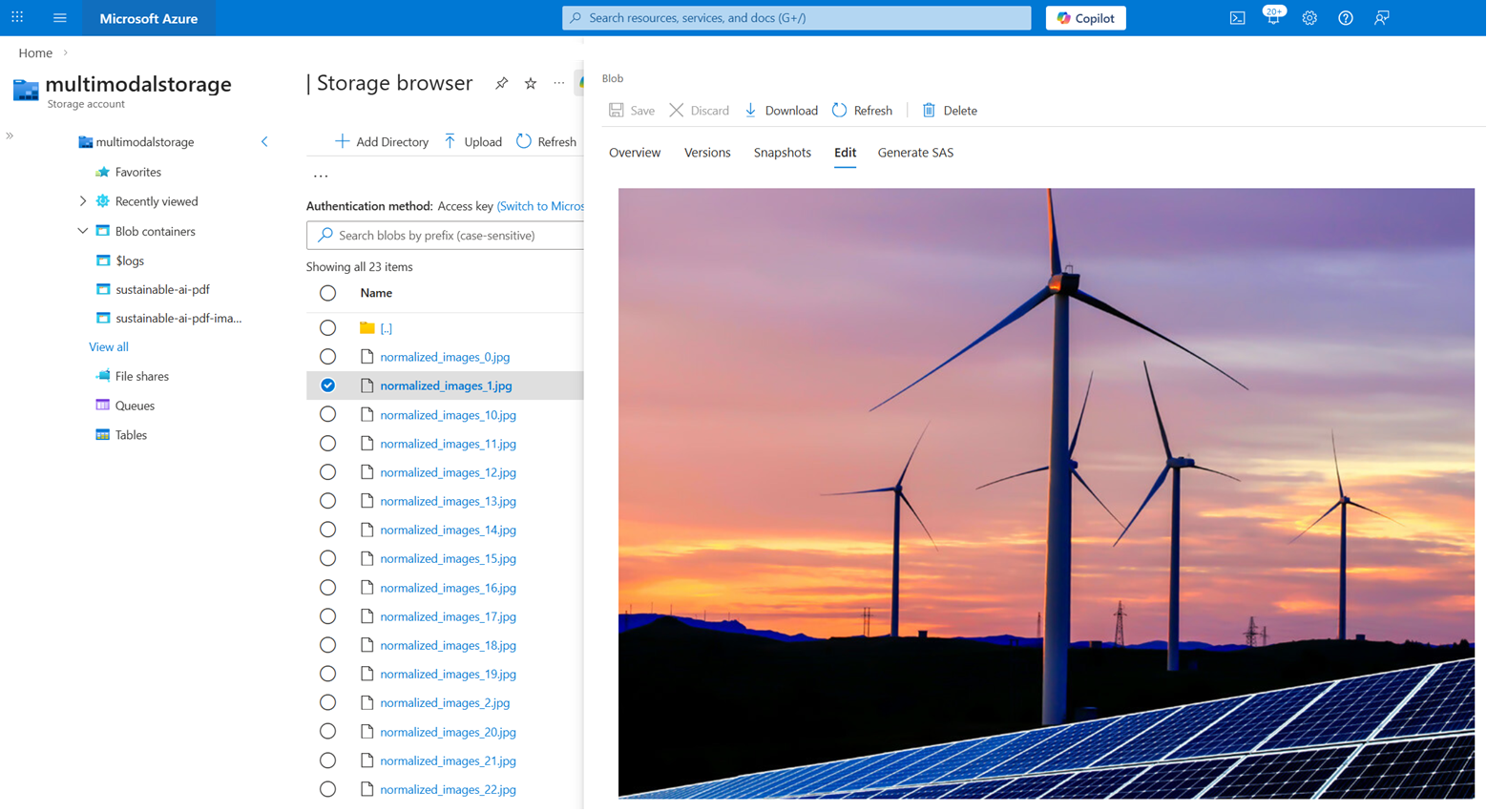
請記得,這個教程中的技能組合會建立一個從 PDF 擷取圖片內容的知識庫。 索引器執行後, sustainable-ai-pdf-images 容器應包含約 23 張圖片。
你無法在搜尋查詢中回傳這些圖片。 不過,若您需要圖片以改善使用者體驗,可以撰寫應用程式程式碼來呼叫 Azure 儲存體 API 以取得這些圖片。
content_path 欄位包含每張圖片的路徑。
在儲存瀏覽器中查看圖片:
登入 Azure 入口網站,並進入你的儲存帳號。
在儲存瀏覽器中,展開「sustainable-ai-pdf-images」容器。
選擇一張圖片。
在最右側選單(...),選擇 檢視/編輯。
清理資源
當您在自己的訂用帳戶中工作時,建議您在完成專案後移除不再需要的資源。 仍在執行的資源可能會產生費用。
在 Azure 入口網站中,從左側窗格選擇 「所有資源 」或 「資源群組 」以尋找並管理資源。 你可以單獨刪除資源,或是一次性刪除資源群組,移除所有資源。