本文呈現一些範例程式碼片段,示範如何使用 Jupyter 筆記本與 Microsoft Sentinel 湖資料互動,分析 Microsoft Sentinel 資料湖中的安全資料。 這些範例說明如何存取並分析各種資料表的資料,例如 Microsoft Entra ID 登入日誌、群組資訊及裝置網路事件。 這些程式碼片段設計為可透過 Microsoft Sentinel 擴充功能在 Visual Studio Code 的 Jupyter 筆記本中執行。
要執行這些範例,必須具備必要的權限並安裝 Microsoft Sentinel 擴充功能中的 Visual Studio Code。 欲了解更多資訊,請參閱 Microsoft Sentinel 資料湖權限及使用 Jupyter 筆記本搭配 Microsoft Sentinel 資料湖。
登入失敗分析
此範例用以識別登入失敗的使用者。 為此,這個筆記本範例會處理來自兩個資料表的登入資料:
- 登入日誌
- AADNonInteractiveUserSignInLogs
筆記本執行以下步驟:
- 建立一個函式來處理指定資料表的資料,內容包括:
- 將指定的資料表資料載入資料框。
- 解析「Status」JSON 欄位以擷取「errorCode」,並判斷每次登入嘗試是成功還是失敗。
- 彙整資料,計算每位使用者的失敗與成功登入次數。
- 篩選資料時,僅包含超過 100 次登入失敗及至少一次成功登入的使用者。
- 依照失敗簽到次數排序結果。
- 呼叫 for for and
SigninLogsAADNonInteractiveUserSignInLogstables。 - 將兩個資料表的結果合併成單一資料框架。
- 將 DataFrame 轉換成 Pandas DataFrame。
- 篩選 Pandas DataFrame,顯示失敗次數最多的前 20 位用戶。
- 建立一條長條圖,以視覺化失敗登入次數最多的用戶。
注意事項
這台筆記本在大型池中運行大約需要 10 分鐘,視日誌表中的資料量而定
# Import necessary libraries
import matplotlib.pyplot as plt
from sentinel_lake.providers import MicrosoftSentinelProvider
from pyspark.sql.functions import col, when, count, from_json, desc
from pyspark.sql.types import StructType, StructField, StringType

data_provider = MicrosoftSentinelProvider(spark)

# Function to process data
def process_data(table_name,workspace_name):
    # Load data into DataFrame
    df = data_provider.read_table(table_name, workspace_name)

    # Define schema for parsing the 'Status' JSON field
    status_schema = StructType([StructField("errorCode", StringType(), True)])
    # Parse the 'Status' JSON field to extract 'errorCode'
    df = df.withColumn("Status_json", from_json(col("Status"), status_schema)) \
           .withColumn("ResultType", col("Status_json.errorCode"))
    # Define success codes
    success_codes = ["0", "50125", "50140", "70043", "70044"]

    # Determine FailureOrSuccess based on ResultType
    df = df.withColumn("FailureOrSuccess", when(col("ResultType").isin(success_codes), "Success").otherwise("Failure"))

    # Summarize FailureCount and SuccessCount
    df = df.groupBy("UserPrincipalName", "UserDisplayName", "IPAddress") \
           .agg(count(when(col("FailureOrSuccess") == "Failure", True)).alias("FailureCount"),
                count(when(col("FailureOrSuccess") == "Success", True)).alias("SuccessCount"))

    # Filter where FailureCount > 100 and SuccessCount > 0
    df = df.filter((col("FailureCount") > 100) & (col("SuccessCount") > 0))

    # Order by FailureCount descending
    df = df.orderBy(desc("FailureCount"))

    return df

# Process the tables to a common schema
workspace_name = "your-workspace-name"  # Replace with your actual workspace name
aad_signin = process_data("SigninLogs", workspace_name)
aad_non_int = process_data("AADNonInteractiveUserSignInLogs", workspace_name)

# Union the DataFrames
result_df = aad_signin.unionByName(aad_non_int)

# Show the result
result_df.show()

# Convert the Spark DataFrame to a Pandas DataFrame
result_pd_df = result_df.toPandas()

# Filter to show table with top 20 users with the highest failed sign-ins attempted
top_20_df = result_pd_df.nlargest(20, 'FailureCount')

# Create bar chart to show users by highest failed sign-ins attempted
plt.figure(figsize=(12, 6))
plt.bar(top_20_df['UserDisplayName'], top_20_df['FailureCount'], color='skyblue')
plt.xlabel('Users')
plt.ylabel('Number of Failed sign-ins')
plt.title('Top 20 Users with Failed sign-ins')
plt.xticks(rotation=45, ha='right')
plt.tight_layout()
plt.show()
以下截圖展示了上述程式碼輸出的範例,以條形圖格式顯示失敗次數最多的前 20 位用戶。

Access lake tier Microsoft Entra ID Group table
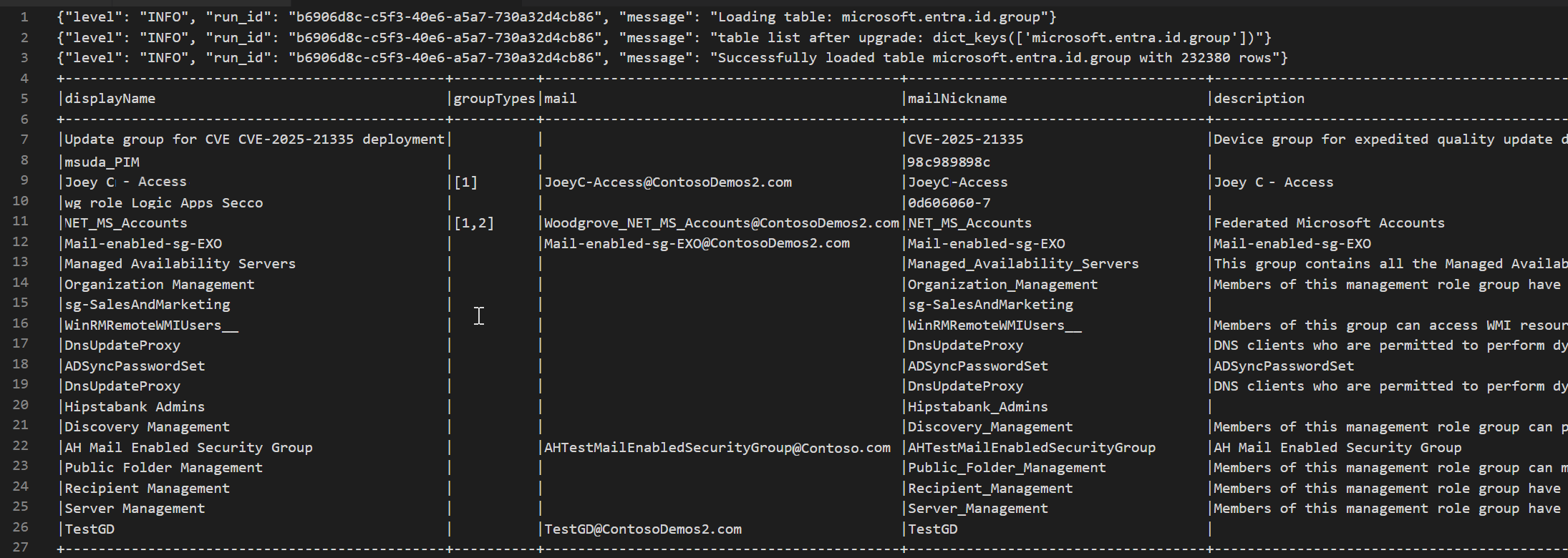
以下程式碼範例示範如何存取 Microsoft Sentinel 資料湖中的資料EntraGroups表。 它會顯示各種欄位,如 displayName、 groupTypes、 mailmailNicknamedescriptiontenantId和 。
from sentinel_lake.providers import MicrosoftSentinelProvider
data_provider = MicrosoftSentinelProvider(spark)

table_name = "EntraGroups"
df = data_provider.read_table(table_name)
df.select("displayName", "groupTypes", "mail", "mailNickname", "description", "tenantId").show(100, truncate=False)
以下截圖展示了上述程式碼輸出的範例,以資料框架格式顯示 Microsoft Entra ID 群組資訊。
存取特定使用者的 Microsoft Entra ID 登入日誌
以下程式碼範例示範如何存取 Microsoft Entra ID SigninLogs 表格並針對特定使用者篩選結果。 它會擷取多個欄位,如 UserDisplayName、UserPrincipalName、UserID 等。
from sentinel_lake.providers import MicrosoftSentinelProvider
data_provider = MicrosoftSentinelProvider(spark)

table_name = "SigninLogs"
workspace_name = "your-workspace-name"  # Replace with your actual workspace name
df = data_provider.read_table(table_name, workspace_name)
df.select("UserDisplayName", "UserPrincipalName", "UserId", "CorrelationId", "UserType",
 "ResourceTenantId", "RiskLevelDuringSignIn", "ResourceProvider", "IPAddress", "AppId", "AADTenantId")\
    .filter(df.UserPrincipalName == "bploni5@contoso.com")\
    .show(100, truncate=False)
檢查登入地點
以下程式碼範例示範如何從 Microsoft Entra ID SigninLogs 表格中擷取並顯示登入位置。 它使用 from_json 解析欄位的 LocationDetails JSON 結構函數,讓你能存取特定位置屬性,如城市、州、國家或地區。
from sentinel_lake.providers import MicrosoftSentinelProvider
from pyspark.sql.functions import from_json, col
from pyspark.sql.types import StructType, StructField, StringType

data_provider = MicrosoftSentinelProvider(spark)
workspace_name = "your-workspace-name"  # Replace with your actual workspace name
table_name = "SigninLogs"
df = data_provider.read_table(table_name, workspace_name)

location_schema = StructType([
  StructField("city", StringType(), True),
  StructField("state", StringType(), True),
  StructField("countryOrRegion", StringType(), True)
])

# Extract location details from JSON
df = df.withColumn("LocationDetails", from_json(col("LocationDetails"), location_schema))
df = df.select("UserPrincipalName", "CreatedDateTime", "IPAddress",
 "LocationDetails.city", "LocationDetails.state", "LocationDetails.countryOrRegion")

sign_in_locations_df = df.orderBy("CreatedDateTime", ascending=False)
sign_in_locations_df.show(100, truncate=False)
來自特殊國家的登入
以下程式碼範例示範如何辨識來自非使用者典型登入模式國家的登入。
from sentinel_lake.providers import MicrosoftSentinelProvider
from pyspark.sql.functions import from_json, col
from pyspark.sql.types import StructType, StructField, StringType

data_provider = MicrosoftSentinelProvider(spark)
table_name = "signinlogs"
workspace_name = "your-workspace-name"  # Replace with your actual workspace name
df = data_provider.read_table(table_name, workspace_name)

location_schema = StructType([
    StructField("city", StringType(), True),
    StructField("state", StringType(), True),
    StructField("countryOrRegion", StringType(), True)
])

# Extract location details from JSON
df = df.withColumn("LocationDetails", from_json(col("LocationDetails"), location_schema))
df = df.select(
    "UserPrincipalName",
    "CreatedDateTime",
    "IPAddress",
    "LocationDetails.city",
    "LocationDetails.state",
    "LocationDetails.countryOrRegion"
)

sign_in_locations_df = df.orderBy("CreatedDateTime", ascending=False)
sign_in_locations_df.show(100, truncate=False)
多次登入失敗的暴力破解攻擊
透過分析大量失敗帳號的登入日誌,識別潛在的暴力破解攻擊。
from sentinel_lake.providers import MicrosoftSentinelProvider
from pyspark.sql.functions import col, when, count, from_json, desc
from pyspark.sql.types import StructType, StructField, StringType

data_provider = MicrosoftSentinelProvider(spark)

def process_data(table_name, workspace_name):
    df = data_provider.read_table(table_name, workspace_name)
    status_schema = StructType([StructField("errorCode", StringType(), True)])
    df = df.withColumn("Status_json", from_json(col("Status"), status_schema)) \
           .withColumn("ResultType", col("Status_json.errorCode"))
    success_codes = ["0", "50125", "50140", "70043", "70044"]
    df = df.withColumn("FailureOrSuccess", when(col("ResultType").isin(success_codes), "Success").otherwise("Failure"))
    df = df.groupBy("UserPrincipalName", "UserDisplayName", "IPAddress") \
           .agg(count(when(col("FailureOrSuccess") == "Failure", True)).alias("FailureCount"),
                count(when(col("FailureOrSuccess") == "Success", True)).alias("SuccessCount"))
    # Lower the brute force threshold to >10 failures and remove the success requirement
    df = df.filter(col("FailureCount") > 10)
    df = df.orderBy(desc("FailureCount"))
    df = df.withColumn("AccountCustomEntity", col("UserPrincipalName")) \
           .withColumn("IPCustomEntity", col("IPAddress"))
    return df
workspace_name = "your-workspace-name"  # Replace with your actual workspace name
aad_signin = process_data("SigninLogs", workspace_name)
aad_non_int = process_data("AADNonInteractiveUserSignInLogs",workspace_name)
result_df = aad_signin.unionByName(aad_non_int)
result_df.show()
偵測側向移動嘗試
使用 DeviceNetworkEvents 來識別可能代表橫向移動的可疑內部 IP 連線,例如端點間異常的 SMB/RDP 流量。
from sentinel_lake.providers import MicrosoftSentinelProvider
from pyspark.sql.functions import col, count, countDistinct, desc

deviceNetworkEventTable = "DeviceNetworkEvents"
workspace_name = "<your-workspace-name>"  # Replace with your actual workspace name
data_provider = MicrosoftSentinelProvider(spark)
device_network_events = data_provider.read_table(deviceNetworkEventTable, workspace_name)

# Define internal IP address range (example: 10.x.x.x, 192.168.x.x, 172.16.x.x - 172.31.x.x)
internal_ip_regex = r"^(10\.\d{1,3}\.\d{1,3}\.\d{1,3}|192\.168\.\d{1,3}\.\d{1,3}|172\.(1[6-9]|2[0-9]|3[0-1])\.\d{1,3}\.\d{1,3})$"

# Filter for internal-to-internal connections
internal_connections = device_network_events.filter(
    col("RemoteIP").rlike(internal_ip_regex) &
    col("LocalIP").rlike(internal_ip_regex)
)

# Group by source and destination, count connections
suspicious_lateral = (
    internal_connections.groupBy("LocalIP", "RemoteIP", "InitiatingProcessAccountName")
    .agg(count("*").alias("ConnectionCount"))
    .filter(col("ConnectionCount") > 10)  # Threshold can be adjusted
    .orderBy(desc("ConnectionCount"))
)
suspicious_lateral.show()
揭露憑證傾倒工具
查詢 DeviceProcessEvents 以尋找像是 mimikatz.exe 或意外執行的 lsass.exe 存取,這可能代表憑證收集。
from sentinel_lake.providers import MicrosoftSentinelProvider
from pyspark.sql.functions import col, lower

workspace_id = "<your-workspace-name>"
device_process_table = "DeviceProcessEvents"

data_provider = MicrosoftSentinelProvider(spark)
process_events = data_provider.read_table(device_process_table, workspace_id)

# Look for known credential dumping tools and suspicious access to lsass.exe
suspicious_processes = process_events.filter(
    (lower(col("FileName")).rlike("mimikatz|procdump|lsassy|nanodump|sekurlsa|dumpert")) |
    (
        (lower(col("FileName")) == "lsass.exe") &
        (~lower(col("InitiatingProcessFileName")).isin(["services.exe", "wininit.exe", "taskmgr.exe"]))
    )
)

suspicious_processes.select(
    "Timestamp",
    "DeviceName",
    "AccountName",
    "FileName",
    "FolderPath",
    "InitiatingProcessFileName",
    "InitiatingProcessCommandLine"
).show(50, truncate=False)
USB 活動與敏感檔案存取的關聯
將 DeviceEvents 與 DeviceFileEvents 合併於筆記型電腦中,以揭露潛在的資料外洩模式。 新增視覺化,顯示哪些裝置、使用者或檔案參與了什麼時候。
from sentinel_lake.providers import MicrosoftSentinelProvider
from pyspark.sql.functions import col, lower, to_timestamp, expr
import matplotlib.pyplot as plt

data_provider = MicrosoftSentinelProvider(spark)
workspace_id = “<your-workspace-id>”

# Load DeviceEvents and DeviceFileEvents tables
device_events = data_provider.read_table("DeviceEvents", workspace_id)
device_file_events = data_provider.read_table("DeviceFileEvents", workspace_id)
device_info = data_provider.read_table("DeviceInfo", workspace_id)

# Filter for USB device activity (adjust 'ActionType' or 'AdditionalFields' as needed)
usb_events = device_events.filter(
    lower(col("ActionType")).rlike("usb|removable|storage")
)

# Filter for sensitive file access (e.g., files in Documents, Desktop, or with sensitive extensions)
sensitive_file_events = device_file_events.filter(
    lower(col("FolderPath")).rlike("documents|desktop|finance|confidential|secret|sensitive") |
    lower(col("FileName")).rlike(r"\.(docx|xlsx|pdf|csv|zip|7z|rar|pst|bak)$")
)

# Convert timestamps
usb_events = usb_events.withColumn("EventTime", to_timestamp(col("Timestamp")))
sensitive_file_events = sensitive_file_events.withColumn("FileEventTime", to_timestamp(col("Timestamp")))

# Join on DeviceId and time proximity (within 10 minutes) using expr for column operations
joined = usb_events.join(
    sensitive_file_events,
    (usb_events.DeviceId == sensitive_file_events.DeviceId) &
    (expr("abs(unix_timestamp(EventTime) - unix_timestamp(FileEventTime)) <= 600")),
    "inner"
) \
.join(device_info, usb_events.DeviceId == device_info.DeviceId, "inner")


# Select relevant columns
correlated = joined.select(
    device_info.DeviceName,
    usb_events.DeviceId,
    usb_events.AccountName,
    usb_events.EventTime.alias("USBEventTime"),
    sensitive_file_events.FileName,
    sensitive_file_events.FolderPath,
    sensitive_file_events.FileEventTime
)

correlated.show(50, truncate=False)

# Visualization: Number of sensitive file accesses per device
pd_df = correlated.toPandas()
if not pd_df.empty:
    plt.figure(figsize=(12, 6))
    pd_df.groupby('DeviceName').size().sort_values(ascending=False).head(10).plot(kind='bar')
    plt.title('Top Devices with Correlated USB and Sensitive File Access Events')
    plt.xlabel('DeviceName')
    plt.ylabel('Number of Events')
    plt.tight_layout()
    plt.show()
else:
    print("No correlated USB and sensitive file access events found in the selected period.")
信標行為偵測
透過將定期外撥連線集中在低位元組卷且長時間進行,偵測潛在的指令與控制。
# Setup
from pyspark.sql.functions import col, to_timestamp, window, count, avg, stddev, hour, date_trunc
from sentinel_lake.providers import MicrosoftSentinelProvider
import matplotlib.pyplot as plt
import pandas as pd

data_provider = MicrosoftSentinelProvider(spark)
device_net_events = "DeviceNetworkEvents"
workspace_id = "<your-workspace-id>"

network_df = data_provider.read_table(device_net_events, workspace_id)

# Add hour bucket to group by frequency
network_df = network_df.withColumn("HourBucket", date_trunc("hour", col("Timestamp")))

# Group by device and IP to count hourly traffic
hourly_traffic = network_df.groupBy("DeviceName", "RemoteIP", "HourBucket") \
    .agg(count("*").alias("ConnectionCount"))

# Count number of hours this IP talks to device
stats_df = hourly_traffic.groupBy("DeviceName", "RemoteIP") \
    .agg(
        count("*").alias("HoursSeen"),
        avg("ConnectionCount").alias("AvgConnPerHour"),
        stddev("ConnectionCount").alias("StdDevConnPerHour")
    )

# Filter beacon-like traffic: low stddev, repeated presence
beacon_candidates = stats_df.filter(
    (col("HoursSeen") > 10) &
    (col("AvgConnPerHour") < 5) &
    (col("StdDevConnPerHour") < 1.0)
)

beacon_candidates.show(truncate=False)

# Choose one Device + IP pair to plot
example = beacon_candidates.limit(1).collect()[0]
example_device = example["DeviceName"]
example_ip = example["RemoteIP"]

# Filter hourly traffic for that pair
example_df = hourly_traffic.filter(
    (col("DeviceName") == example_device) &
    (col("RemoteIP") == example_ip)
).orderBy("HourBucket")

# Convert to Pandas and plot
example_pd = example_df.toPandas()
example_pd["HourBucket"] = pd.to_datetime(example_pd["HourBucket"])

plt.figure(figsize=(12, 5))
plt.plot(example_pd["HourBucket"], example_pd["ConnectionCount"], marker="o", linestyle="-")
plt.title(f"Outbound Connections – {example_device} to {example_ip}")
plt.xlabel("Time (Hourly)")
plt.ylabel("Connection Count")
plt.grid(True)
plt.tight_layout()
plt.show()