Note
此功能目前仍處於預覽階段。 請參閱 Microsoft Azure 預覽版增補使用規定。
Microsoft Sentinel 自訂圖形解決方案是一種基於筆記本的解決方案,定義 Microsoft Sentinel 資料湖表中的節點與邊,建立圖形,並允許使用者使用 Graph Query Language(GQL)查詢該圖形。
使用本指南,在 Microsoft Partner Center 建立、測試、實現、打包並發布自訂圖形解決方案,作為 SaaS 方案,讓客戶能在 Microsoft 安全性 Store 中發現。
先決條件
您必須上線至資料湖,才能建立自訂圖形解決方案。 欲了解更多資訊,請參閱「如何接入 Microsoft Sentinel 資料湖」。
許可
下表列出本指南中每個操作或作用域所需的權限。
| Operation | 所需角色 |
|---|---|
| 上線至 Microsoft Sentinel 資料湖 | Microsoft Entra ID - 安全性系統管理員或全域管理員 |
| 將 Sentinel 工作區上線至 Defender 入口網站 | 訂用帳戶範圍的訂用帳戶擁有者或使用者存取系統管理員,以及訂用帳戶或資源群組範圍的 Microsoft Sentinel 參與者 |
| 將 Sentinel 工作區上線至資料湖 | 訂用帳戶或資源群組範圍的訂用帳戶擁有者或 Microsoft Sentinel 參與者 |
| 建模並建立筆記本圖表 | 自訂 Microsoft Defender 全面偵測回應統一 RBAC 角色,且對 Microsoft Sentinel 資料集合具有 data (manage) 權限 |
| 將圖持久化(實體化) | 安全操作員、安全管理員或全域管理員 |
| 查詢持久化的圖 | 自訂 Microsoft Defender 全面偵測回應統一 RBAC 角色,且對 Microsoft Sentinel 資料集合具有 security data basics (read) 權限 |
| 發佈自訂 Graph 解決方案 | Microsoft Partner Center 上的 Marketplace Publisher 帳號 |
Tools
建立並發布自訂圖形解決方案所需的以下工具:
- Visual Studio Code。
- 適用於 Visual Studio Code 的 Microsoft Sentinel 擴充功能. 更多資訊請參閱安裝 Visual Studio Code 及 Microsoft Sentinel 擴充功能。
- Visual Studio Code 的 Jupyter 擴充功能。
- GitHub Copilot 擴充功能以及 GitHub Copilot 商業或企業方案。
- 在你的本地機器上使用 Python 3.10 或更新版本。
Tip
如果您的租用戶已針對 KQL 查詢、Notebook 或 Security Copilot Agent 上線,請重複使用現有的資料湖。 每個租戶各有一個資料湖。 在 Defender 入口網站中,移至 [系統>設定>Microsoft Sentinel>資料湖]。 若狀態為 Provisioned,請跳過任務 1。
建置工作流程
以下工作流程說明建立並發布自訂圖形解決方案的步驟。
- 將樣本資料匯入你的圖所建模的表格。
- 用簡單的筆記本驗證連線。
- 建立自訂圖表。
- 測試圖形 Notebook。
- 排定圖形作業,以將圖形實體化。
- 在 Graph Explorer 中查詢並將圖形視覺化。
- 打包並發佈自訂圖解。
內嵌範例資料
此任務會匯入本指南範例圖所用的 Microsoft Entra ID 資產表:EntraUsers、EntraGroups、 EntraServicePrincipalsEntraMembers、 。
- 在 Defender 入口網站中,前往 系統>設定>Microsoft Sentinel>資料連接器。
- 啟用 Microsoft Entra ID 連接器,讓 Entra 資產資料表被匯入資料湖。 欲了解更多資訊,請參閱 Microsoft Sentinel 資料湖中的資產資料。
- 確認下列表格會顯示在資料湖總管中:
EntraUsersEntraGroupsEntraServicePrincipalsEntraMembers
- 這些資料表會落在 系統資料表的工作 區。
- 可選:如果您的案例使用不同的資料,請匯入其他連接器,並在後續步驟中替換資料表名稱。
Note
如果資料表沒有顯示在資料湖瀏覽器中,就無法用它來建立圖表,AI 協助也不會參照該資料表。
用簡單的筆記本驗證連線
建立並執行一個簡易筆記本,以驗證資料湖的連結性,再進行圖製作。
打開 Visual Studio Code,並用同一個帳號登入 Microsoft Sentinel 擴充功能,該帳號同時擁有資料湖的存取權。
在 Visual Studio Code 中,在 Sentinel 擴充功能–圖譜下選擇「建立新筆記本」。
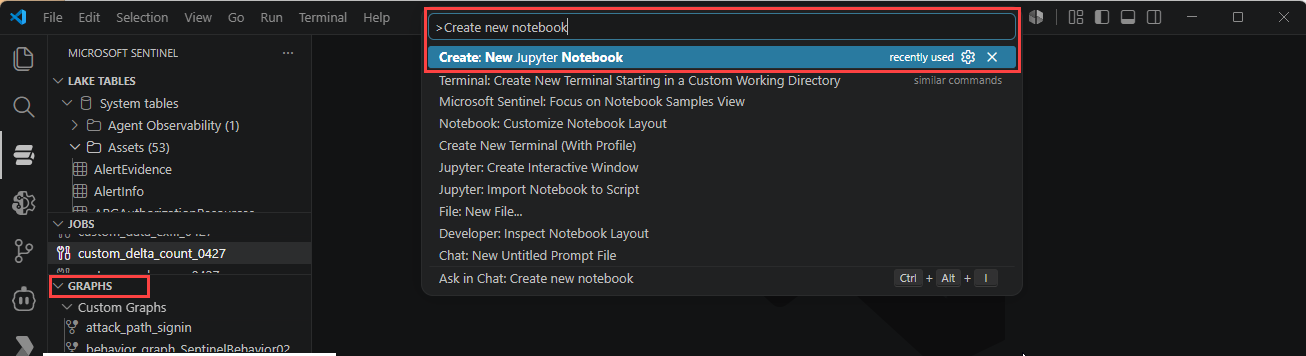
儲存筆記本,例如
hello-world-show-tables.ipynb。選擇「選擇核心」,選擇 Microsoft Sentinel,並選擇可用的火花池。
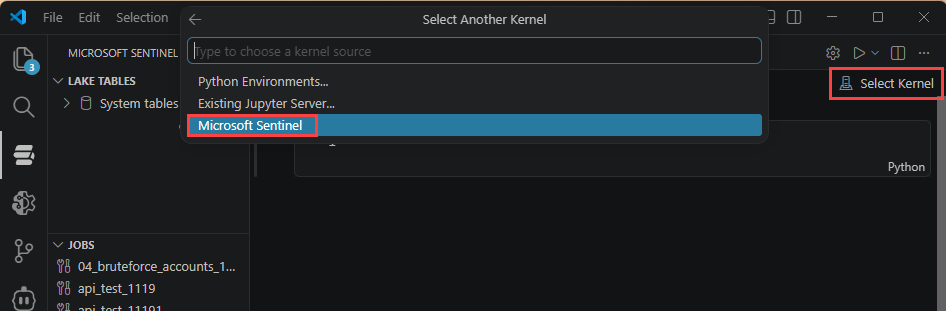
依序加入下列儲存格。
儲存格 1 - Markdown:
# Hello World: Show Tables
A minimal connectivity test for the Microsoft Sentinel data lake.
If every cell below runs without error, your environment is ready
to author custom graphs.
Steps:
1. Connect to the data lake with the Microsoft Sentinel provider
2. Point at your workspace
3. Read a table and show a few rows
儲存格 2 - 程式碼(連接並設定您的工作區):
from sentinel_lake.providers import MicrosoftSentinelProvider
# The provider gives the notebook access to data lake tables.
lake_provider = MicrosoftSentinelProvider(spark=spark)
# >>> ADD YOUR WORKSPACE HERE <<<
# Replace with the Log Analytics workspace that holds your tables.
# Entra asset tables (EntraUsers, EntraGroups, ...) live in "System tables".
LOG_ANALYTICS_WORKSPACE = "System tables"
print(f"Using workspace: {LOG_ANALYTICS_WORKSPACE}")
儲存格 3 - Markdown:
## Read a table and show rows
Reading a known table is the fastest way to confirm the extension
can reach the lake with your permissions. Swap EntraGroups for any
table that exists in your workspace.
格子 4 - 代碼(閱讀表格並顯示列):
# Read a table from the data lake into a Spark DataFrame.
df_groups = lake_provider.read_table("EntraGroups", LOG_ANALYTICS_WORKSPACE)
# Show a sample. .df exposes the underlying Spark DataFrame.
df_groups.df.select("id", "displayName", "mailEnabled").show(20, truncate=False)
儲存格 5 - 程式碼 (選用的基本檢查計數):
# Confirm the read returned data and inspect the schema.
print("Row count:", df_groups.df.count())
df_groups.df.printSchema()
- 從上到下檢查所有細胞。
- 確認每個儲存格都能執行完成且未顯示紅色追蹤回溯、會顯示資料表預覽資料,而且資料列計數不為零。
Note
如果讀取失敗或未傳回任何資料列,請確認 [擷取範例資料] 一節中的連接器已完成第一次快照、LOG_ANALYTICS_WORKSPACE 與實際工作區相符,而且您的帳戶具有讀取權限。 請在 Defender 入口網站中用 KQL 檢查表格內容以確認資料是否存在。 欲了解更多資訊,請參閱 Microsoft Sentinel 資料湖上的 KQL 查詢。
撰寫自訂圖表
使用下列其中一種方式編寫:
- AI 輔助圖繪製。
- 手動編寫。
AI 輔助的圖表建立
要在 AI 協助下繪製圖表,請遵循以下步驟:
在 Visual Studio Code 中,開啟 GitHub Copilot Chat。
從圖表製作輔助
@sentinel /graph-authoring工具開始你的提示,並用淺顯易懂的語言描述你的圖表:@sentinel /graph-authoring Create a graph that maps Entra groups to their member users, groups, and service principals using EntraGroups, EntraUsers, EntraServicePrincipals, and EntraMembers from the "System tables" workspace.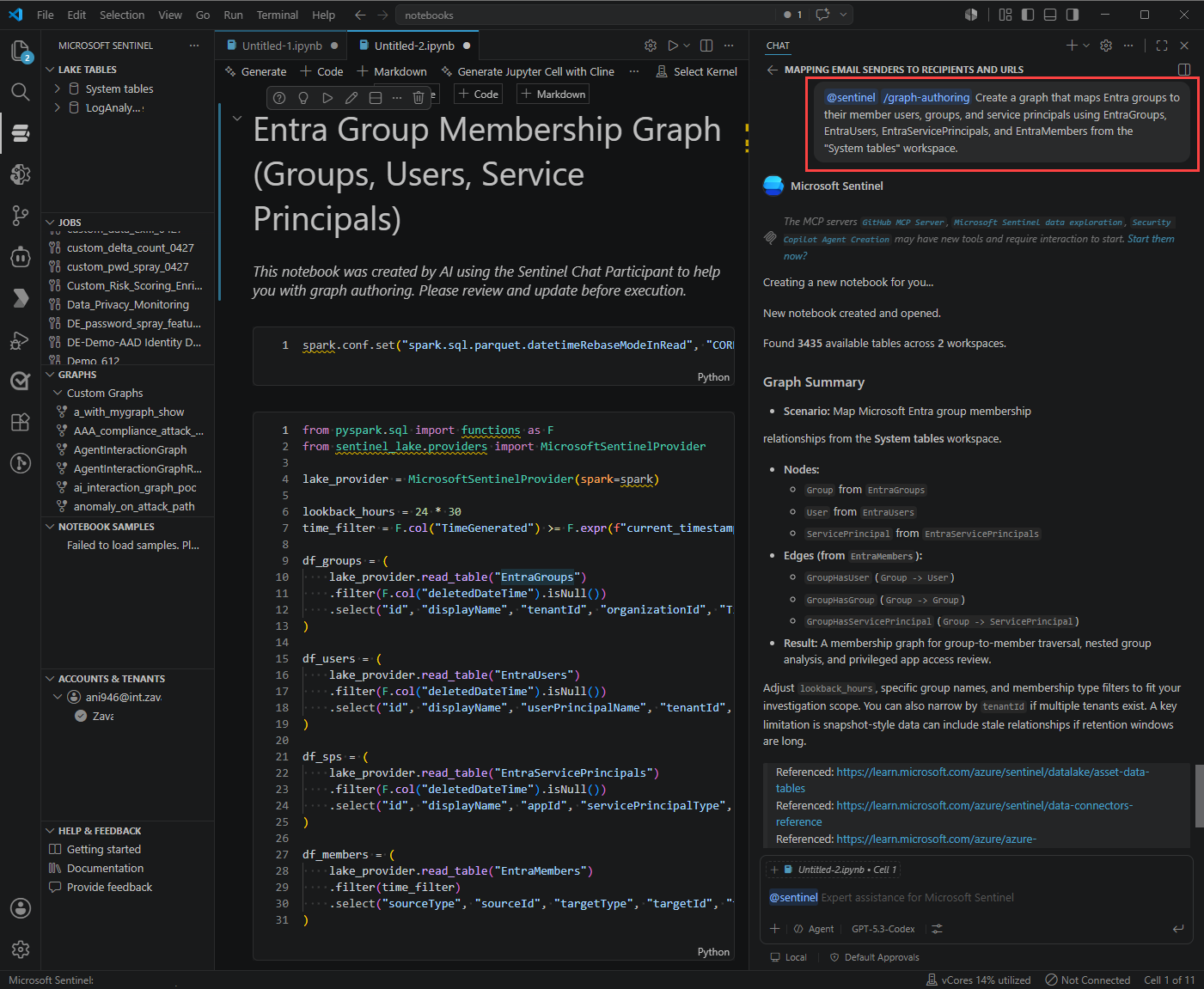
Copilot 會為圖表撰寫生命週期產生下列儲存格:
生命週期階段 產生的產出 環境設定 驗證所需套件及連線資訊 數據載入 從 Sentinel 資料湖讀取指定名稱的資料表 資料轉換 準備節點與邊緣資料 圖形結構描述 定義節點與邊 模式驗證 驗證圖的定義 圖形建構 具體化工作階段的圖形 圖查詢 執行範例 GQL 查詢並視覺化結果 繼續用這些提示來完善筆記本:
Goal Prompt 新增關係 @sentinel Add an edge from User to IPAddress篩選資料 @sentinel Filter the data to show only failed sign-ins改變時間範圍 @sentinel Change the time range to the last 7 days修正建置錯誤 @sentinel Fix the error in the graph build step理解程式碼 @sentinel Explain how edge keys are defined無需編輯即可查詢 API What parameters does build_graph_with_data() accept? #Sentinel
Tip
使用 @sentinel /graph-authoring 來建立或修改筆記本儲存格。 如果你需要 API 說明或範例查詢,請向 Copilot 詢問,並附上#Sentinel針對 Sentinel 的專屬答案。
手動編寫
若要手動撰寫圖表,請遵循以下步驟:
連接並閱讀資產表。
from pyspark.sql import functions as F
from sentinel_lake.providers import MicrosoftSentinelProvider
lake_provider = MicrosoftSentinelProvider(spark=spark)
# Entra asset tables live in the "System tables" workspace.
# If your data is elsewhere, update this and ensure the tables exist.
LOG_ANALYTICS_WORKSPACE = "System tables"
# Use the latest snapshot of EntraUsers as the point-in-time for all tables.
snapshot_time = (
    lake_provider.read_table("EntraUsers", LOG_ANALYTICS_WORKSPACE)
    .df.agg(F.max("_SnapshotTime").alias("max_snapshot"))
    .collect()[0]["max_snapshot"]
    .strftime("%Y-%m-%dT%H:%M:%SZ")
)
print(f"Using snapshot_time: {snapshot_time}")
snapshot_filter = (F.col("_SnapshotTime") == F.lit(snapshot_time).cast("timestamp"))
# Edges: group contains user / group / servicePrincipal
df_members = (
    lake_provider.read_table("EntraMembers", LOG_ANALYTICS_WORKSPACE)
    .filter(
        snapshot_filter
        & (F.col("sourceType") == "group")
        & (F.col("targetType").isin("user", "group", "servicePrincipal"))
    )
)
# Nodes
df_groups = (
    lake_provider.read_table("EntraGroups", LOG_ANALYTICS_WORKSPACE)
    .filter(snapshot_filter)
    .select("id", "displayName", "mailEnabled")
)
df_users = (
    lake_provider.read_table("EntraUsers", LOG_ANALYTICS_WORKSPACE)
    .filter(snapshot_filter)
    .select("id", "accountEnabled", "displayName", "department",
            "userPrincipalName", "usageLocation")
)
準備節點與邊緣資料框架。
# NODES
user_nodes = df_users.df.select(
    "id", "displayName", "accountEnabled", "department",
    "userPrincipalName", "usageLocation")
group_nodes = df_groups.df.select("id", "displayName", "mailEnabled")
# EDGES
edge_group_contains_user = (
    df_members.df.filter(F.col("targetType") == "user")
    .select(F.col("sourceId").alias("SourceGroupId"),
            F.col("targetId").alias("TargetUserId"))
    .distinct()
    .withColumn("EdgeKey", F.concat_ws("_", F.col("SourceGroupId"), F.col("TargetUserId")))
)
edge_group_contains_group = (
    df_members.df.filter(F.col("targetType") == "group")
    .select(F.col("sourceId").alias("SourceGroupId"),
            F.col("targetId").alias("TargetGroupId"))
    .distinct()
    .withColumn("EdgeKey", F.concat_ws("_", F.col("SourceGroupId"), F.col("TargetGroupId")))
)
定義圖結構並綁定資料框架。
from sentinel_graph import GraphSpecBuilder, Graph
entra_group_graph_spec = (
    GraphSpecBuilder.start()
    # === NODES ===
    .add_node("EntraUser").from_dataframe(user_nodes)
    .with_columns("id", "displayName", "accountEnabled", "department",
                  "userPrincipalName", "usageLocation",
                  key="id", display="displayName")
    .add_node("EntraGroup").from_dataframe(group_nodes)
    .with_columns("id", "displayName", "mailEnabled",
                  key="id", display="displayName")
    # === EDGES ===
    .add_edge("ContainsUser").from_dataframe(edge_group_contains_user)
    .source(id_column="SourceGroupId", node_type="EntraGroup")
    .target(id_column="TargetUserId", node_type="EntraUser")
    .with_columns("SourceGroupId", "TargetUserId", "EdgeKey",
                  key="EdgeKey", display="EdgeKey")
    .add_edge("ContainsGroup").from_dataframe(edge_group_contains_group)
    .source(id_column="SourceGroupId", node_type="EntraGroup")
    .target(id_column="TargetGroupId", node_type="EntraGroup")
    .with_columns("SourceGroupId", "TargetGroupId", "EdgeKey",
                  key="EdgeKey", display="EdgeKey")
).done()
# Validate the schema before building.
entra_group_graph_spec.show_schema()
建立圖表。
# Build = prepare data + publish for the session.
entra_group_graph = Graph.build(entra_group_graph_spec)
print(entra_group_graph.build_status.status)   # "published" or "prepared"
Note
Graph.build()一次通話即可準備資料並發布。 若要在發佈前檢查已準備好的節點與邊,呼叫Graph.prepare(spec)、 reviewgraph.nodes及graph.edges,然後呼叫graph.publish()。執行一個 GQL 查詢。
# Find nested group relationships up to 8 levels deep.
# Update the Entra Group name that you want to traverse from

query_nested_groups = """
MATCH p=(g1:EntraGroup)-[cg]->{1,8}(g2)
WHERE g1.displayName = 'tmplevel3'
RETURN *
"""
entra_group_graph.query(query_nested_groups).show()
測試圖形 Notebook
測試筆記本以確保產生預期的圖形輸出:
重新啟動核心,從上到下執行所有儲存格。
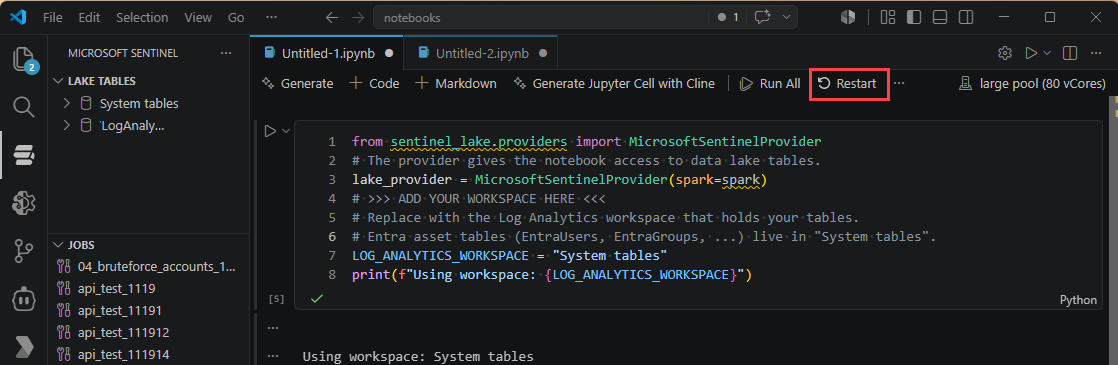
確認每個細胞都成功完成。
如果轉換儲存格在小型集區上執行超過 5 分鐘,請先縮小快照篩選條件和資料行投影的範圍,再擴大規模。
確認
show_schema()回傳預期的節點和邊。執行範例 GQL 查詢,並驗證視覺化與表格輸出。
驗證邊緣案例:
- 空白輸入。
- 結構描述漂移。
- 缺少資料表存取權限。
Tip
在每個程式碼區塊上方加上標記格,記錄目的、輸入、輸出,以及產生的節點或邊。
排程圖形作業以具體化圖形
互動式會話中建立的圖表是短暫的。 排定圖形工作,以保存並重新整理圖形。 欲了解更多資訊,請參閱排程與管理 Microsoft Sentinel 圖形工作。
在你的圖形筆記本中,選擇 建立排程作業>建立圖形作業。
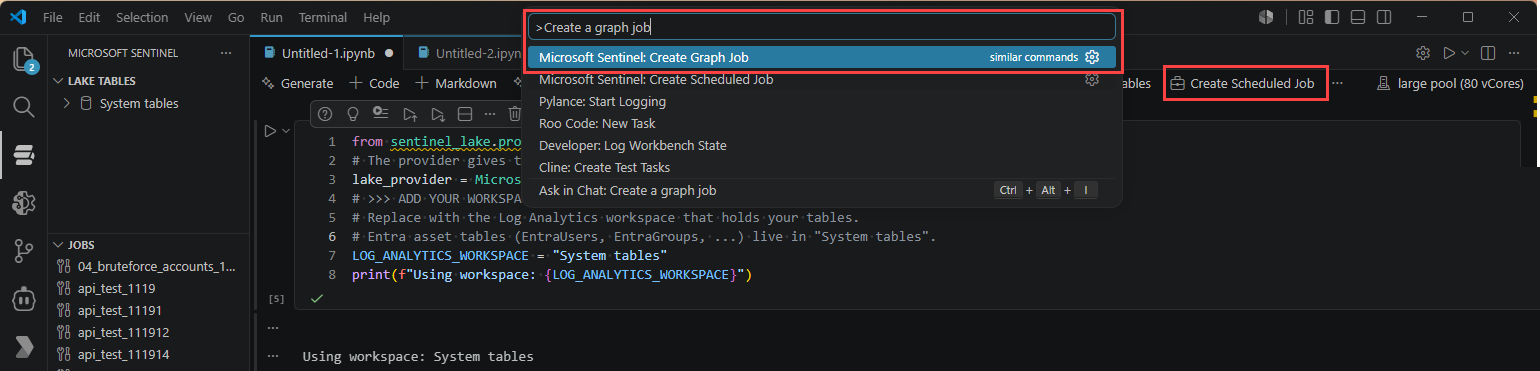
輸入圖表 名稱 和 描述,並驗證筆記本路徑。
選擇時間表:
- 隨需:建造一次,預設保留期為 30 天。
- 排程:選擇重複節奏及開始/結束時間。
選取 提交。
在 Sentinel 擴充套件中開啟圖表並監控 職缺詳情。
使用立即執行即可視需要在排程之外執行。
確認狀態從
Queued進展到In Progress,再到Ready。
Important
已提交的作業會與你的本機筆記本分離。 編輯本機的 .ipynb 不會更新排程工作。 要更新工作筆記本,請從圖表面板下載,編輯後再使用 編輯工作>提交。
從圖譜瀏覽器查詢並視覺化
在圖形工作狀態為 Ready後,查詢並在 Defender 入口網站、筆記本和 REST API 中進行視覺化。
- 在 Microsoft Defender 入口網站的 Microsoft Sentinel 下,開啟圖表體驗,然後選取您的具體化圖表。
- 執行 GQL 查詢、檢查結構、切換視覺與表格輸出,並遍歷下一跳。
- 使用這份 GQL 快速參考指南:
| 模式或條款 | 範例 |
|---|---|
| 帶有標籤的節點 | (g:EntraGroup) |
| 具型別的有向邊緣 | -[c:ContainsUser]-> |
| 可變長度路徑(1 到 8 跳) | (a)-[e]->{1,8}(b) |
| Filter | WHERE g.displayName = 'Finance Admins' |
| 投影、排序、限制 | RETURN g.displayName ORDER BY g.displayName LIMIT 10 |
| 標籤運算式 | (:EntraUser \| EntraServicePrincipal) |
Note
每個 GQL 查詢都以 MATCH開頭。 引擎運作時間為UTC。 請對日期時間字面值使用 ZONED_DATETIME(...)。 不支援INSERT 和 CREATE 。 圖表是唯讀的。
從筆記本查詢。
from sentinel_graph import Graph
# Attach to an already-materialized graph by name.
graph = Graph.get("entra_group_membership")
graph.query("MATCH (g:EntraGroup)-[c:ContainsUser]->(u:EntraUser) RETURN g, c, u").show()
# Purpose-built security algorithms are available too:
graph.blast_radius(source_property_value="Finance Admins", min_hop_count=1).show()
透過使用 Graph REST API 查詢。
GET https://api.securityplatform.microsoft.com/graphs/graph-instances?graphTypes=Custom
Authorization: Bearer <access_token>
POST https://api.securityplatform.microsoft.com/graphs/graph-instances/{graphName}/query Authorization: Bearer <access_token> Content-Type: application/json { "query": "MATCH (g:EntraGroup)-[c:ContainsUser]->(u) RETURN g, c, u LIMIT 100", "responseFormats": ["Table", "Graph"], "queryLanguage": "GQL" }
responseFormats 控制輸出形狀。
"Table" 回傳列、 "Graph" 回傳節點與邊,並 ["Table", "Graph"] 返回兩者。
欲了解更多資訊,請參閱 Graph REST API 以取得自訂圖形。
封裝並發佈您的圖表解決方案
當你的圖形完成測試並具體化後,將其打包以部署給客戶。 如需詳細的打包說明,請參閱「打包並發佈 Microsoft Sentinel 圖形與筆記本解決方案」。
故障排除
請依照以下表格依症狀診斷常見問題。
圖表編寫
| 症狀 | 可能的原因與解決方法 |
|---|---|
MicrosoftSentinelProvider 或 sentinel_graph 未被發現 |
請再次登入擴充功能並確認已選擇 Microsoft Sentinel 核心。 |
| 儲存格停滯於「正在啟動 Spark 工作階段」 | 第一次啟動大約需要3到5分鐘。 如果超過6分鐘,檢查泳池容量並重試。 |
show_schema() 為空或 Graph.build() 失敗 |
確認鍵與顯示欄位存在且非空,且來源值與目標 node_type 值符合節點別名。 |
| GQL 查詢未回傳任何列 | 確認所選快照中存在過濾器值並驗證快照過濾。 |
publish() 因權限遭拒而失敗 |
請確認您擁有安全操作員、安全管理員或全域管理員角色。 |
AI 輔助撰寫
| 症狀 | 可能的原因與解決方法 |
|---|---|
@sentinel /graph-authoring 什麼都不做 |
確認 GitHub Copilot 和 Jupyter 擴充功能已安裝且啟用,且你擁有 Copilot 商業或企業方案。 |
| 產生的程式碼會參考缺失的資料表 | 確認連接器設定,並驗證資料表會顯示在資料湖總管中。 |
工作排程
| 症狀 | 可能的原因與解決方法 |
|---|---|
| 本地筆記本中的編輯不會反映到作業中 | 從 Graphs 面板下載工作筆記本,編輯後再用 「編輯工作>提交」。 |
| 實體化的圖形消失了 | 隨選圖表保留期為 30 天。 排程定期作業或執行新的組建。 |