適用於:✔️ Windows VM ✔️ Linux VM ✔️ 內部部署環境 ✔️ Azure VMs ✔️ 已啟用 Azure Arc 的伺服器。
你可以利用維護前和維護後事件,在排程安裝補丁前後執行使用者自訂的動作。 最常見的情境之一是啟動與停止虛擬機(VM)。 透過預維護事件,你可以執行腳本啟動虛擬機,再啟動排程的修補程序。 排程修補完成並重新啟動伺服器後,你可以執行腳本安全地關閉虛擬機。
本教學說明如何利用 webhook 建立預維護與維護後事件,以啟動與停止排程補丁工作流程中的虛擬機。
在本教學課程中,您會:
- 建立並發布 Azure Automation 執行手冊。
- 新增 webhook。
- 建立活動訂閱。
先決條件
請確保你使用的是 PowerShell 7.4 的作業手冊。
將權限指派給適當的受控識別。 Runbook 可以使用自動化帳戶的系統指派受控識別或使用者指派的受控識別。
以下腳本範例(啟動與停止虛擬機)需要虛擬機貢獻者角色或具備以下特定權限的自訂角色:
- Microsoft.Compute/virtualMachines/start/action
- Microsoft.Compute/virtualMachines/deallocate/action
- Microsoft.Compute/virtualMachines/restart/action
- Microsoft.Compute/virtualMachines/powerOff/action
你可以使用 Azure 入口網站或 Azure PowerShell cmdlets 來為每個身份分配權限:
要指派權限,請依照 使用 Azure 入口網站的「指派 Azure 角色」步驟操作。
- 匯入模組
Az.ResourceGraph。 確保模組已更新為 ThreadJob,模組版本為 2.0.3。
建立並發佈自動化運行手冊
登入 Azure 入口網站 ,並前往你的 Azure 自動化 帳號。
如果你在 Azure 自動化更新管理中使用過 runbook 來處理 維護前和維護後的任務 ,務必遵循以下步驟,以避免對你的機器造成意外影響及維護失敗:
針對您的 Runbook,剖析 webhook 承載以確保只在
Microsoft.Maintenance.PreMaintenanceEvent或Microsoft.Maintenance.PostMaintenanceEvent活動觸發。 如果有任何其他事件以相同的端點新增,則設計上會在其他訂用帳戶事件上觸發 Webhook。請參閱 Azure 事件方格結構描述。
請參閱 針對維護配置的事件網格架構。
請參考以下代碼:
param
(
  [Parameter(Mandatory=$false)]
  [object] $WebhookData

)
$notificationPayload = ConvertFrom-Json -InputObject $WebhookData.RequestBody
$eventType = $notificationPayload[0].eventType

if ($eventType -ne "Microsoft.Maintenance.PreMaintenanceEvent" -and $eventType –ne "Microsoft.Maintenance.PostMaintenanceEvent" ) {
Write-Output "Webhook not triggered as part of pre or post patching for maintenance run"
return
}
SoftwareUpdateConfigurationRunContext 參數包含更新部署中機器清單的資訊。 當你使用 Automation webhook 進行維護前或維護後事件時,這些資料不會被傳遞給腳本。 您可以從 Azure Resource Graph 查詢機器清單,或讓機器清單在指令碼中進行編碼。
請確定已將適當的角色和權限授與您在指令碼中所使用的受控識別、執行 Resource Graph 查詢,以及啟動或停止電腦。
請參閱與 資源圖查詢相關的權限。
請參見 虛擬機貢獻者角色。
請參考 webhook 的有效載荷。
請參考以下代碼:
param
(
    [Parameter(Mandatory=$false)]
    [object] $WebhookData
)

Connect-AzAccount -Identity

# Install the Resource Graph module from PowerShell Gallery
# Install-Module -Name Az.ResourceGraph

$notificationPayload = ConvertFrom-Json -InputObject $WebhookData.RequestBody
$maintenanceRunId = $notificationPayload[0].data.CorrelationId
$resourceSubscriptionIds = $notificationPayload[0].data.ResourceSubscriptionIds

if ($resourceSubscriptionIds.Count -gt 0) {

    Write-Output "Querying ARG to get machine details[MaintenanceRunId=$maintenanceRunId][ResourceSubscriptionIdsCount=$($resourceSubscriptionIds.Count)]"
    $argQuery = @"maintenanceresources
    | where type =~ 'microsoft.maintenance/applyupdates'
    | where properties.correlationId =~ '$($maintenanceRunId)'
    | where id has '/providers/microsoft.compute/virtualmachines/'
    | project id, resourceId = tostring(properties.resourceId)
    | order by id asc
"@

Write-Output "Arg Query Used: $argQuery"
$allMachines = [System.Collections.ArrayList]@()
$skipToken = $null
$res = Search-AzGraph -Query $argQuery -First 1000 -SkipToken $skipToken -Subscription $resourceSubscriptionIds
$skipToken = $res.SkipToken
$allMachines.AddRange($res.Data)
} while ($skipToken -ne $null -and $skipToken.Length -ne 0)

if ($allMachines.Count -eq 0) {
Write-Output "No Machines were found."
break
}
}
自訂時,你可以使用已有的腳本加上前述修改,或使用以下腳本。
範例指令碼
param
(
    [Parameter(Mandatory=$false)]
    [object] $WebhookData
)
Connect-AzAccount -Identity

# Install the Resource Graph module from PowerShell Gallery
# Install-Module -Name Az.ResourceGraph

$notificationPayload = ConvertFrom-Json -InputObject $WebhookData.RequestBody
$eventType = $notificationPayload[0].eventType

if ($eventType -ne "Microsoft.Maintenance.PreMaintenanceEvent") {
    Write-Output "Webhook not triggered as part of pre-patching for maintenance run"
    return
}

$maintenanceRunId = $notificationPayload[0].data.CorrelationId
$resourceSubscriptionIds = $notificationPayload[0].data.ResourceSubscriptionIds

if ($resourceSubscriptionIds.Count -eq 0) {
    Write-Output "Resource subscriptions are not present."
    break
}

Write-Output "Querying ARG to get machine details [MaintenanceRunId=$maintenanceRunId][ResourceSubscriptionIdsCount=$($resourceSubscriptionIds.Count)]"

$argQuery = @"
    maintenanceresources
    | where type =~ 'microsoft.maintenance/applyupdates'
    | where properties.correlationId =~ '$($maintenanceRunId)'
    | where id has '/providers/microsoft.compute/virtualmachines/'
    | project id, resourceId = tostring(properties.resourceId)
    | order by id asc
"@

Write-Output "Arg Query Used: $argQuery"


$allMachines = [System.Collections.ArrayList]@()
$skipToken = $null

do
{
    $res = Search-AzGraph -Query $argQuery -First 1000 -SkipToken $skipToken -Subscription $resourceSubscriptionIds
    $skipToken = $res.SkipToken
    $allMachines.AddRange($res.Data)
} while ($skipToken -ne $null -and $skipToken.Length -ne 0)

if ($allMachines.Count -eq 0) {
    Write-Output "No Machines were found."
    break
}

$jobIDs= New-Object System.Collections.Generic.List[System.Object]
$startableStates = "stopped" , "stopping", "deallocated", "deallocating"
$allMachines | ForEach-Object {
    $vmId =  $_.resourceId
    $split = $vmId -split "/";
    $subscriptionId = $split[2];
    $rg = $split[4];
    $name = $split[8];

    Write-Output ("Subscription Id: " + $subscriptionId)
    $mute = Set-AzContext -Subscription $subscriptionId
    $vm = Get-AzVM -ResourceGroupName $rg -Name $name -Status -DefaultProfile $mute
    $state = ($vm.Statuses[1].DisplayStatus -split " ")[1]
    if($state -in $startableStates) {
        Write-Output "Starting '$($name)' ..."
        $newJob = Start-ThreadJob -ScriptBlock { param($resource, $vmname, $sub) $context = Set-AzContext -Subscription $sub; Start-AzVM -ResourceGroupName $resource -Name $vmname -DefaultProfile $context} -ArgumentList $rg, $name, $subscriptionId
        $jobIDs.Add($newJob.Id)
    } else {
        Write-Output ($name + ": no action taken. State: " + $state)
    }
}

$jobsList = $jobIDs.ToArray()
if ($jobsList)
{
    Write-Output "Waiting for machines to finish starting..."
    Wait-Job -Id $jobsList
}
foreach($id in $jobsList)
{
    $job = Get-Job -Id $id
    if ($job.Error)
    {
        Write-Output $job.Error
    }
}
新增 Webhook
將 webhooks 新增至先前已發佈的 runbooks 並複製 webhooks 的網址。
附註
建立 webhook 後,務必複製網址。 你無法再次取得該網址。
建立事件訂閱
在 管理中,選擇 機器>維護設定。
在 維護設定 面板中,選擇設定。
在 [設定] 之下,選取 [事件]。
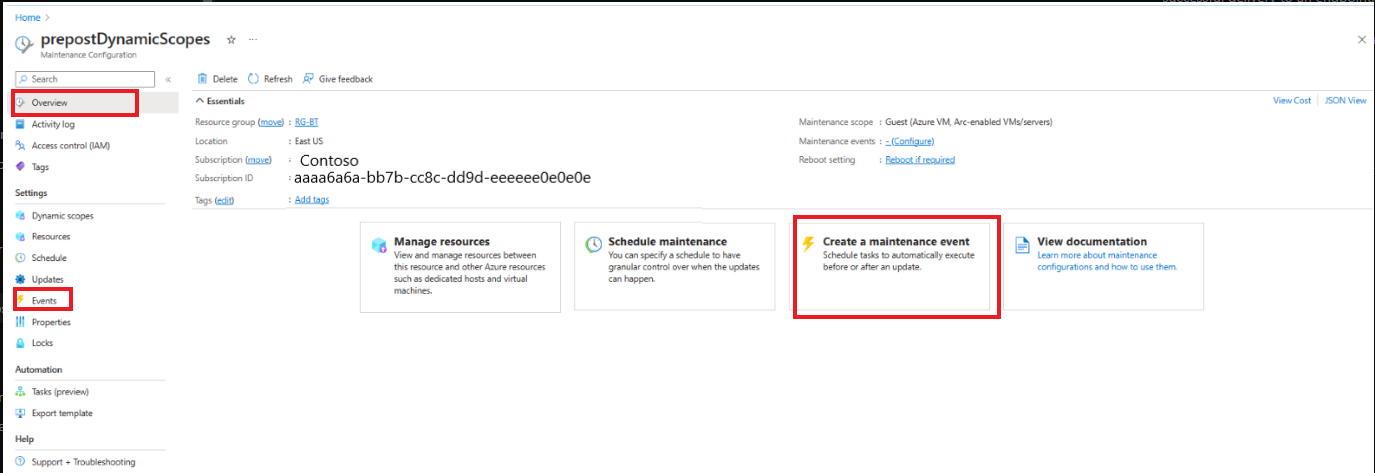
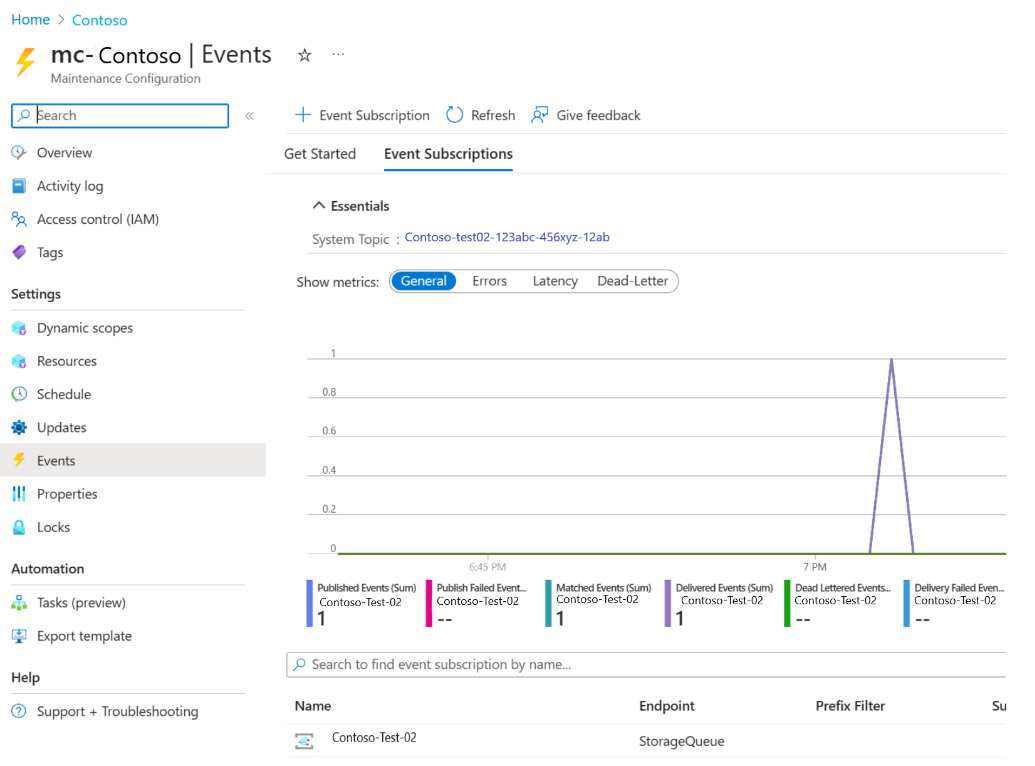
選擇 +Event 訂閱 以建立維護前或維護後事件。
在 「建立活動訂閱 」面板,活動 訂閱詳情 區塊中,輸入適當的名稱。 將結構描述保留為 [事件方格結構描述]。
在 事件類型 區塊中,篩選 到事件類型時,選擇 維護前事件 或 維護後事件。
在 端點詳情 區塊,選擇 Web Hook 端點,然後選擇 「配置端點」。
提供適當的詳細資料 (例如維護前或維護後活動的 Webhook URL) 以觸發該活動。
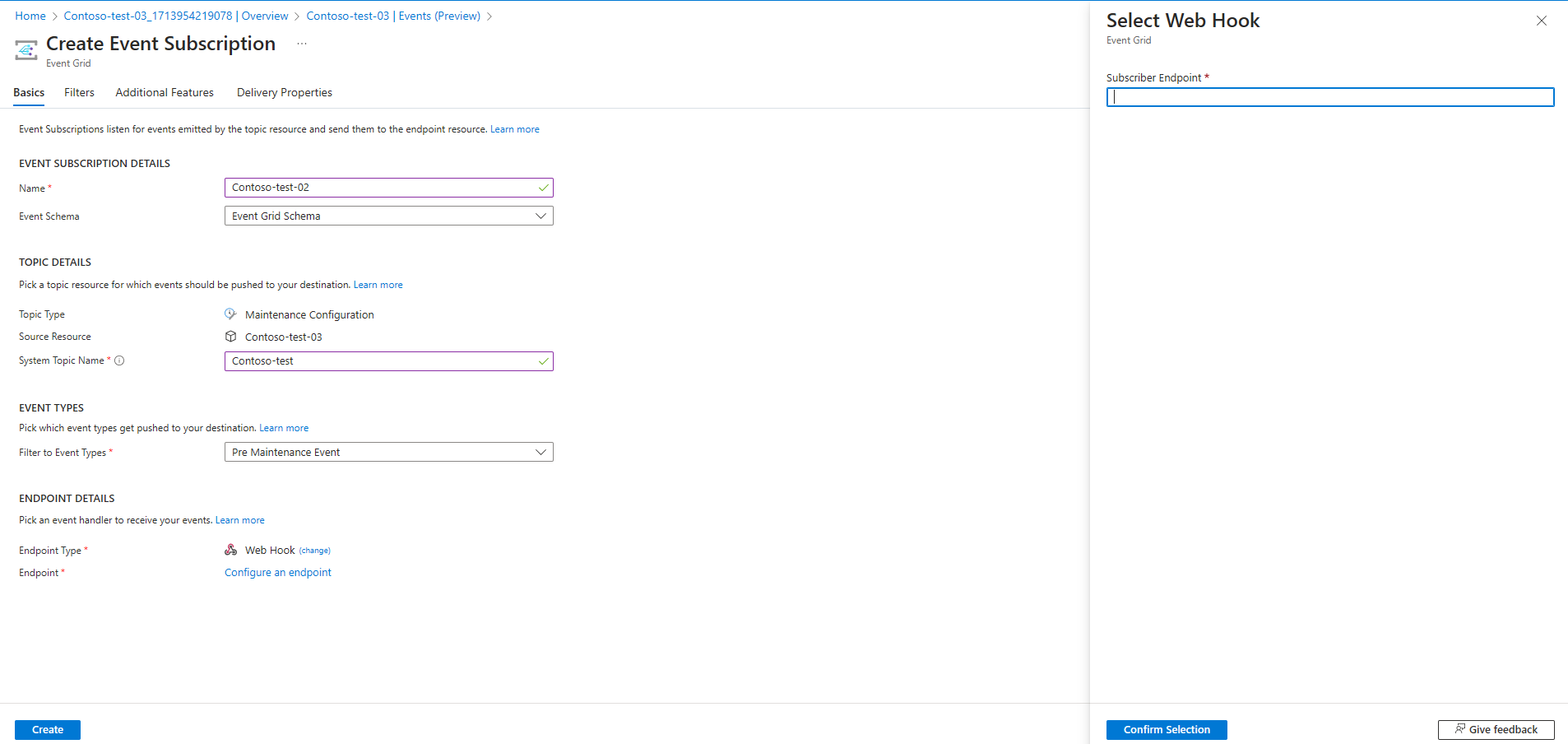
選取 [建立]。
