具名自變數和選擇性自變數可增強 C# 程式設計中的便利性、彈性和可讀性。 此外,這些功能可大幅協助存取 COM 介面,例如Microsoft Office 自動化 API。
這很重要
VSTO (Visual Studio Tools for Office) 依賴 .NET Framework。 COM 增益集也可以使用 .NET Framework 撰寫。 無法使用 .NET Core 和 .NET 5+(最新版本的 .NET)來建立 Office 附加元件。 這是因為 .NET Core/.NET 5+ 無法在同一個進程中與 .NET Framework 一起運作,而且可能會導致附加元件載入失敗。 您可以繼續使用 .NET Framework 撰寫適用於 Office 的 VSTO 和 COM 增益集。 Microsoft 不會更新 VSTO 或 COM 外掛程式平臺,以使用 .NET Core 或 .NET 5+。 您可以利用 .NET Core 和 .NET 5+,包括 ASP.NET Core,來建立伺服器端的 Office Web 增益集。
在下列範例中, ConvertToTable 方法有 16 個參數,代表表格的特性,例如欄和列數目、格式、框線、字型和色彩。 所有16個參數都是選擇性的,因為大部分時間您都不想為所有參數指定特定值。 不過,若沒有具名和選擇性的引數,您必須提供一個值或是佔位值。 使用具名自變數和選擇性自變數時,您只會為專案所需的參數指定值。
您必須在電腦上安裝 Microsoft Office Word,才能完成這些程式。
備註
您的電腦可能會在下列指示中顯示某些 Visual Studio 使用者介面元素的不同名稱或位置。 您擁有的 Visual Studio 版本,以及您所使用的設定會決定這些元素。 如需詳細資訊,請參閱 個人化 IDE。
建立新的主控台應用程式
啟動 Visual Studio。 在 [檔案] 功能表上,指向 [新增],然後選取 [專案]。 在 [ 範本類別] 窗格中,展開 [C#],然後選取 [Windows]。 查看 [ 範本 ] 窗格頂端,確定 .NET Framework 4 出現在 [目標 Framework ] 方塊中。 在 [ 範本] 窗格中,選取 [ 控制台應用程式]。 在 [ 名稱 ] 欄位中輸入項目的名稱。 請選擇 [確定]。 新的專案會出現在 [方案總管] 中。
新增參考
在 [方案總管] 中,以滑鼠右鍵按兩下項目的名稱,然後選取 [ 新增參考]。 [新增參考 ] 對話框 會出現。 在 [.NET] 頁面上,選取 [元件名稱] 清單中的 [Microsoft.Office.Interop.Word]。 請選擇 [確定]。
新增必要的 using 指令
在 方案總管 中,按一下右鍵 Program.cs 檔案,然後選取 [檢視程式碼]。 將下列 using 指示詞新增至程式碼檔案頂端:
using Word = Microsoft.Office.Interop.Word;
在 Word 檔中顯示文字
在 Program.cs 的 Program 類別中,新增下列方法來建立 Word 應用程式和 Word 檔。
Add 方法有四個選擇性參數。 此範例會使用其預設值。 因此,在呼叫中不需要任何參數。
備註
為了避免會導致例外狀況的 COM 線程和計時問題,例如「訊息篩選指出應用程式忙碌」(HRESULT 0x8001010A),Word 應用程式會在作業期間保持不可見,而且只有在所有作業完成之後才會顯示。
static void DisplayInWord()
{
    var wordApp = new Word.Application();
    // Keep Word invisible during operations to avoid COM threading issues
    wordApp.Visible = false;
    // docs is a collection of all the Document objects currently
    // open in Word.
    Word.Documents docs = wordApp.Documents;

    // Add a document to the collection and name it doc.
    Word.Document doc = docs.Add();

    // Make Word visible after operations are complete
    wordApp.Visible = true;
}
在 方法結尾新增下列程式代碼,以定義檔中要顯示文字的位置,以及要顯示的文字:
// Define a range, a contiguous area in the document, by specifying
// a starting and ending character position. Currently, the document
// is empty.
Word.Range range = doc.Range(0, 0);

// Use the InsertAfter method to insert a string at the end of the
// current range.
range.InsertAfter("Testing, testing, testing. . .");
執行應用程式
將下列語句新增至 "Main":
DisplayInWord();
按 CTRL+F5 執行專案。 Word 檔隨即出現,其中包含指定的文字。
將文字變更為數據表
ConvertToTable使用方法將文字括在數據表中。 方法有16個選擇性參數。 IntelliSense 會以括弧括住選擇性參數,如下圖所示。
Type.Missing 的預設值是 System.Type.Missing 的簡單名稱。
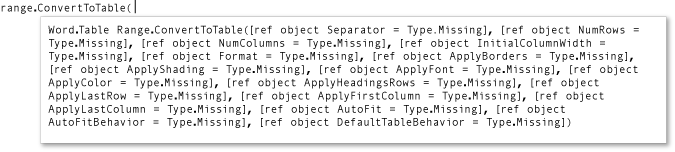
具名和選擇性自變數可讓您只針對您想要變更的參數指定值。 將下列程式代碼新增至 方法 DisplayInWord 結尾以建立數據表。 自變數會指定文字字串 range 中的逗號,以分隔數據表的儲存格。
// Convert to a simple table. The table will have a single row with
// three columns.
range.ConvertToTable(Separator: ",");
按 CTRL+F5 執行專案。
試驗其他參數
變更數據表,使其有一個數據行和三個數據列,以下列語句取代 中的 DisplayInWord 最後一行,然後輸入 CTRL+F5。
range.ConvertToTable(Separator: ",", AutoFit: true, NumColumns: 1);
指定數據表的預先定義格式,以下列語句取代 中的 DisplayInWord 最後一行,然後輸入 CTRL+F5。 格式可以是任何 WdTableFormat 常數。
range.ConvertToTable(Separator: ",", AutoFit: true, NumColumns: 1,
    Format: Word.WdTableFormat.wdTableFormatElegant);
範例
下列程式代碼包含完整的範例:
using System;
using Word = Microsoft.Office.Interop.Word;

namespace OfficeHowTo
{
    class WordProgram
    {
        static void Main(string[] args)
        {
            DisplayInWord();
        }

        static void DisplayInWord()
        {
            var wordApp = new Word.Application();
            // Keep Word invisible during operations to avoid COM threading issues
            wordApp.Visible = false;
            // docs is a collection of all the Document objects currently
            // open in Word.
            Word.Documents docs = wordApp.Documents;

            // Add a document to the collection and name it doc.
            Word.Document doc = docs.Add();

            // Define a range, a contiguous area in the document, by specifying
            // a starting and ending character position. Currently, the document
            // is empty.
            Word.Range range = doc.Range(0, 0);

            // Use the InsertAfter method to insert a string at the end of the
            // current range.
            range.InsertAfter("Testing, testing, testing. . .");

            // You can comment out any or all of the following statements to
            // see the effect of each one in the Word document.

            // Next, use the ConvertToTable method to put the text into a table.
            // The method has 16 optional parameters. You only have to specify
            // values for those you want to change.

            // Convert to a simple table. The table will have a single row with
            // three columns.
            range.ConvertToTable(Separator: ",");

            // Change to a single column with three rows..
            range.ConvertToTable(Separator: ",", AutoFit: true, NumColumns: 1);

            // Format the table.
            range.ConvertToTable(Separator: ",", AutoFit: true, NumColumns: 1,
                Format: Word.WdTableFormat.wdTableFormatElegant);

            // Make Word visible after all operations are complete
            wordApp.Visible = true;
        }
    }
}
