Power BI 內嵌 主題 API 定義並套用調色盤和其他樣式至 Power BI 報表。 使用主題功能為不同的報表使用者套用自定義主題,或讓用戶選擇自己的外觀和風格。
自定義報表色彩和模式 Power BI 內嵌式分析遊樂場 中的展示 會使用主題 API,讓使用者在檢視 Power BI 內嵌式分析報表時選擇不同的色彩和背景模式。
展示報表會使用主題功能來:
- 定義報表色彩主題和背景模式。
- 在報表載入時套用特定色彩主題。
- 讓使用者在報表檢視會話期間變更主題和背景模式。
如需報表主題的詳細資訊,請參閱 在Power BI Desktop 中使用報表主題。
主題展示體驗
在 自定義報表色彩和模式 展示中,名為 Contoso 的虛構集團會使用 Power BI 內嵌報表向專案關係人顯示商務數據。 內嵌報表會載入套用 預設 色彩主題和預設背景模式。 報表中的所有視覺效果都會使用主題色彩。
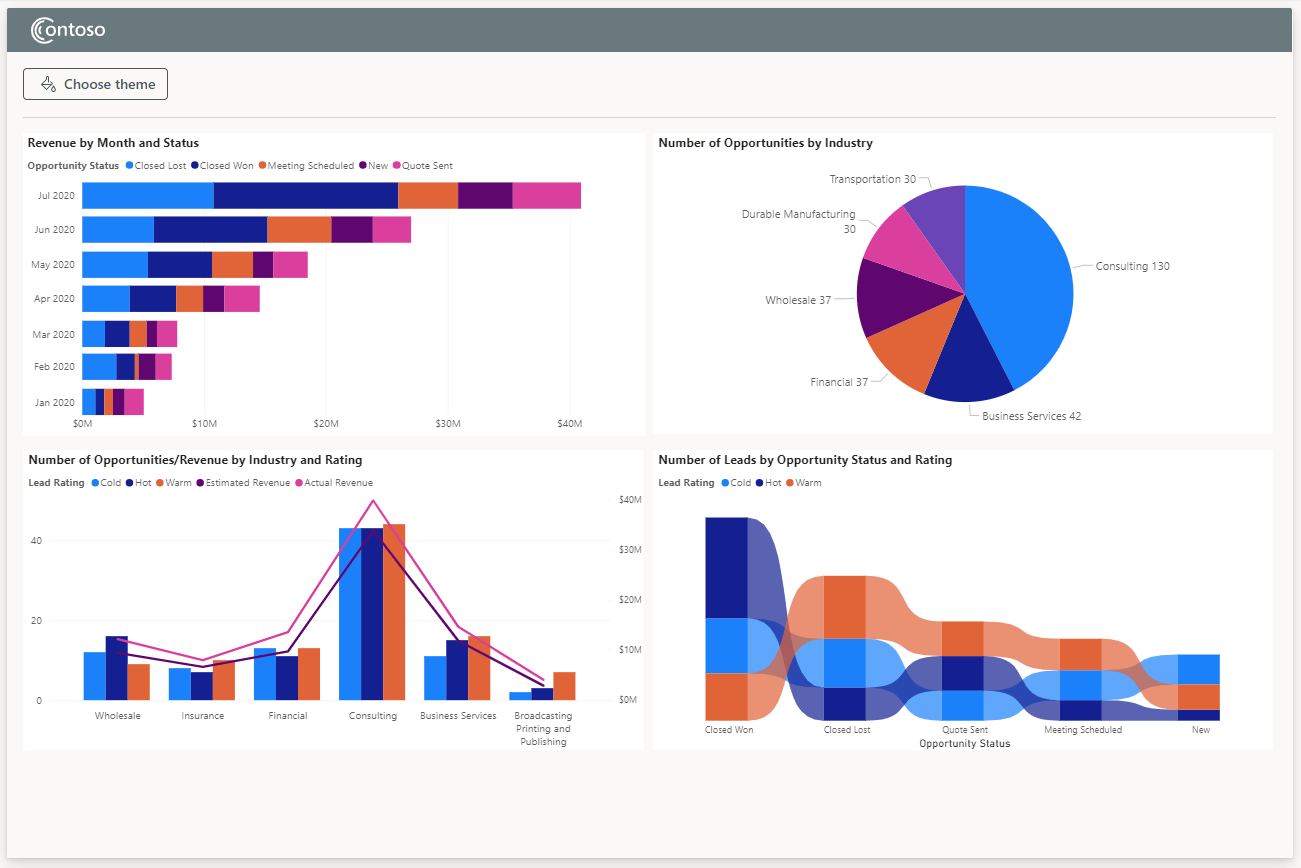
選取主題和模式
報表檢視者可以選取 [選擇主題] 按鈕來套用不同的色彩主題或模式。 下拉式方塊
檢視者可以從清單中選取不同的主題,並查看數據、標籤和其他元素色彩的立即變更。 選取的主題會影響報表中的所有內嵌視覺效果。
![顯示 [選擇主題] 對話框的螢幕快照,其中已選取潮汐主題。](../../../docs-ref-conceptual/media/showcase-themes/choose-tidal.png)
檢視者也可以切換 深色模式,以使用淺色文字產生深色報表背景,與色彩主題選取無關。
![顯示 [選擇主題] 對話框的螢幕快照,其中已開啟深色模式。](../../../docs-ref-conceptual/media/showcase-themes/choose-dark-mode.png)
選取 [選擇主題] 會再次關閉下拉式方塊。 除非檢視者再次變更,否則新的選取的主題和背景模式在報表檢視會話期間仍會生效。
主題展示程序代碼
實作展示應用程式的程式代碼位於 PowerBI-Embedded-Showcases GitHub 存放庫中。
HTML 頁面 會建置報表容器,並選擇主題 按鈕和對話框,並載入主題 JSON 物件。 報表 JavaScript 內嵌報表、載入預設主題,並實作主題切換體驗。
使用報表主題 JSON 物件定義主題
您可以透過 報表主題 JSON 物件,自定義幾乎所有的 Power BI 格式化專案。 展示 themes.js 檔案會定義指定可用色彩主題名稱和屬性的 jsonDataColors 物件。
下列 jsonDataColors 物件會定義展示 Tidal 主題。 星號 * 會將全域設定套用至報表中的所有視覺效果。
const jsonDataColors = [
    ...
{
    "name": "Tidal",
    "dataColors": ["#094782", "#0B72D7", "#098BF5", "#54B5FB", "#71C0A7", "#57B956", "#478F48", "#326633"],
    "tableAccent": "#094782",
    "visualStyles": {
        "*": {
            "*": {
                "background": [{ "show": true, "transparency": 3 }],
                "visualHeader": [{
                    "foreground": { "solid": { "color": "#094782" } },
                    "transparency": 3
                }]
            }
        },
        "group": { "*": { "background": [{ "show": false }] } },
        "basicShape": { "*": { "background": [{ "show": false }] } },
        "image": { "*": { "background": [{ "show": false }] } },
        "page": {
            "*": {
                "background": [{ "transparency": 100 }],
            }
        }
    }
}
    ...
]
如需報表主題 JSON 物件檔案格式和屬性的詳細資訊,請參閱 報表主題 JSON 檔案格式。
定義背景模式
themes.js 檔案也會定義描述淺色和深色背景模式的 themes 物件。 若要定義淺色和深色背景模式,themes 物件會指定一個具有白色背景的主題,以及另一個具有對比深色背景的主題。 深色背景物件也會設定其他結構化和文字色彩的值,使其顯示在深色背景中。
使用內嵌設定和 applyTheme 套用主題
展示 themeJson 參數會定義數個色彩主題。 內嵌報表 JavaScript 會使用 Report 類別 applyTheme 方法,在報表載入和報表運行時間期間套用主題。
若要啟用主題,報表 內嵌組態 指定 theme 屬性,並具有指向主題 JSON 物件的 themeJson 參數。 展示項目內嵌組態會在報表載入時套用具有資料色彩識別碼 0Default 主題:
let config = {
    ...
    theme: { themeJson: jsonDataColors[0] },
    };
如果查看器在其會話期間選取不同的主題或模式,applyTheme 函式會根據選取的數據色彩和模式定義並套用新的主題物件。 下列程式代碼顯示展示 applyTheme 函式:
async function applyTheme() {

    // Get active data-color ID
    activeDataColorId = Number($("input[name=data-color]:checked", "#theme-dropdown")[0].getAttribute("id").slice(-1));

    // Get the theme state from the slider toggle
    let activeThemeSlider = $("#theme-slider").get(0);

    // Get the index of the theme based on the state of the slider
    // 1 => Dark theme
    // 0 => Light theme
    const themeId = (activeThemeSlider.checked) ? 1 : 0;

    // Create new theme object
    let newTheme = {};

    // Append the data colors and the mode
    $.extend(newTheme, jsonDataColors[activeDataColorId], themes[themeId]);

    // Apply the theme to the report
    await themesShowcaseState.themesReport.applyTheme({ themeJson: newTheme });
}