本快速入門將引導您建立 自訂引擎代理程式 ,以回覆您傳送給它的任何訊息。
先決條件
Python 3.9 或更新版本。
- 若要安裝 Python,請移至 https://www.python.org/downloads/,然後按照作業系統的指示進行操作。
- 若要驗證版本,請在終端機視窗中鍵入
python --version。
您選擇的程式代碼編輯器。 這些指示使用 Visual Studio Code。
如果您使用 Visual Studio Code,請安裝 Python 延伸模組
初始化專案並安裝 SDK
建立 Python 專案並安裝所需的相依性。
開啟終端機並建立新資料夾
mkdir echo
cd echo
使用下列命令,使用 Visual Studio Code 開啟資料夾:
code .使用您選擇的方法建立虛擬環境,並透過 Visual Studio Code 或在終端機中啟動它。
使用 Visual Studio Code 時,您可以將這些步驟與安裝 的 Python 延伸模組 搭配使用。
按 F1,鍵入
Python: Create environment,然後按 Enter。選取 [Venv ] 以在目前工作區中建立
.venv虛擬環境。選取 Python 安裝以建立虛擬環境。
值可能如下所示:
Python 1.13.6 ~\AppData\Local\Programs\Python\Python313\python.exe
安裝 Agents SDK
使用 pip 透過下列命令安裝 microsoft-agents-hosting-aiohttp 套件:
pip install microsoft-agents-hosting-aiohttp
建立伺服器應用程式並匯入所需的程式庫
建立一個名為
start_server.py的檔案,複製以下程式碼,然後貼上:# start_server.py from os import environ from microsoft_agents.hosting.core import AgentApplication, AgentAuthConfiguration from microsoft_agents.hosting.aiohttp import ( start_agent_process, jwt_authorization_middleware, CloudAdapter, ) from aiohttp.web import Request, Response, Application, run_app def start_server( agent_application: AgentApplication, auth_configuration: AgentAuthConfiguration ): async def entry_point(req: Request) -> Response: agent: AgentApplication = req.app["agent_app"] adapter: CloudAdapter = req.app["adapter"] return await start_agent_process( req, agent, adapter, ) APP = Application(middlewares=[jwt_authorization_middleware]) APP.router.add_post("/api/messages", entry_point) APP.router.add_get("/api/messages", lambda _: Response(status=200)) APP["agent_configuration"] = auth_configuration APP["agent_app"] = agent_application APP["adapter"] = agent_application.adapter try: run_app(APP, host="localhost", port=environ.get("PORT", 3978)) except Exception as error: raise error此程式碼定義
start_server了我們將在下一個檔案中使用的函數。在相同的目錄中,建立一個名為以下程式碼的
app.py檔案。# app.py from microsoft_agents.hosting.core import ( AgentApplication, TurnState, TurnContext, MemoryStorage, ) from microsoft_agents.hosting.aiohttp import CloudAdapter from start_server import start_server
將代理實例創建為 AgentApplication
在 app.py中新增以下程式碼,建立 作為 AGENT_APP 的實例 AgentApplication,並實作三個路由來回應三個事件:
- 交談更新
- 訊息
/help - 任何其他活動
AGENT_APP = AgentApplication[TurnState](
    storage=MemoryStorage(), adapter=CloudAdapter()
)

async def _help(context: TurnContext, _: TurnState):
    await context.send_activity(
        "Welcome to the Echo Agent sample 🚀. "
        "Type /help for help or send a message to see the echo feature in action."
    )

AGENT_APP.conversation_update("membersAdded")(_help)

AGENT_APP.message("/help")(_help)


@AGENT_APP.activity("message")
async def on_message(context: TurnContext, _):
    await context.send_activity(f"you said: {context.activity.text}")
啟動網路伺服器以在localhost:3978上進行監聽
在 app.py結束時,使用 start_server啟動網路伺服器。
if __name__ == "__main__":
    try:
        start_server(AGENT_APP, None)
    except Exception as error:
        raise error
以匿名模式在本地執行代理程式
從終端機執行此指令:
python app.py
終端機應該傳回下列內容:
======== Running on http://localhost:3978 ========
(Press CTRL+C to quit)
在本機測試 Agent
從另一個終端機 (讓 Agent 持續執行),使用下列命令安裝 Microsoft 365 Agents 遊樂場:
npm install -g @microsoft/teams-app-test-tool備註
此命令會使用 npm,因為 Microsoft 365 代理程式遊樂場無法透過 pip 使用。
終端機應該會傳回如下的內容:
added 1 package, and audited 130 packages in 1s

19 packages are looking for funding
run `npm fund` for details

found 0 vulnerabilities
執行測試工具,以使用此命令與代理程式互動:
teamsapptester終端機應該會傳回如下的內容:
Telemetry: agents-playground-cli/serverStart {"cleanProperties":{"options":"{\"configFileOptions\":{\"path\":\"<REDACTED: user-file-path>\"},\"appConfig\":{},\"port\":56150,\"disableTelemetry\":false}"}}

Telemetry: agents-playground-cli/cliStart {"cleanProperties":{"isExec":"false","argv":"<REDACTED: user-file-path>,<REDACTED: user-file-path>"}}

Listening on 56150
Microsoft 365 Agents Playground is being launched for you to debug the app: http://localhost:56150
started web socket client
started web socket client
Waiting for connection of endpoint: http://127.0.0.1:3978/api/messages
waiting for 1 resources: http://127.0.0.1:3978/api/messages
wait-on(37568) complete
Telemetry: agents-playground-server/getConfig {"cleanProperties":{"internalConfig":"{\"locale\":\"en-US\",\"localTimezone\":\"America/Los_Angeles\",\"channelId\":\"msteams\"}"}}

Telemetry: agents-playground-server/sendActivity {"cleanProperties":{"activityType":"installationUpdate","conversationId":"5305bb42-59c9-4a4c-a2b6-e7a8f4162ede","headers":"{\"x-ms-agents-playground\":\"true\"}"}}

Telemetry: agents-playground-server/sendActivity {"cleanProperties":{"activityType":"conversationUpdate","conversationId":"5305bb42-59c9-4a4c-a2b6-e7a8f4162ede","headers":"{\"x-ms-agents-playground\":\"true\"}"}}
命令 teamsapptester 會開啟您的預設瀏覽器,並連線到您的代理程式。
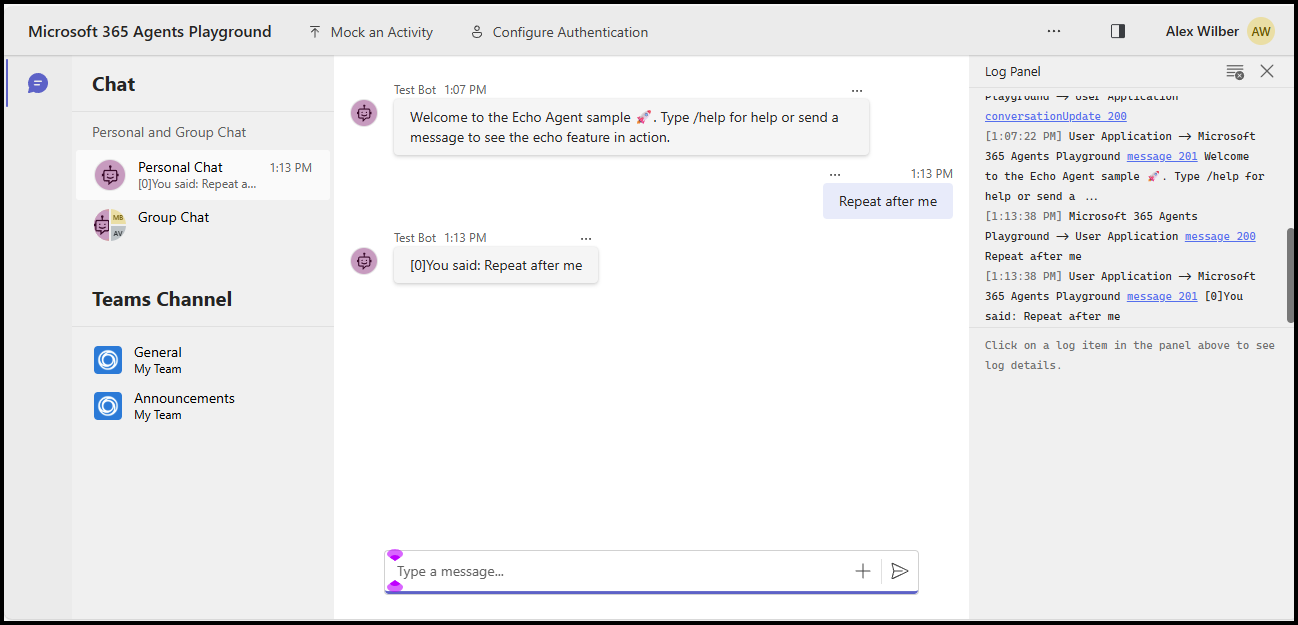
現在您可以傳送任何訊息來查看回應回復,或傳送訊息 /help 以查看該訊息如何路由傳送至 _help 處理程式。
本快速入門將引導您建立 自訂引擎代理程式 ,以回覆您傳送給它的任何訊息。
先決條件
Node.js v22 或更新
- 若要安裝 Node.js 請前往 nodejs.org,然後按照作業系統的指示進行操作。
- 若要驗證版本,請在終端機視窗中鍵入
node --version。
您選擇的程式代碼編輯器。 這些指示使用 Visual Studio Code。
初始化專案並安裝 SDK
使用 npm 來建立 package.json 並安裝必要的相依性,以初始化 node.js 專案
開啟終端機並建立新資料夾
mkdir echo
cd echo
初始化 node.js 專案
npm init -y安裝 Agents SDK
npm install @microsoft/agents-hosting-express使用下列命令,使用 Visual Studio Code 開啟資料夾:
code .
匯入必要的程式庫
建立檔案 index.mjs ,並將下列 NPM 套件匯入您的應用程式程式代碼:
// index.mjs
import { startServer } from '@microsoft/agents-hosting-express'
import { AgentApplication, MemoryStorage } from '@microsoft/agents-hosting'
將 EchoAgent 實作為 AgentApplication
在 中 index.mjs,新增下列程式代碼來建立 EchoAgent 擴充 AgentApplication,並實作三個路由以回應三個事件:
- 交談更新
- 訊息
/help - 任何其他活動
class EchoAgent extends AgentApplication {
  constructor (storage) {
    super({ storage })

    this.onConversationUpdate('membersAdded', this._help)
    this.onMessage('/help', this._help)
    this.onActivity('message', this._echo)
  }

  _help = async context =>
    await context.sendActivity(`Welcome to the Echo Agent sample 🚀.
      Type /help for help or send a message to see the echo feature in action.`)

  _echo = async (context, state) => {
    let counter= state.getValue('conversation.counter') || 0
    await context.sendActivity(`[${counter++}]You said: ${context.activity.text}`)
    state.setValue('conversation.counter', counter)
  }
}
啟動網路伺服器以在localhost:3978上進行監聽
在 index.mjs 結尾,根據使用 MemoryStorage 做為交談回合狀態儲存體的運算式,使用 startServer 來啟動 Web 伺服器。
startServer(new EchoAgent(new MemoryStorage()))
以匿名模式在本地執行代理程式
從終端機執行此指令:
node index.mjs
終端機應該會傳回下列內容:
Server listening to port 3978 on sdk 0.6.18 for appId undefined debug undefined
在本機測試 Agent
從另一個終端機 (讓 Agent 持續執行),使用下列命令安裝 Microsoft 365 Agents 遊樂場:
npm install -D @microsoft/teams-app-test-tool終端機應該會傳回如下的內容:
added 1 package, and audited 130 packages in 1s

19 packages are looking for funding
run `npm fund` for details

found 0 vulnerabilities
執行測試工具,以使用此命令與代理程式互動:
node_modules/.bin/teamsapptester終端機應該會傳回如下的內容:
Telemetry: agents-playground-cli/serverStart {"cleanProperties":{"options":"{\"configFileOptions\":{\"path\":\"<REDACTED: user-file-path>\"},\"appConfig\":{},\"port\":56150,\"disableTelemetry\":false}"}}

Telemetry: agents-playground-cli/cliStart {"cleanProperties":{"isExec":"false","argv":"<REDACTED: user-file-path>,<REDACTED: user-file-path>"}}

Listening on 56150
Microsoft 365 Agents Playground is being launched for you to debug the app: http://localhost:56150
started web socket client
started web socket client
Waiting for connection of endpoint: http://127.0.0.1:3978/api/messages
waiting for 1 resources: http://127.0.0.1:3978/api/messages
wait-on(37568) complete
Telemetry: agents-playground-server/getConfig {"cleanProperties":{"internalConfig":"{\"locale\":\"en-US\",\"localTimezone\":\"America/Los_Angeles\",\"channelId\":\"msteams\"}"}}

Telemetry: agents-playground-server/sendActivity {"cleanProperties":{"activityType":"installationUpdate","conversationId":"5305bb42-59c9-4a4c-a2b6-e7a8f4162ede","headers":"{\"x-ms-agents-playground\":\"true\"}"}}

Telemetry: agents-playground-server/sendActivity {"cleanProperties":{"activityType":"conversationUpdate","conversationId":"5305bb42-59c9-4a4c-a2b6-e7a8f4162ede","headers":"{\"x-ms-agents-playground\":\"true\"}"}}
命令 teamsapptester 會開啟您的預設瀏覽器,並連線到您的代理程式。
現在您可以傳送任何訊息來查看回應回復,或傳送訊息 /help 以查看該訊息如何路由傳送至 _help 處理程式。
本快速入門將引導您建立 自訂引擎代理程式 ,以回覆您傳送給它的任何訊息。
先決條件
.NET 8.0 SDK 或更新版本
- 要安裝 .NET SDK,請進入 dotnet.microsoft.com,並依照作業系統的指示操作。
- 若要驗證版本,請在終端機視窗中鍵入
dotnet --version。
您選擇的程式代碼編輯器。 這些指示使用 Visual Studio Code。
初始化專案並安裝 SDK
用 dotnet 來建立新的網頁專案並安裝所需的相依關係。
開啟終端機並建立新資料夾
mkdir echo
cd echo
初始化 .NET 專案
dotnet new web安裝 Agents SDK
dotnet add package Microsoft.Agents.Hosting.AspNetCore使用下列命令,使用 Visual Studio Code 開啟資料夾:
code .
匯入必要的程式庫
在 Program.cs中替換現有內容,並新增以下 using 語句以將 SDK 套件匯入你的應用程式碼:
// Program.cs
using Microsoft.Agents.Builder;
using Microsoft.Agents.Builder.App;
using Microsoft.Agents.Builder.State;
using Microsoft.Agents.Core.Models;
using Microsoft.Agents.Hosting.AspNetCore;
using Microsoft.Agents.Storage;
using Microsoft.AspNetCore.Builder;
將 EchoAgent 實作為 AgentApplication
在 Program.cs 中,於 using 語句之後,加入以下程式碼以建立繼承自 AgentApplication 的 EchoAgent,並實作路由以回應事件:
- 交談更新
- 還有其他活動嗎
public class EchoAgent : AgentApplication
{
   public EchoAgent(AgentApplicationOptions options) : base(options)
   {
      OnConversationUpdate(ConversationUpdateEvents.MembersAdded, WelcomeMessageAsync);
      OnActivity(ActivityTypes.Message, OnMessageAsync, rank: RouteRank.Last);
   }

   private async Task WelcomeMessageAsync(ITurnContext turnContext, ITurnState turnState, CancellationToken cancellationToken)
   {
        foreach (ChannelAccount member in turnContext.Activity.MembersAdded)
        {
            if (member.Id != turnContext.Activity.Recipient.Id)
            {
                await turnContext.SendActivityAsync(MessageFactory.Text("Hello and Welcome!"), cancellationToken);
            }
        }
    }

   private async Task OnMessageAsync(ITurnContext turnContext, ITurnState turnState, CancellationToken cancellationToken)
   {
      await turnContext.SendActivityAsync($"You said: {turnContext.Activity.Text}", cancellationToken: cancellationToken);
   }
}
設置網頁伺服器並註冊代理應用程式
在 Program.cs中,在陳述 using 句後,加入以下程式碼以設定網頁主機、註冊代理並映射 /api/messages 端點:
var builder = WebApplication.CreateBuilder(args);

builder.Services.AddHttpClient();
builder.AddAgentApplicationOptions();
builder.AddAgent<EchoAgent>();
builder.Services.AddSingleton<IStorage, MemoryStorage>();

var app = builder.Build();

app.MapPost("/api/messages", async (HttpRequest request, HttpResponse response, IAgentHttpAdapter adapter, IAgent agent, CancellationToken cancellationToken) =>
{
    await adapter.ProcessAsync(request, response, agent, cancellationToken);
});

app.Run();
設定網頁伺服器在 localhost:3978 中監聽
在 launchSettings.json 中,將 applicationURL 更新為 http://localhost:3978,以便應用程式能監聽正確的埠號。
以匿名模式在本地執行代理程式
從終端機執行此指令:
dotnet run
終端機應該會傳回如下的內容:
info: Microsoft.Hosting.Lifetime[14]
      Now listening on: http://localhost:3978
在本機測試 Agent
從另一個終端機(為了保持代理程式運作)使用以下指令安裝 Microsoft 365 代理遊樂場 :
npm install -g @microsoft/teams-app-test-tool備註
此指令使用 npm,因為 Microsoft 365 代理遊樂場是以 npm 套件形式發佈。
終端機應該會傳回如下的內容:
added 1 package, and audited 130 packages in 1s

19 packages are looking for funding
run `npm fund` for details

found 0 vulnerabilities
執行測試工具,以使用此命令與代理程式互動:
teamsapptester終端機應該會傳回如下的內容:
Telemetry: agents-playground-cli/serverStart {"cleanProperties":{"options":"{\"configFileOptions\":{\"path\":\"<REDACTED: user-file-path>\"},\"appConfig\":{},\"port\":56150,\"disableTelemetry\":false}"}}

Telemetry: agents-playground-cli/cliStart {"cleanProperties":{"isExec":"false","argv":"<REDACTED: user-file-path>,<REDACTED: user-file-path>"}}

Listening on 56150
Microsoft 365 Agents Playground is being launched for you to debug the app: http://localhost:56150
started web socket client
started web socket client
Waiting for connection of endpoint: http://127.0.0.1:3978/api/messages
waiting for 1 resources: http://127.0.0.1:3978/api/messages
wait-on(37568) complete
Telemetry: agents-playground-server/getConfig {"cleanProperties":{"internalConfig":"{\"locale\":\"en-US\",\"localTimezone\":\"America/Los_Angeles\",\"channelId\":\"msteams\"}"}}

Telemetry: agents-playground-server/sendActivity {"cleanProperties":{"activityType":"installationUpdate","conversationId":"5305bb42-59c9-4a4c-a2b6-e7a8f4162ede","headers":"{\"x-ms-agents-playground\":\"true\"}"}}

Telemetry: agents-playground-server/sendActivity {"cleanProperties":{"activityType":"conversationUpdate","conversationId":"5305bb42-59c9-4a4c-a2b6-e7a8f4162ede","headers":"{\"x-ms-agents-playground\":\"true\"}"}}
命令 teamsapptester 會開啟您的預設瀏覽器,並連線到您的代理程式。
在文字輸入中輸入並發送任何訊息即可看到回聲回覆。
後續步驟
- 可以到 GitHub 查看 Agents SDK 範例
- 深入了解 Activities 以及 Activities 的操作方法
- 檢視您可以從用戶端回應的 AgentApplication 事件
- 檢閱您可以傳回用戶端的 TurnContext 事件
- 佈建 Azure Bot 資源以與代理程式 SDK 搭配使用
- 設定 .NET 代理程式以使用 OAuth
如果您已經使用 Microsoft 365 Agents Toolkit,則預設可以使用 Agents 遊樂場。 如果您要開始使用工具組,可以使用下列其中一個指南: