一目了然
目標: 透過 Azure API Center 驗證 API 呼叫是否使用最小權限
時間: 20分鐘
插件:ApiCenterMinimalPermissionsPlugin
Prerequisites:Set up Dev Proxy, Azure API Center
建置應用程式時,您可能會整合數個 API 和作業。 為了確保應用程式的安全,並遵循最低權限原則,您應該檢查應用程式是否透過最小權限呼叫 API。 藉由使用最小權限,您可以降低未經授權存取資料和資源的風險。
檢查應用程式是否以最小權限呼叫 API 的困難在於,每次整合新作業時,您都必須評估您在應用程式中使用的權限集。 手動追蹤所有作業和權限相當耗時且容易出錯。 使用開發 Proxy 和 Azure API 中心,即可自動檢查應用程式是否以最小權限呼叫 API。
若要檢查您的應用程式是否使用最少的許可權來呼叫 API,您可以使用 ApiCenterMinimalPermissionsPlugin 外掛程式。 此外掛程式會比較應用程式使用的許可權與 Azure API 中心中所定義的許可權,並報告任何過多的許可權。 它也會建議您應該使用的最低一組權限。
在您開始之前
若要檢查您的應用程式是否使用最低許可權來呼叫 API,您需要有 Azure API 中心 實例,其中包含您在組織中所使用的 API 相關信息。
提示
在命令提示字元中執行 devproxy config get demo-apicenter-minimalpermissions,以下載此操作說明文章的預設內容。
建立 Azure API 中心實例
開始之前,請先建立 Azure API 中心實例,並註冊您在組織中使用的 API。 針對每個 API,上傳描述 API 作業和權限的 OpenAPI 規格檔案。

ApiCenterMinimalPermissionsPlugin 使用這項資訊來檢查您的應用程式是否使用最小許可權來呼叫 API。
複製 API 中心資訊
從 Azure API 中心執行個體 [概觀] 頁面,複製 API 中心執行個體的 [名稱]、[資源群組] 的名稱和 [訂用帳戶識別碼]。 您需要此資訊來設定 ApiCenterMinimalPermissionsPlugin,使其可連線到您的 Azure API 中心執行個體。

設定開發者代理
若要檢查您的應用程式是否使用最小權限來呼叫 API,您必須在開發 Proxy 設定檔中啟用 ApiCenterMinimalPermissionsPlugin。 若要建立應用程式所使用的權限報告,請新增回報器。
啟用 ApiCenterMinimalPermissionsPlugin
在 devproxyrc.json 檔案中,新增下列設定:
檔案: devproxyrc.json
{
  "$schema": "https://raw.githubusercontent.com/dotnet/dev-proxy/main/schemas/v3.3.1/rc.schema.json",
  "plugins": [
    {
      "name": "ApiCenterMinimalPermissionsPlugin",
      "enabled": true,
      "pluginPath": "~appFolder/plugins/DevProxy.Plugins.dll",
      "configSection": "apiCenterMinimalPermissionsPlugin"
    }
  ],
  "urlsToWatch": [
    "https://api.northwind.com/*"
  ],
  "apiCenterMinimalPermissionsPlugin": {
    "$schema": "https://raw.githubusercontent.com/dotnet/dev-proxy/main/schemas/v3.3.1/apicenterminimalpermissionsplugin.schema.json",
    "subscriptionId": "aaaa0a0a-bb1b-cc2c-dd3d-eeeeee4e4e4e",
    "resourceGroupName": "demo",
    "serviceName": "contoso-api-center",
    "workspaceName": "default"
  }
}
在 subscriptionId、resourceGroupName 和 serviceName 屬性中,提供 Azure API 中心執行個體的相關資訊。
在 urlsToWatch 屬性中,指定應用程式使用的 URL。
提示
使用Dev Proxy Toolkit Visual Studio Code 擴充套件輕鬆管理 Dev Proxy 設定。
新增回報器
ApiCenterMinimalPermissionsPlugin 會產生應用程式正在使用的 API 報告,以及呼叫這些 API 所需的最小權限。 若要檢視此報表,請將回報器新增至您的開發 Proxy 設定檔。 Dev Proxy 提供數個報告器。 在此範例中,您會使用純文字回報器。
使用純文字回報器的參考來更新您的 devproxyrc.json 檔案:
檔案: devproxyrc.json
{
  "$schema": "https://raw.githubusercontent.com/dotnet/dev-proxy/main/schemas/v3.3.1/rc.schema.json",
  "plugins": [
    {
      "name": "ApiCenterMinimalPermissionsPlugin",
      "enabled": true,
      "pluginPath": "~appFolder/plugins/DevProxy.Plugins.dll",
      "configSection": "apiCenterMinimalPermissionsPlugin"
    },
    {
      "name": "PlainTextReporter",
      "enabled": true,
      "pluginPath": "~appFolder/plugins/DevProxy.Plugins.dll"
    }
  ],
  "urlsToWatch": [
    "https://api.northwind.com/*"
  ],
  "apiCenterMinimalPermissionsPlugin": {
    "$schema": "https://raw.githubusercontent.com/dotnet/dev-proxy/main/schemas/v3.3.1/apicenterminimalpermissionsplugin.schema.json",
    "subscriptionId": "aaaa0a0a-bb1b-cc2c-dd3d-eeeeee4e4e4e",
    "resourceGroupName": "demo",
    "serviceName": "contoso-api-center",
    "workspaceName": "default"
  }
}
檢查您的應用程式是否使用最小權限來呼叫 API
若要檢查您的應用程式是否使用最小權限來呼叫 API,您必須連線到您的 Azure 訂用帳戶、執行開發 Proxy,並使其攔截來自您應用程式的 API 要求。 然後,開發 Proxy 會比較 API 要求的相關資訊與 Azure API 中心的資訊,並回報最小權限的相關資訊。
連接到 Azure 訂用帳戶
開發 Proxy 會使用來自 Azure API 中心的資訊,判斷您的應用程式是否使用最小權限呼叫 API。 若要取得這項資訊,該功能需要連線到您的 Azure 訂用帳戶。 您可以透過數種方式 (部分機器翻譯) 連線到您的 Azure 訂用帳戶。
執行開發代理伺服器
連線到您的 Azure 訂用帳戶之後,請啟動 Dev 代理。 如果您從 devproxyrc.json 檔案所在的相同資料夾啟動開發 Proxy,其會自動載入設定。 否則,請使用 --config-file 選項指定設定檔的路徑。
當開發 Proxy 啟動時,其會檢查是否可以連線到您的 Azure 訂用帳戶。 連線成功時,您會看到類似下列的訊息:
 info    Plugin ApiCenterMinimalPermissionsPlugin connecting to Azure...
 info    Listening on 127.0.0.1:8000...

Hotkeys: issue (w)eb request, (r)ecord, (s)top recording, (c)lear screen
Press CTRL+C to stop Dev Proxy
按下 r 鍵以開始錄製來自您應用程式的 API 要求。
使用您的應用程式
像平常一樣使用您的應用程式。 在本教學課程中,您可以使用下列要求,搭配具有 customer.readwrite 權限的模擬存取權杖:
@readwriteToken=eyJhbGciOiJIUzI1NiIsInR5cCI6IkpXVCJ9.eyJzdWIiOiIxMjM0NTY3ODkwIiwibmFtZSI6IkpvaG4gRG9lIiwiaWF0IjoxNTE2MjM5MDIyLCJzY3AiOlsiY3VzdG9tZXIucmVhZHdyaXRlIl19.SflKxwRJSMeKKF2QT4fwpMeJf36POk6yJV_adQssw5c

GET https://api.northwind.com/customers/ALFKI
Authorization: Bearer {{readwriteToken}}
開發 Proxy 會攔截 API 要求,並將相關資訊儲存在記憶體中。 在開發 Proxy 執行的命令列中,您應該會看到應用程式提出的 API 要求相關資訊。
 info    Plugin ApiCenterMinimalPermissionsPlugin connecting to Azure...
 info    Listening on 127.0.0.1:8000...

Hotkeys: issue (w)eb request, (r)ecord, (s)top recording, (c)lear screen
Press CTRL+C to stop Dev Proxy

◉ Recording...

 req   ╭ GET https://api.northwind.com/customers/ALFKI
 mock  ╰ 200 /{customer-id}
檢查權限
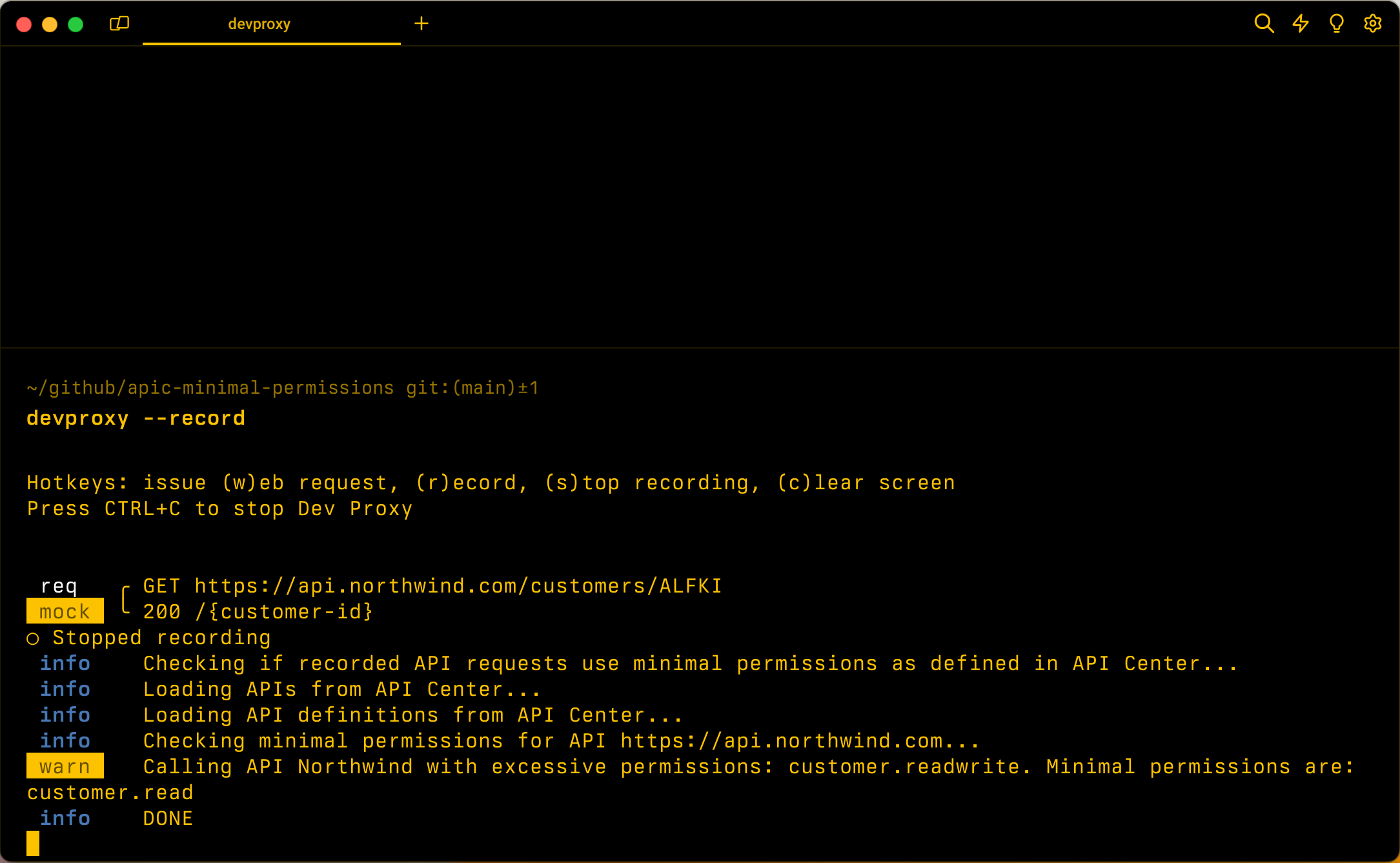
按下 s 鍵可停止錄製。 Dev Proxy 會連線到 API Center 執行個體,以比較請求的資訊與 API Center 的資訊。
 info    Plugin ApiCenterMinimalPermissionsPlugin connecting to Azure...
 info    Listening on 127.0.0.1:8000...

Hotkeys: issue (w)eb request, (r)ecord, (s)top recording, (c)lear screen
Press CTRL+C to stop Dev Proxy

◉ Recording...

 req   ╭ GET https://api.northwind.com/customers/ALFKI
 mock  ╰ 200 /{customer-id}
○ Stopped recording
 info    Checking if recorded API requests use minimal permissions as defined in API Center...
 info    Loading APIs from API Center...
 info    Loading API definitions from API Center...
 info    Checking minimal permissions for API https://api.northwind.com...
 info    Analyzing recorded requests...
 warn    Calling API Northwind with excessive permissions: customer.readwrite. Minimal permissions are: customer.read
 info    DONE
開發 Proxy 完成分析時,會在名為 ApiCenterMinimalPermissionsPlugin_PlainTextReporter.txt 的檔案中建立包含下列內容的報表:
Azure API Center minimal permissions report

APIS

Northwind

x Called using excessive permissions

Permissions

- Minimal permissions: customer.read
- Permissions on the token: customer.readwrite
- Excessive permissions: customer.readwrite

Requests

- GET https://api.northwind.com/customers/ALFKI

UNMATCHED REQUESTS

No unmatched requests found.

ERRORS

No errors occurred.
摘要
使用 ApiCenterMinimalPermissionsPlugin 時,您可以檢查您的應用程式是否使用最小權限來呼叫 API。 外掛程式會比較來自您應用程式的 API 要求相關資訊與 Azure API 中心的資訊,並回報過高的權限。 其也會建議呼叫應用程式中所使用 API 時所需的最小權限。 確認您的應用程式使用最小權限來呼叫 API,可協助您確保應用程式更安全。 您可以手動執行這項檢查,或整合您的 CI/CD 管線,在確認您的應用程式使用最小權限來呼叫 API 之後,再發行至生產環境。
