一目了然
目標: 使用 OpenTelemetry 監控大型語言模型的使用情況
時間: 20分鐘
插件:OpenAITelemetryPlugin
Prerequisites:Set up Dev Proxy, Docker
使用語言模型會產生成本。 若要瞭解您的應用程式如何使用大型語言模型,請使用Dev Proxy來攔截OpenAI相容的要求和回應。 開發人員 Proxy 會分析要求和回應,並記錄遙測數據,以協助您瞭解應用程式如何使用大型語言模型。 這項資訊可讓您優化應用程式並降低成本。
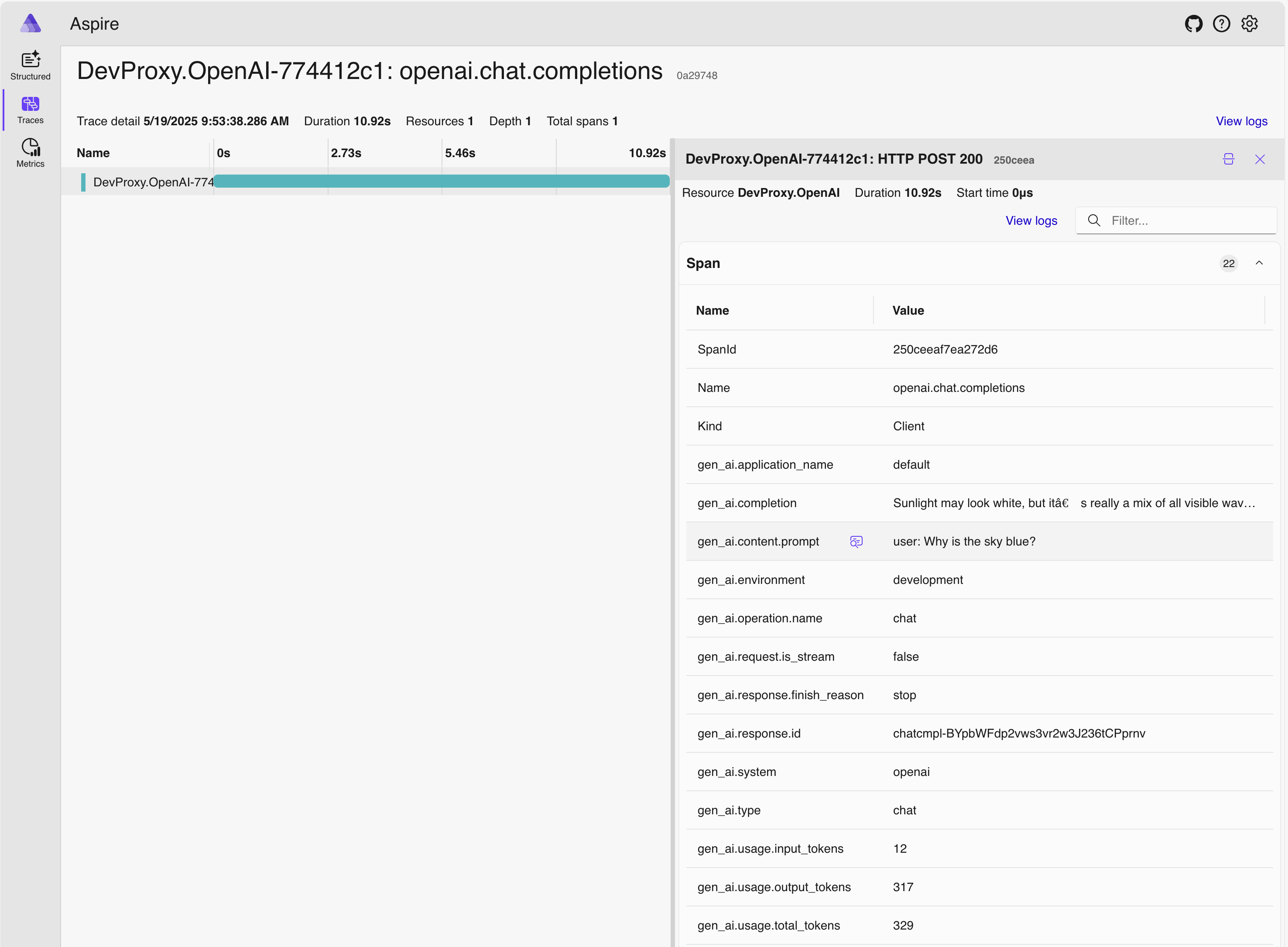
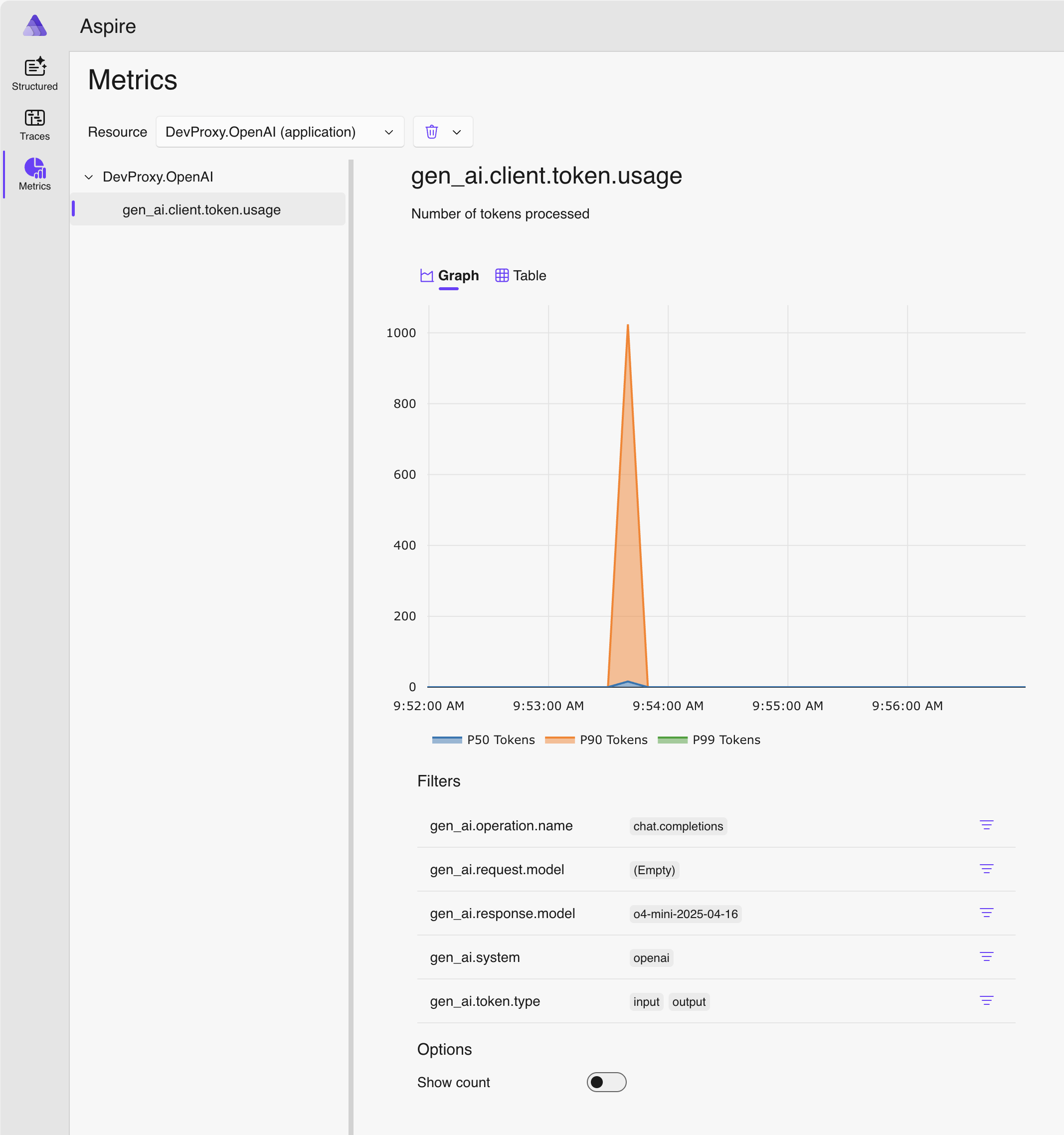
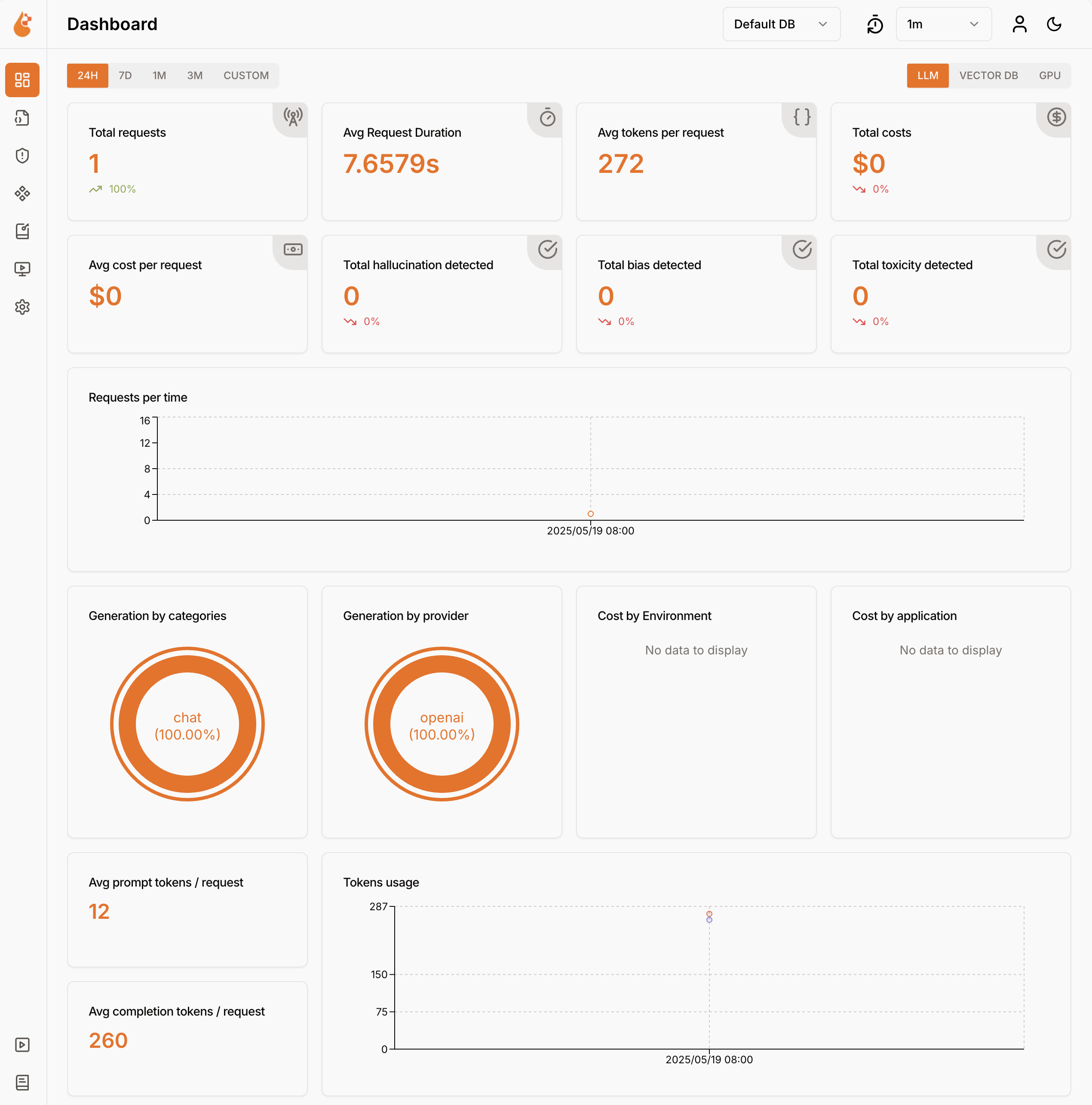
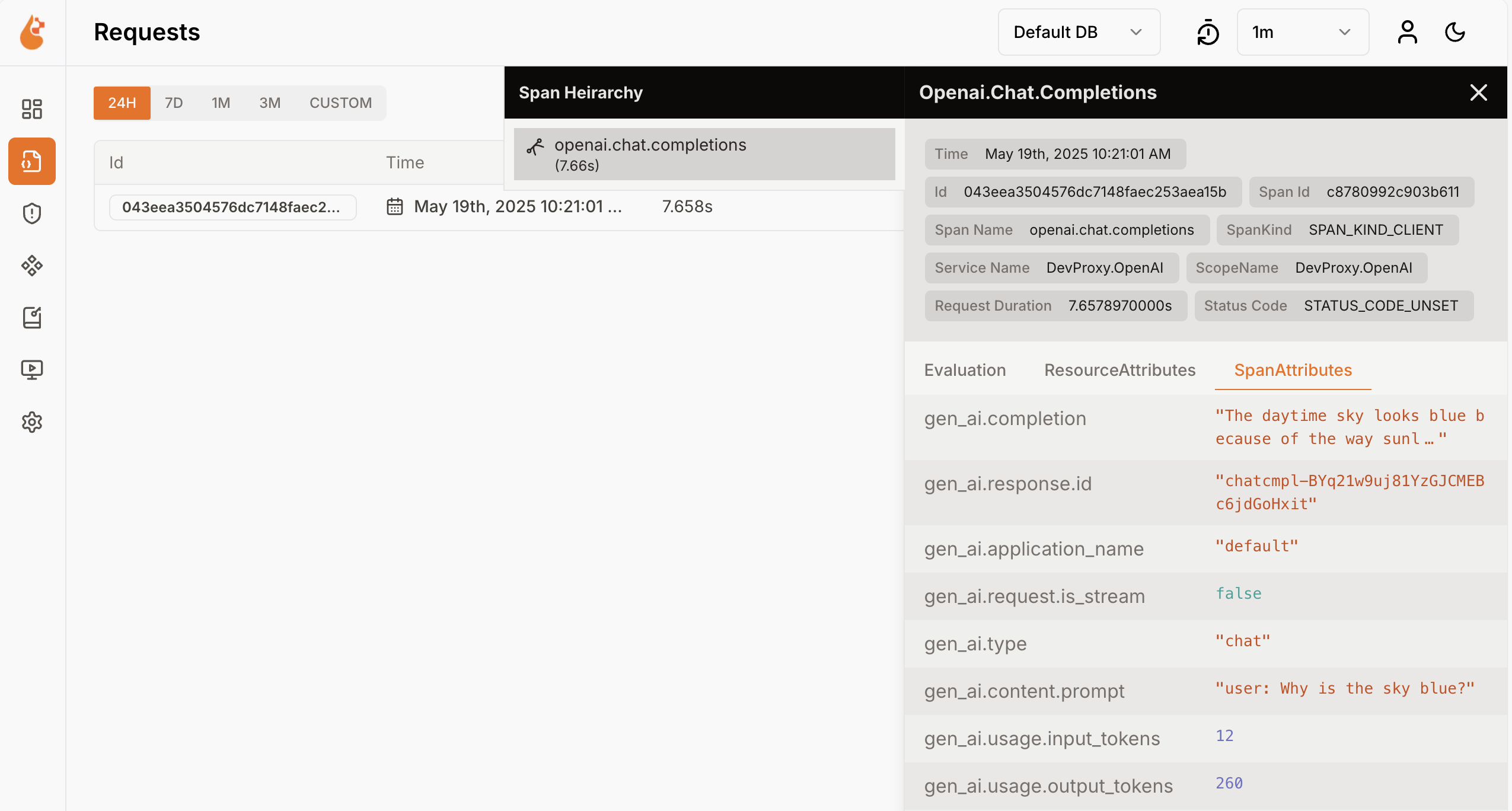
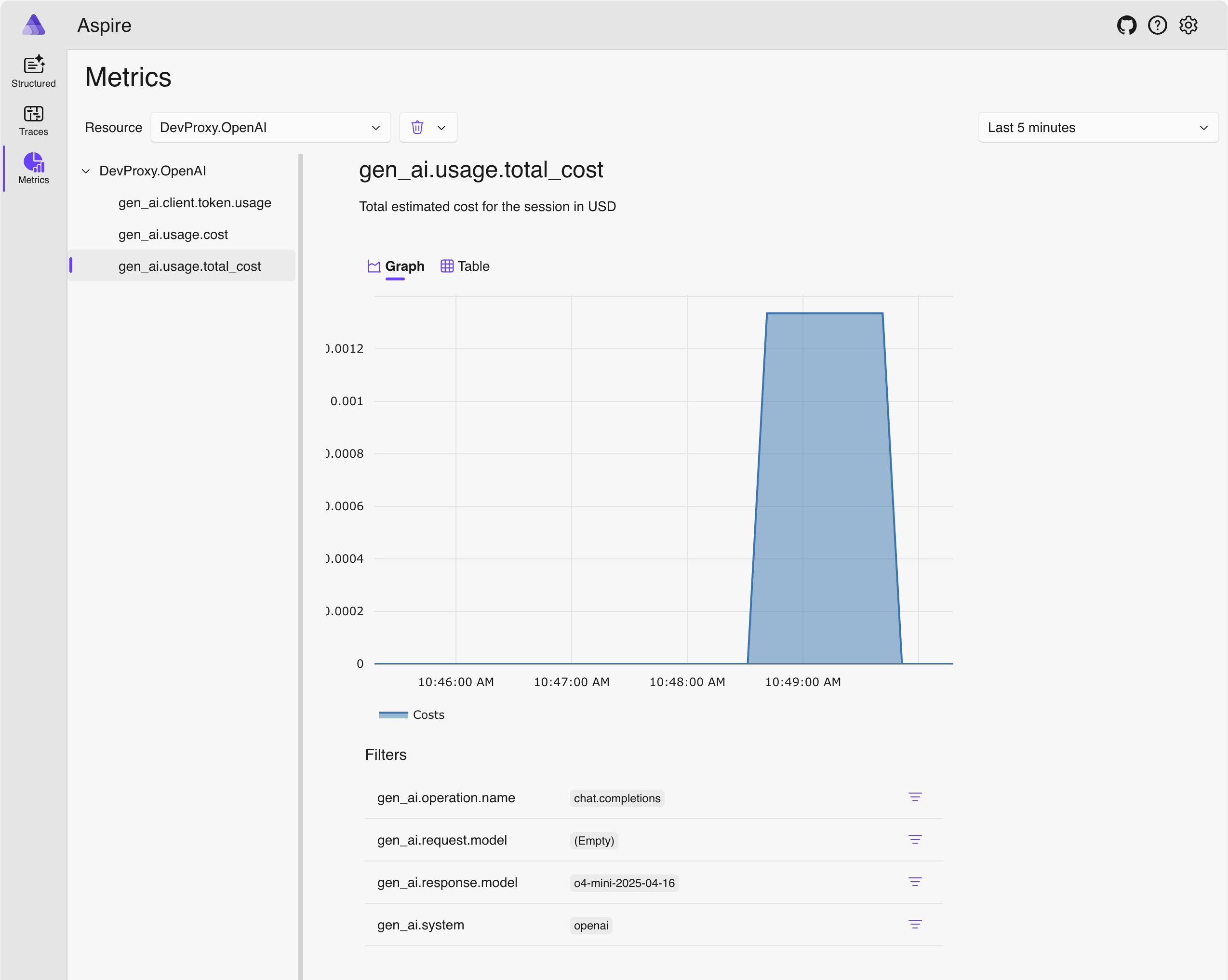
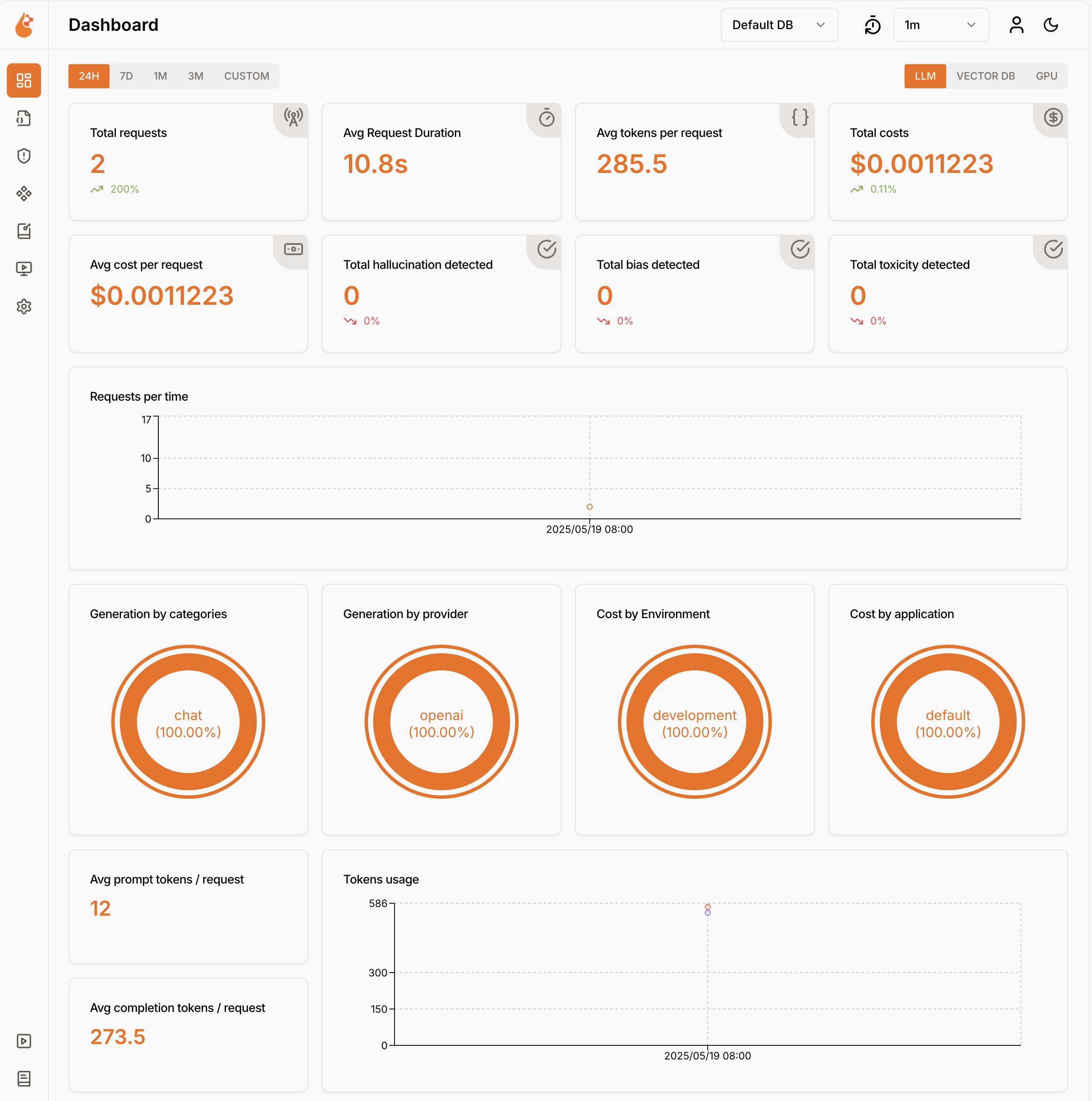
Dev Proxy 記錄語言模型使用數據,以 OpenTelemetry 格式呈現。 您可以使用任何與 OpenTelemetry 相容的儀錶板,將數據可視化。 例如,你可以使用 Aspire 儀表板 或 OpenLIT。 遙測數據報含要求和回應中使用的令牌數目、所使用的令牌成本,以及會話期間所有要求的總成本。
使用 Dev Proxy 攔截與 OpenAI 相容的要求和回應
若要攔截 OpenAI 相容的要求和回應,請使用 OpenAITelemetryPlugin。 此外掛程式會記錄和攔截 OpenAI 相容的請求和回應的遙測數據,並發出 OpenTelemetry 數據。
建立開發代理組態檔
使用
devproxy config new命令或使用 Dev Proxy 工具組擴充功能建立新的 Dev Proxy 組態檔。將
OpenAITelemetryPlugin新增至組態檔。檔案: devproxyrc.json
{
  "$schema": "https://raw.githubusercontent.com/dotnet/dev-proxy/main/schemas/v3.3.1/rc.schema.json",
  "plugins": [
    {
      "name": "OpenAITelemetryPlugin",
      "enabled": true,
      "pluginPath": "~appFolder/plugins/DevProxy.Plugins.dll"
    }
  ],
  "urlsToWatch": [
  ],
  "logLevel": "information",
  "newVersionNotification": "stable",
  "showSkipMessages": true
}
設定
urlsToWatch屬性以包含您想要攔截之 OpenAI 相容要求的 URL。 下列範例會攔截對 Azure OpenAI 聊天完成操作的請求。檔案: devproxyrc.json(含 Azure OpenAI 網址)
{
  "$schema": "https://raw.githubusercontent.com/dotnet/dev-proxy/main/schemas/v3.3.1/rc.schema.json",
  "plugins": [
    {
      "name": "OpenAITelemetryPlugin",
      "enabled": true,
      "pluginPath": "~appFolder/plugins/DevProxy.Plugins.dll"
    }
  ],
  "urlsToWatch": [
    "https://*.openai.azure.com/openai/deployments/*/chat/completions*",
    "https://*.cognitiveservices.azure.com/openai/deployments/*/chat/completions*"
  ],
  "logLevel": "information",
  "newVersionNotification": "stable",
  "showSkipMessages": true
}
儲存您的變更。
啟動 OpenTelemetry 收集器和開發代理
這很重要
Aspire 和 OpenLIT 都需要 Docker 才能執行。 如果您尚未安裝 Docker,請遵循 Docker 檔中 的指示來安裝 Docker。
啟動 Docker。
啟動 OpenTelemetry 收集器。
執行以下指令以啟動 Aspire OpenTelemetry 收集器與儀表板:
docker run --rm -it -p 18888:18888 -p 4317:18889 -p 4318:18890 --name aspire-dashboard mcr.microsoft.com/dotnet/aspire-dashboard:latest備註
使用完 Aspire 儀表板後,請在啟動儀表板的終端機按下 Ctrl + C 停止儀表板。 當您停止容器時,Docker 會自動移除容器。
請在瀏覽器中開啟 Aspire 儀表板。
http://localhost:18888/login?t=<code>
若要啟動 Dev Proxy,請將工作目錄變更為您建立開發 Proxy 配置檔的資料夾,然後執行下列命令:
devproxy
使用語言模型並檢查遙測數據
請對您已設定 Dev Proxy 攔截的 OpenAI 相容端點發出請求。
確認 Dev Proxy 攔截了要求和回應。 在執行 Dev Proxy 的控制台中,您應該會看到類似的資訊:
 info    Dev Proxy API listening on http://127.0.0.1:8897...
 info    Dev Proxy listening on 127.0.0.1:8000...

Hotkeys: issue (w)eb request, (r)ecord, (s)top recording, (c)lear screen
Press CTRL+C to stop Dev Proxy


 req   ╭ POST https://some-resource.cognitiveservices.azure.com/openai/deployments/some-deployment/chat/completions?api-version=2025-01-01-preview
 time  │ 19/05/2025 07:53:38 +00:00
 pass  │ Passed through
 proc  ╰ OpenAITelemetryPlugin: OpenTelemetry information emitted
在網頁瀏覽器中,流覽至 OpenTelemetry 儀錶板。
在執行的終端機中按 Ctrl + C 停止開發代理。
了解語言模型成本
Dev Proxy 可以用來估算使用語言模型的成本。 若要允許開發 Proxy 預估成本,您必須提供所使用模型價格的相關信息。
建立價格檔案
在您建立 Dev Proxy 設定檔的相同資料夾中,建立名為
prices.json的新檔案。將下列內容新增至該檔案:
檔案: prices.json
{
  "$schema": "https://raw.githubusercontent.com/dotnet/dev-proxy/main/schemas/v3.3.1/openaitelemetryplugin.pricesfile.schema.json",
  "prices": {
    "o4-mini": {
      "input": 0.97,
      "output": 3.87
    }
  }
}
這很重要
索引鍵是語言模型的名稱。
input和output屬性是輸入和輸出令牌每百萬個令牌的價格。 如果您使用沒有價格資訊的模型,Dev Proxy 不會記錄成本計量。儲存您的變更。
在程式代碼編輯器中,開啟 Dev Proxy 組態檔。
藉由組態區段來延伸
OpenAITelemetryPlugin參考:檔案: devproxyrc.json(將 configSection 加入外掛)
{
  "$schema": "https://raw.githubusercontent.com/dotnet/dev-proxy/main/schemas/v3.3.1/rc.schema.json",
  "plugins": [
    {
      "name": "OpenAITelemetryPlugin",
      "enabled": true,
      "pluginPath": "~appFolder/plugins/DevProxy.Plugins.dll",
      "configSection": "openAITelemetryPlugin"
    }
  ],
  "urlsToWatch": [
    "https://*.openai.azure.com/openai/deployments/*/chat/completions*",
    "https://*.cognitiveservices.azure.com/openai/deployments/*/chat/completions*"
  ],
  "logLevel": "information",
  "newVersionNotification": "stable",
  "showSkipMessages": true
}
將區
openAITelemetryPlugin段新增至組態檔:檔案: devproxyrc.json(包含成本追蹤)
{
  "$schema": "https://raw.githubusercontent.com/dotnet/dev-proxy/main/schemas/v3.3.1/rc.schema.json",
  "plugins": [
    {
      "name": "OpenAITelemetryPlugin",
      "enabled": true,
      "pluginPath": "~appFolder/plugins/DevProxy.Plugins.dll",
      "configSection": "openAITelemetryPlugin"
    }
  ],
  "urlsToWatch": [
    "https://*.openai.azure.com/openai/deployments/*/chat/completions*",
    "https://*.cognitiveservices.azure.com/openai/deployments/*/chat/completions*"
  ],
  "openAITelemetryPlugin": {
    "$schema": "https://raw.githubusercontent.com/dotnet/dev-proxy/main/schemas/v3.3.1/openaitelemetryplugin.schema.json",
    "includeCosts": true,
    "pricesFile": "prices.json"
  },
  "logLevel": "information",
  "newVersionNotification": "stable",
  "showSkipMessages": true
}
請注意 ,屬性
includeCosts設定為 ,true並將pricesFile屬性設定為具有價格信息的檔名。儲存您的變更。
檢視估計成本
啟動開發代理伺服器。
請對您已設定 Dev Proxy 攔截的 OpenAI 相容端點發出請求。
在網頁瀏覽器中,流覽至 OpenTelemetry 儀錶板。
在執行的終端機中按 Ctrl + C 停止開發代理。
停止 OpenTelemetry 收集器。
後續步驟
深入瞭解 OpenAITelemetryPlugin。
