如果你有商業關鍵的舊有網站或應用程式,可能需要在 Microsoft Edge 的 Internet Explorer (IE) 模式中測試內容。 本文說明如何開始使用 Internet Explorer 驅動程式 (IEDriver) ,以自動化 Microsoft Edge 中的 IE 模式。
Microsoft Edge 中的 IE 模式是為仍需 Internet Explorer 11 以向下相容舊有網站或應用程式的組織提供的功能。 想了解更多關於 IE 模式的資訊,請閱讀《 什麼是 Internet Explorer (IE) 模式?》
自 2022 年 6 月 15 日起,Internet Explorer 11 將不再支援部分 Windows 10 版本。 欲了解更多資訊,請參閱 Internet Explorer 11 桌面應用程式退休常見問題。
下載 Internet Explorer 驅動程式 (IEDriver)
要開始在 Microsoft Edge 的 IE 模式下自動化測試,請 下載 IEDriver。 請確保你下載的 IEDriver 版本是 4.0.0.0 或更高版本。
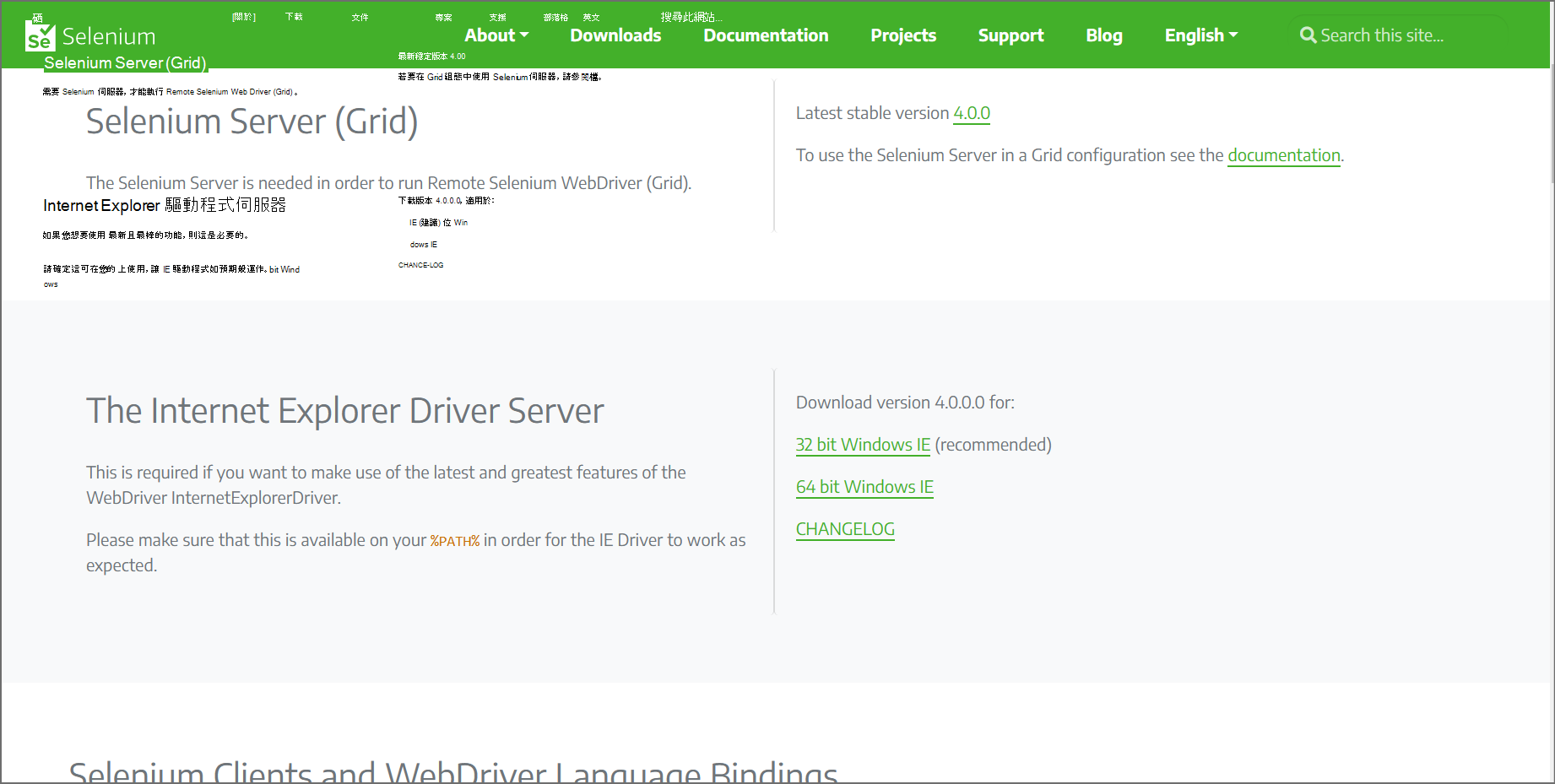
所需配置
要正確配置 IEDriver、Windows 和 Microsoft Edge,請完成 Selenium 所需設定的要求。
將驅動程式執行檔放入 PATH
驅動程式執行檔必須放置在 PATH 中;參見 IE 驅動伺服器。 該頁面頂端寫著:「獨立伺服器執行檔必須從下載頁面下載並放入你的 PATH。」
如果 PATH 中沒有包含驅動程式位置,你必須使用 Java 系統屬性 webdriver.ie.driver 或其他方式設定驅動程式位置。
在 Microsoft Edge 中自動化 IE 模式
以下章節將引導你如何使用 Selenium 自動化 Microsoft Edge 中的 IE 模式。
本文提供了使用 Selenium 框架的說明,但你也可以使用任何支援 WebDriver 的函式庫、框架和程式語言。 若要用其他框架完成相同任務,請參考你所選框架的文件。
要以 IEDriver 啟動 Microsoft Edge 的 IE 模式:
用指向 Microsoft Edge 瀏覽器的額外屬性來定義 InternetExplorerOptions 。
啟動一個實例並 InternetExplorerDriver 傳遞它 InternetExplorerOptions。 IEDriver 會啟動 Microsoft Edge,然後以 IE 模式載入你的網頁內容。
下一節展示完整範例,接著後續章節聚焦上述各主要步驟。
完整範例
以下範例以 IE 模式啟動 Microsoft Edge,導覽至 bing.com,然後搜尋「WebDriver」。
using System;
using OpenQA.Selenium;
using OpenQA.Selenium.IE;

namespace IEDriverSample
{
    class Program
    {
        static void Main(string[] args)
        {
            var ieOptions = new InternetExplorerOptions();
            ieOptions.AttachToEdgeChrome = true;
            //change the path accordingly
            ieOptions.EdgeExecutablePath = "C:/Program Files (x86)/Microsoft/Edge/Application/msedge.exe";

            var driver = new InternetExplorerDriver(ieOptions);
            driver.Url = "https://bing.com";
            driver.FindElement(By.Id("sb_form_q")).SendKeys("WebDriver");
            driver.FindElement(By.Id("sb_form")).Submit();

            driver.Quit();
        }
    }
}
from selenium import webdriver
from selenium.webdriver.common.by import By
from selenium.webdriver.common.keys import Keys

ie_options = webdriver.IeOptions()
ie_options.attach_to_edge_chrome = True
ie_options.edge_executable_path = "C:/Program Files (x86)/Microsoft/Edge/Application/msedge.exe"

driver = webdriver.Ie(options=ie_options)

driver.get("http://www.bing.com")
elem = driver.find_element(By.ID, 'sb_form_q')
elem.send_keys('WebDriver' + Keys.RETURN)

driver.quit()
import org.openqa.selenium.By;
import org.openqa.selenium.Keys;
import org.openqa.selenium.WebDriver;
import org.openqa.selenium.WebElement;
import org.openqa.selenium.ie.InternetExplorerDriver;
import org.openqa.selenium.ie.InternetExplorerOptions;

public class IEDriverSample {
    public static void main(String[] args) {
        InternetExplorerOptions ieOptions = new InternetExplorerOptions();
        ieOptions.attachToEdgeChrome();
        ieOptions.withEdgeExecutablePath("C:\\Program Files (x86)\\Microsoft\\Edge\\Application\\msedge.exe");

        WebDriver driver = new InternetExplorerDriver(ieOptions);

        driver.get("http://www.bing.com");
        WebElement elem = driver.findElement(By.id("sb_form_q"));
        elem.sendKeys("WebDriver", Keys.RETURN);

        driver.close();
    }
}
const {Builder, By, Key, until} = require('selenium-webdriver');
const {Options} = require('selenium-webdriver/ie');

(async () => {
  let ieOptions = new Options();
  ieOptions.setEdgeChromium(true);
  ieOptions.setEdgePath('C:/Program Files (x86)/Microsoft/Edge/Application/msedge.exe');

  let driver = await new Builder().
                         forBrowser('ie').
                         setIeOptions(ieOptions).
                         build();
  try {
    await driver.get('http://www.bing.com');
    let elem = await driver.findElement(By.id('sb_form_q'));
    await elem.sendKeys('WebDriver', Key.RETURN);
    await driver.wait(until.titleIs('WebDriver - Bing'), 1000);
  } finally {
    await driver.quit();
  }
})();
以下章節將更詳細說明此範例中的步驟。
為 Microsoft Edge 定義 InternetExplorerOptions 並附加屬性
用指向 Microsoft Edge 瀏覽器的額外屬性來定義 InternetExplorerOptions 。
定義一個新變數, ieOptions即呼叫 InternetExplorerOptions()。
設定 ieOptions.AttachToEdgeChrome 屬性為 true,並將 ieOptions.EdgeExecutablePath 為 Microsoft Edge 執行檔的路徑。
var ieOptions = new InternetExplorerOptions();
ieOptions.AttachToEdgeChrome = true;
//change the path accordingly
ieOptions.EdgeExecutablePath = "C:/Program Files (x86)/Microsoft/Edge/Application/msedge.exe";
定義一個新變數, ie_options即呼叫 webdriver.IeOptions()。
將屬性設 ie_options.attach_to_edge_chrome 為 True,並將 ie_options.edge_executable_path 設定為 Microsoft Edge 執行檔的路徑。
ie_options = webdriver.IeOptions()
ie_options.attach_to_edge_chrome = True
ie_options.edge_executable_path = "C:/Program Files (x86)/Microsoft/Edge/Application/msedge.exe"
定義一個新的變數 ieOptions ,型別 InternetExplorerOptions為 ,呼叫 new InternetExplorerOptions()。
呼叫 ieOptions.attachToEdgeChrome() 並 ieOptions.withEdgeExecutablePath() 使用Microsoft Edge執行檔的路徑。
InternetExplorerOptions ieOptions = new InternetExplorerOptions();
ieOptions.attachToEdgeChrome();
ieOptions.withEdgeExecutablePath("C:\\Program Files (x86)\\Microsoft\\Edge\\Application\\msedge.exe");
定義一個新變數, ieOptions即呼叫 Options()。
呼叫 ieOptions.setEdgeChromium() 時會用 Value true 和 ieOptions.setEdgePath() Microsoft Edge 執行檔的路徑。
let ieOptions = new Options();
ieOptions.setEdgeChromium(true);
ieOptions.setEdgePath('C:/Program Files (x86)/Microsoft/Edge/Application/msedge.exe');
啟動 IEDriver
開始IEDriver。 IEDriver 會啟動 Microsoft Edge,然後以 IE 模式載入你的網頁內容。
開始 InternetExplorerDriver 並傳遞先前定義 ieOptions的 。 IEDriver 以 IE 模式啟動 Microsoft Edge。 所有頁面導覽及後續互動皆以 IE 模式進行。
var driver = new InternetExplorerDriver(ieOptions);
啟動 IEDriver 時,先呼叫 webdriver.Ie 並傳遞先前定義 ie_options的 。 IEDriver 以 IE 模式啟動 Microsoft Edge。 所有頁面導覽及後續互動皆以 IE 模式進行。
driver = webdriver.Ie(options=ie_options)
啟動 IEDriver 時,先呼叫 new InternetExplorerDriver() 並傳遞先前定義 ieOptions的 。 IEDriver 以 IE 模式啟動 Microsoft Edge。 所有頁面導覽及後續互動皆以 IE 模式進行。
WebDriver driver = new InternetExplorerDriver(ieOptions);
透過呼叫 Builder.forBrowser('ie') and setIeoptions(ieOptions)開始 IEDriver。 IEDriver 以 IE 模式啟動 Microsoft Edge。 所有頁面導覽及後續互動皆以 IE 模式進行。
let driver = await new Builder().
                       forBrowser('ie').
                       setIeOptions(ieOptions).
                       build();
已知限制
本節涵蓋過去可與 IEDriver 及 IE11 桌面應用程式合作,但在 IE 模式下使用 IEDriver 與 Edge 時需採取Microsoft解決方法的已知情境。
開啟新視窗
如果你的測試程式碼使用以下方法之一建立新的瀏覽器視窗,之後可能需要加入短暫等待操作,以確保 IEDriver 已偵測到新視窗:
為了確保新視窗已成功建立且 IEDriver 偵測到,你必須持續檢查 Get Window Handles 指令的結果,直到它包含新視窗的 handle 為止。
以下範例展示了一種可能的方法,可以在開啟新視窗時等待偵測到新的視窗句柄。
在 Click 呼叫該方法於開啟新視窗的按鈕後,測試程式碼必須等待 driver.WindowHandles 包含新視窗的句柄。
var initialHandleCount = driver.WindowHandles.Count;
driver.FindElement(By.Id("<Id of the button that will open a new window>")).Click();
var newHandles = driver.WindowHandles;
while (newHandles.Count == initialHandleCount)
{
    newHandles = driver.WindowHandles;
}
在 click 呼叫該方法於開啟新視窗的按鈕後,測試程式碼必須等待 driver.window_handles 包含新視窗的句柄。
initial_handle_count = len(driver.window_handles)
driver.find_element(By.ID, "<Id of the button that will open a new window>").click()
new_handles = driver.window_handles
while len(new_handles) == initial_handle_count:
    new_handles = driver.window_handles
在 click 呼叫該方法於開啟新視窗的按鈕後,測試程式碼必須等待 driver.getWindowHandles() 包含新視窗的句柄。
int initialHandleCount = driver.getWindowHandles().size();
driver.findElement(By.id("<Id of the button that will open a new window>")).click();
Set<String> newHandles = driver.getWindowHandles();
while (newHandles.size() == initialHandleCount) {
    newHandles = driver.getWindowHandles();
}
在click呼叫該方法於開啟新視窗的按鈕後,IEDriver 必須以 等待。await driver.getAllWindowHandles()
const initialHandleCount = (await driver.getAllWindowHandles()).length;
const elem = await driver.findElement(By.id("<Id of the button that will open a new window>"));
await elem.click();
let newHandles = await driver.getAllWindowHandles();
while (newHandles.length == initialHandleCount) {
    newHandles = await driver.getAllWindowHandles();
}
建立分頁與切換分頁
如果你的測試程式碼在同一 Microsoft Edge 視窗中切換多個分頁,則變成非活動的分頁可能不會包含在 取得視窗 Handle 回傳的 handle 清單中。 在 Internet Explorer 11 桌面應用程式中,IEDriver 會回傳所有分頁的句柄,無論啟用狀態為何。
在使用 Microsoft Edge 的 IE 模式時,如果你的測試將焦點從某個分頁移開,且你希望之後能切回該分頁,必須儲存該分頁視窗的視窗柄副本。
另請參閱