An app package is a file format that has the required resources to install and run your app in Teams and it must contain the following files:
- App manifest: Describes how your app is configured, including its capabilities, required resources, and other important attributes.
- App icons: Each package requires a color and outline icon for your app.
- Custom activity icons: Tailor-made icons that you can use in activity feed notifications.
To publish your Microsoft Teams app, you need to zip the files in the app package folder and provide a suitable name.
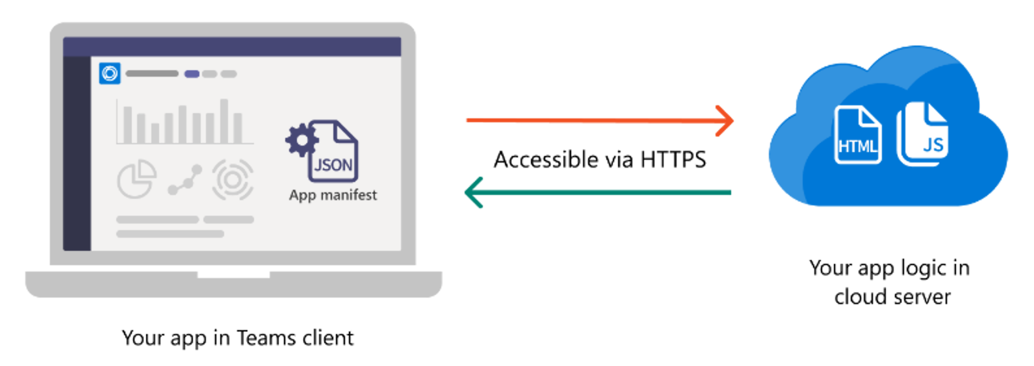
Teams doesn't host your app
When a user installs your app in Teams, they install an app package that contains only a configuration file (also known as an app manifest) and your app's icons. The app's logic and data storage are hosted elsewhere, such as on localhost during development and Microsoft Azure for production. Teams accesses these resources via HTTPS.
Note
The Microsoft Teams JavaScript client library (TeamsJS) can help you create hosted experiences in Teams, Microsoft 365 app, and Outlook. When creating your server-side app package, you must know that with version 2.31.0, the TeamsJS library is fully tree-shakeable. Tree shaking is a JavaScript optimization that eliminates unused code. For more information, see improve load time performance with JavaScript tree shaking.
App manifest
An app manifest describes your app's configuration, including its capabilities, required resources, and other significant attributes with the name manifest.json in the app package.
You can create an app and configure the app manifest through one of the following platforms:
Microsoft 365 Agents toolkit: A set of tools and extensions in Microsoft Visual Studio Code and Visual Studio to create, debug, and deploy an app. When you create an app, the app manifest generates from a template file based on the selected capabilities. You can then customize in Visual Studio Code or Visual Studio based on your requirements, validate the manifest file, and zip the app package.
Developer Portal for Teams: A web-based platform that helps you create your app, configure your app manifest, and generate an app package. To create an app through Developer Portal for Teams, see create and register an app.
You can add bot, tab, message extensions, and other capabilities to your app by updating the app manifest with the required app capability. For more information, see build app with app capabilities.
When you publish your app to the Microsoft Teams Store, ensure your app manifest references to the latest app manifest schema. For sample app manifest, see Hello world sample app.
App icons
Your app package must include two .png versions of your app icon: A color and outline version.
Note
If your app has a bot or message extension, your icons are included in your Microsoft Azure Bot Service registration.
For your app to pass Teams Store review, these icons must meet certain size requirements. For more information, see Teams app icon for Teams Store and app bar.
Next step
Choose how you plan to publish your app: