在確定技術人員應用程序的數據應通過 Web API 從現有系統獲取後,Maria 和 Kiana 共同確定需要哪些信息以及採用何種格式。 然後,Kiana 將創建一個 Web 應用程序,公開適當的 Web API,並安排它裝載在 Azure 中。 該應用程式可以從任何有無線連線的地方連接到 Azure。
定義 Web API 作業:現場庫存管理
應用程式的「現場庫存管理」區段的「 瀏覽 」畫面會顯示鍋爐和空調系統零件 (簡稱為 鍋爐零件) 清單。 「 詳細資料」 畫面可讓技術人員檢視有關所選零件的詳細資訊。
在現有的庫存資料庫 (名為 InventoryDB) 中,零件的相關資訊會保存在名為 BoilerParts 的單一表格中。 Kiana 判斷 Web API 應該支援下列要求:
- 獲取所有鍋爐零件。
- 根據零件 ID 來取得零件的詳細資料。
定義 Web API 作業:專業知識庫
在現有系統中,知識庫資料庫 (名為 KnowledgeDB) 包含三個表格,用於記錄和管理提示、工程師和零件之間的關係:
- 提示,其中包含提示的詳細資料。 每個提示都包含識別特定問題( 主題)的單行摘要,以及描述如何解決問題( 正文)的更詳細解釋。 每個提示也會關聯到一個零件以及提供該提示的工程師。
- BoilerParts,其中包含提示所參照的零件清單。 零件本身的詳細資料會儲存在 InventoryDB 資料庫的 BoilerParts 表格中。
- 工程師,其中列出了編寫每個提示的技術人員。
該應用程式的知識庫部分目前僅包含一個佔位符 瀏覽器 屏幕。 Maria 想要實作下列功能:
技術人員在「 瀏覽」 畫面上指定搜尋字詞,以尋找所有相符的提示。 匹配可能涉及提示所引用的零件的名稱、提示主題或正文中的文本,或擅長特定設備的技師的姓名。
當您發現了所有相符的提示後,技術人員可以選取秘訣來查看其詳細資料。
技術人員還可以將新提示新增至知識庫,以及向現有提示添加註釋和註解。
知識庫龐大且不斷增長,跨多個表和資料行進行查詢可能涉及需要大量運算能力的複雜邏輯。 為了減少 Web API 的負載,Kiana 決定使用 Azure 認知搜尋來提供搜尋功能,如先前所述。 為了支援應用程式,Kiana 決定需要從 Web API 執行下列作業:
從 [提示] 表格中尋找指定知識庫提示的詳細資料。
更新 [提示] 表格中的現有知識庫提示。
將新的知識庫秘訣新增至秘訣資料表中,如果指定的部件或工程師目前並未錄製任何秘訣,也可能包括將這些列新增至 BoilerParts 和工程師資料表。 實際執行新增提示背後邏輯的程序,將會作為從 Power Apps 呼叫的邏輯應用程式實作。
定義 Web API 操作:字段排程
安排技術人員預約不僅需要查詢、新增和刪除預約,還需要記錄有關客戶的資訊。 現有的約會系統將此資料記錄在 SchedulesDB 資料庫中的三個表格中:
- 約會,其中包含每個約會的詳細資料,包括指派給任務的日期、時間、問題、附註和技術人員。
- 客戶,其中包含每個客戶的詳細資料,包括其姓名、地址和聯絡方式。
- 工程師,列出所有出席會議的技術人員。
備註
資料庫實際上包含名為 AppointmentsStatus 的第四個資料表。 此表格包含約會狀態的有效值清單,僅作為供現有約會系統其他部分使用的查詢表。
Kiana 決定下列作業對應用程式的 [現場排程] 部分很有用:
- 尋找指定技術人員的所有約會。
- 查找指定技術人員當天的所有行程。
- 查找指定技術人員的下一個預約行程。
- 更新約會的詳細資料,例如新增備註或相片。
- 尋找客戶的詳細資料。
建立 Web API:現場庫存管理
現有的系統會使用 Azure SQL 資料庫來儲存資料。 Kiana 決定使用 Entity Framework Core 來建置 Web API,因為此方法可以產生許多自動查詢、插入和更新資料的程式碼。 Microsoft 提供的 Web API 範本也可以建立描述 API 中每個作業的 Swagger 描述。 這些描述對於測試 API 作業很有用。 許多工具都可以使用此資訊,將 API 與其他服務整合,例如 Azure API 管理。
Kiana 從現場庫存功能開始,因為這是最直接的部分。 Web API 中的欄位清查作業會查詢 InventoryDB 資料庫中的單一資料表 BoilerParts。 此表格包含下圖所示的資料行。
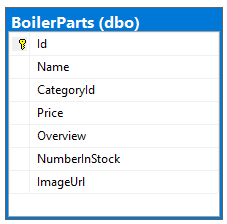
Kiana 採用「程式碼優先」方法來建置 Web API,並執行下列動作:
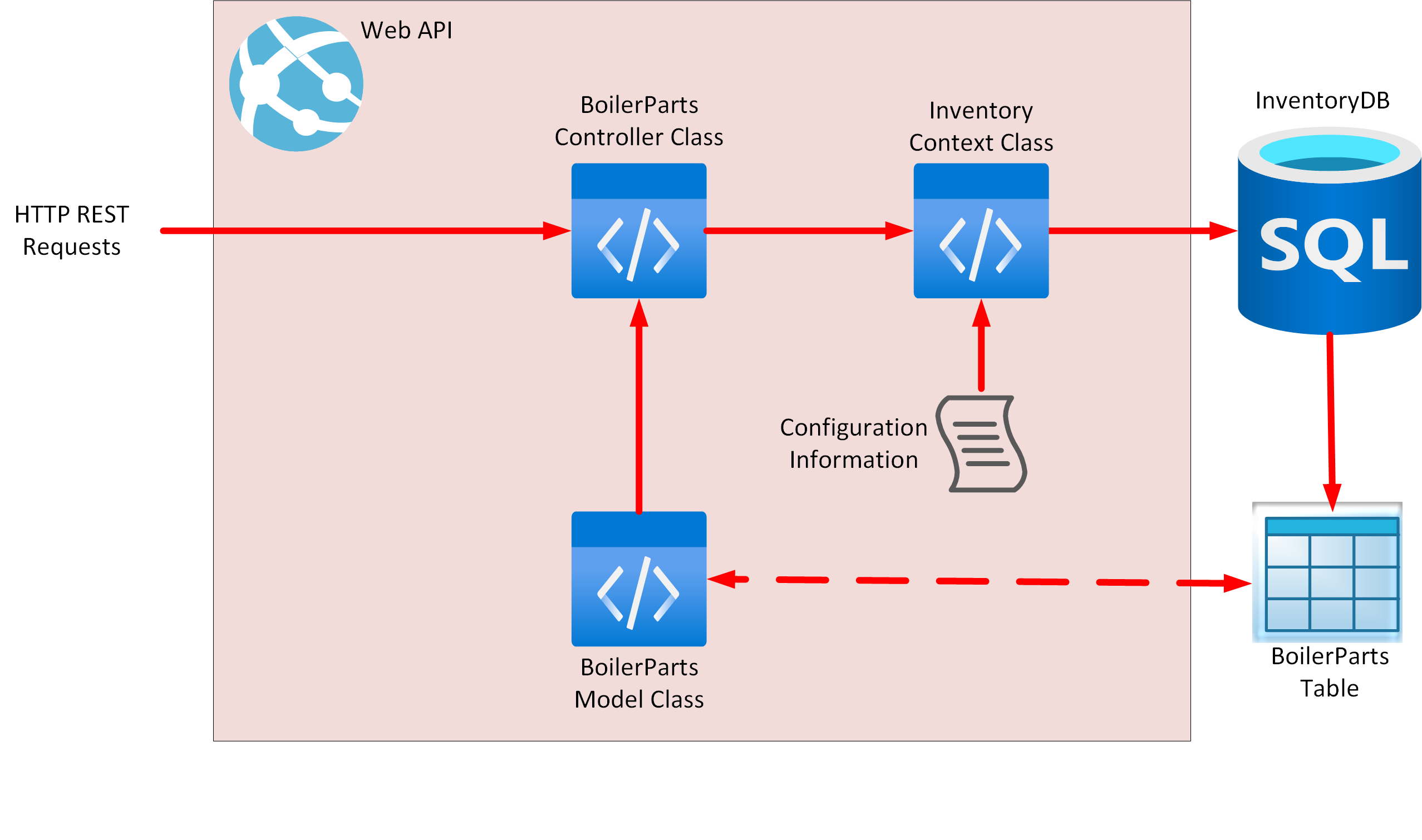
定義了自己的 C# 模型類別,以鏡像 InventoryDB 資料庫中 BoilerParts 資料表的結構。
已建立一個由 Web API 使用的 Entity Framework 上下文 類別,用來連線到資料庫並執行查詢。
已設定內容類別以連線到 Azure 中的 InventoryDB 資料庫。
使用 Entity Framework 命令列工具來產生 Web API 控制器 類別,針對可針對 BoilerParts 資料表執行的每個作業實作 HTTP REST 要求。
使用 Swagger API 來測試 Web API。
下圖顯示 Web API 的高階結構。
Kiana 使用下列程式,使用 .NET 6.0 命令列工具和 Visual Studio Code 來建立 Web API:
在 Visual Studio Code 中開啟終端機視窗。
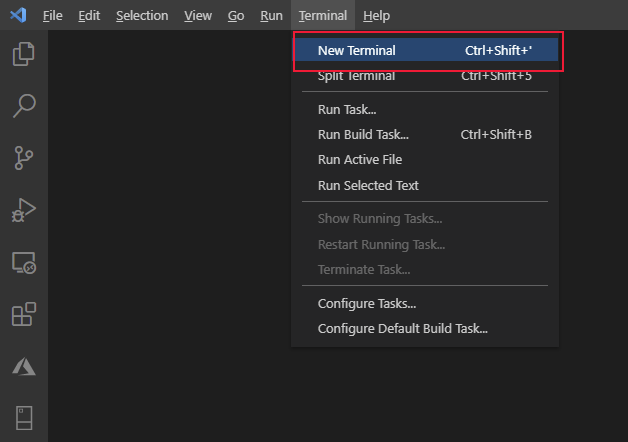
執行下列命令,以建立名為 FieldEngineerApi 的新 Web API 專案。
dotnet new webapi -o FieldEngineerApi開啟 FieldEngineerApi 資料夾。
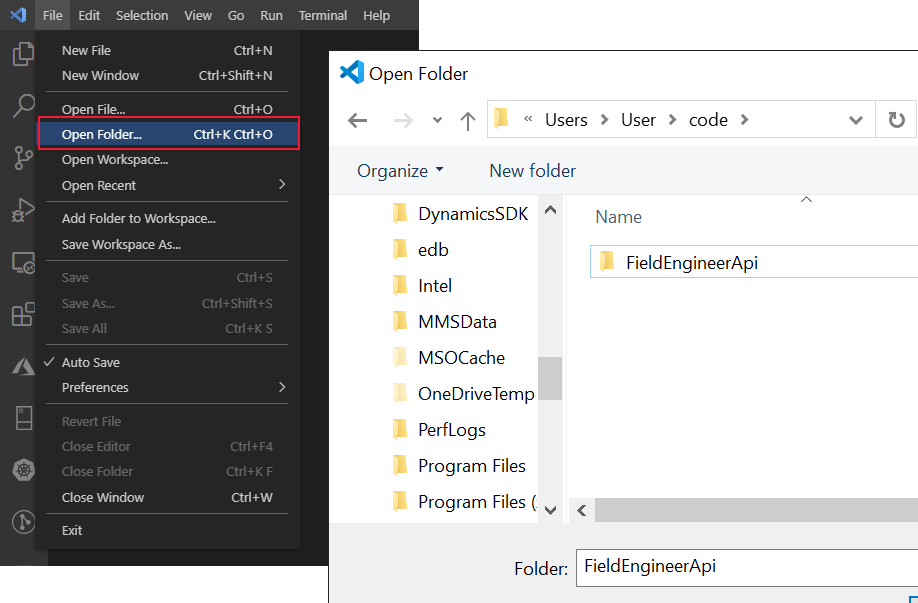
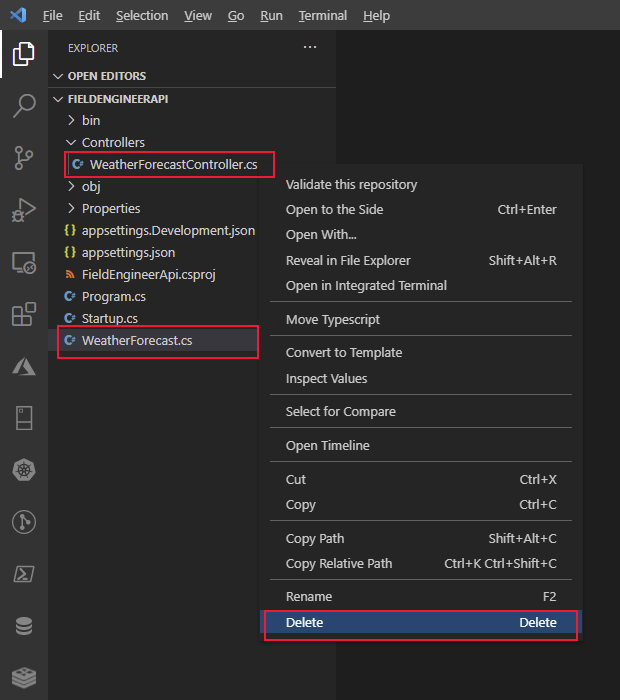
移除 Web API 範本所建立 WeatherForecastController.cs 控制器和 WeatherForecast.cs 類別檔案的範例。
在 [終端機] 視窗中,將下列 Entity Framework 套件和工具,以及使用 SQL Server 的支援新增至專案。
dotnet add package Microsoft.EntityFrameworkCore.SqlServer

dotnet add package Microsoft.VisualStudio.Web.CodeGeneration.Design

dotnet add package Microsoft.EntityFrameworkCore.Design

dotnet add package Microsoft.AspNetCore.Mvc.NewtonsoftJson

dotnet tool install --global dotnet-ef

dotnet tool install --global dotnet-aspnet-codegenerator
在 FieldEngineerApi 資料夾中,建立名為 Models 的新資料夾。
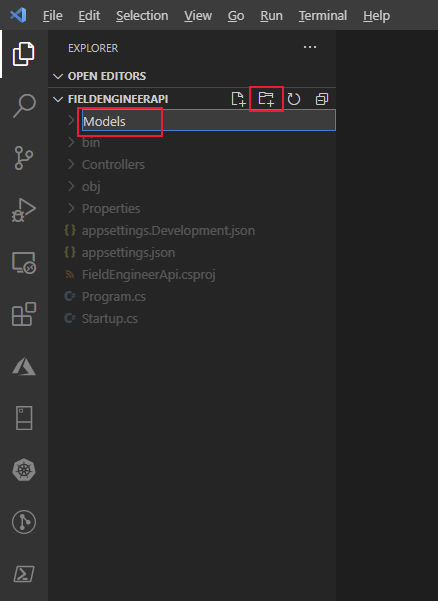
在 Models 資料夾中,建立名為 BoilerPart.cs 的 C# 程式碼檔。
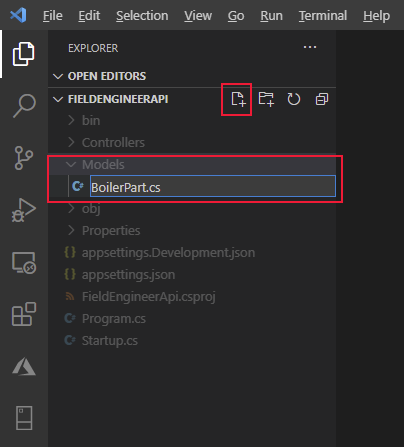
在此檔案中,新增下列屬性和欄位。 這些內容和欄位會鏡像 InventoryDB 資料庫中 BoilerParts 資料表的結構。
using System.Collections.Generic;
using System.ComponentModel.DataAnnotations;
using System.ComponentModel.DataAnnotations.Schema;

namespace FieldEngineerApi.Models
{

    public class BoilerPart
    {
        [Key]
        public long Id { get; set; }

        public string Name { get; set; }

        public string CategoryId { get; set; }

        [Column(TypeName = "money")]
        public decimal Price { get; set; }

        public string Overview { get; set; }

        public int NumberInStock { get; set; }

        public string ImageUrl { get; set; }
    }
}
在 Models 資料夾中,建立另一個名為 InventoryContext.cs 的 C# 程式碼檔。 將下列程式碼新增至此類別。 此類別會提供控制器 (下一個要建立的) 和資料庫之間的連線。
using Microsoft.EntityFrameworkCore;

namespace FieldEngineerApi.Models
{
    public class InventoryContext : DbContext
    {
        public InventoryContext(DbContextOptions<InventoryContext> options)
            : base(options)
        {

        }

        public DbSet\<BoilerPart\> BoilerParts { get; set; }
    }
}
編輯專案的 appsettings.Development.json 檔案,並使用下列 InventoryDB 連接字串新增 ConnectionStrings 區段。 將<伺服器名稱>替換為您為儲存 InventoryDB 資料庫而建立的 SQL 資料庫伺服器名稱。
{
    "ConnectionStrings": {
        "InventoryDB": "Server=tcp*:<server name>*.database.windows.net,1433;Initial Catalog=InventoryDB;Persist Security Info=False;User ID=sqladmin;Password=Pa55w.rd;MultipleActiveResultSets=False;Encrypt=True;TrustServerCertificate=False;Connection Timeout=30;"
    },
    "Logging": {
        "LogLevel": {
            "Default": "Information",
            "Microsoft": "Warning",
            "Microsoft.Hosting.Lifetime": "Information"
        }
    }
}
這很重要
僅就本指南而言,連接字串包含資料庫的使用者 ID 和密碼。 在正式作業系統中,您絕不應將這些項目以純文字形式儲存在組態檔中。
編輯 Startup.cs 檔案,並將下列 using 指示詞新增至檔案開頭的清單。
using FieldEngineerApi.Models;
using Microsoft.EntityFrameworkCore;
在 Startup 類別中,尋找 ConfigureServices 方法。 將下列陳述式新增至此方法。
public void ConfigureServices(IServiceCollection services)
{

    services.AddDbContext<InventoryContext>(options =>
        options.UseSqlServer(Configuration.GetConnectionString("InventoryDB")));

    services.AddControllers();
    ...
}
修改 Configure 方法,並啟用 Swagger UI,即使應用程式在生產模式中執行,如圖所示(此變更涉及將兩個 app.UseSwagger 方法呼叫移到 if 陳述式之外)。
public void Configure(IApplicationBuilder app, IWebHostEnvironment env)
{
    if (env.IsDevelopment())
    {
        app.UseDeveloperExceptionPage();
    }
    app.UseSwagger();
    app.UseSwaggerUI(c => c.SwaggerEndpoint("/swagger/v1/swagger.json", "FieldEngineerApi v1"));

    ...
}
這很重要
這項變更可讓 Swagger 端點公開以供 API 管理 整合。 設定 API 管理 之後,您應該將此程式碼移回 if 陳述式內,並重新部署 Web API。 切勿在生產系統中開啟 Swagger 端點。
在 [終端機] 視窗中,執行下列命令,從 BoilerPart 模型類別和 InventoryContext 環境定義類別產生 BoilerParts 控制器。
dotnet aspnet-codegenerator controller ^
    -name BoilerPartsController -async -api ^
     -m BoilerPart -dc InventoryContext -outDir Controllers
BoilerParts 控制器應在 Controllers 資料夾中建立。
[!注意] 行終止字元^僅由 Windows 識別。 如果您在 Linux 系統上執行 Visual Studio Code,請改用字 \ 元。
開啟控制器資料夾中的BoilerParts.cs檔案,然後檢閱其內容。 BoilerPartsController 類別會公開下列 REST 方法:
- GetBoilerParts(),這會傳回資料庫中所有 BoilerPart 物件的清單。
- GetBoilerPart(long id) ,以擷取指定鍋爐零件的詳細數據。
- PutBoilerPart(long id, BoilerPart boilerPart),這會使用指定為參數的 BoilerPart 物件中的詳細資料來更新資料庫中的鍋爐零件。
- PostBoilerPart(BoilerPart boilerPart),以創建新的鍋爐零件。
- DeleteBoilerPart(long id),這會從資料庫中移除指定的鍋爐零件。
備註
技術人員的應用程式只需要兩個 Get 方法,但其他方法對於桌面庫存管理應用程式很有用 (本指南未涵蓋)。
編譯並建置 Web API。
dotnet build
Web API 應該在不報告任何錯誤或警告的情況下建置。
將 Web API 部署至 Azure:現場庫存管理
Kiana 藉由執行下列工作來部署和測試 Web API:
使用 Visual Studio Code 中的 Azure 帳戶延伸模組,登入您的 Azure 訂用帳戶。
從 Visual Studio Code 的 [終端機] 視窗中,在 Azure 訂用帳戶中建立名為 webapi_rg 的新資源群組。 在下列命令中,將位置<取代>為離您最近的 Azure 區域。
az group create ^
    --name webapi_rg ^
    --location <location>
建立 Azure App Service 方案,以提供裝載 Web API 的資源。
az appservice plan create ^
    --name webapi_plan ^
    --resource-group webapi_rg ^
    --sku F1
備註
F1 是 App Service 方案的免費 SKU。 它提供有限的吞吐量和容量,僅適用於開發目的。
使用 App Service 方案建立 Azure Web 應用程式。 將 <Web 應用程式名稱>替換為 Web 應用程式的唯一名稱。
az webapp create ^
    --name <webapp name> ^
    --resource-group webapi_rg ^
    --plan webapi_plan
在 Visual Studio Code 中,編輯 appSettings.json 檔案,並將您先前寫入 appSettings.Development.json 檔案的相同連接字串。 請記得將 <伺服器名稱> 替換為您用來保存 InventoryDB 資料庫的 SQL Server 名稱。
{
    "ConnectionStrings": {
        "InventoryDB": "Server=tcp:<server name>.database.windows.net,1433;Initial Catalog=InventoryDB;Persist Security Info=False;User ID=sqladmin;Password=Pa55w.rd;MultipleActiveResultSets=False;Encrypt=True;TrustServerCertificate=False;Connection Timeout=30;"**
    },
    "Logging": {
        "LogLevel": {
            "Default\: "Information",
            "Microsoft": "Warning",
            "Microsoft.Hosting.Lifetime": "Information"
        }
    },
    "AllowedHosts": "*"
}
在 [終端機] 視窗中,封裝準備好部署至 Azure 的 Web API。
dotnet publish -c Release -o ./publish此命令會將封裝的檔案儲存至名為 publish 的資料夾。
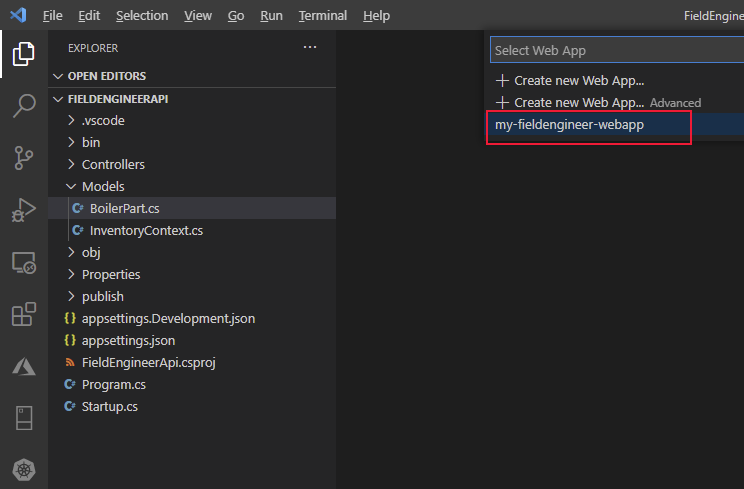
在 Visual Studio Code 中,以滑鼠右鍵按一下 發佈 資料夾,然後選取 [部署至 Web 應用程式]。
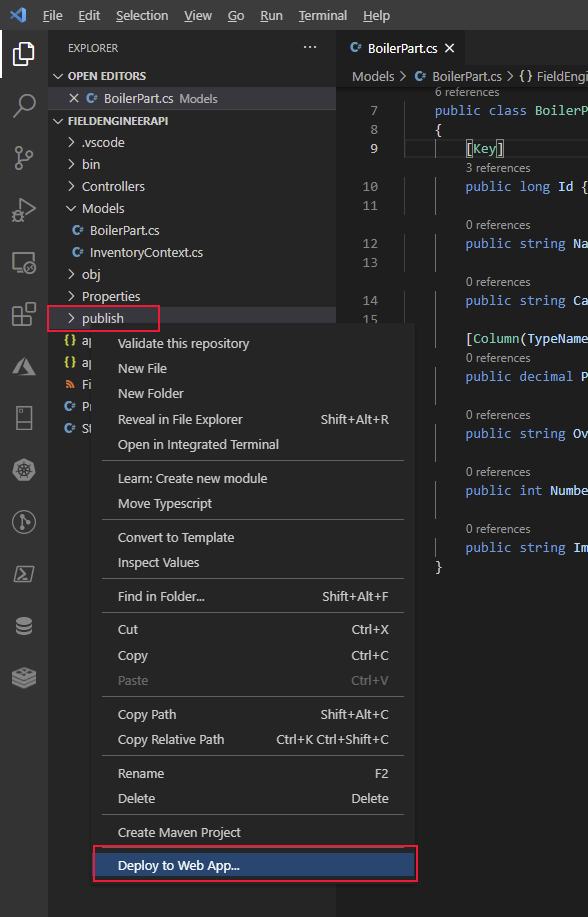
選取您稍早在步驟 4 中建立的 Web 應用程式名稱 (<Web 應用程式名稱>)。 在下列範例中,Web 應用程式名為 my-fieldengineer-webapp。
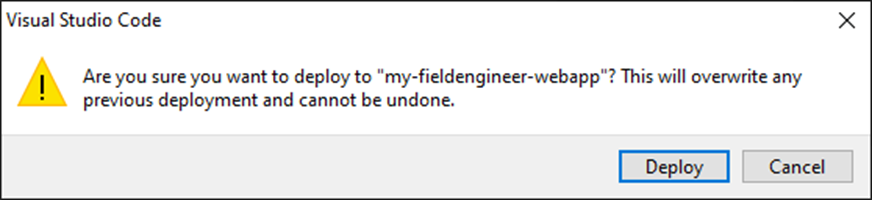
在 [Visual Studio Code] 對話方塊中的提示中,選取 [部署] 以接受警告並部署 Web 應用程式。
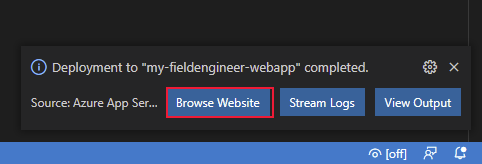
確認 Web 應用程式已成功部署,然後瀏覽至網站。
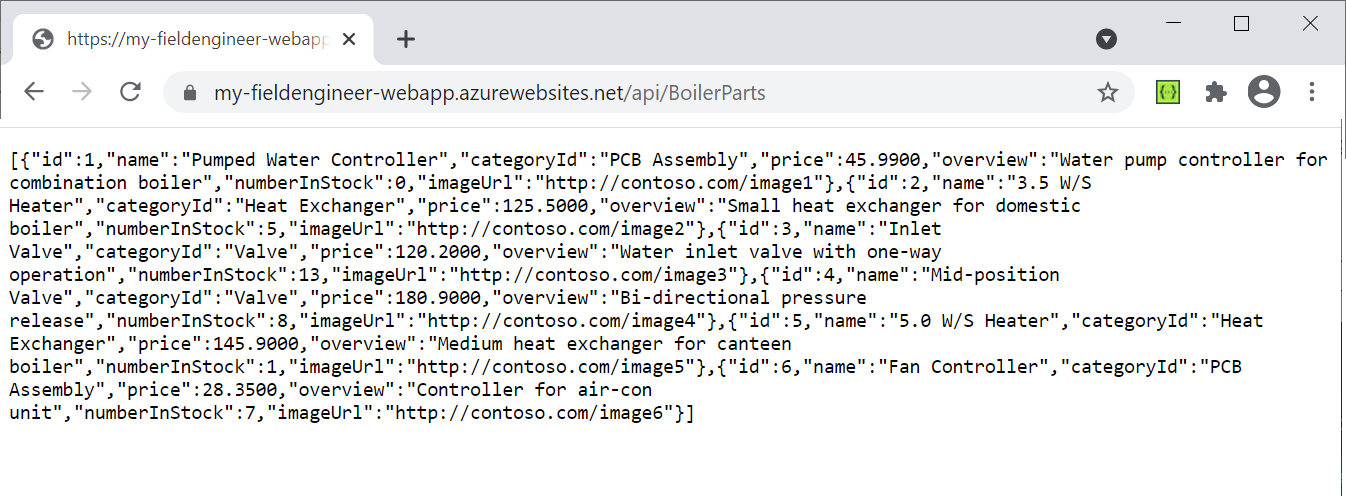
網站將在新的瀏覽器視窗中開啟,但會顯示 HTTP 404 錯誤 (找不到)。 這是因為 Web API 作業可透過 API 端點使用,而不是網站的根目錄。 將 URL 變更為 https:// <webapp name.azurewebsites.net/api/BoilerParts>。 此 URI 會叫用 BoilerParts 控制器中的 GetBoilerParts 方法。 Web API 應該以 JSON 文件回應,其中列出 InventoryDB 資料庫中的所有鍋爐零件。
將瀏覽器中的 URL 變更為 https:// <webapp name.azurewebsites.net/swagger>。 Swagger API 應該會出現。 這是一個圖形使用者介面,可讓開發人員驗證和測試 Web API 中的每個作業。 它也可以作為有用的文檔工具。
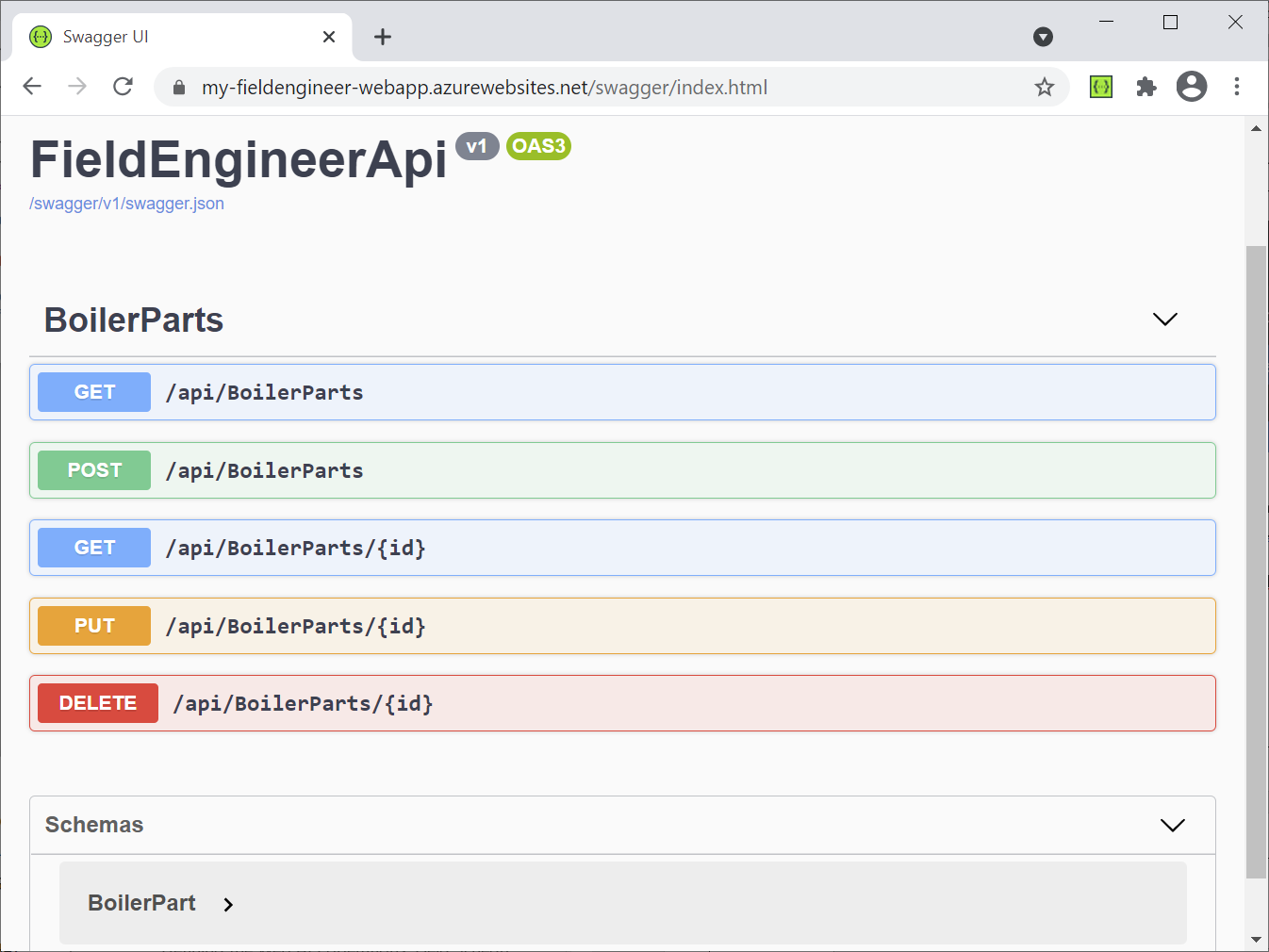
選取 /api/BoilerParts/{id} 端點旁的 GET,然後選取試用。
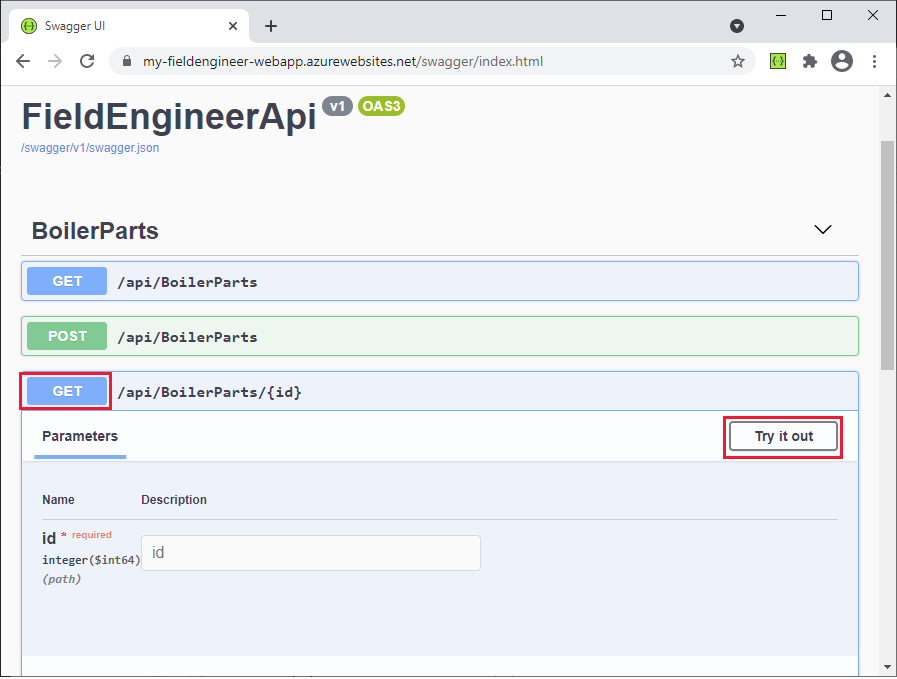
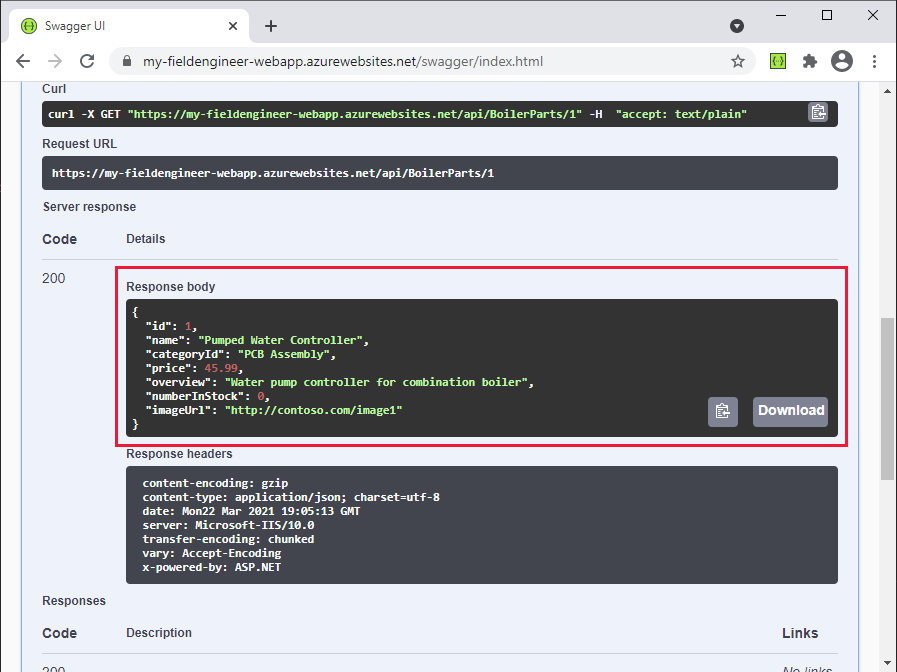
在 ID 欄位中,輸入零件的 ID,然後選取執行。 此動作會呼叫 BoilerParts 控制器中的 GetBoilerPart(long id) 方法。 如果在資料庫中找不到相符的零件,它會傳回包含零件詳細資料的 JSON 文件,或傳回 HTTP 404 錯誤。
關閉網頁瀏覽器並返回 Visual Studio Code。
建置和部署 Web API:領域知識庫
Web API 中的「欄位知識庫」作業適用於 KnowledgeDB 資料庫中的三個資料表: Tips、 BoilerParts 和 Engineers。 下圖顯示這些資料表及其所包含的資料行之間的關聯性。
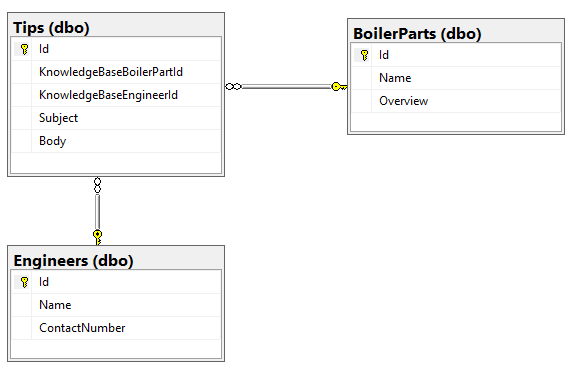
Kiana 對用於現場庫存管理資料庫的現場知識庫資料庫採用了類似的方法,並執行了以下任務:
建立 C# 模型類別,以鏡像 KnowledgeDB 資料庫中 Tips、BoilerParts 和 Engineers 資料表的結構。 每個類別的程式碼如下所示。
備註
KnowledgeDB 資料庫中的 BoilerParts 資料表與 InventoryDB 資料庫中的 BoilerParts 資料表不同。 為了避免名稱衝突, KnowledgeDB 資料庫中資料表的模型類別具有 KnowledgeBase 前置詞。
// KnowledgeBaseTips.cs

using System.ComponentModel.DataAnnotations;

namespace FieldEngineerApi.Models
{
    public class KnowledgeBaseTip
    {
        [Key]
        public long Id { get; set; }

        public long KnowledgeBaseBoilerPartId { get; set; }

        public virtual KnowledgeBaseBoilerPart KnowledgeBaseBoilerPart { get; set; }

        public string KnowledgeBaseEngineerId { get; set; }

        public virtual KnowledgeBaseEngineer KnowledgeBaseEngineer { get; set; }

        public string Subject { get; set; }

        public string Body { get; set; }
    }
}
備註
工程師 ID 是字串,而不是數字。 這是因為現有的系統會使用 GUID 來識別技術人員和其他使用者。
// KnowledgeBaseBoilerPart.cs

using System.Collections.Generic;
using System.ComponentModel.DataAnnotations;

namespace FieldEngineerApi.Models
{
    public class KnowledgeBaseBoilerPart
    {
        [Key]
        public long Id { get; set; }

        public string Name { get; set; }

        public string Overview { get; set; }

        public virtual ICollection<KnowledgeBaseTip> KnowledgeBaseTips { get; set; }
    }
}
// KnowledgeBaseEngineer.cs using System.Collections.Generic; using System.ComponentModel.DataAnnotations; namespace FieldEngineerApi.Models { public class KnowledgeBaseEngineer { [Key] public string Id { get; set; } [Required] public string Name { get; set; } public string ContactNumber { get; set; } public virtual ICollection<KnowledgeBaseTip> KnowledgeBaseTips { get; set; } } }建立另一個 Entity Framework 內容 類別,讓 Web API 用來連線到 KnowledgeDB 資料庫。
// KnowledgeBaseContext.cs

using Microsoft.EntityFrameworkCore;

namespace FieldEngineerApi.Models
{
    public class KnowledgeBaseContext : DbContext
    {
        public KnowledgeBaseContext(DbContextOptions<KnowledgeBaseContext> options)
            : base(options)
        {

        }

        public DbSet<KnowledgeBaseBoilerPart> BoilerParts { get; set; }

        public DbSet<KnowledgeBaseEngineer> Engineers { get; set; }

        public DbSet<KnowledgeBaseTip> Tips { get; set; }
    }
}
編輯專案的 appsettings.Development.json 檔案,並將下列 KnowledgDB 連接字串新增至 ConnectionStrings 區段。 請將<伺服器名稱>替換為您建立的用來保存 KnowledgeDB 資料庫的 SQL 資料庫伺服器名稱。
{
    "ConnectionStrings": {
        "InventoryDB": "Server=tcp:...",
        "KnowledgeDB": "Server=tcp:<server name>.database.windows.net,1433;Initial Catalog=KnowledgeDB;Persist Security Info=False;User ID=sqladmin;Password=Pa55w.rd;MultipleActiveResultSets=False;Encrypt=True;TrustServerCertificate=False;Connection Timeout=30;"
    },
    "Logging": {
        ...
        }
    }
}
這很重要
僅就本指南而言,連接字串包含資料庫的使用者 ID 和密碼。 在正式作業系統中,您絕不應將這些項目以純文字形式儲存在組態檔中。
編輯 Startup.cs 檔案,並在 ConfigureServices 方法中新增下列陳述式。
public void ConfigureServices(IServiceCollection services)
{
    services.AddDbContext<InventoryContext>...;

    services.AddDbContext<KnowledgeBaseContext>(options =>
        options.UseSqlServer(Configuration.GetConnectionString("KnowledgeD")));

    services.AddControllers().AddNewtonsoftJson(
        options => options.SerializerSettings.ReferenceLoopHandling = Newtonsoft.Json.ReferenceLoopHandling.Ignore**
    );

    services.AddControllers();
    ...
}
第二個陳述式控制擷取資料時序列化資料的方式。 某些模型類別具有對其他模型類別的引用,而這些模型類別又可以引用其他模型類別。 其中一些參考可能會導致遞迴迴圈 (實體 A 參考實體 B,實體 B 參考回實體 A,實體 A 再次參考實體 B,依此類推)。 ReferenceLoopHandling 選項會導致序列化程式忽略資料中的這類迴圈,而且只會傳回實體及其立即參考的物件,但不會傳回更多。
在 「終端機」 視窗中,執行下列指令,從 KnowledgeBaseBoilerTip、 KnowledgeBaseBoilerPart 和 KnowledgeBaseEngineer 模型類別以及 KnowledgeBaseContext 環境定義類別產生控制器。
dotnet aspnet-codegenerator controller ^
    -name KnowledgeBaseTipController -async -api ^
    -m KnowledgeBaseTip ^
    -dc KnowledgeBaseContext -outDir Controllers

dotnet aspnet-codegenerator controller ^
    -name KnowledgeBaseBoilerPartController -async -api ^
    -m KnowledgeBaseBoilerPart ^
    -dc KnowledgeBaseContext -outDir Controllers

dotnet aspnet-codegenerator controller ^
    -name KnowledgeBaseEngineerController -async -api ^
    -m KnowledgeBaseEngineer ^
    -dc KnowledgeBaseContext -outDir Controllers
所有三個控制器都應在 Controllers 資料夾中建立。
編輯 KnowledgeBaseBoilerPartController.cs 檔案。 此檔案包含 KnowledgeBaseBoilerPart 控制器的程式碼。 它應該遵循與稍早建立的 BoilerPartsController 類別相同的模式,公開 REST 方法,讓用戶端能夠列出、查詢、插入、更新和刪除實體。 將下列 GetTipsForPart 方法新增至控制器。
[Route("api/[controller]")]
[ApiController]

public class KnowledgeBaseBoilerPartController : ControllerBase
{
    private readonly KnowledgeBaseContext _context;

    public KnowledgeBaseBoilerPartController(KnowledgeBaseContext context)
    {
        _context = context;
    }

    // GET: api/KnowledgeBaseBoilerPart/5/Tips
    [HttpGet("{id}/Tips")]
    public async Task<ActionResult<IEnumerable<KnowledgeBaseTip>>>GetTipsForPart(long id)
    {
        return await _context.Tips.Where(
            t => t.KnowledgeBaseBoilerPartId == id).ToListAsync();
    }
    ...
}
這個方法會傳回所有參考指定零件的知識庫提示。 它會透過 KnowledgeBaseContext 物件查詢資料庫中的 Tips 資料表,以尋找這項資訊。
編輯 KnowledgeBaseEngineerController.cs 檔案,並將下列方法新增至 KnowledgeBaseEngineerController 類別。
[Route("api/[controller]")]
[ApiController]
public class KnowledgeBaseEngineerController : ControllerBase
{
    private readonly KnowledgeBaseContext _context;

    public KnowledgeBaseEngineerController(KnowledgeBaseContext context)
    {
        _context = context;
    }

    // GET: api/KnowledgeBaseEngineer/5/Tips
    [HttpGet("{id}/Tips")]
    public async Task\<ActionResult<IEnumerable<KnowledgeBaseTip>>> GetTipsForEngineer(string id)
    {
        return await _context.Tips.Where(t =>
            t.KnowledgeBaseEngineerId == id).ToListAsync();
    }

    ...
}
GetTipsForEngineer 方法會尋找指定工程師張貼的所有知識庫提示。
在 [終端機] 視窗中,編譯並建置 Web API。
dotnet buildWeb API 應該在不報告任何錯誤或警告的情況下建置。
編輯 appSettings.json 檔案,並新增 KnowledgeDB 資料庫的連接字串。 此字串應該與您先前寫入 appSettings.Development.json 檔案的字串相同。
{
    "ConnectionStrings": {
        "InventoryDB": ...,
        "KnowledgeDB": "Server=tcp:<server name>.database.windows.net,1433;Initial Catalog=KnowledgeDB;Persist Security Info=False;User ID=sqladmin;Password=Pa55w.rd;MultipleActiveResultSets=False;Encrypt=True;TrustServerCertificate=False;Connection Timeout=30;"
    },
    "Logging": {
        ...
    },
    "AllowedHosts": "*"
}
在 [終端機] 視窗中,封裝準備好部署至 Azure 的 Web API。
dotnet publish -c Release -o ./publish在 Visual Studio Code 中,以滑鼠右鍵按一下 發佈 資料夾,然後選取 [部署至 Web 應用程式]。 部署至您先前建立的相同 Azure Web 應用程式。 允許精靈以新程式碼覆寫現有的 Web 應用程式。
部署完成後,瀏覽至網站,但將瀏覽器中的 URL 變更為 https:// <webapp name.azurewebsites.net/swagger>。 除了現有的 BoilerParts 作業之外,還應列出 KnowledgeBaseBoilerPart、KnowledgeBaseEngineer 及 KnowldgeBaseTip 控制器的作業。 確認 KnowledgeBaseBoilerPart 作業包含 URI /api/KnowledgeBaseBoilerPart/{id}/Tips 的 GET 作業,且 KnowledgeBaseEngineer 作業包含 URI /api/KnowledgeBaseEngineer/{id}/Tips 的 GET 作業。
Swagger UI 新增了新操作。
建置和部署 Web API:現場調度
現場排程作業會使用資料表Appointments、AppointmentStatuses(這是一個列出有效約會狀態值的簡單查詢資料表)、Customers和Engineers,如下圖所示。 這些資料表儲存在 SchedulesDB 資料庫中。
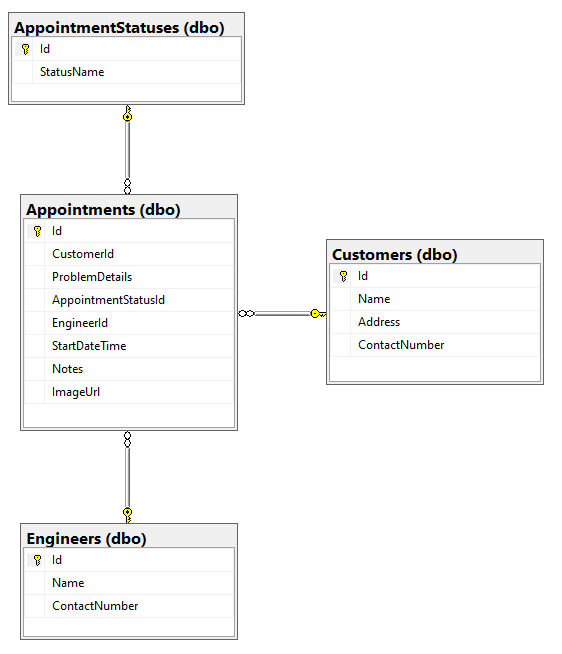
若要為系統的「現場排程」部分建立 Web API 作業,Kiana 執行了下列工作:
建立 C# 模型類別,以鏡像 SchedulesDB 資料庫中 AppointmentStatus、Appointments、Customers 和 Engineers 資料表的結構。 下列程式碼顯示每個類別。
備註
Engineers 資料表的模型類別會命名為 ScheduleEngineer,以將其與 InventoryDB 資料庫中 Engineers 資料表的模型區分開來。
// AppointmentStatus.cs

using Newtonsoft.Json;
using System.Collections.Generic;
using System.ComponentModel.DataAnnotations;

namespace FieldEngineerApi.Models
{
    public class AppointmentStatus {
        [Key]
        public long Id { get; set; }

        public string StatusName { get; set; }
        [JsonIgnore]
        public virtual ICollection<Appointment> Appointments { get; set; }
    }
}
// Appointment.cs using System; using System.ComponentModel.DataAnnotations; namespace FieldEngineerApi.Models { public class Appointment { [Key] public long Id { get; set; } [Required] public long CustomerId { get; set; } public virtual Customer Customer { get; set; } public string ProblemDetails { get; set; } [Required] public long AppointmentStatusId { get; set; } public virtual AppointmentStatus AppointmentStatus { get; set; } public string EngineerId { get; set; } public virtual ScheduleEngineer Engineer { get ; set; } [Display(Name = "StartTime")] [DataType(DataType.DateTime)] [DisplayFormat(DataFormatString = "{0:MM/dd/yyyy H:mm:ss}")] public DateTime StartDateTime { get; set; } public string Notes { get; set; } public string ImageUrl { get; set; } } }// Customer.cs using System.Collections.Generic; using System.ComponentModel.DataAnnotations; namespace FieldEngineerApi.Models { public class Customer { [Key] public long Id { get; set; } [Required] public string Name { get; set; } public string Address { get; set; } public string ContactNumber { get; set; } public virtual ICollection<Appointment> Appointments { get; set; } } }// ScheduleEngineer.cs using Newtonsoft.Json; using System.ComponentModel.DataAnnotations; using System.Collections.Generic; namespace FieldEngineerApi.Models { public class ScheduleEngineer { [Key] public string Id { get; set; } [Required] public string Name { get; set; } public string ContactNumber { get; set; } [JsonIgnore] public virtual ICollection<Appointment> Appointments { get; set; } } }建立一個 Entity Framework 上下文 類別,供 Web API 用來連接到 SchedulesDB 資料庫。
// ScheduleContext.cs

using System;
using Microsoft.EntityFrameworkCore;

namespace FieldEngineerApi.Models
{
    public class ScheduleContext : DbContext
    {
        public ScheduleContext(DbContextOptions<ScheduleContext> options)
            : base(options)
        {

        }

        public DbSet<Appointment> Appointments { get; set; }

        public DbSet<AppointmentStatus> AppointmentStatuses { get; set; }

        public DbSet<Customer> Customers { get; set; }

        public DbSet<ScheduleEngineer> Engineers { get; set; }
    }
}
編輯專案的 appsettings.Development.json 檔案,並將下列 SchedulesDB 連接字串新增至 ConnectionStrings 區段。 請將<伺服器名稱>替換為您建立的用來保存 KnowledgeDB 資料庫的 SQL 資料庫伺服器名稱。
{
    "ConnectionStrings": {
        "InventoryDB": "Server=tcp*: ...",
        "KnowledgeDB": "Server=tcp; ... ",
        "SchedulesDB": "Server=tcp:<server name>.database.windows.net,1433;Initial Catalog=SchedulesDB;Persist Security Info=False;User ID=sqladmin;Password=Pa55w.rd;MultipleActiveResultSets=False;Encrypt=True;TrustServerCertificate=False;Connection Timeout=30;"
    },
    "Logging": {
        ...
        }
    }
}
編輯 Startup.cs 檔案,並在 ConfigureServices 方法中新增下列陳述式。
public void ConfigureServices(IServiceCollection services)
{
    services.AddDbContext<InventoryContext>...;

    services.AddDbContex\<KnowledgeBaseContext>...;

    services.AddDbContext<ScheduleContext>(options =>
        options.UseSqlServer(Configuration.GetConnectionString("SchedulesDB")));

    services.AddControllers().AddNewtonsoftJson(...);

    ...
}
在 [終端機] 視窗中,執行下列命令,從 Appointment、 Customer 和 ScheduleEngineer 模型類別,以及 ScheduleContext 環境定義類別產生控制器。
備註
請勿為 AppointmentStatus 模型建立個別控制器。
dotnet aspnet-codegenerator controller ^
    -name AppointmentsController -async -api ^
    -m Appointment ^
    -dc ScheduleContext -outDir Controllers

dotnet aspnet-codegenerator controller ^
    -name CustomerController -async -api ^
    -m Customer ^
    -dc ScheduleContext -outDir Controllers

dotnet aspnet-codegenerator controller ^
    -name ScheduleEngineerController -async -api ^
    -m ScheduleEngineer ^
    -dc ScheduleContext -outDir Controllers
編輯 AppointmentsController.cs 檔案。 在 AppointmentsController 類別中,尋找 GetAppointments 方法。 修改 return 陳述式,如下所示。 此變更可確保在 GET 作業中擷取 Customer、Engineer 和 AppointmentStatus 資訊;這些欄位會參考其他實體,否則這些實體會因為 Entity Framework 的延遲載入機制而保留為 Null。
public class AppointmentsController : ControllerBase
{
    private readonly ScheduleContext _context;

    public AppointmentsController(ScheduleContext context)
    {
        _context = context;
    }

    // GET: api/Appointments

    [HttpGet]
    public async Task<ActionResult<IEnumerable<Appointment>>> GetAppointments()
    {
        return await _context.Appointments
            .Include(c => c.Customer)
            .Include(e => e.Engineer)
            .Include(s => s.AppointmentStatus)
            .ToListAsync();
    }

    ...
}
在相同的檔案中,修改 GetAppointment(long id) 方法,如下所示。
// GET: api/Appointments/5
[HttpGet("{id}")]
public async Task<ActionResult<Appointment>> GetAppointment(long id)
{
    var appointment = _context.Appointments
        .Where(a => a.Id == id)
        .Include(c => c.Customer)
        .Include(e => e.Engineer)
        .Include(s => s.AppointmentStatus);

    var appData = await appointment.FirstOrDefaultAsync();
    if (appData == null)
    {
        return NotFound();
    }

    return appData;
}
此版本的方法會在約會被擷取時填入約會的 Customer、 Engineer 和 AppointmentStatus 欄位(否則延遲載入會維持這些欄位空白)。
找到 PutAppointment 方法,並將其替換為以下代碼。 此版本的 PutAppointment 方法會採用使用者可以在應用程式中修改的約會中的欄位,而不是完整的 Appointment 物件。
[HttpPut("{id}")]
public async Task<IActionResult> PutAppointment(long id,
    string problemDetails, string statusName,
    string notes, string imageUrl)
{

    var statusId = _context.AppointmentStatuses.First(s =>
        s.StatusName == statusName).Id;

    var appointment = _context.Appointments.First(e =>
        e.Id == id);

    if (appointment == null)
    {
        return BadRequest();
    }

    appointment.ProblemDetails = problemDetails;
    appointment.AppointmentStatusId = statusId;
    appointment.Notes = notes;
    appointment.ImageUrl = imageUrl;
    _context.Entry(appointment).State = EntityState.Modified;

    try
    {
        await _context.SaveChangesAsync();
    }
    catch (DbUpdateConcurrencyException)
    {
        if (!AppointmentExists(id))
        {
            return NotFound();
        }
        else
        {
            throw;
        }
    }

    return NoContent();
}
備註
一般而言,PUT 作業應該只修改應允許使用者更新的資料,而不一定是實體中的每個欄位。
開啟 ScheduleEngineerController.cs 檔案,並將下列 GetScheduleEngineerAppointments 方法新增至 ScheduleEngineerController 類別。
[Route("api/[controller]")]
[ApiController]
public class ScheduleEngineerController : ControllerBase
{
    private readonly ScheduleContext _context;

    public ScheduleEngineerController(ScheduleContext context)
    {
        _context = context;
    }

    // GET: api/ScheduleEngineer/5/Appointments
    [HttpGet("{id}/Appointments")]

    public async Task<ActionResult<IEnumerable<Appointment>>> GetScheduleEngineerAppointments(string id)
    {
        return await _context.Appointments
            .Where(a => a.EngineerId == id)
            .OrderByDescending(a => a.StartDateTime)
            .Include(c => c.Customer)
            .Include(e => e.Engineer)
            .Include(s => s.AppointmentStatus)
            .ToListAsync();
    }

    ...
}

These methods retrieve the appointments for the specified technician.
編輯 CustomerController.cs 檔案,並將 GetAppointments 和 GetNotes 方法新增至 CustomerController 類別。
[Route("api/[controller]")]
[ApiController]
public class CustomerController : ControllerBase
{
    private readonly ScheduleContext _context;

    public CustomerController(ScheduleContext context)
    {
        _context = context;
    }

    //GET: api/Customers/5/Appointments
    [HttpGet("{id}/Appointments")]
    public async Task<ActionResult<IEnumerable<Appointment>>> GetAppointments(long id)
    {
        return await _context.Appointments
            .Where(a => a.CustomerId == id)
            .OrderByDescending(a => a.StartDateTime)
            .ToListAsync();
    }

    //GET: api/Customers/5/Notes
    [HttpGet("{id}/Notes")]
    public async Task<ActionResult<IEnumerable<object>>> GetNotes(long id)
    {
        return await _context.Appointments
            .Where(a => a.CustomerId == id)
            .OrderByDescending(a => a.StartDateTime)
            .Select(a =>
                new {a.StartDateTime, a.ProblemDetails, a.Notes})
            .ToListAsync();
    }

    ...
}
GetAppointments 方法會尋找指定客戶的所有約會。 GetNotes 方法會擷取技術人員先前造訪客戶時所做的所有附註。
編輯 appSettings.json 檔案,並新增 KnowledgeDB 資料庫的連接字串。 此字串應該與您先前寫入 appSettings.Development.json 檔案的字串相同。
{
    "ConnectionStrings": {
        "InventoryDB": ...,
        "KnowledgeDB": ...,
        "SchedulesDB": "Server=tcp:<server name>.database.windows.net,1433;Initial Catalog=SchedulesDB;Persist Security Info=False;User ID=sqladmin;Password=Pa55w.rd;MultipleActiveResultSets=False;Encrypt=True;TrustServerCertificate=False;Connection Timeout=30;"
    },
    "Logging": {
        ...
    },
    "AllowedHosts": "*"
}
在 [終端機] 視窗中,編譯並建置 Web API。
dotnet buildWeb API 應該在不報告任何錯誤或警告的情況下建置。
在 [終端機] 視窗中,封裝準備好部署至 Azure 的 Web API。
dotnet publish -c Release -o ./publish在 Visual Studio Code 中,以滑鼠右鍵按一下 發佈 資料夾,然後選取 [部署至 Web 應用程式]。 部署至您先前建立的相同 Azure Web 應用程式。 允許精靈以新程式碼覆寫現有的 Web 應用程式。
部署完成後,瀏覽至網站,但將瀏覽器中的 URL 變更為 https:// <webapp name.azurewebsites.net/swagger>。 確認 Appointments、 Customer 和 ScheduleEngineer 控制器的作業現在可用。
Web API 現在已準備好合併到應用程式中。