適用於: 畫布應用程式 Copilot Studio 模型導向應用程式 Power Platform CLI Dataverse 函數
應用程式幕後通常會有許多邏輯在運作。 有時影響明顯,例如控制值或顏色改變,確認邏輯運作正確。 不過,有時並不明顯,可能很難具體呈現和了解應用程式中發生的情況。 使用此功能 Trace 從幕後記錄診斷資訊,建立實際發生情況的時間表,以進一步瞭解應用程式的運作方式,並協助偵錯問題。
在 Power Apps 中使用時,輸出 Trace 會與其他應用程式活動一同顯示在 Power Apps Live Monitor 工具中。 如果你允許應用程式將遙測資料傳送到 Azure Application Insights,這個 Trace 功能也可以用來將資訊傳送到你的 Application Insights 資源。 Trace 只能用於 行為公式 ——要從資料屬性追蹤值,需要使用除 錯按鈕等替代工具。
與 Test Studio 搭配使用時, Trace 是選用運算式,可用來在 OnTestCaseComplete 事件的測試結果中提供其他資訊。 Trace事件訊息會與 TestCaseResult 記錄的 Traces 資料表中通過和失敗的判斷提示訊息結合。 Traces 資料表有 Message 和 Timestamp 這兩個屬性。 Trace 測試中使用的資訊也會記錄在 Application Insights 中。 測試追蹤資訊無法在 Live Monitor 工具中取得,因為 Live Monitor 是連接到 App 的,從 Power Apps Studio 播放時。
語法
Trace( 訊息 [, TraceSeverity [, CustomRecord [, TraceOptions ] ] ] ) )
- Message –必需。 要追蹤的資訊。 數字、日期、布林值,以及任何可以強制轉成文字的資料類型。
- TraceSeverity —可選。 即時監控與應用洞察中記錄的 Trace 嚴重程度。 選項有 TraceSeverity.Information (預設)、TraceSeverity.Warning、TraceSeverity.Error 或 TraceSeverity.Critical。
- CustomRecord –可選。 包含自訂資料的紀錄,記錄於 Live Monitor 或 Application Insights。
- TraceOptions –可選。 選項有 TraceOptions.None (預設)和 TraceOptions.IgnoreUnsupportedTypes ,後者會忽略 CustomRecord 中無法序列化的資料型別。
範例
- 在 Power Apps Studio 中建立按鈕控制項。
- 將 OnSelect 公式設定為公式:
Set( x, x+1 );
Trace( x );
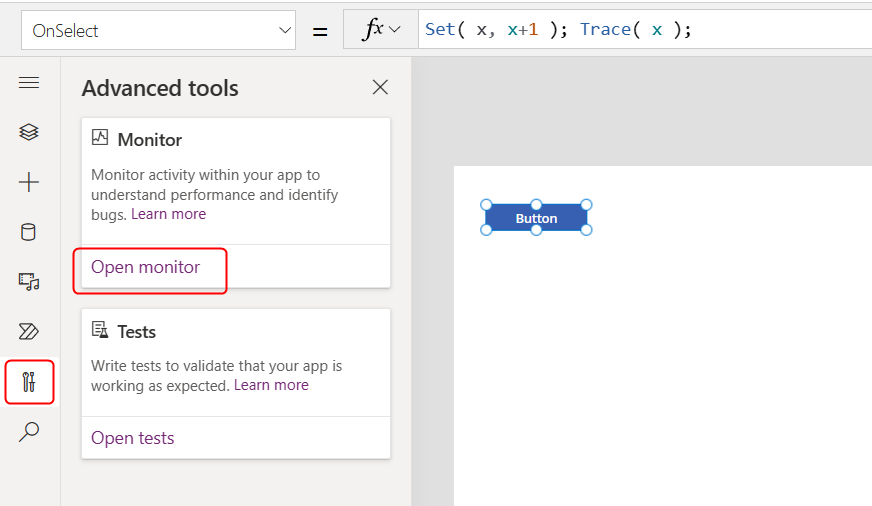
- 在另一個瀏覽器視窗中,選擇左側窗格的「進階工具」圖示,並選擇「開啟即時監視器」:這是
- 返回原始工作室瀏覽器視窗,並選取按鈕四次。 如果是在設計模式中,請使用滑鼠按住 Alt 鍵再按一下。
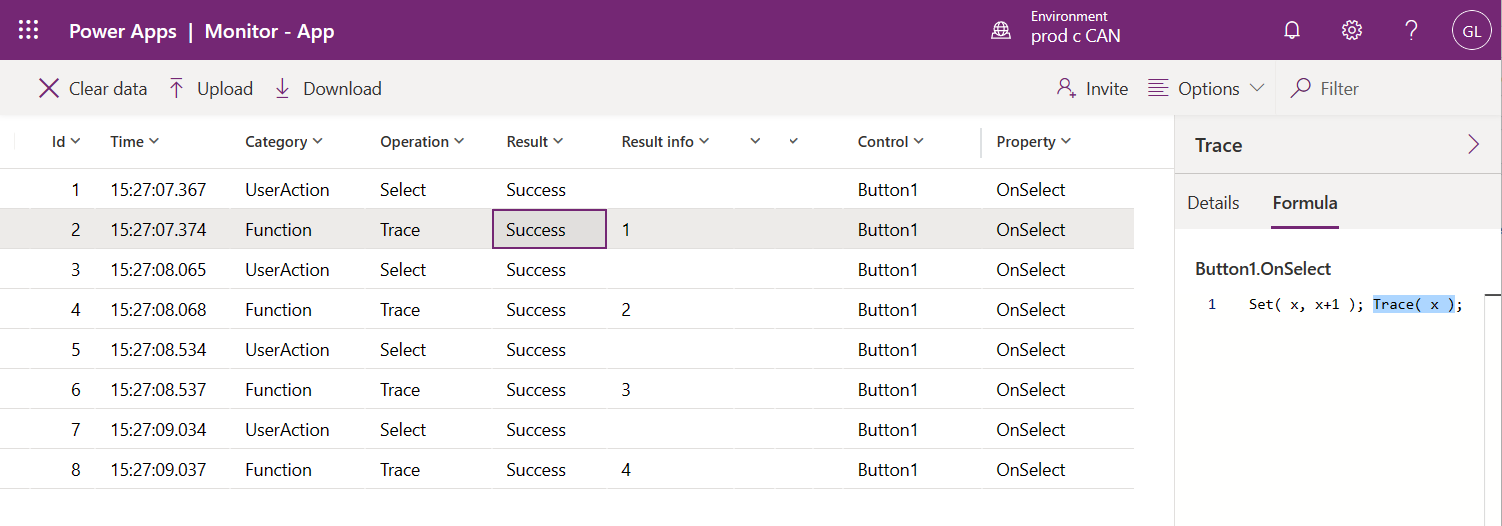
- 查看 Power Apps 即時監控器。
- Live Monitor 的格子會包含每次按鈕點擊和每次 Trace 通話的事件,並在每次遞增後顯示變數值。 深入 Trace 一個事件,查看右側面板中 的 是 Trace 從哪裡開始,以及訊息使用的表達式: